Can You Plug A Laptop Into A Docking Station Yes You Can
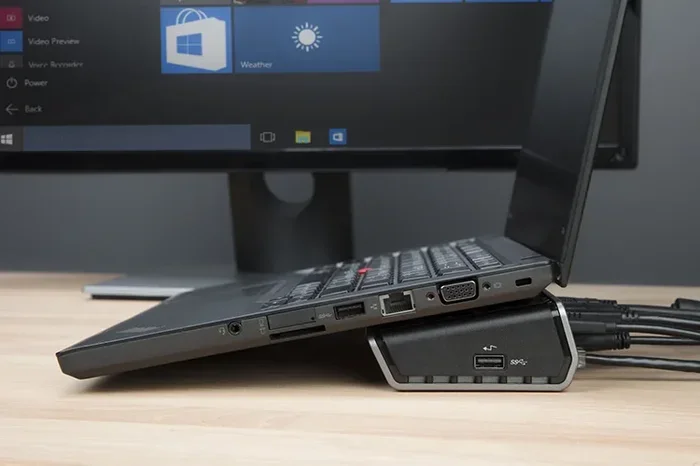
Yes, you can absolutely plug a laptop into a docking station, and it is one of the easiest ways to transform your portable computer into a full desktop workstation. A laptop docking station lets you connect multiple monitors, peripherals, and power through a single cable, saving you time and reducing cable clutter. Whether you use a USB-C hub or a Thunderbolt docking station, the process is straightforward once you know the basics. This guide covers everything you need to set up your docking station correctly and get the most out of your workspace.
Key Takeaways
- Docking stations simplify your setup: They let you connect monitors, keyboards, and power through one cable, making your desk setup much cleaner.
- Multiple types exist: USB-C, Thunderbolt, and proprietary docking stations each offer different features and compatibility options.
- Setup is usually plug-and-play: Most modern docking stations connect instantly without needing extra software or drivers.
- Compatibility matters: Always check that your laptop and docking station work together before purchasing.
- Productivity gets a boost: Using a docking station with an external monitor and full keyboard can significantly improve your daily workflow.
- Avoid common mistakes: Overloading ports and ignoring power delivery are frequent issues that new users face.
📑 Table of Contents
What Is a Laptop Docking Station?
A laptop docking station is a device that acts as a central hub for all your connections. You plug it into your laptop, and suddenly you have access to additional ports, external displays, and power supplies. Think of it as a bridge between your portable laptop and a full-sized desk setup.
Instead of plugging in five or six different cables every morning, you connect just one. That single cable handles video output, data transfer, charging, and more. It is a game-changer for anyone who moves between a desk and a coffee shop regularly.
How Docking Stations Work
Docking stations connect to your laptop through a specific port. Most modern laptops use USB-C or Thunderbolt ports for this purpose. Once connected, the docking station communicates with your laptop to share resources like display output and internet access.
Some docking stations draw power directly from the laptop. Others connect to a wall outlet and deliver power back to your device. The best docking stations offer power delivery, meaning they charge your laptop while also running all your connected devices.
Why They Matter for Modern Users
Today, many laptops have fewer ports than ever before. You might find only two USB-C slots and a headphone jack. A docking station fills that gap. It gives you back the connectivity you lost when manufacturers slimmed down our devices.
For remote workers and freelancers, a docking station creates a consistent workspace. You arrive at your desk, plug in one cable, and everything is ready. Your external monitor lights up, your mouse connects, and your internet is stable. It removes friction from your daily routine.
Types of Docking Stations
Not all docking stations are the same. Different types offer different features. Understanding these options helps you pick the right one for your needs. Here are the three main categories you will encounter.
USB-C Docking Stations
USB-C docking stations are the most popular option today. They work with any laptop that has a USB-C port, which covers most modern devices. These hubs provide solid connectivity for monitors, external drives, and peripherals.
They range from simple models with a few extra ports to feature-rich hubs with over a dozen connections. A basic USB-C hub works well for everyday tasks. A more advanced model supports 4K displays and fast charging.
Thunderbolt Docking Stations
Thunderbolt docking stations deliver the fastest speeds and the most capabilities. They support higher bandwidth, which means you can run multiple high-resolution displays without any lag. Thunderbolt 4 docking stations are the current gold standard.
These docking stations are ideal for creative professionals who need heavy processing power from their external displays. They also support daisy-chaining, which lets you connect multiple devices in a row from a single port.
Proprietary Docking Stations
Some laptop brands offer their own docking stations designed specifically for their devices. Think of brands like Dell, Lenovo, and HP. These proprietary docks often provide the deepest integration and the most reliable performance for their specific laptops.
The trade-off is flexibility. You cannot use a Dell dock with an HP laptop, for example. However, if you stay within one brand ecosystem, these docks offer excellent reliability and support.
How to Plug Your Laptop Into a Docking Station
Connecting your laptop to a docking station is simpler than you might think. Most setups take less than five minutes. Here is a step-by-step walkthrough to guide you through the process.
Step-by-Step Setup Guide
- Check your laptop ports: Look at the side of your laptop. Identify whether you have a USB-C or Thunderbolt port. This determines which type of docking station you need.
- Choose your docking station: Based on your port type and needs, select a docking station. Consider how many monitors you want to run and what peripherals you plan to connect.
- Place the docking station: Set it on your desk near your monitor. Good cable management starts with smart placement. Keep it where cables can reach without stretching.
- Connect the docking station to power: If your dock requires a power adapter, plug it into a wall outlet now. Some models draw power from the laptop, so you can skip this step.
- Connect the cable to your laptop: Take the single cable from the docking station and plug it into your laptop. You should hear a click or see a light indicate a successful connection.
- Configure your displays: Once connected, your laptop should detect the external monitor automatically. Go to your display settings and arrange your screens as you like.
- Connect peripherals: Plug in your keyboard, mouse, and any other devices through the docking station. Most setups work instantly without extra setup.
Quick Tips for First-Time Users
- Restart your laptop after connecting the dock for the first time. This ensures all drivers load correctly.
- Update your laptop drivers before connecting. This reduces the chance of detection issues.
- Test one peripheral at a time if something does not work. This helps you isolate the problem quickly.
- Use a quality cable. Cheap cables often cause display flickering or slow data transfer.
- Check the power delivery. Make sure your dock charges your laptop while everything else runs.
Benefits of Using a Docking Station
Using a laptop docking station goes beyond just adding more ports. It changes how you work and interact with your computer every day. Here are some compelling reasons to consider one.
Simplified Desk Setup
A docking station creates a clean, organized workspace. Instead of a mess of cables behind your monitor, you have one neat connection. This kind of cable management makes a big difference in how your desk looks and feels.
You also gain access to an Ethernet port for stable internet, multiple USB ports for storage and peripherals, and headphone jacks for audio. All of this comes through a single connection to your laptop. It is a desk setup that feels desktop-like while keeping your laptop portable.
Enhanced Productivity
Research consistently shows that multi-monitor setups improve productivity. When you use a docking station with an external monitor, you get more screen real estate. You can keep research on one screen and your work on another.
Additionally, connecting a full-sized keyboard and mouse through the docking station improves your laptop ergonomics. Your screen sits higher, your hands rest in a natural position, and your posture improves. Over a full workday, that makes a real difference.
Easy Switching Between Locations
One of the best benefits is flexibility. At work, you plug in your laptop and instantly access your full setup. At home, you unplug and take your laptop with you. The docking station stays at your desk, ready for your return.
This hot-plugging capability means you do not need to restart or reconnect devices each time. Modern docking stations handle the transition smoothly. You plug in, and within seconds, everything is active.
Common Mistakes to Avoid
Even simple setups can go wrong if you are not careful. Here are a few common mistakes people make when using a docking station for the first time.
Overloading Your Docking Station
Not all docking stations handle heavy workloads. Some budget models support only one external display or limited peripheral connections. If you plug in two monitors, an external drive, and a VR headset, you might overload the dock.
Always check the specifications before buying. Look for details like maximum display resolution, total port count, and power delivery capacity. A docking station that matches your needs prevents frustration down the line.
Ignoring Compatibility
Not every laptop works with every docking station. Some older laptops lack the necessary USB-C or Thunderbolt ports. Others have ports that support data transfer but not video output through the same connection.
Before purchasing, verify that your laptop model supports the docking station you want. Check the manufacturer specifications and look for user reviews from people with similar setups. Compatibility issues are the number one reason people think docking stations do not work.
Using Low-Quality Cables
A cheap cable can ruin a great docking station experience. You might experience slow charging, flickering displays, or devices that disconnect randomly. Investing in a certified, high-quality cable makes a noticeable difference.
Look for cables rated for data transfer and power delivery. Thunderbolt cables are different from USB-C cables, so make sure you use the right one. This small detail prevents many common connection problems.
Choosing the Right Docking Station
Picking the perfect docking station depends on your specific needs. Consider these factors before making a purchase decision.
What to Look For
- Port selection: Count how many ports you actually need. Consider USB-A, USB-C, HDMI, DisplayPort, Ethernet, and headphone jacks.
- Display support: If you use multiple monitors, check the maximum resolution and number of displays supported.
- Power delivery: Make sure the dock charges your laptop at an adequate wattage. Some high-performance laptops need 100W or more.
- Connection type: USB-C and Thunderbolt are the standard options. Thunderbolt offers better performance but costs more.
- Build quality: A solid, well-built dock lasts longer and provides more reliable connections. Look for aluminum housings and reinforced ports.
Docking Station Comparison
| Feature | USB-C Hub | Thunderbolt Dock | Proprietary Dock |
|---|---|---|---|
| Price Range | $30 – $100 | $150 – $400 | $100 – $300 |
| Port Selection | Limited to moderate | Extensive | Moderate to extensive |
| Display Support | 1-2 monitors | 2-4 monitors | 1-3 monitors |
| Power Delivery | Up to 100W | Up to 140W | Varies by brand |
| Compatibility | Universal | Universal (Thunderbolt) | Brand-specific |
| Best For | Casual users | Professionals | Single-brand users |
Expert Insights
Technology experts recommend starting with your use case. Ask yourself what you do most often at your desk. If you primarily need extra ports and a single monitor, a USB-C hub works perfectly. If you edit video or run intensive applications on multiple screens, invest in a Thunderbolt docking station.
Many professionals also suggest buying from reputable brands with strong customer support. Docking station issues can be frustrating, and having a reliable support team makes a big difference. Brands like CalDigit, Anker, and Dell consistently receive praise for their docking station products.
Conclusion
So, can you plug a laptop into a docking station? Absolutely yes. A laptop docking station is one of the most practical accessories you can own. It simplifies your daily routine, boosts your productivity, and gives your portable computer the power of a full desktop setup. Whether you choose a USB-C hub, a Thunderbolt dock, or a proprietary model, the core benefit remains the same: one connection, everything working, and a workspace that inspires better work.
Take the time to choose the right docking station for your needs. Check compatibility, invest in quality cables, and avoid common setup mistakes. Once everything is connected, you will wonder how you ever managed without it. Start building your ideal desk setup today and experience the difference a docking station can make.
Frequently Asked Questions
Can I use a docking station with any laptop?
Most docking stations work with laptops that have USB-C or Thunderbolt ports. However, you should always check compatibility before buying. Some older laptops may not support video output through USB-C, so verify your laptop specifications first.
Do I need a separate monitor and keyboard with a docking station?
A docking station provides the ports to connect external monitors, keyboards, and mice. You still need to purchase these peripherals separately. The dock simply makes it easy to connect them all through one cable to your laptop.
Can a docking station charge my laptop?
Yes, many docking stations offer power delivery, which charges your laptop while it is connected. Check the wattage of the dock to make sure it matches or exceeds your laptop charger requirements. A 100W or higher dock works for most modern laptops.
What is the difference between a USB-C hub and a Thunderbolt dock?
A USB-C hub is generally more affordable and offers basic connectivity for everyday tasks. A Thunderbolt dock provides faster data transfer, supports more displays, and handles demanding workloads. Thunderbolt docks are better suited for creative professionals and power users.
Do I need to reinstall drivers every time I connect the docking station?
No, you should not need to reinstall drivers repeatedly. Most modern operating systems detect docking stations automatically. Install the manufacturer drivers once, and your system should remember the configuration. A simple restart usually resolves any detection issues.
Is it okay to leave my laptop plugged into a docking station all the time?
Yes, it is generally safe to leave your laptop connected to a docking station for extended periods. Modern laptops have battery management systems that prevent overcharging. However, occasionally running on battery helps maintain long-term battery health.