Can You Connect HDMI To CRT TV And Upgrade Your Setup
Yes, you can connect HDMI to CRT TV using the right converter or adapter. This guide walks you through every method, from HDMI-to-composite converters to component cable solutions, so you can enjoy modern devices on your classic television. You will learn which HDMI converter works best, how to set up digital to analog conversion, and what to expect for picture quality on your analog TV.
Have you ever wanted to hook up a modern device to your old CRT television? Maybe you have a classic gaming console, a retro media player, or just a favorite old TV you refuse to throw away. The problem is that most modern devices use HDMI cables, and your CRT TV has those chunky red, white, and yellow ports or maybe component inputs. So what do you do?
The good news is that you can connect HDMI to CRT TV with the right equipment. It is easier than most people think, and the results can be surprisingly good. Whether you want to play classic games on a big screen or watch streaming content on a reliable old set, this guide has you covered. Let us walk through every option, every tip, and every mistake to avoid.
CRT televisions ruled living rooms for decades. They were bulky, heavy, and delivered a picture quality that many fans still swear by. Today, flat-screen LED and OLED displays dominate the market, but millions of people still own and love their CRT sets. Some gamers prefer the scanline look and zero input lag that only a CRT television can provide. Others simply have a trusty old set in the garage or basement that still works perfectly. Whatever your reason, bridging the gap between modern HDMI devices and legacy displays is totally doable.
In this article, we will explore every way to get an HDMI signal onto your CRT screen. We will cover converters, adapters, cable types, setup steps, and common pitfalls. By the end, you will know exactly what to buy, how to set it up, and what kind of picture quality to expect. Let us dive in.
Key Takeaways
- HDMI to CRT TV is possible: You need a signal converter that changes digital HDMI output into analog signals your CRT can display.
- Several adapter types exist: HDMI-to-composite, HDMI-to-component, and HDMI-to-SCART converters all work with different CRT models.
- Upscaling improves the experience: A good converter can enhance resolution and reduce lag for modern gaming and streaming.
- Audio setup matters: You must route sound separately through RCA or optical connections since CRTs lack built-in HDMI audio.
- Common mistakes cause poor results: Wrong cable choices, missing power on converters, and incorrect TV input settings are the top issues.
- Retro gaming benefits most: Connecting consoles like the Wii or retro mini consoles to a CRT gives the best visual experience.
- Quality converters cost little: Affordable HDMI-to-analog adapters deliver solid performance without breaking the bank.
📑 Table of Contents
Understanding HDMI and CRT TV Compatibility
Why CRT TVs and HDMI Do Not Match
The core issue comes down to signal type. HDMI carries a digital signal, while CRT televisions are designed to receive analog signals. Your CRT TV expects continuous electrical waves that represent video and audio, but HDMI sends compressed digital data packets. Without a translator between these two formats, they simply cannot communicate.
Think of it like trying to plug a USB drive into a floppy disk port. The information exists, but the connection type is completely different. You need a bridge, and that bridge is a signal converter. This device takes the digital HDMI output from your device and transforms it into the analog format your CRT can understand.
Most CRT televisions accept composite video (the yellow RCA plug), component video (three color-coded RCA plugs), or SCART inputs depending on your region. Each of these analog formats carries video differently, and the quality varies. Composite offers the lowest resolution, while component delivers the best picture your CRT can display.
What Resolution Can a CRT TV Handle?
CRT televisions typically display content at 480i or 480p resolution in North America (NTSC standard) and 576i or 576p in PAL regions. These numbers refer to the number of horizontal scan lines and whether the image is interlaced or progressive. Modern HDMI devices output much higher resolutions like 1080p or even 4K. Your resolution compatibility depends on the converter you use.
A quality HDMI converter will downscale the digital signal to match what your CRT can display. Some converters also offer upscaling features that sharpen the image before converting it. This matters a lot for text readability and fine detail on screen.
Methods to Connect HDMI to CRT TV
Method 1: HDMI to Composite Converter
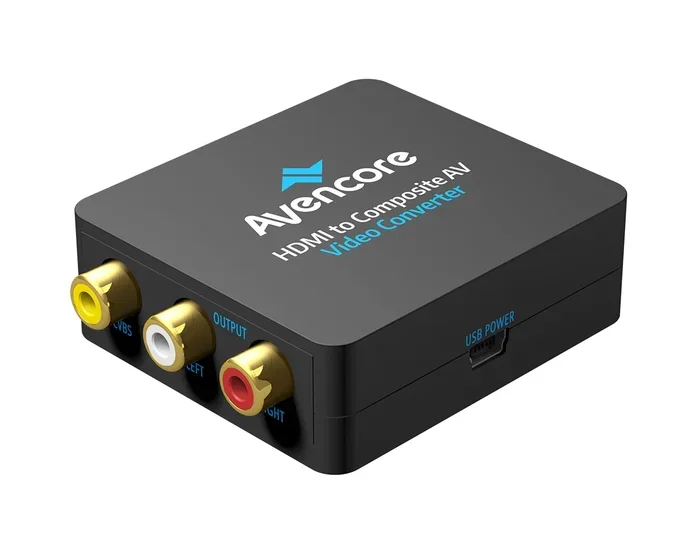
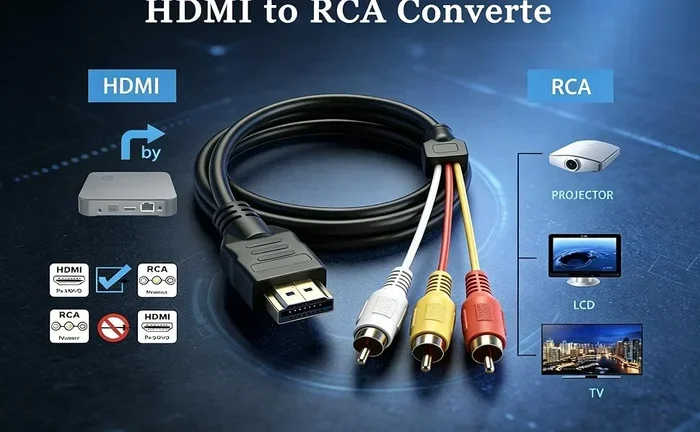
The most common and budget-friendly approach uses an HDMI-to-composite converter. This small box has an HDMI input on one side and RCA outputs (yellow for video, red and white for audio) on the other. You plug your HDMI device into the converter, connect the RCA cables to your CRT TV, and you are good to go.
These converters work with almost any CRT that has composite inputs. They are widely available online and typically cost between $10 and $30. Popular brands include RetroTINK, Upcore, and various generic brands that get the job done.
Here is what you need for this setup:
- HDMI-to-composite converter box
- HDMI cable (to connect your source device)
- Composite RCA cables (yellow, red, white)
- Power supply for the converter (usually USB or barrel jack)
One thing to keep in mind: composite output limits your picture quality to standard definition. You will see the full image, but it will look soft and slightly blurry compared to component or modern displays. For casual viewing, this works perfectly fine.
Method 2: HDMI to Component Converter
If you want better picture quality, an HDMI-to-component converter is the way to go. Component video uses three separate RCA cables (green, blue, and red) that carry different color channels. This splits the signal and delivers a sharper, more vibrant image than composite.
Many CRT televisions made after 2000 include component inputs. These look like three round ports grouped together, often color-coded green, blue, and red. The audio still comes through separate RCA cables (red and white).
Component converters cost a bit more, usually between $25 and $60. They offer better resolution compatibility and often include features like deinterlacing, which removes the horizontal lines that appear in interlaced content. For gaming and movie watching, the difference is noticeable.
Here is a quick comparison of the two main converter types:
HDMI Converter Types Comparison
| Feature | Composite Converter | Component Converter |
|---|---|---|
| Video Quality | Standard Definition (480i/576i) | Enhanced Definition (480p/576p) |
| Cables Needed | 3 RCA (yellow, red, white) | 5 RCA (3 video + 2 audio) |
| Price Range | $10 to $30 | $25 to $60 |
| Setup Difficulty | Very Easy | Easy |
| Best For | Casual viewing, older CRTs | Gaming, sharper picture, newer CRTs |
| Deinterlacing | Rarely included | Usually included |
As you can see, the component route gives you noticeably better results. If your CRT has component inputs, this is the recommended path for the best display technology experience on a legacy screen.
Method 3: HDMI to SCART Converter
If you live in Europe or certain other regions, your CRT TV likely uses a SCART connector instead of RCA inputs. SCART is a single large rectangular plug that carries both video and audio signals. You can find HDMI-to-SCART converters that work with these televisions.
SCART supports composite, S-Video, and RGB video signals. RGB through SCART gives you excellent color accuracy on a CRT, which is why many enthusiasts prefer this connection method. The converter needs to support RGB output for the best results.
These converters are slightly harder to find and tend to cost more, typically $30 to $70. Make sure the converter you buy explicitly supports SCART output and RGB mode. Some budget models only support composite through SCART, which limits your quality.
Method 4: Using an AV Receiver or Converter Box
Another option is to route your HDMI signal through an AV receiver that has both HDMI inputs and analog outputs. Many AV receivers can accept HDMI and convert it to composite or component output. This approach adds audio processing benefits, like equalizer settings and surround sound decoding.
This method works well if you already own an AV receiver or plan to build a more permanent setup. It is less portable than a simple standalone converter but offers more flexibility. You can connect multiple HDMI sources and switch between them easily.
Step-by-Step Setup Guide
What You Need Before Starting
Before you begin, gather everything you need. Having all the equipment ready saves time and prevents frustration. Here is your checklist:
- HDMI source device (gaming console, streaming stick, Blu-ray player, or laptop)
- HDMI cable (any standard version works)
- Signal converter (composite, component, or SCART based on your TV inputs)
- Analog cables matching your converter output (RCA or SCART)
- Power supply for the converter box
- Your CRT television with available input ports
Setting Up the Connection
Follow these steps to get your HDMI to CRT TV setup running:
- Connect the HDMI cable from your source device to the HDMI input on the converter box.
- Plug the power adapter into the converter and connect it to a power outlet.
- Attach the analog output cables from the converter to the matching inputs on your CRT TV.
- Turn on your CRT TV and switch to the correct input source (AV, Video, Component, or SCART).
- Turn on your HDMI source device and adjust the output resolution to match your CRT capabilities.
- Check the picture and adjust the converter settings if needed.
That is it. The entire process usually takes less than five minutes once you have all the parts. The key step many people miss is adjusting the source device resolution. If your console outputs 1080p but your converter can only handle 480p, you may get no picture or a rolling image. Set the output to 480p or 480i for best compatibility.
Quick Tips for a Smooth Setup
- Always power on the converter before turning on your source device.
- Use short, high-quality HDMI cables to avoid signal loss.
- If the image rolls or shakes, check that your resolution setting matches the converter’s supported output.
- Keep the converter well-ventilated; some models generate heat during use.
- Label your cables so you can quickly identify which input goes where.
Audio Setup for HDMI to CRT Connections
Getting Sound Through Your CRT
One thing people often overlook is audio. HDMI cables carry both video and audio in a single cable, but your CRT TV only has analog audio inputs or built-in speakers with RCA or SCART connections. You need to ensure the sound reaches your ears clearly.
Most HDMI converters include RCA audio outputs (red and white) alongside the video output. Connect these to the matching audio inputs on your CRT. The built-in TV speakers will play the sound. For better audio quality, you can also connect the converter’s audio output to an external speaker system or AV receiver.
Some converters support optical audio output, which lets you connect to a modern soundbar or speaker setup. This is a great option if you want improved sound without using the CRT’s small built-in speakers. Just make sure your converter explicitly lists optical audio as a feature.
Dealing with Audio Lag
In some cases, you may notice a slight delay between the video and audio. This happens because the converter processes the digital signal before converting it to analog. For most viewing, this delay is unnoticeable. But if you are gaming, even a small lag can affect your experience.
Look for converters that advertise low-latency or zero-lag processing. These models prioritize real-time signal conversion over extra image processing. For competitive gaming on a CRT, low latency is essential for responsive controls.
Common Mistakes to Avoid
Buying the Wrong Converter Type
The most common mistake is purchasing a converter that does not match your TV’s inputs. Before you buy, check what ports your CRT has available. If it only has composite (yellow RCA), do not buy a component converter expecting it to work without extra cables. Match your converter to your TV’s input type.
Ignoring Resolution Settings
Another frequent error is leaving the source device at its default high resolution. Your digital to analog conversion process requires the output to match what the converter can handle. Set your device to 480p or 480i before connecting, and you will avoid many common issues.
Using Cheap, Unpowered Converters
Some ultra-budget converters do not include a power supply or have weak internal processing. These often produce a black screen, flickering image, or no sound at all. Invest in a reputable converter with proper power delivery and signal processing for reliable results.
Forgetting About Cable Quality
Long or damaged RCA cables can degrade the analog signal before it reaches your TV. Use short, well-shielded cables for the cleanest picture. Avoid running analog cables alongside power cords, as this can introduce interference and static.
Not Updating the Source Device
Some modern devices, especially streaming sticks and newer gaming consoles, may refuse to output over HDMI unless the TV supports HDCP (High-bandwidth Digital Content Protection). Since your CRT does not support HDCP, you may encounter a blank screen when trying to play protected content. Check your converter’s HDCP handling capabilities or look for workarounds in your device settings.
Best Uses for HDMI on CRT TVs
Retro Gaming
The single most popular reason people connect HDMI devices to CRT TVs is retro gaming. Classic consoles like the NES, SNES, Sega Genesis, PlayStation 1, and Nintendo 64 look incredible on a CRT display. The scanlines, vibrant colors, and zero input lag create an authentic retro experience that flat screens simply cannot replicate.
Modern retro mini consoles like the NES Classic, SNES Classic, and Sega Genesis Mini output via HDMI. A converter lets you play these on your classic CRT with the look and feel of the original hardware. Many gamers consider this the best way to experience classic games.
Streaming and Media Viewing
You can also use a streaming stick like a Roku or Fire Stick connected through a converter to watch content on your CRT. While the picture quality will be limited by the CRT’s resolution, the experience works well for casual viewing in a garage, workshop, or bedroom where a large modern TV is unnecessary.
Using Old CRT Monitors for Computing
Some people repurpose CRT televisions as computer monitors. With an HDMI-to-composite or HDMI-to-component converter, you can use your CRT as a secondary display. This works well for retro computing, retro emulation, or simply having a low-cost second screen for basic tasks.
Expert Insights on HDMI and CRT Setup
Audio and video technicians who specialize in legacy equipment recommend always testing your setup with a known-good source before finalizing cable placement. This helps isolate whether any issues come from the converter, the cables, or the television itself.
Experts also suggest keeping your converter firmware updated if the manufacturer provides updates. Some advanced models receive improvements to upscaling algorithms and compatibility with newer source devices. A simple firmware update can resolve unexpected issues.
When choosing a converter, look for models that support multiple output formats. A versatile converter that handles composite, component, and even S-Video gives you the most flexibility across different CRT models. This future-proofs your setup if you ever switch televisions or add another CRT to your collection.
Key Takeaways
- Connecting HDMI to CRT TV is straightforward: A signal converter bridges the digital-to-analog gap and makes it work.
- Composite and component converters are the two main options: Component delivers better picture quality for CRTs that support it.
- SCART converters exist for European models: They offer excellent RGB quality when paired with the right converter box.
- Setup takes minutes: Just connect HDMI in, analog cables out, power the converter, and switch your TV input.
- Audio requires separate attention: Use the converter’s RCA audio outputs or connect to an external speaker system.
- Avoid common mistakes: Match your converter to your TV inputs, set the correct resolution, and use quality cables.
- Retro gaming benefits the most: CRT displays bring classic games to life with scanlines and zero lag.
Conclusion
So, can you connect HDMI to CRT TV? Absolutely yes. With the right converter, the correct cables, and a few minutes of setup time, you can bring modern devices to life on your classic television. Whether you want to relive retro gaming memories, watch streaming content in a secondary room, or repurpose an old CRT as a computer monitor, the solution is well within reach.
The key is choosing the right HDMI converter for your specific CRT model. Composite converters work with virtually any CRT, while component and SCART options deliver better quality for compatible sets. Pay attention to resolution settings, audio routing, and cable quality, and you will enjoy a smooth, reliable connection.
Do not let that old CRT gather dust in the garage any longer. With a simple converter and a few cables, your classic television becomes a versatile display for modern technology. The combination of CRT charm and HDMI convenience gives you the best of both worlds. Try it today and rediscover why these beloved televisions have stood the test of time.
Frequently Asked Questions
Do I need a special converter to connect HDMI to a CRT TV?
Yes, you need an HDMI-to-analog converter because CRT TVs only accept analog signals. Choose between composite, component, or SCART converters depending on the input ports available on your television. These converters are affordable and widely available online.
Will the picture quality be good when connecting HDMI to a CRT TV?
The picture quality depends on the converter type and your CRT’s input capability. Composite output looks standard definition, while component and SCART RGB deliver much sharper images. CRTs naturally display analog signals beautifully, so the results are often very pleasing.
Can I connect a modern gaming console like a PlayStation 5 to a CRT TV?
You can connect modern consoles through an HDMI converter, but the resolution will be limited to what the CRT supports, typically 480p or 480i. For the best experience, retro consoles and mini consoles designed for CRT displays work better than current-generation hardware.
Why is there no sound when I connect HDMI to my CRT TV?
Make sure you have connected the audio RCA cables (red and white) from the converter to your TV. Also check that your TV is set to the correct input source. Some converters require separate power, so ensure the converter is fully powered on.
Can I use an HDMI splitter instead of a converter for my CRT TV?
No, an HDMI splitter only copies the digital HDMI signal to multiple outputs. It does not convert the signal to analog. You must use a dedicated HDMI-to-analog converter to connect to a CRT television.
Are HDMI to CRT converters expensive?
Most basic converters cost between $10 and $30 for composite output. Component converters range from $25 to $60, and SCART models can cost $30 to $70. These are very affordable accessories that breathe new life into old CRT televisions.