Do You Need A Driver For Bluetooth On Your Computer
Most modern computers already have built-in Bluetooth drivers, so you typically do not need to install anything extra. However, older PCs, certain adapters, and specific operating systems may require a manual bluetooth driver download. This guide walks you through everything you need to know about bluetooth connectivity, driver installation, troubleshooting, and getting your wireless devices paired in minutes.
You just bought a shiny new wireless keyboard. You plug it in, turn it on, and… nothing happens. Your computer does not recognize the device. The first thing that probably crosses your mind is, “Do I need a driver for Bluetooth?” The answer is not as straightforward as yes or no. It depends on your computer, your operating system, and the type of Bluetooth hardware you have.
This guide will walk you through everything you need to know about bluetooth drivers. We will cover when you need one, when you do not, and how to fix common problems. Whether you are using Windows or a Mac, this article has you covered. Let us get your wireless devices connected.
Bluetooth technology has come a long way. What used to be a niche feature is now standard on nearly every laptop, tablet, and desktop. But that does not mean everything always works perfectly out of the box. Understanding how bluetooth connectivity works on your system can save you a lot of frustration and time.
Key Takeaways
- Built-in Bluetooth is common: Most modern laptops and desktops come with Bluetooth already enabled and pre-installed drivers.
- Older computers may need drivers: If your PC was made before 2012, you might need to download a bluetooth driver manually.
- Windows and Mac handle drivers differently: Windows often updates drivers automatically, while Macs manage mac bluetooth settings natively.
- A Bluetooth adapter can help: If your computer lacks Bluetooth, a USB bluetooth adapter is an easy and affordable fix.
- Troubleshooting is simple: Most bluetooth troubleshooting steps involve restarting, updating, or reinstalling the driver.
📑 Table of Contents
- What Is a Bluetooth Driver and Why Does It Matter?
- Do You Always Need to Install a Bluetooth Driver?
- How to Check If Your Bluetooth Driver Is Installed
- How to Install or Update a Bluetooth Driver
- Common Bluetooth Driver Problems and How to Fix Them
- Do You Need a Driver for Bluetooth on a Mac?
- When to Use a Bluetooth Adapter Instead
- Final Thoughts
What Is a Bluetooth Driver and Why Does It Matter?
A bluetooth driver is a small piece of software that acts as a translator between your computer and Bluetooth devices. Think of it as a bridge. Your computer speaks one language, and your wireless mouse or headphones speak another. The driver helps them understand each other.
Without the right driver, your computer cannot detect or communicate with Bluetooth peripherals. This includes keyboards, mice, headphones, speakers, and even your phone. The driver handles everything from device pairing to data transfer and audio streaming.
How Bluetooth Drivers Work
When you turn on a Bluetooth device, it sends out a signal. Your computer’s Bluetooth hardware picks up that signal. The driver then tells your operating system how to process that signal. It also manages the connection and keeps it stable.
Modern operating systems like Windows 10, Windows 11, and macOS come with a library of pre-installed drivers. This means many devices work right away. But not all devices are covered. Some specialized peripherals need a specific driver from the manufacturer.
Built-In vs. Downloaded Drivers
There are two types of Bluetooth drivers. Built-in drivers come pre-loaded with your operating system. Downloaded drivers come from the manufacturer’s website or through a driver update tool. Most of the time, built-in drivers are enough. But if you have a newer or uncommon device, you might need to download the latest version.
Do You Always Need to Install a Bluetooth Driver?
Here is the short answer: no, not always. Most modern computers handle bluetooth drivers automatically. But there are situations where you will need to take action. Let us break this down by operating system and hardware type.
When You Do NOT Need a Driver
If you are using a computer made in the last five years, there is a good chance you do not need to do anything. Windows 10 and Windows 11 automatically search for and install bluetooth drivers when you connect a new device. macOS works the same way. Apple devices handle mac bluetooth settings seamlessly.
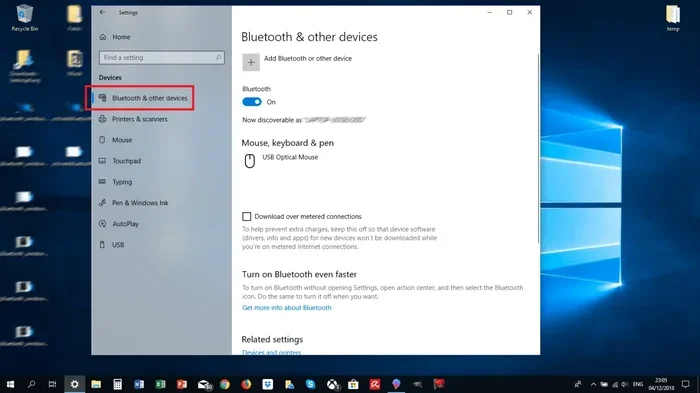
You also do not need a driver if your computer has built-in Bluetooth and it is already enabled. Check your system settings first. On Windows, go to Settings > Devices > Bluetooth. On a Mac, open System Preferences > Bluetooth. If you see the Bluetooth toggle, your computer is ready.
When You DO Need a Driver
You will likely need to install a driver if your computer is older. Machines built before 2012 may not have native bluetooth support. In that case, you will need a USB Bluetooth adapter, and that adapter will need its own driver.
You might also need a driver if:
- Your Bluetooth stopped working after a system update
- You just installed a fresh copy of Windows or macOS
- Your wireless devices keep disconnecting randomly
- Your computer does not detect any Bluetooth devices at all
- You are using a custom-built PC with a separate Bluetooth card
In these cases, a driver update or fresh installation usually solves the problem. You can grab drivers from the manufacturer’s website or through Windows Device Manager.
How to Check If Your Bluetooth Driver Is Installed
Before you download anything, it is smart to check what you already have. You might be surprised to learn that your bluetooth driver is already installed and just needs a quick tweak.
Checking on Windows
On Windows, open Device Manager. You can do this by right-clicking the Start button and selecting Device Manager. Look for a section called “Bluetooth.” If you see it, expand it. You should see your Bluetooth adapter listed there.
If the adapter has a yellow triangle with an exclamation mark, the driver is not working correctly. Right-click the adapter and select “Update driver.” Windows will search online for the latest version. This is the easiest way to fix most bluetooth troubleshooting issues.
Checking on macOS
On a Mac, things are simpler. Click the Apple menu and select “About This Mac.” Then click “System Report.” Scroll down to the Bluetooth section. If you see information about your adapter, the driver is installed and active.
Macs rarely have driver issues because Apple controls both the hardware and software. But if your wireless connectivity is acting up, resetting the Bluetooth module often helps. You can do this by holding Shift and Option, then clicking the Bluetooth icon in the menu bar.
How to Install or Update a Bluetooth Driver
If you have determined that you need a driver, the next step is installation. Do not worry. This process is simpler than it sounds. You do not need to be a tech expert to get it done.
Method 1: Use Windows Update
The easiest way to install a bluetooth driver on Windows is through Windows Update. Go to Settings > Update & Security > Windows Update. Click “Check for updates.” Windows will scan for missing drivers and install them automatically.
This method works for most standard Bluetooth adapters. It is also the safest option because Windows only installs verified drivers. If Windows Update does not find a driver, try Method 2.
Method 2: Download from the Manufacturer
Visit the website of your computer or Bluetooth adapter manufacturer. Look for a “Support” or “Drivers” section. Enter your model number and download the latest bluetooth driver for your operating system.
Popular manufacturers include Intel, Realtek, and Broadcom for internal Bluetooth cards. For USB adapters, brands like TP-Link and ASUS provide easy-to-install drivers on their websites. Always download from the official site to avoid malware.
Method 3: Use a Third-Party Driver Tool
There are also third-party tools that scan your system and suggest driver updates. These can be helpful if you are not comfortable navigating manufacturer websites. Just be careful and only use reputable tools. Some free tools bundle unwanted software, so read the fine print.
Method 4: Reinstall the Driver
If your Bluetooth is already installed but not working, try reinstalling the driver. Open Device Manager, right-click the Bluetooth adapter, and select “Uninstall device.” Restart your computer. Windows will automatically reinstall the driver on boot. This fixes many bluetooth troubleshooting problems quickly.
Common Bluetooth Driver Problems and How to Fix Them
Even with the right driver, Bluetooth can act up from time to time. Here are the most common issues and how to solve them.
Bluetooth Is Not Showing Up in Settings
If Bluetooth does not appear in your settings at all, the driver might be missing or corrupted. Check Device Manager first. If you do not see a Bluetooth section, your computer might not have Bluetooth hardware. In that case, you will need a USB bluetooth adapter to add wireless capability.
Some older computers can be upgraded with an internal Bluetooth card. This is a more permanent solution than a USB adapter. Just make sure the card is compatible with your system before purchasing.
Devices Keep Disconnecting
If your devices connect but then drop frequently, the driver might be outdated. An outdated driver can cause unstable bluetooth connectivity. Update the driver using Windows Update or the manufacturer’s website.
Also check your power settings. Windows sometimes turns off Bluetooth to save power. Go to Settings > Power & Sleep > Additional Power Settings > Change Plan Settings > Change Advanced Power Settings. Look for Bluetooth and set it to “Maximum Performance.”
Paired Devices Will Not Connect
Sometimes a device shows up as paired but will not connect. This is often a driver issue. Try removing the device from your Bluetooth list and pairing it again. If that does not work, uninstall the driver and reinstall it.
Quick Tip: Restart both your computer and the Bluetooth device before trying again. This simple step fixes many connection issues.
Audio Quality Is Poor Over Bluetooth
If you are streaming audio and the quality is bad, it might not be a driver problem. Bluetooth audio uses codecs that compress sound. But an outdated driver can make the problem worse. Update your bluetooth driver and check your audio settings for the best quality option.
Do You Need a Driver for Bluetooth on a Mac?
Mac users have it easier in most cases. Apple designs both the hardware and software, so mac bluetooth drivers are built right into macOS. You rarely need to install anything manually.
However, there are exceptions. If you are using a third-party Bluetooth adapter on a Mac, you will need to install the driver from the manufacturer. Some adapters do not work well with macOS, so check compatibility before buying.
Also, if you are running an older version of macOS, your Bluetooth driver might not support newer devices. Updating your operating system is the best way to keep everything running smoothly. Go to System Preferences > Software Update to check for the latest version.
One more thing to keep in mind: Bluetooth on Mac has a limited number of simultaneous connections. If you are trying to connect too many devices at once, some might not pair properly. This is not a driver issue, but it can feel like one.
When to Use a Bluetooth Adapter Instead
If your computer does not have built-in Bluetooth, a USB Bluetooth adapter is your best friend. These small devices plug into a USB port and add bluetooth connectivity to any computer. They are affordable, easy to use, and widely available.
Most Bluetooth adapters come with a driver on a CD or a download link in the box. Plug in the adapter, install the driver, and you are good to go. Some adapters are plug-and-play and work immediately on Windows 10 and 11.
When buying a Bluetooth adapter, look for one that supports Bluetooth 5.0 or higher. This ensures faster speeds, better range, and more stable connections. Popular choices work well with both PCs and Macs. You can also check if your existing adapter can be uninstalled and replaced with a newer model for better performance.
If you plan to use the adapter with a TV or projector, make sure it supports audio streaming. Not all adapters handle video and audio equally. A quality adapter makes a big difference in your wireless connectivity experience.
Keep in mind that a USB Bluetooth adapter takes up a port. If you are running low on USB ports, consider getting a USB hub. This way, you can keep your adapter plugged in and still have ports available for other devices.
Final Thoughts
So, do you need a driver for Bluetooth? For most people with modern computers, the answer is no. Your operating system handles it automatically. But if you have an older PC, a custom build, or a third-party adapter, you might need to install or update a bluetooth driver manually.
The good news is that driver installation is straightforward. Whether you use Windows Update, a manufacturer website, or a simple reinstall, you can get your bluetooth connectivity back on track in minutes. The key is knowing when to act and what steps to take.
Take a few minutes to check your current setup. Make sure your drivers are up to date. If you are planning to buy a new wireless device, confirm that your computer supports it. A little preparation goes a long way in avoiding frustration.
Bluetooth technology makes our lives easier. Wireless keyboards, mice, headphones, and speakers free us from cables and clutter. Understanding how drivers work helps you get the most out of this technology. Now you are equipped to handle any bluetooth troubleshooting that comes your way.
Keep your drivers updated, your devices charged, and your connections stable. With the right setup, bluetooth connectivity works like magic. Happy connecting.
Frequently Asked Questions
Can I Use Bluetooth on My Computer Without Installing Any Driver?
Yes, if your computer has built-in Bluetooth and runs a modern operating system like Windows 10, Windows 11, or macOS. These systems come with pre-installed drivers that handle most devices automatically. You just need to turn on Bluetooth and pair your device.
How Do I Know If My Bluetooth Driver Needs Updating?
If your Bluetooth devices keep disconnecting, fail to connect, or your computer does not detect them at all, the driver might be outdated. You can check Device Manager on Windows or System Report on a Mac to see the current driver status. Updating through Windows Update is the easiest fix.
What Should I Do If My Bluetooth Driver Is Missing on Windows?
First, open Device Manager and look for the Bluetooth section. If you see a yellow warning icon, right-click and select “Update driver.” If Bluetooth does not appear at all, you may need a USB Bluetooth adapter or to reinstall your operating system drivers. You can also visit your computer manufacturer’s website for the correct driver.
Is It Safe to Download Bluetooth Drivers from Third-Party Websites?
It can be risky. Third-party sites sometimes bundle malware or outdated drivers with their downloads. Always try to get drivers from the official manufacturer website or through Windows Update. If you must use a third-party tool, stick to well-known and reputable options.
Can a USB Bluetooth Adapter Work Without Installing a Driver?
Some USB Bluetooth adapters are plug-and-play and work immediately on Windows 10 and 11. However, older adapters or those with advanced features may require a driver. Check the manufacturer’s website for the latest driver to ensure the best performance and compatibility.
Why Does My Bluetooth Keep Turning Off Automatically on Windows?
This is often caused by power management settings. Windows may turn off Bluetooth to save energy. Go to Device Manager, right-click your Bluetooth adapter, select Properties, and uncheck “Allow the computer to turn off this device to save power.” This keeps Bluetooth active and stable.