Can A Usb Hub Damage A Motherboard And How To Prevent It
Yes, a USB hub can damage a motherboard if used incorrectly or if the hub lacks proper power regulation. Overcurrent, short circuits, and poor-quality hubs are the main culprits. This guide explains exactly how USB hubs can harm your motherboard and gives you simple, actionable steps to prevent damage before it happens.
You plug in a USB hub, connect a few devices, and suddenly your computer acts strange. Maybe a port stops working. Maybe your PC won’t even turn on. These situations happen more often than you think. And the big question on every user’s mind is the same: can a USB hub damage a motherboard?
The short answer is yes. But it is not as common as you might fear. Most of the time, the damage comes from a few specific causes. Cheap hubs, power surges, and wrong usage patterns are the usual suspects. Let us walk through everything you need to know about USB hub motherboard damage and how to stop it from happening.
USB hubs make our lives easier. They let us connect multiple devices at once. But not all hubs are created equal. A poor-quality hub can cause real trouble for your computer’s core components. Understanding the risks helps you make smarter choices. This guide covers everything from the basics to advanced prevention tips.
Key Takeaways
- Cheap or unpowered USB hubs can deliver unstable power that harms your motherboard.
- Overcurrent and short circuits are the two most common ways a USB hub damages a motherboard.
- Using a powered USB hub with surge protection greatly reduces the risk of motherboard damage.
- Regular maintenance and proper cable management keep your USB connections safe and reliable.
- Recognizing early warning signs like burning smells or port failure can save your motherboard from major damage.
- Always match your USB hub to your device’s power requirements to avoid compatibility issues.
📑 Table of Contents
- What Is a USB Hub and How Does It Work?
- Can a USB Hub Actually Damage a Motherboard?
- Signs Your USB Hub May Be Damaging Your Motherboard
- How to Prevent USB Hub Damage to Your Motherboard
- Comparison: Powered vs. Unpowered USB Hubs
- What To Do If Your USB Hub Damages a Motherboard
- Expert Tips for Long-Term USB Hub Safety
- Quick Tips to Remember
- Common Mistakes People Make With USB Hubs
- Final Thoughts
What Is a USB Hub and How Does It Work?
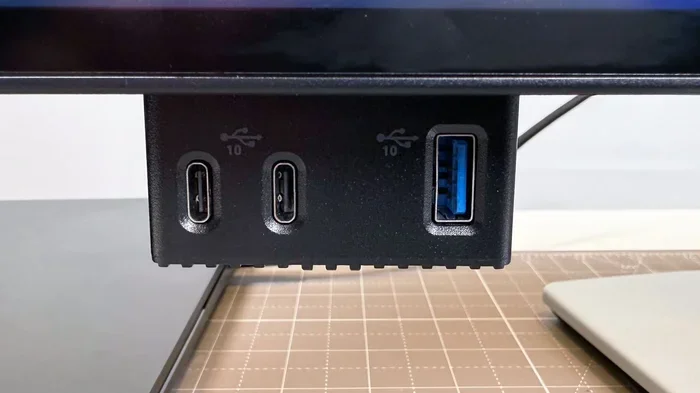
A USB hub is a small device that expands a single USB port into multiple ports. Think of it like a power strip for USB devices. You plug the hub into your computer, and then you can connect several things at once. Keyboards, mice, external drives, and webcams all work through a hub.
There are two main types of USB hubs. The first is an unpowered hub. This type draws all its power from the computer’s USB port. It works fine for low-power devices like a mouse or keyboard. The second type is a powered hub. It has its own power source, usually a wall plug. This type can handle heavier devices like external hard drives.
Inside every USB hub is a small chip called a controller. This chip manages data transfer and power distribution. When the controller fails or sends too much power, trouble starts. That is one of the first ways a hub can cause motherboard component failure.
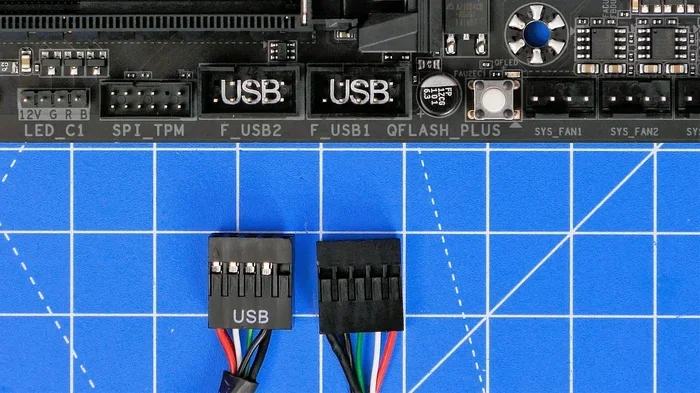
Most modern computers have several USB ports built into the motherboard. These ports connect directly to the motherboard’s USB controller. If something goes wrong with the hub, it can travel back through the port and reach the motherboard. This is why understanding how hubs work matters so much.
Can a USB Hub Actually Damage a Motherboard?
Now let us get to the heart of the question. Can a USB hub damage a motherboard? The answer is yes, and there are several ways it can happen. Let us break them down one by one.
Overcurrent Damage
Overcurrent happens when too much power flows through a USB port. Every USB port on your motherboard has a power limit. For USB 2.0, that limit is 500 milliamps. For USB 3.0, it goes up to 900 milliamps. When a hub pulls more power than the port can handle, the excess current can fry the port and even reach the motherboard.
This often happens with unpowered hubs. When you connect multiple power-hungry devices to an unpowered hub, the hub tries to pull all the power from one port. The motherboard’s port was never designed for that. Over time, this causes wear and can lead to permanent damage.
Short Circuit Risks
A short circuit is one of the fastest ways to damage a motherboard. If the internal wiring of a USB hub gets damaged, it can create a short. This sends a sudden rush of electricity where it should not go. The motherboard’s USB controller can burn out in seconds.
Short circuits often happen when a hub is cheaply made. Low-quality materials and poor soldering make hubs more likely to short out. This is why you should always buy hubs from trusted brands. A reliable USB hub has built-in safety features that cheap ones simply do not have.
Power Surge Through the Hub
Sometimes a power surge from the wall outlet travels through a powered USB hub and into your computer. If the hub does not have surge protection, that surge reaches the motherboard directly. This can damage not just the USB ports but other components too.
Using a hub with a surge protector built in is one of the best ways to prevent this. A simple surge-protected hub costs very little compared to replacing a motherboard. Always look for hubs that mention surge protection on the label.
Data Line Damage
USB ports carry both power and data. When a hub malfunctions, it can send incorrect data signals to the motherboard. These bad signals can confuse the USB controller on the motherboard. In rare cases, this can cause the controller chip to fail entirely.
This type of damage is less common but still possible. It usually happens with hubs that have faulty firmware or outdated chipsets. Keeping your hub firmware updated and using modern hubs reduces this risk significantly.
Signs Your USB Hub May Be Damaging Your Motherboard
Not all damage happens instantly. Sometimes it builds up slowly. Knowing the warning signs can help you catch problems early. Here are the most common red flags to watch for.
- USB ports stop working suddenly. If one or more ports become unresponsive after plugging in a hub, something is wrong.
- Burning smell near the USB ports. This is a serious warning sign. Unplug everything immediately and turn off your computer.
- Devices disconnect randomly. If your keyboard or mouse keeps dropping off, the hub may be sending unstable signals.
- Slow data transfer speeds. A failing hub can slow down your connections. This often points to controller damage.
- Computer won’t boot. In severe cases, motherboard damage from a hub can prevent your PC from starting at all.
- USB devices not recognized. If your computer suddenly cannot see devices that worked before, check your hub first.
If you notice any of these signs, stop using the hub right away. Continuing to use a damaged hub makes the problem worse. You might need to replace the hub or even get the motherboard ports repaired. For more details on motherboard components, check out our guide on 5 components that are found on the motherboard.
How to Prevent USB Hub Damage to Your Motherboard
The good news is that preventing damage is not hard. A few simple habits can save you a lot of money and headaches. Here are the best prevention tips you should follow.
Always Use a Powered USB Hub
A powered hub has its own power supply. This means it does not pull extra power from your computer’s USB port. Your motherboard stays safe because the hub handles the heavy lifting on its own.
For anyone who uses multiple USB devices regularly, a powered hub is a must. It keeps the power load off your motherboard and gives you stable connections. Look for hubs with individual port power switches. This lets you control power to each device separately.
Buy Quality Hubs from Trusted Brands
Cheap USB hubs are the number one cause of motherboard damage. These hubs skip safety features to keep costs low. They use thin cables, weak controllers, and poor insulation. All of these increase the risk of overcurrent and short circuits.
Spend a little more on a quality hub. Brands like Anker, Sabrent, and Ugreen make reliable hubs with built-in safety features. A good hub might cost 20 to 30 dollars more, but it is nothing compared to the cost of a new motherboard.
Check Power Requirements Before Connecting Devices
Not all USB devices use the same amount of power. A mouse uses very little. An external hard drive uses a lot more. Before connecting devices to your hub, check their power needs.
If you are connecting power-hungry devices, make sure your hub can handle them. A powered hub with its own adapter is the safest choice for high-power devices. Never daisy-chain multiple unpowered hubs together. This multiplies the power draw and increases the risk of damage.
Use Surge Protectors
Power surges from the wall outlet can destroy USB hubs and motherboards. Using a surge protector adds a layer of defense. It absorbs excess voltage before it reaches your devices.
Some USB hubs come with built-in surge protection. Others do not. Either way, plugging your computer’s power supply into a surge protector is a smart move. It protects your entire system, not just the USB ports.
Keep Hubs and Cables in Good Condition
Damaged cables are a hidden danger. Frayed wires can expose live connections and cause shorts. Check your USB cables regularly for wear and tear. Replace any cable that looks damaged or feels loose.
Dust and debris can also build up in USB ports over time. Use compressed air to clean your ports gently. Keeping everything clean reduces the chance of connection problems and electrical issues.
Do Not Overload Your Hub
Every USB hub has a maximum power rating. Exceeding that rating is a recipe for disaster. If your hub supports 4 ports and you connect 7 devices, you are asking for trouble.
Spread your devices across multiple hubs if needed. Or use fewer devices per hub. Your motherboard will thank you for not pushing the limits. Simple balance goes a long way in preventing USB hub motherboard damage.
Comparison: Powered vs. Unpowered USB Hubs
Choosing the right type of hub is one of the most important decisions you can make. Here is a quick comparison to help you decide.
| Feature | Powered USB Hub | Unpowered USB Hub |
|---|---|---|
| Power Source | Own power adapter | Draws power from computer |
| Safe for High-Power Devices | Yes | No |
| Risk of Motherboard Damage | Low | Medium to High |
| Price Range | 20 to 60 dollars | 5 to 15 dollars |
| Number of Devices Supported | Up to 10+ | Up to 4 to 7 |
| Surge Protection | Often included | Rarely included |
| Best For | Heavy use, external drives | Light use, keyboards, mice |
As you can see, powered hubs are the safer choice for most users. The slightly higher cost is worth the protection it gives your motherboard. If you only use a hub for a keyboard and mouse, an unpowered hub might be fine. But for anything more demanding, go powered.
What To Do If Your USB Hub Damages a Motherboard
If you suspect your hub has already caused damage, do not panic. There are steps you can take to assess and fix the problem.
- Unplug the hub immediately. This stops any further damage from occurring.
- Inspect the USB ports on your motherboard for visible signs of burning or melting.
- Test your computer without the hub. Plug devices directly into the motherboard ports and see if they work.
- Check Device Manager for any error messages related to USB controllers.
- Contact a professional if you notice physical damage. A technician can assess whether the motherboard needs repair or replacement.
- Replace the hub with a quality powered hub once the issue is resolved.
Most motherboard damage from USB hubs is not total. Often, just the USB port or controller takes the hit. Replacing a damaged port is much cheaper than replacing the entire motherboard. But the sooner you act, the better your chances are of a simple fix.
Expert Tips for Long-Term USB Hub Safety
Here are some extra tips from experienced tech users who have been through it all. These habits will keep your setup safe for years.
- Never unplug a hub while devices are active. Always eject or safely remove devices first. Pulling cables while data is transferring can cause voltage spikes.
- Use short, high-quality USB cables. Longer cables lose more power along the way. Short cables deliver more stable power to your devices.
- Update your USB drivers regularly. Outdated drivers can cause communication errors between the hub and motherboard. Keeping drivers current prevents many issues.
- Avoid placing hubs near heat sources. Heat degrades electronic components over time. Keep your hub in a cool, ventilated area.
- Use a UPS (Uninterruptible Power Supply). A UPS protects your entire computer from power fluctuations. It is the best overall protection for your hardware.
These small habits add up to big protection over time. Your motherboard will last longer, and your USB hub will perform better. Prevention is always easier and cheaper than repair.
Quick Tips to Remember
- Always choose a powered hub for heavy device use.
- Buy from reputable brands with safety certifications.
- Never exceed the hub’s power rating.
- Check cables regularly for damage or wear.
- Use surge protectors for both the hub and your computer.
- Stop using a hub immediately if you notice any warning signs.
- Keep your drivers and firmware updated for best performance.
Common Mistakes People Make With USB Hubs
Even careful users sometimes make mistakes. Here are the most common ones to avoid.
- Using an unpowered hub for external hard drives. This is the most common mistake. External drives need more power than an unpowered hub can provide.
- Daisy-chaining multiple hubs. Connecting one hub to another multiplies the risk. Each hub adds another point of failure.
- Ignoring warning signs. If your USB devices keep disconnecting, do not ignore it. That is your motherboard telling you something is wrong.
- Buying the cheapest hub available. Saving 10 dollars on a hub can cost you hundreds in motherboard repairs.
- Plugging in devices one by one without checking. Add devices slowly and watch for any unusual behavior from your computer.
Avoiding these mistakes puts you ahead of most users. It is simple awareness that makes a huge difference in protecting your hardware.
Final Thoughts
So, can a USB hub damage a motherboard? The answer is a clear yes. But with the right knowledge and habits, the risk is very low. The key is choosing quality hubs, using them correctly, and staying alert to warning signs.
A powered USB hub from a trusted brand is your best investment. It protects your motherboard and gives you reliable connectivity for all your devices. Take the time to set up your USB connections the right way. Your computer will run smoother and last longer.
Prevention is always better than repair. A few smart choices today can save you from expensive motherboard repairs tomorrow. Follow the tips in this guide, and your USB hub will work safely for years to come.
Remember, your motherboard is the heart of your computer. Protecting it starts with the small choices you make every day. Choose the right hub. Use it wisely. And your system will thank you.
Frequently Asked Questions
Can a cheap USB hub fry a motherboard?
Yes, a cheap USB hub can fry a motherboard. Low-quality hubs often lack proper overcurrent protection and surge protection. When they fail, the excess power or short circuit can travel back through the USB port and damage the motherboard. Always invest in a quality hub from a reputable brand.
What happens if a USB hub draws too much power?
If a USB hub draws too much power, it can cause overcurrent on the motherboard’s USB port. This can burn out the port and potentially damage the USB controller chip on the motherboard. In severe cases, the excess power can spread to other motherboard components and cause broader damage.
Is it safe to use a USB hub for external hard drives?
It is safe only if you use a powered USB hub. External hard drives require more power than an unpowered hub can provide. Using an unpowered hub with an external drive can cause power instability and potentially damage both the drive and the motherboard. Always use a hub with its own power adapter for hard drives.
How do I know if my motherboard USB port is damaged?
Signs of a damaged USB port include devices not being recognized, burning smells, intermittent connections, and ports that stop working completely. You can also check Device Manager for USB controller errors. If you suspect physical damage, have a professional inspect the port before using it again.
Can a USB hub cause a short circuit?
Yes, a USB hub can cause a short circuit if its internal wiring is damaged or if it is poorly manufactured. A short circuit sends a sudden rush of electricity through the USB port and into the motherboard. This can destroy the port and damage surrounding components. Always use hubs with built-in short circuit protection.
How can I protect my motherboard from USB hub damage?
Use a powered USB hub with surge protection, avoid overloading ports, buy quality hubs from trusted brands, and check your cables regularly. Also, never ignore warning signs like burning smells or random disconnections. These simple steps will keep your motherboard safe from USB hub-related damage.
=== CONCLUSION ===
A USB hub can damage a motherboard, but it does not have to. Understanding the risks and taking simple precautions makes all the difference. Choose a powered USB hub, buy quality brands, and follow the prevention tips in this guide. Your motherboard will stay safe, and your USB hub will work reliably for a long time. Start protecting your computer today with the right hub and the right habits.