Can You Upgrade Surface Laptop 2 Find Out Before Buying
The Surface Laptop 2 has limited upgrade options. You can upgrade the storage SSD, but the RAM is soldered and cannot be changed. Before buying, you need to understand which parts you can and cannot replace. This guide covers every upgrade detail so you can make the best decision.
Can you upgrade Surface Laptop 2? That is the question many buyers ask before spending over a thousand dollars. The short answer is yes, but with some big limitations. You can upgrade the storage drive, but the RAM is locked in place. This guide breaks down every detail so you know exactly what to expect.
Microsoft designed the Surface Laptop 2 with a sleek, thin body. That beautiful design comes at a cost. Most internal parts are not meant to be user-replaceable. If you plan to use this laptop for years, understanding its upgrade limits is critical. Let us dive into everything you need to know.
Key Takeaways
- RAM is not upgradeable: The memory is soldered to the motherboard and cannot be changed after purchase.
- SSD storage can be upgraded: You can swap the internal SSD for a larger one with some effort.
- Disassembly is tricky: The Surface Laptop 2 uses a sticky adhesive that makes opening the device difficult.
- Warranty may be voided: Opening the device can void your Microsoft warranty.
- Choose the right config upfront: Since RAM cannot be upgraded, pick the right amount at the time of purchase.
- Cost vs. benefit matters: Weigh the cost of upgrades against buying a newer model.
📑 Table of Contents
Understanding the Surface Laptop 2 Hardware
Before we talk about upgrades, you need to know what is inside the Surface Laptop 2. The hardware setup determines what you can and cannot change. Let us look at the key components.
Processor and Graphics
The Surface Laptop 2 comes with either a 7th generation Intel Core i5 or i7 processor. The graphics are handled by Intel integrated GPUs. These chips are soldered to the motherboard. You cannot upgrade the CPU or GPU. This is common in most modern ultrabooks. If you need more processing power, you will need a new laptop.
Memory and Storage Options
The Surface Laptop 2 offers different configurations at purchase. You can choose from 8GB or 16GB of RAM. Storage options range from 128GB to 1TB SSD. Here is a quick look at the available configs:
- RAM: 8GB or 16GB LPDDR3
- Storage: 128GB, 256GB, 512GB, or 1TB SSD
- Processor: Intel Core i5-7200U or i7-7660U
- Display: 13.5-inch PixelSense touchscreen
Why the Hardware Matters for Upgrades
The way Microsoft built the Surface Laptop 2 affects your upgrade choices. The processor and memory are soldered down. This means they are fixed forever. The storage SSD is the only part you can realistically swap out. Understanding this early saves you from disappointment later.
| Component | Upgradeable? | Difficulty Level |
|---|---|---|
| RAM | No | Not possible |
| Storage SSD | Yes | Moderate |
| Processor | No | Not possible |
| Battery | Yes | Difficult |
| Wi-Fi Card | Yes | Moderate |
| Display | No | Not practical |
| Keyboard | No | Very difficult |
This table shows the upgrade reality. The storage SSD is your main path for improvement. Everything else is either fixed or too risky to attempt.
Can You Upgrade the RAM on the Surface Laptop 2?
This is the most common question people ask. The answer is no. The RAM on the Surface Laptop 2 is soldered directly to the motherboard. You cannot add more memory or replace the existing sticks. This is a hard limitation that Microsoft built into the design.
Why RAM Is Soldered
Microsoft chose to solder the RAM for a few reasons. First, it keeps the laptop thin and lightweight. Second, it improves reliability. Third, it reduces the cost of manufacturing. From a user perspective, however, it is a major drawback. If you need more than 16GB of RAM, you cannot get it on this model.
What This Means for You
If you plan to run heavy tasks like video editing or running multiple virtual machines, 16GB is the minimum you should buy. 8GB will work for basic tasks like web browsing and word processing. But you cannot add more later. Choose your RAM configuration carefully at the time of purchase.
Quick Tips
- Buy 16GB RAM if you plan to use the laptop for more than 3 years.
- 8GB is enough for casual users who only browse and stream.
- Do not wait to upgrade RAM later. It simply cannot be done.
Upgrading the Storage SSD
The good news is that the Surface Laptop 2 SSD can be upgraded. This is the one component you can change to breathe new life into the device. However, it is not as simple as popping in a new drive.
What Kind of SSD Does It Use?
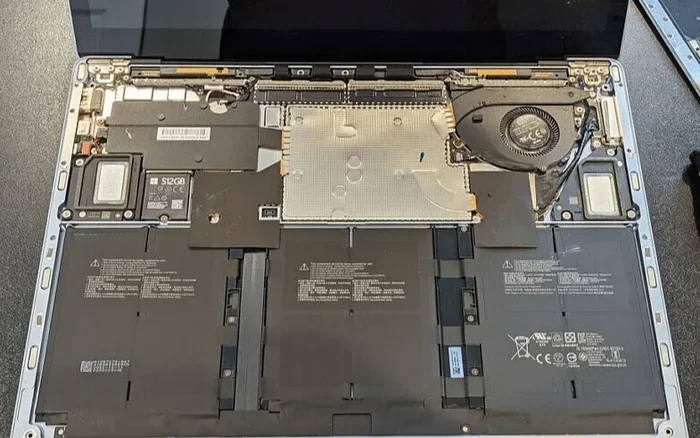
The Surface Laptop 2 uses a custom M.2 SSD. It is not a standard M.2 drive you can buy anywhere. Microsoft uses a proprietary connector and form factor. You will need a specific replacement drive. The drive type is a B-key M.2 2242 SSD. This is smaller than the typical M.2 2280 drives found in many laptops.
How to Upgrade the SSD
Upgrading the SSD requires opening the laptop. The process involves removing the bottom panel, disconnecting the battery, and swapping the drive. Here are the general steps:
- Power off the laptop and unplug all cables.
- Remove the screw at the hinge area on the bottom.
- Carefully pry open the bottom panel using a plastic spudger.
- Disconnect the battery connector for safety.
- Remove the old SSD by unscrewing the mounting bracket.
- Install the new SSD in the same bracket.
- Reconnect the battery and snap the panel back in place.
- Clone your old drive or install Windows fresh.
Recommended SSD Upgrades
When choosing a replacement SSD, look for M.2 2242 B-key drives. Brands like Samsung, Kingston, and Sabrent offer compatible options. The Samsung 860 EVO M.2 2242 is a popular choice. Make sure to check the exact specs before purchasing. Using the wrong drive type will not work.
Expert Insights
According to repair specialists, upgrading the SSD is the single best upgrade for the Surface Laptop 2. A larger and faster drive improves boot times and app loading significantly. It also extends the useful life of the laptop by several years. Many users report noticeable performance gains after switching to a 1TB or 2TB drive.
Other Upgrades You Can Consider
While RAM and storage are the main focus, there are a few other components worth mentioning. These upgrades can improve your experience in smaller ways.
Wi-Fi Card Upgrade
The Surface Laptop 2 ships with an older Intel Wi-Fi card. You can upgrade to a newer Intel AX200 or AX210 card for better wireless speeds. This requires opening the laptop and swapping the card. The improvement is real, especially if you have a modern Wi-Fi 6 router at home.
Battery Replacement
Over time, the battery will degrade. You can replace it, but the process is challenging. The adhesive holds the battery tightly in place. You need patience and the right tools. A new battery can restore your laptop’s runtime to like-new levels.
Thermal Paste Replacement
Replacing the thermal paste inside the laptop can help with heat management. Over time, the original paste dries out. Fresh paste improves cooling and can reduce thermal throttling. This is a simple maintenance task that many people overlook.
Common Mistakes to Avoid
- Do not force open the bottom panel. The adhesive is strong and you can crack the chassis.
- Do not skip disconnecting the battery. Working on live components risks short circuits.
- Do not buy the wrong SSD type. The 2242 form factor is specific and not interchangeable with 2280.
- Do not ignore thermal paste. It affects performance more than most people realize.
Is It Worth Upgrading the Surface Laptop 2?
This is the big question. After reading about the upgrade options, you might wonder if it is even worth it. The answer depends on your situation and goals.
When Upgrading Makes Sense
Upgrading makes sense if your laptop still meets your needs in every other way. If the processor and display are fine, adding a bigger SSD can extend its life by years. A Wi-Fi card upgrade is cheap and delivers real benefits. These are low-risk improvements that cost less than a new laptop.
When You Should Buy a New Laptop Instead
If you need more RAM, you are out of luck with the Surface Laptop 2. There is no way to add it. If you need a newer processor or better graphics, this laptop cannot deliver. In these cases, buying a new device is the smarter choice. The Surface Laptop 4 or Surface Laptop 5 offer much better upgrade paths and modern specs.
Cost Comparison: Upgrade vs. Replace
Let us break down the costs. A new 1TB SSD costs around 100 to 150 dollars. A Wi-Fi card upgrade runs about 20 to 30 dollars. A new battery might set you back 50 to 80 dollars. Compare this to the cost of a new Surface Laptop, which starts around 1000 dollars. Small upgrades are almost always worth the investment.
Key Takeaways
- SSD upgrades are the best value for extending laptop life.
- RAM upgrades are impossible on the Surface Laptop 2.
- Wi-Fi and battery upgrades are affordable and practical.
- Compare upgrade costs against the price of a new device.
- Know your limits before investing time and money.
Surface Laptop 2 vs. Newer Models
If you are considering the Surface Laptop 2 in 2024, you should compare it to newer options. Microsoft has released several newer models that offer better performance and more upgrade flexibility.
Surface Laptop 4
The Surface Laptop 4 offers both Intel and AMD processor options. It still has soldered RAM, but the storage is easier to upgrade. The display and battery life are also better than the Surface Laptop 2. If you are choosing between the two, the Laptop 4 is the clear winner.
Surface Laptop 5
The Surface Laptop 5 features 12th generation Intel processors. It offers a 15-inch option for the first time. RAM is still soldered, but the overall performance leap is significant. This is a much better choice for long-term use.
Surface Pro 9 and Surface Laptop Studio
If you need true upgradeability, consider the Surface Pro 9 or Surface Laptop Studio. These devices offer more flexibility in RAM and storage configurations. They also support newer features like Thunderbolt 4. The Surface Laptop 2 simply cannot compete with these newer models in terms of longevity.
Final Thoughts on Upgrading the Surface Laptop 2
The Surface Laptop 2 is a solid laptop that still holds up well for everyday tasks. Its main limitation is the inability to upgrade RAM. This locks you into whatever configuration you buy at the start. However, upgrading the SSD is a worthwhile improvement that many users can do at home.
Before you decide, ask yourself what you need the laptop for. If you just need it for browsing, email, and light work, the Surface Laptop 2 can still serve you well. Just make sure to buy enough storage from the start. If you need power and flexibility for the future, look at newer models instead.
Can you upgrade Surface Laptop 2? Yes, but only in limited ways. The storage SSD is your best bet for improvement. Plan ahead, choose the right config, and you will get the most value from this device. Keep these tips in mind and you will make a smart purchase decision.
Expert Insights
Tech reviewers consistently note that the Surface Laptop 2 remains a capable machine for basic and intermediate users. Its build quality and display are still excellent by today’s standards. The main concern is the lack of RAM upgradeability, which limits long-term flexibility. If you buy it, go for 16GB RAM and the largest SSD you can afford.
Frequently Asked Questions
Can I upgrade the RAM on the Surface Laptop 2?
No, the RAM on the Surface Laptop 2 is soldered to the motherboard. It cannot be removed or replaced. You must choose the right amount of RAM when you purchase the laptop.
What type of SSD does the Surface Laptop 2 use?
The Surface Laptop 2 uses a custom M.2 2242 B-key SSD. It is a smaller form factor than standard M.2 2280 drives. You need a compatible replacement drive to upgrade the storage.
Is it difficult to open the Surface Laptop 2?
It is moderately difficult. The bottom panel is held in place with strong adhesive. You need a plastic spudger and patience to open it without damaging the chassis. If you are not comfortable with this, consider professional help.
Will upgrading the SSD void my warranty?
Opening the device can void your Microsoft warranty. If your laptop is still under warranty, check with Microsoft before attempting any upgrades. Out-of-warranty laptops are fair game for self-upgrades.
How much does it cost to upgrade the Surface Laptop 2 SSD?
A replacement M.2 2242 SSD typically costs between 80 and 150 dollars depending on the capacity. You can find 1TB options for around 100 to 130 dollars from reputable brands.
Should I upgrade my Surface Laptop 2 or buy a new one?
If you just need more storage, upgrading the SSD is worth it. If you need more RAM or a faster processor, buying a newer model like the Surface Laptop 4 or 5 makes more sense. Consider your needs and budget carefully before deciding.
=== CONCLUSION ===
Can you upgrade Surface Laptop 2? The answer is yes, but with clear boundaries. You can upgrade the storage SSD and swap out the Wi-Fi card. You can also replace the battery when it wears out. However, the RAM is permanently fixed, and the processor cannot be changed. These limits shape the entire upgrade strategy for this device.
If you are planning to buy a Surface Laptop 2, go for the highest RAM and storage you can afford. Since RAM cannot be upgraded later, this decision will define your experience for the life of the laptop. A 16GB RAM configuration with a 512GB or 1TB SSD gives you the best balance of performance and value.
For those who already own this laptop, an SSD upgrade is the single most impactful improvement you can make. It is affordable, relatively simple, and delivers noticeable speed gains. Combine that with a fresh install of Windows, and your Surface Laptop 2 will feel surprisingly fast again.
Keep the upgrade limitations in mind when making your decision. The Surface Laptop 2 is a great device, but it has a fixed lifespan based on its hardware. Plan accordingly, and you will get the best possible experience from this Microsoft classic.