Can You Use Egpu With Any Laptop Heres What You Need To Know
Can You Use Egpu With Any Laptop? The short answer is no — not every laptop supports an external graphics card. You need a Thunderbolt 3 or Thunderbolt 4 port, a compatible eGPU enclosure, and the right driver support to make it work. This guide breaks down everything you need to know about external GPU compatibility and how to boost your laptop graphics performance step by step.
Have you ever looked at your sleek laptop and wished it could handle the games or video editing projects you dream about? You are not alone. Many laptop users face this exact problem. A thin laptop looks great on a desk, but its integrated graphics simply cannot keep up with demanding workloads.
This is where an external GPU, commonly called an eGPU, comes into the picture. An eGPU lets you connect a powerful desktop graphics card to your laptop through a cable. It is like giving your laptop a massive graphics upgrade without replacing the whole machine.
But here is the big question: Can You Use Egpu With Any Laptop? The answer is more complicated than a simple yes or no. Several factors determine whether your laptop can work with an external graphics card. In this guide, we will walk through every detail you need to know.
We will cover compatibility requirements, the best enclosures, common setup mistakes, and real-world performance expectations. By the end, you will know exactly whether an eGPU setup makes sense for your specific laptop and needs.
Key Takeaways
- Not all laptops work with an eGPU: You need a Thunderbolt 3 or Thunderbolt 4 port for a proper connection.
- eGPU enclosures come in different sizes: They house the graphics card, power supply, and cooling system in one unit.
- Bandwidth matters a lot: Thunderbolt limits data transfer speed, which can create a bottleneck compared to a desktop setup.
- Driver support varies: Some laptops and GPUs work together seamlessly, while others cause headaches.
- Setup is straightforward: Once you have the right hardware, plugging in an eGPU takes just a few minutes.
- Gaming and creative work benefit most: An eGPU turns a thin laptop into a powerful desktop replacement for graphics-heavy tasks.
📑 Table of Contents
What Is an eGPU and How Does It Work?
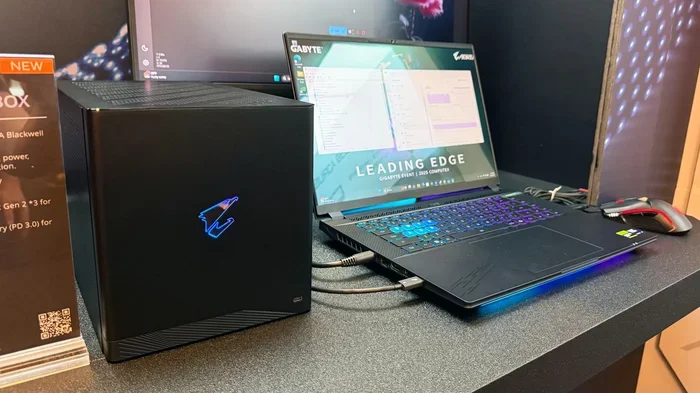
Before diving into compatibility, let us understand what an external graphics card actually does. An eGPU is a box that contains a desktop graphics card, a power supply, and cooling fans. You connect this box to your laptop, and it takes over the heavy lifting of rendering graphics.
How the Connection Works
The eGPU box connects to your laptop through a Thunderbolt cable. Thunderbolt is a high-speed data connection that also carries video signals. When you plug in the eGPU, your laptop recognizes the external graphics card as a second display output device.
The graphics card inside the eGPU processes all the visual data. Then it sends the finished image back to your laptop screen or an external monitor. This entire process happens in real time, so you get smooth visuals during gaming or video playback.
What Makes an eGPU Different from Internal Graphics?
Your laptop already has a graphics chip built into its processor. This is called integrated graphics. It works fine for browsing the web, watching videos, and light tasks. But it struggles with 3D games, 3D rendering, and heavy video editing.
An eGPU for laptop gives you a dedicated graphics card with its own video memory and processing power. It is a completely separate unit that handles graphics independently. This means your laptop can run much more demanding applications without slowing down.
Can You Use Egpu With Any Laptop
The honest answer to this question is no. Can You Use Egpu With Any Laptop only if your laptop meets specific hardware requirements. Let us look at what those requirements are and why they matter.
The Thunderbolt Requirement
The single most important factor is the Thunderbolt port on your laptop. You need at least a Thunderbolt 3 port or a Thunderbolt 4 port. These ports look the same as USB-C ports, but they offer much faster data transfer speeds.
Thunderbolt 3 provides up to 40 gigabits per second of bandwidth. Thunderbolt 4 maintains the same speed but adds extra features like better display support. Without Thunderbolt, your laptop simply cannot communicate fast enough with an eGPU enclosure.
Here is the tricky part. Many laptops have USB-C ports that are not Thunderbolt. A regular USB-C port lacks the bandwidth needed for an external graphics card. So even if the port looks similar, it will not work for an eGPU setup.
Checking Your Laptop for Compatibility
So how do you know if your laptop supports an eGPU connection? Here is what to look for:
- Check the port symbol. A Thunderbolt port has a lightning bolt icon next to it.
- Look up your laptop model on the manufacturer website to confirm Thunderbolt support.
- Check your laptop specs for Thunderbolt 3 or Thunderbolt 4 listed explicitly.
- Avoid assuming USB-C means Thunderbolt. They are not the same thing.
Some laptops from brands like Dell, Lenovo, HP, and Apple offer Thunderbolt ports on certain models. But not every laptop from these brands has Thunderbolt. Always double-check before buying an eGPU setup.
Laptops Without Thunderbolt
What if your laptop does not have a Thunderbolt port? Unfortunately, you cannot use an external graphics card in that case. Some older laptops use ExpressCard slots, which were an earlier way to add graphics power. But those are rare now and very slow compared to Thunderbolt.
A few laptops use proprietary docking systems, but these are limited to specific models. For most users, Thunderbolt is the only realistic path to using an eGPU with a laptop.
Thunderbolt Requirements You Must Know
Understanding Thunderbolt bandwidth helps you set realistic expectations. Let us break down what each generation offers and how it affects your graphics performance.
Thunderbolt 3 vs Thunderbolt 4
Thunderbolt 3 launched in 2015 and became the standard for eGPU connections. It delivers 40 Gbps of data transfer speed. This is fast enough for most eGPU setups to work well.
Thunderbolt 4 came out in 2020 and is backward compatible with Thunderbolt 3. It guarantees support for two 4K displays or one 8K display. For eGPU users, the real-world difference between Thunderbolt 3 and Thunderbolt 4 is small for graphics workloads.
Both versions work with current eGPU enclosures. If you are buying a new laptop today, aim for Thunderbolt 4 if possible. It offers slightly better future-proofing and more stable display connections.
Why Bandwidth Matters for eGPU Performance
Thunderbolt has a fixed bandwidth limit. A desktop graphics card connected directly to a motherboard through PCIe slots gets much more bandwidth. This means your eGPU setup will not perform exactly like a desktop with the same graphics card.
The bandwidth bottleneck reduces performance by roughly 10 to 20 percent in most cases. For gaming, this means you might see slightly lower frame rates compared to a desktop build. For creative work like video editing, the difference is often barely noticeable.
Despite this limitation, the performance boost from adding an external GPU to a laptop is still massive. You go from integrated graphics to a dedicated desktop-grade card. That is a huge leap forward.
Best eGPU Enclosures for Laptops
Not all eGPU enclosures are created equal. The enclosure is the box that holds your graphics card, power supply, and cooling system. Choosing the right one makes a big difference in your experience.
What to Look for in an eGPU Enclosure
When shopping for an eGPU enclosure, consider these factors:
- Thunderbolt compatibility: Make sure the enclosure explicitly supports Thunderbolt 3 or Thunderbolt 4.
- GPU size support: Check if the enclosure fits your graphics card. Full-size cards need larger enclosures.
- Power supply wattage: Higher-end graphics cards need more power. Look for enclosures with 650W or higher PSU.
- Cooling system: Good fans or liquid cooling keep your graphics card running quietly and coolly.
- Build quality: Metal enclosures dissipate heat better than plastic ones.
Popular eGPU Enclosure Brands
A few brands stand out in the eGPU enclosure market. Razer Core is one of the most well-known options. It offers clean design and solid Thunderbolt connectivity. The Sonnet Breakaway Box is another popular choice, especially for users who want a more budget-friendly option.
Other brands like Acer, ASUS, and CalDigit also make quality enclosures. Each has its own strengths in terms of size, cooling, and port selection. Do some research to find the one that fits your graphics card and budget.
Budget vs Premium Enclosures
Budget enclosures can work fine for mid-range graphics cards. But if you are putting a high-end GPU like an RTX 4080 or RX 7900 XTX into the enclosure, invest in a premium option. Better cooling and stronger power delivery protect your investment.
Think of the enclosure as the home for your graphics card. A cheap, poorly ventilated box will limit your graphics performance no matter how good the card is inside.
Setting Up Your eGPU: A Step-by-Step Guide
Once you have the right laptop and enclosure, setting up your eGPU is surprisingly simple. Follow these steps for a smooth installation.
Step 1: Install the Graphics Card
Open the eGPU enclosure and remove the protective covers. Carefully insert your graphics card into the PCIe slot inside the enclosure. Secure it with the screw that holds the card in place.
Make sure the card sits flush in the slot. Do not force it. If it does not fit, check that you have the right card size for the enclosure.
Step 2: Connect Power and Thunderbolt Cable
Plug the enclosure power supply into a wall outlet. Then connect the Thunderbolt cable from the enclosure to your laptop. The cable should click in firmly.
Power on the enclosure. You should hear the fans spin up and see lights on the enclosure panel. Your laptop may take a moment to recognize the new hardware.
Step 3: Install Drivers
Visit the graphics card manufacturer website and download the latest drivers. NVIDIA, AMD, and Intel all provide eGPU-specific driver packages. Installing the right drivers ensures stable performance and display output.
Restart your laptop after installing the drivers. Your external graphics card should now be active and ready to use.
Common Setup Issues and Fixes
Sometimes things do not go smoothly. Here are a few common problems and their solutions:
- Laptop does not detect the eGPU: Try a different Thunderbolt cable or port. Restart both devices.
- Black screen on startup: Update your Thunderbolt drivers and graphics card drivers to the latest versions.
- Performance is lower than expected: Check that your enclosure is properly ventilated and not throttling due to heat.
- Display flickering: Use a high-quality Thunderbolt cable and make sure your monitor is connected directly to the eGPU, not the laptop.
Common Mistakes When Using an eGPU
Many people run into avoidable problems when setting up an eGPU with laptop. Knowing these mistakes helps you save time and frustration.
Assuming Any USB-C Port Will Work
This is the number one mistake. Not every USB-C port supports Thunderbolt. If you plug an eGPU into a regular USB-C port, it will not work. Always verify that your port has the Thunderbolt logo.
Ignoring Power Supply Requirements
High-end graphics cards draw a lot of power. Using an enclosure with an underpowered supply can cause crashes, shutdowns, or poor performance. Always match your power supply to your graphics card requirements.
Skipping Driver Updates
Graphics drivers get updated frequently. These updates often include fixes for eGPU compatibility issues. Make it a habit to check for driver updates every few weeks, especially after major operating system updates.
Overlooking Thermal Management
eGPU enclosures can get hot, especially under heavy load. Place the enclosure in a well-ventilated area. Do not stack it against a wall or cover its vents. Good airflow keeps your graphics card running at peak performance.
Final Verdict: Is an eGPU Worth It for Your Laptop?
So, is buying an external graphics card setup worth it? The answer depends on your needs and your laptop.
If you have a Thunderbolt-enabled laptop and you need more graphics power, an eGPU is an excellent investment. It lets you game at high settings, edit 4K video, and run 3D rendering software on a thin, portable machine. The convenience of a lightweight laptop combined with desktop-class graphics is hard to beat.
However, if your laptop does not have Thunderbolt, an eGPU will not work for you. In that case, you might want to consider a desktop computer or a new laptop with better built-in graphics.
The performance of an eGPU setup is not identical to a desktop with the same graphics card. You will lose some performance due to the Thunderbolt bandwidth limitation. But the gains over integrated graphics are enormous. Most users see a 2 to 4 times improvement in graphics performance after adding an eGPU.
Before you buy, make sure your laptop supports Thunderbolt, pick a compatible enclosure, and install the right drivers. Follow the setup steps carefully, and you will be running demanding applications on your laptop in no time.
The world of laptop graphics upgrades has opened up thanks to Thunderbolt technology. An eGPU gives you the best of both worlds: portability and power. Just make sure your laptop can keep up with the graphics card you want to use.
Take the time to research your specific laptop model, check its ports, and choose the right eGPU enclosure for your budget. The investment pays off quickly if you rely on your laptop for gaming, content creation, or any graphics-intensive work.
Frequently Asked Questions
Can any laptop use an eGPU?
No, not any laptop can use an eGPU. Your laptop must have a Thunderbolt 3 or Thunderbolt 4 port. Regular USB-C ports do not provide enough bandwidth for an external graphics card to work properly. Always check your laptop specifications before purchasing an eGPU setup.
Does an eGPU slow down my laptop?
An eGPU does not slow down your laptop. It actually frees up your laptop’s internal resources by taking over graphics processing. Your laptop runs cooler and quieter when the eGPU handles the heavy work. The only slight reduction is in overall performance compared to a desktop with the same graphics card, due to Thunderbolt bandwidth limits.
Can I use an eGPU with a gaming laptop?
Yes, you can use an eGPU with a gaming laptop. Even gaming laptops with built-in dedicated GPUs can benefit from an eGPU for even higher performance. The eGPU also lets you use your laptop’s internal GPU for other tasks while the external card handles gaming or rendering.
What graphics cards work with eGPU enclosures?
Most modern graphics cards work with eGPU enclosures, including NVIDIA RTX series and AMD Radeon RX series cards. The key is making sure the enclosure has enough space and power to support your specific card. Check the enclosure specifications for maximum GPU length and recommended power supply wattage.
Do I need special drivers for an eGPU?
Yes, you need to install the correct drivers for your external graphics card. Download the latest drivers directly from NVIDIA, AMD, or Intel. These manufacturers provide specific eGPU driver packages that ensure stable performance and proper display output through the Thunderbolt connection.
Is an eGPU worth the money?
An eGPU is worth it if you need portable computing power with desktop-class graphics. The cost of the enclosure plus the graphics card can add up. But if you value both portability and performance, the investment delivers significant value for gaming, video editing, and 3D work.