Can I See A Wi Fi Password That Im Connected To On My Phone
Yes, you can see a WiFi password that you’re connected to on your phone. Whether you use an Android or iPhone, there are simple steps to find your saved WiFi password. This guide walks you through every method with clear instructions.
Have you ever been in a situation where a friend asks for your WiFi password, and you have no idea what it is? Maybe you connected to a network months ago and forgot all about it. Or perhaps you just want to check your own WiFi password for security reasons. Whatever the reason, the good news is that you can find this information right on your phone.
Knowing how to see a WiFi password you’re connected to on your phone is a useful skill. It saves time, helps you share connections with guests, and even improves your network security. In this guide, we will walk you through every method for both Android and iPhone users. You will learn simple steps, helpful tips, and common mistakes to avoid.
The process is easier than you might think. Both operating systems have built-in tools for this purpose. And if those don’t work, there are reliable alternatives. Let us dive in and show you exactly how to do it.
Key Takeaways
- Android users can view WiFi passwords through Settings, QR code sharing, or third-party apps.
- iPhone users need a Mac or iCloud Keychain to see their WiFi password directly.
- QR code sharing is the fastest way to share your WiFi password with others.
- Router admin access lets you see all connected devices and their passwords.
- Third-party apps offer alternative ways to manage and view saved WiFi passwords.
- Security awareness is important when sharing or viewing WiFi passwords on your device.
📑 Table of Contents
How to See a WiFi Password on Android
Android phones make it relatively easy to view your saved WiFi passwords. The exact steps can vary slightly depending on your phone brand and Android version. But the general process is quite similar across most devices. Let us walk you through the main methods.
Method 1: Through WiFi Settings
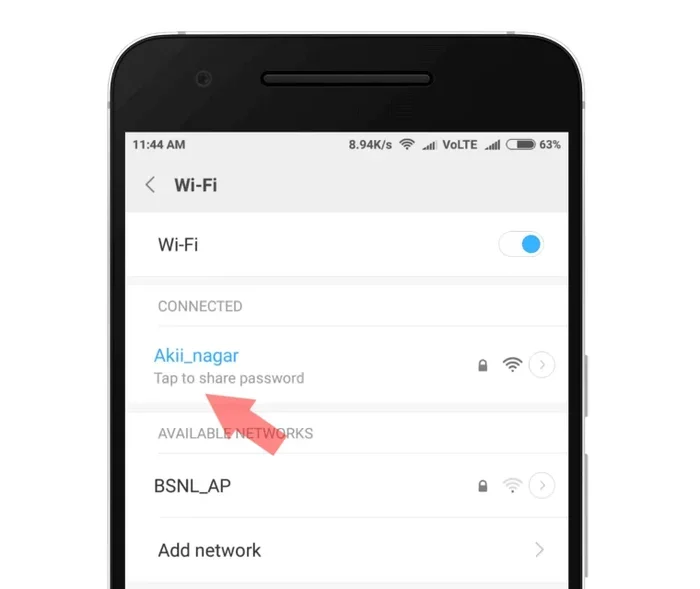
This is the most direct way to find your WiFi password on an Android device. Here is what you need to do:
- Open the Settings app on your phone.
- Tap on Network & Internet or Connections, depending on your device.
- Select WiFi from the menu.
- Find the network you are currently connected to and tap on it.
- Tap on Share or the gear icon next to the network name.
- You may need to authenticate with your fingerprint or face ID.
- A QR code will appear on your screen. Below or near it, the password is usually visible in plain text.
This method works on most Android phones running version 10 or later. Some manufacturers like Samsung, Xiaomi, and OnePlus may have slightly different menu names. But the general path remains the same.
Method 2: Using QR Code Sharing
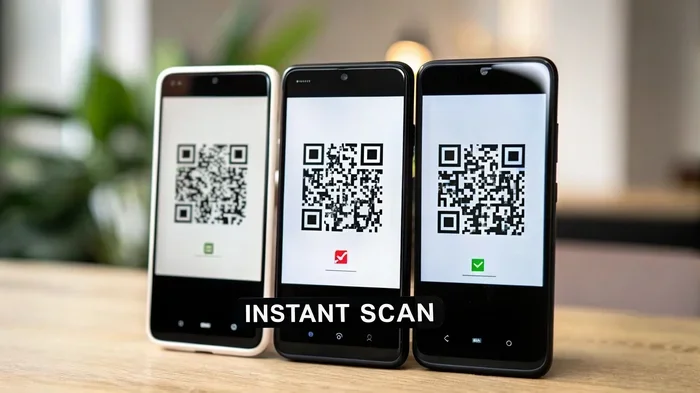
Android phones have a built-in QR code sharing feature. This is not only great for viewing your own password but also for sharing it with others. When you tap the share button on a connected network, your phone generates a QR code. Anyone who scans this code with their phone will automatically connect to the network.
The QR code contains the network name, password, and security type. You can show this QR code to a friend, and they can simply scan it with their camera app. This is the fastest way to share your WiFi password without typing it out.
Method 3: Using Third-Party Apps
If your phone does not show the password in plain text, you can try a third-party app. Several apps on the Google Play Store can display saved WiFi passwords. Some popular options include WiFi Key Share, WiFi Password Show, and Network Analyzer. These apps read your phone’s saved network data and display the passwords in a clear format.
However, you should be careful when using third-party apps. Only download apps from trusted developers. Check reviews and permissions before installing anything. You do not want to compromise your network security by using a sketchy app.
Quick Tip: On Samsung phones running One UI, go to Settings > Connections > WiFi > tap the gear icon next to your network > tap Share. The password appears below the QR code after fingerprint authentication.
How to See a WiFi Password on iPhone
Apple makes things a bit more restrictive when it comes to viewing WiFi passwords. iPhones do not have a built-in way to show your WiFi password directly on the device. But do not worry. There are still effective methods to find it.
Method 1: Using a Mac
If you have a Mac, you can easily find your WiFi password. Here is how:
- Make sure your iPhone and Mac are signed in with the same Apple ID.
- On your Mac, open the Keychain Access app.
- Search for the name of your WiFi network.
- Double-click on the network name.
- Check the box that says Show password.
- Enter your Mac login password when prompted.
- The WiFi password will now be visible.
This method works because Apple syncs your WiFi passwords through iCloud Keychain. As long as both devices are signed into the same Apple ID, you can access the password from your Mac.
Method 2: Checking Your Router
Another way to find your WiFi password is to check your router directly. Most routers have a sticker on the back or bottom that shows the default WiFi password. If you or someone else changed the password at some point, you can log into the router’s admin panel to view or reset it.
To access your router settings, type your router’s IP address into a web browser. Common addresses include 192.168.1.1 or 192.168.0.1. You will need your router’s admin username and password. These are often printed on the router itself or in the manual that came with it.
Method 3: Resetting the Router Password
If you have completely forgotten your WiFi password and cannot access the router admin panel, you can reset the router. This will restore the router to its factory settings, including the default WiFi password. Keep in mind that this will also erase any custom settings you have configured.
To reset your router, locate the small reset button on the back. Use a paperclip or pin to press and hold it for about 10 seconds. After the router restarts, the default password will be active again. You can find this on the router sticker or in the documentation.
Quick Tip: If you frequently need to share your WiFi password with visitors, consider setting up a guest network on your router. This keeps your main network secure while giving guests easy access.
Why You Might Need to See Your WiFi Password
There are many practical reasons why you might need to check your WiFi password. Understanding these reasons can help you appreciate the importance of knowing how to find it on your phone.
Sharing with Guests
One of the most common reasons is sharing your connection with visitors. Whether it is friends coming over for a party or family members staying with you, having your WiFi password handy makes the process smooth. Instead of trying to remember a long string of characters, you can simply show them the QR code or tell them the password directly.
Connecting New Devices
When you buy a new smart TV, gaming console, or smart home device, you will need to enter your WiFi password. These devices often do not have a keyboard, making it difficult to type in a complex password. By viewing your saved password on your phone first, you can have it ready before you start the setup process.
Security Checks
Regularly checking your WiFi password is a good security practice. It helps you ensure that no unauthorized changes have been made. If you suspect someone else knows your password, you can view it on your phone and then change it through your router settings. This keeps your network safe from unwanted intruders.
Troubleshooting Connection Issues
Sometimes WiFi problems arise because of incorrect password settings. By verifying the password stored on your phone, you can rule out typos or mismatches. This simple check can save you a lot of frustration when trying to diagnose why your connected WiFi is not working properly.
Comparing Methods: Android vs iPhone
Both Android and iPhone offer ways to view your WiFi password, but the experience differs. Android provides more direct access on the device itself. iPhone relies on ecosystem tools like Mac or iCloud Keychain. Here is a quick comparison to help you understand the differences.
| Feature | Android | iPhone |
|---|---|---|
| View password directly on device | Yes | No |
| QR code sharing | Built-in | Built-in (iOS 16+) |
| Third-party app support | Yes | Limited |
| Router access | Yes | Yes |
| Mac/iCloud Keychain | No | Yes |
| Ease of use | Very easy | Moderate |
As you can see, Android has the edge when it comes to directly viewing your WiFi password on the device. iPhone users will need to rely on a Mac or other Apple devices to see the password in plain text. However, both platforms support QR code sharing, which is the easiest way to give someone else access to your network.
Tips for Managing Your WiFi Passwords
Once you know how to view your WiFi password, it is worth learning how to manage it properly. Good password management keeps your network secure and your connections running smoothly.
Use Strong, Unique Passwords
Your WiFi password should be long and complex. Avoid using simple words or easily guessable combinations like “12345678” or your street address. A strong password includes a mix of uppercase letters, lowercase letters, numbers, and special characters. The longer the password, the better.
Change Your Password Regularly
It is a good habit to change your WiFi password every few months. This reduces the risk of unauthorized access. If you have ever shared your password with someone and no longer want them on your network, changing the password is the best solution.
Use a Password Manager
Consider using a password manager app to store all your WiFi passwords securely. Apps like LastPass, 1Password, or Bitwarden can safely store your network credentials. This way, you never have to worry about forgetting your password again.
Enable WPA3 Security
If your router supports it, enable WPA3 encryption. This is the latest and most secure WiFi standard. It provides better protection against brute-force attacks and keeps your network safer than older protocols like WEP or WPA2.
Common Mistakes When Viewing WiFi Passwords
While viewing your WiFi password is straightforward, there are some common mistakes people make. Avoiding these pitfalls will save you time and frustration.
Using Unreliable Apps
Many apps claim to show your WiFi password, but some are poorly made or even malicious. Only download apps from trusted developers with good reviews. Avoid any app that asks for unnecessary permissions or seems suspicious.
Forgetting to Authenticate
On Android, you often need to use your fingerprint or face ID before the password is shown. If you skip this step or do not have biometric authentication set up, you may not be able to view the password. Make sure your security settings are properly configured.
Not Checking the Correct Network
It sounds obvious, but many people check the wrong network name. Make sure the network you are viewing matches the one your phone is currently connected to. If you have multiple saved networks, it is easy to confuse them.
Ignoring Router Admin Access
Some people forget that the router itself holds all the network information. If your phone methods fail, logging into the router admin panel is always a reliable backup option. Keep your router credentials in a safe place.
Expert Insight: According to cybersecurity experts, viewing your WiFi password regularly and changing it periodically is one of the simplest ways to maintain good network hygiene. It takes just a few minutes on your phone and can prevent serious security breaches.
Frequently Asked Questions
Can I see my WiFi password on my phone without any extra apps?
Yes, on most Android phones you can see your WiFi password without downloading any extra apps. Simply go to your WiFi settings, tap on the connected network, and select the share option. A QR code will appear, and the password is usually displayed below it. On iPhone, you will need access to a Mac or use iCloud Keychain to view the password directly.
Is it safe to use third-party apps to view WiFi passwords?
It can be safe if you choose trusted apps from reputable developers. Always check reviews, ratings, and the permissions the app requests. Avoid apps that ask for more access than necessary. Stick to well-known apps from the official app store to minimize security risks.
Can I see the WiFi password of a network I am not currently connected to?
On Android, you can usually see the password for any saved network, not just the one you are currently connected to. On iPhone, viewing saved passwords for networks you are not connected to is more difficult and typically requires a Mac with iCloud Keychain synced.
What should I do if I cannot find my WiFi password on my phone?
If you cannot find the password on your phone, try checking your router directly. Look for a sticker on the router that shows the default password. You can also log into the router’s admin panel through a web browser. If all else fails, you can reset the router to restore the default password.
Can I change my WiFi password from my phone?
You cannot change your WiFi password directly from your phone. You need to log into your router’s admin panel to make changes. You can do this through a web browser on your phone by entering your router’s IP address. From there, you can navigate to the wireless settings and update your password.
Does viewing my WiFi password on my phone affect my network security?
No, viewing your own WiFi password on your phone does not affect your network security. In fact, it helps you stay aware of your credentials and take action if needed. Just be careful not to share your password with untrusted individuals or store it in insecure locations.
Final Thoughts
Knowing how to see a WiFi password that you are connected to on your phone is a practical skill that everyone should have. Whether you use an Android or iPhone, the methods in this guide will help you find your password quickly and easily. From sharing with guests to connecting new devices, having your password at your fingertips makes life much more convenient.
Remember to always prioritize your network security. Use strong passwords, change them regularly, and be cautious about who you share them with. With the right knowledge and tools, you can manage your WiFi connections confidently and securely.
Now that you know the steps, try finding your WiFi password on your phone today. It only takes a few minutes, and you will be glad you did. Stay connected, stay secure, and never worry about forgetting your WiFi password again.