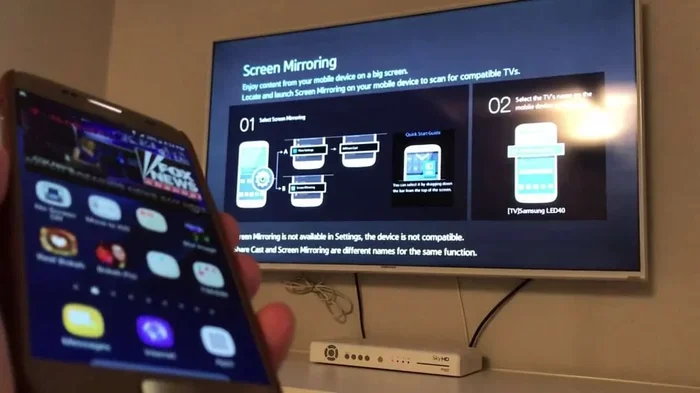
Can I Stream From My Phone To My Tv And How To Do It
Yes, you can stream from my phone to my tv using wireless casting, HDMI adapters, or streaming devices like Chromecast and Apple TV. This guide covers every method, from built-in features to wired solutions, so you can enjoy your phone’s screen on the big screen in minutes. Learn the easiest ways to mirror your phone to your TV today.
Have you ever been watching a hilarious video on your phone and wished you could see it on the big screen? Maybe you want to share vacation photos with the whole family or play a mobile game on your television. The good news is that you absolutely can. Can I Stream From My Phone To My Tv? Yes, and it is easier than you think.
Modern phones and smart TVs have made it simple to send your favorite content from a small screen to a large one. You can use wireless methods like screen mirroring and media casting, or you can plug in a cable. Whether you have an iPhone or an Android device, there is a solution that fits your needs. In this guide, we will walk you through every option so you can start enjoying your phone content on your TV right away.
We will cover built-in features like AirPlay and Google Cast, popular streaming devices, wired adapters, and even how to fix common problems. By the end, you will know exactly how to stream from my phone to my tv and which method works best for you.
Key Takeaways
- Wireless streaming is the easiest way to cast your phone screen to your TV without any cables.
- Built-in features like AirPlay and Google Cast let you stream directly from your phone to a smart TV.
- Streaming devices like Chromecast and Roku add casting abilities to any TV with an HDMI port.
- Wired HDMI adapters work when Wi-Fi fails and give you a reliable, lag-free connection.
- Most popular apps support casting natively, so you can send video and music straight to your TV.
- Troubleshooting is simple when you check Wi-Fi, update apps, and restart devices.
📑 Table of Contents
- Understanding How Phone-to-TV Streaming Works
- Can I Stream From My Phone To My Tv Using Built-In Features?
- Streaming Devices That Make Phone-to-TV Easy
- Wired Solutions: When Wireless Isn’t an Option
- Which Streaming Method Is Right for You?
- Troubleshooting Common Phone-to-TV Streaming Problems
- Conclusion
Understanding How Phone-to-TV Streaming Works
Before you dive into the methods, it helps to understand what is actually happening. When you stream from my phone to my tv, you are sending video and audio data from your mobile device to your television. This can happen over your home Wi-Fi network, through a direct Bluetooth connection, or via a physical cable. The TV then displays the content as if it were a native app.
There are two main types of phone-to-TV streaming. The first is media casting, where you send a specific video or song from an app to your TV. The app on your phone acts as a remote control. The second is screen mirroring, which copies everything on your phone screen to the TV exactly as it appears. Both methods are useful, but they work a bit differently.
Why Screen Mirroring Is So Popular
Screen mirroring lets you show your entire phone screen on the TV. This is great for sharing photos, browsing the web, or playing games. You do not need to open a specific app that supports casting. However, screen mirroring can use more battery and may have a slight delay. For most people, it is the go-to option because it works with almost anything on your phone.
When Media Casting Is Better
Media casting is ideal when you want to watch a single video or listen to music. The video plays directly on the TV, and your phone becomes a remote. This method uses less battery and often gives smoother playback. Popular apps like Netflix, YouTube, and Spotify all support media casting natively.
Can I Stream From My Phone To My Tv Using Built-In Features?
The easiest way to stream from my phone to my tv is by using the built-in features already on your device. Both Apple and Android phones offer native casting tools that require no extra hardware. You just need a smart TV that supports the same technology.
Using Apple AirPlay for iPhone Users
If you have an iPhone and a smart TV that supports AirPlay, you are in luck. AirPlay lets you wirelessly mirror your screen or cast specific content. To use it, make sure your iPhone and TV are on the same Wi-Fi network. Open the Control Center, tap the Screen Mirroring icon, and choose your TV from the list. You will see your phone screen appear on the TV instantly.
AirPlay works with many apps, including Netflix, YouTube, and Apple Music. You can also use it to share photos and presentations. The quality is excellent as long as your Wi-Fi signal is strong. If you have an Apple TV box, it works even better because it is designed to integrate perfectly with iPhones.
Using Google Cast for Android and iOS
Android users have Google Cast built into their phones. iPhones can also use Google Cast by downloading the Google Home app. Look for the Cast icon (a rectangle with Wi-Fi waves in the corner) in supported apps. Tap it, choose your TV, and the content will start playing on the big screen.
Google Cast is not limited to Android phones. Many smart TVs from Samsung, LG, and Sony have Chromecast built right in. This means you do not need to buy any extra device. Just make sure your TV and phone are connected to the same Wi-Fi network, and you are ready to go.
Quick Tip: If your TV does not have built-in casting, you can add a Chromecast or Fire TV Stick for under $50. These small devices plug into your TV’s HDMI port and turn any TV into a smart TV with casting support.
Using Smart TV Apps Directly
Many modern smart TVs have their own apps that let you cast from your phone. For example, Samsung TVs use Smart View, and LG TVs use Screen Share. These features work similarly to AirPlay and Google Cast. You just open the app on your TV, select your phone, and start streaming. This is a great built-in option if you do not want to use a separate streaming device.
Streaming Devices That Make Phone-to-TV Easy
Not all TVs are smart, and not all smart TVs support the latest casting features. That is where streaming devices come in. These small boxes or sticks plug into your TV’s HDMI port and give you access to a world of casting options. They are one of the most popular ways to stream from my phone to my tv.
Chromecast: The Go-To Google Device
Chromecast is a tiny device made by Google that connects to your TV’s HDMI port. It uses your home Wi-Fi network to receive content from your phone. To cast, you simply open a supported app on your phone, tap the Cast icon, and your phone sends the video directly to the Chromecast. The video plays on your TV, and your phone can be used for other things.
Chromecast is affordable and works with both Android and iOS phones. The latest models support 4K streaming and Google Cast technology. You can also use the Google Home app to mirror your entire screen if an app does not support casting natively.
Roku and Fire TV Stick Options
Roku devices are popular for their simple interface and wide app support. Most Roku models support screen mirroring from both Android and iOS devices. You just go to the Roku home screen, select Screen Mirroring, and your TV will be ready to receive content from your phone.
Amazon Fire TV Stick is another excellent choice. It works well with Android phones through the Amazon app and with iPhones through AirPlay. Fire TV Stick 4K models support 4K video and voice remote controls. Both Roku and Fire TV Stick are budget-friendly and easy to set up.
Apple TV for a Seamless Ecosystem
If you are deep in the Apple ecosystem, Apple TV is the premium streaming device. It supports AirPlay natively, so you can mirror your iPhone or iPad screen with just a few taps. Apple TV also supports 4K HDR and has a powerful processor for smooth playback. It is more expensive than Chromecast or Fire TV Stick, but the integration with iPhones and iPads is unmatched.
Wired Solutions: When Wireless Isn’t an Option
Sometimes Wi-Fi is not available, or you need a rock-solid connection with no lag. In these cases, wired solutions are the best choice. You can connect your phone directly to your TV using cables and adapters. This method works with any TV that has an HDMI input.
HDMI Adapters and Cables
The most reliable wired method is to use an HDMI adapter that fits your phone’s charging port. For iPhones, you need a Lightning to HDMI adapter. For Android phones, you will likely need a USB-C to HDMI adapter. Simply plug the adapter into your phone, connect an HDMI cable from the adapter to your TV, and switch your TV to the correct HDMI input.
Wired connections give you perfect quality with zero lag. This is ideal for gaming, presentations, or watching videos where every second counts. The downside is that your phone is tethered to the TV, so you cannot walk away while streaming.
MHL and SlimPort Adapters
Older Android phones might use MHL or SlimPort technology. These adapters also connect your phone to your TV via HDMI but use a micro-USB or USB-C port. MHL and SlimPort are less common today, but they still work with many older devices. Check your phone’s specifications to see if it supports either standard before buying an adapter.
Common Mistake: Many people buy the wrong adapter. Always check your phone’s port type first. If your phone uses USB-C, buy a USB-C to HDMI adapter. If it has a Lightning port, buy a Lightning to HDMI adapter. Using the wrong one will not work.
Which Streaming Method Is Right for You?
With so many options, choosing the best method can feel overwhelming. The right choice depends on your TV, your phone, and what you want to do. Here is a quick comparison of the most popular methods.
| Method | Best For | Cost | Setup Difficulty |
|---|---|---|---|
| Built-in AirPlay / Google Cast | Smart TV owners with compatible phones | Free | Very Easy |
| Chromecast / Fire TV Stick | Non-smart TVs or TVs without built-in casting | $30 – $50 | Easy |
| Apple TV | Apple ecosystem users who want premium quality | $130 – $150 | Easy |
| HDMI Adapter | Wired connections, gaming, presentations | $10 – $25 | Very Easy |
If you just want to watch a quick video, built-in casting is the fastest and cheapest option. If your TV is not smart, a Chromecast or Fire TV Stick is a great value. For the best quality and seamless integration, Apple TV is hard to beat. And if you need a connection that never drops, an HDMI adapter is the way to go.
Expert Insight: According to tech reviewers, the best all-around solution for most people is a Chromecast with Google TV. It supports both casting and built-in streaming apps, and it costs less than $50. It turns any TV into a smart TV in minutes.
Troubleshooting Common Phone-to-TV Streaming Problems
Even with the best setup, you might run into issues now and then. Most problems are easy to fix with a few simple steps. Here are the most common issues and how to solve them.
Wi-Fi Connection Issues
If your phone and TV are not seeing each other, the first thing to check is your Wi-Fi network. Both devices must be on the same network. Sometimes restarting your router fixes the problem. You can also try turning Wi-Fi off and back on your phone. If you are using a wireless display adapter, make sure it is plugged in and connected to the same Wi-Fi network as your phone.
Audio and Video Lag Fixes
A slight delay between your phone and TV is normal with wireless streaming. If the lag is severe, try moving your router closer to your TV. You can also switch to a 5 GHz Wi-Fi band if your router supports it. For wired connections, make sure you are using a high-speed HDMI cable. If you are using an HDMI adapter, try a different cable or adapter to rule out a faulty connection.
App Compatibility Problems
Not all apps support casting. If you do not see the Cast icon in an app, the app developer may have disabled it. In that case, use screen mirroring instead. Remember that some streaming services like Netflix block screen mirroring due to copyright restrictions. For those, you will need to use the app’s built-in Cast feature or watch directly on the TV.
Quick Tip: Keep your phone and TV firmware updated. Manufacturers often release updates that improve wireless streaming performance and fix bugs. Check for updates in your TV’s settings menu and on your phone’s software update screen.
Conclusion
Can I Stream From My Phone To My Tv? Absolutely. You have many options, from free built-in features to affordable streaming devices and reliable wired adapters. The best method depends on your TV, your phone, and your budget. If you have a smart TV, try AirPlay or Google Cast first. If you need more features, a Chromecast or Fire TV Stick is a fantastic choice. For a zero-lag experience, an HDMI adapter is unbeatable.
Now that you know how to stream from my phone to my tv, you can share your favorite content with anyone in the room. Try a few methods, see what works best for you, and enjoy your phone’s content on the big screen. With the right setup, your TV becomes the ultimate extension of your mobile device.
Frequently Asked Questions
Do I need a smart TV to stream from my phone?
No, you do not need a smart TV. You can use a streaming device like Chromecast, Roku, or Fire TV Stick. These devices plug into any TV with an HDMI port and give you the ability to cast from your phone.
Is screen mirroring the same as casting?
No, they are different. Screen mirroring copies your entire phone screen to the TV. Casting sends a specific video or song from an app directly to the TV. Casting usually gives smoother playback and uses less battery.
Can I stream from my phone to my TV without Wi-Fi?
Yes, you can use a wired HDMI adapter. This method does not require Wi-Fi at all. You simply connect your phone to your TV with a cable and adapter, and the content displays instantly.
Why is my phone-to-TV stream lagging?
Lag usually happens because of a weak Wi-Fi signal or network congestion. Move your router closer to your TV, switch to a 5 GHz band, or use a wired HDMI connection for a lag-free experience.
Can I use Bluetooth to stream from my phone to my TV?
Bluetooth can transmit audio to some TVs, but it is not ideal for video. Bluetooth has limited range and bandwidth, so video will likely lag. For video, use Wi-Fi casting, an HDMI adapter, or a streaming device.
Are there any free apps for streaming from phone to TV?
Yes, many apps are free. The Google Home app and Apple’s built-in AirPlay are completely free. You can also use apps like AllCast or BubbleUPnP for wireless streaming. Most smart TV brands offer free companion apps for casting as well.