Can A Tv Be Too Old To Connect To Wifi And Still Work
Can a TV be too old to connect to WiFi and still work? The short answer is yes, but there are many ways to bring an older set back to life. Older televisions often lack the built-in hardware needed for modern smart tv wifi connection and wireless connection tv standards. However, you can still enjoy streaming and online content with a few simple workarounds. This guide covers everything from checking your TV’s capabilities to finding the best streaming device for old tv options. You will learn practical fixes, expert tips, and clear steps to get your older television wifi working again.
Key Takeaways
- Older TVs Can Still Work: Even if your TV cannot connect to WiFi directly, it can still be used with external devices and adapters.
- Check Your TV Specs First: Look up your model number to see if it supports WiFi or needs an external adapter.
- Streaming Devices Are a Great Fix: Devices like Roku, Amazon Fire Stick, and Chromecast can add smart features to any old TV.
- WiFi Adapters and Dongles Help: Some older TVs can use external USB wifi adapters to gain wireless connectivity.
- Ethernet Is a Reliable Backup: A wired connection can give your old TV stable internet without WiFi issues.
- Know When to Upgrade: If your TV is more than 10 years old and struggles with everything, a new smart TV may be the best choice.
📑 Table of Contents
Understanding How Old TVs Handle WiFi
Many people wonder whether their aging television can still keep up with modern internet demands. The truth is, can a TV be too old to connect to WiFi and still work depends on several factors. These include the TV’s age, its built-in hardware, and the type of WiFi standards it supports. Older models were built before WiFi became a standard feature in every television.
Back in the early 2000s, most TVs were designed purely for receiving broadcast signals. They had no built-in internet capability at all. As technology evolved, manufacturers started adding wifi enabled tv features to their mid-range and premium models. But many budget and older sets never got this upgrade.
What Makes a TV WiFi-Ready?
A wifi enabled tv has a built-in wireless adapter and a processor that can handle internet data. This hardware allows the TV to search for networks, connect to your router, and stream content directly. Without this internal hardware, the TV simply cannot access WiFi on its own.
Here is what you need to look for in a TV to confirm it is WiFi-ready:
- A built-in wireless network adapter
- A smart TV operating system or platform
- Access to the TV’s network settings menu
- Support for at least WiFi 4 (802.11n) or higher
- An Ethernet port as an alternative connection option
If your TV does not have these features, it is not necessarily useless. It just means you need external help to get online. Many people with vintage tv wifi setups use creative solutions to stay connected.
The Difference Between WiFi-Enabled and Smart TVs
People often use the terms “WiFi-enabled” and “smart TV” interchangeably. But they are not exactly the same thing. A wifi enabled tv can connect to your wireless network, but it may not have a full smart platform. A smart TV, on the other hand, has both WiFi and a built-in app ecosystem.
Some older TVs could connect to WiFi but only for firmware updates or basic functions. They did not support streaming apps like Netflix or Hulu. This is an important distinction when you are trying to decide how to use an older set in today’s world.
Common Reasons Old TVs Struggle With WiFi
If your tv wifi not working is a real frustration, you are not alone. Many users with aging televisions face this exact problem. Understanding why the connection fails is the first step toward fixing it. Several common issues can cause an old TV to lose its WiFi connection or refuse to connect at all.
Outdated WiFi Standards
One of the biggest reasons an old TV cannot connect to WiFi is outdated wireless standards. Modern routers use WiFi 5 or WiFi 6 protocols. Older TVs often only support WiFi 4 (802.11n) or even older WiFi Protected Setup (WPS) methods. When your router uses a newer standard, the TV may not be able to communicate with it properly.
This creates a compatibility gap. Your router sends a signal your TV cannot read. The result is a failed connection or a very slow, unstable one. This is why smart tv not connecting to wifi is such a common complaint among users of older sets.
Limited Memory and Processing Power
Old televisions have very limited internal memory and slow processors. Even if they can connect to WiFi, they may struggle to load streaming apps. The TV might freeze, buffer constantly, or simply refuse to open certain apps. This is not a WiFi problem in the traditional sense. It is a hardware limitation.
When you are trying streaming on old tv setups, you may notice that the TV takes a long time to start an app. Videos may lag or drop in quality. These issues are signs that the TV’s internal hardware is simply not powerful enough for modern internet demands.
Router Compatibility Issues
Sometimes the problem is not the TV at all. Your router may be using security protocols or frequency bands that the old TV does not support. For example, many older TVs only connect to the 2.4 GHz band. If your router is set to 5 GHz only, the TV will not see the network.
Similarly, older TVs may not support WPA3 security. If your router is set to the latest security standard, the TV may fail to authenticate. Switching to WPA2 or WPA/WPA2 mixed mode can often fix this issue quickly.
How To Check If Your TV Can Connect to WiFi
Before you try any fixes, it helps to know exactly what your TV can and cannot do. Checking your TV’s capabilities saves time and prevents frustration. You do not need to be a tech expert to run these simple checks.
Checking Your TV Model and Specs
Start by finding your TV’s model number. This is usually printed on a sticker on the back of the set or in the original box. Once you have the model number, search for it online along with the words “specifications” or “specs.”
Look for these specific details in the spec sheet:
- Does it list WiFi or wireless connectivity?
- What WiFi standard does it support?
- Does it have an Ethernet port?
- Is it listed as a “smart TV” or “internet-ready TV”?
- What year was it manufactured?
If the TV was made before 2010, there is a good chance it does not have built-in WiFi. Sets from 2010 to 2015 may have basic WiFi but limited smart features. TVs from 2016 onward are more likely to have modern smart tv wifi setup capabilities.
Testing the WiFi Connection
If your TV does have WiFi built in, try connecting it to your network. Go to the TV’s settings menu and look for the network or WiFi section. Select your network name and enter the password.
Watch for these signs during the test:
- Does the TV find your network at all?
- Does it connect and then disconnect repeatedly?
- Does it connect but apps will not load?
- Does the connection speed seem very slow?
Each of these symptoms points to a different problem. If the TV cannot find the network, the wireless adapter may be faulty or missing. If it connects but apps fail, the issue is likely processing power, not WiFi.
Solutions To Get Your Old TV Online
The good news is that even if your TV is old, you have several options to get it connected to the internet. You do not have to throw it away or buy a brand-new set. There are practical, affordable solutions that work well for older television wifi setups.
Using a WiFi Adapter or Dongle
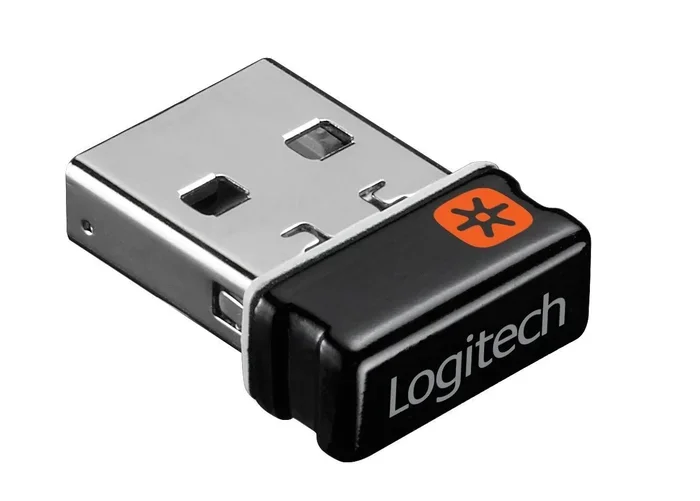
Some older TVs have USB ports that can accept external tv wifi adapter devices. These small dongles plug into the USB port and add wireless connectivity to the TV. They are especially useful for sets that were not originally designed to be WiFi-enabled.
Before buying an adapter, check if your TV supports USB networking. Not all USB ports on TVs support this function. Some are only for media playback. Look for a port labeled “Network” or check the manual for USB networking support.
Popular external wifi adapter for tv options include brands like TP-Link and ASUS. These adapters are affordable and easy to set up. They can breathe new life into an old TV that would otherwise stay offline.
Connecting via Ethernet Cable
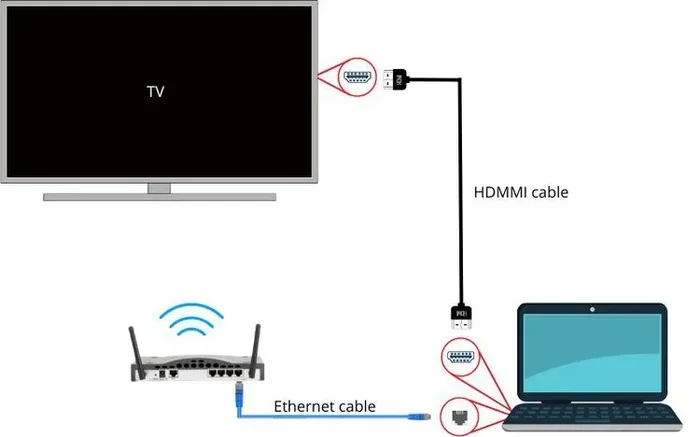
If your old TV has an Ethernet port, a wired connection is often the most reliable option. Ethernet provides a stable, fast internet connection without the interference that can affect WiFi signals. This is especially helpful if your TV struggles with wifi signal for tv issues.
You will need a standard Ethernet cable (Cat5e or Cat6). Simply plug one end into the router and the other into the TV. Go to the network settings and select the wired connection option. The TV should connect automatically in most cases.
A wired connection is ideal for streaming on old tv setups where WiFi stability is a concern. It eliminates buffering caused by weak wireless signals and gives you the best possible speed.
Using a Streaming Device
This is arguably the best solution for people who want to keep their old TV but enjoy modern streaming features. A streaming device for old tv connects to your television’s HDMI port and handles all the internet processing for you.
The TV itself does not need WiFi or smart features. The streaming device does all the heavy lifting. Here are some popular options:
- Amazon Fire TV Stick: Affordable and easy to set up. Supports Alexa voice control.
- Roku Express: Simple interface and wide app compatibility. Great for beginners.
- Google Chromecast: Lets you cast content from your phone or tablet to the TV.
- Apple TV: Premium option with excellent performance and app selection.
These devices turn any old TV with an HDMI port into a smart tv wifi connection powerhouse. They cost between $30 and $150, making them a budget-friendly alternative to buying a new TV.
When It Is Time to Upgrade Your TV
Sometimes the best solution is to accept that the TV has served its purpose and upgrade to a newer model. Knowing when to make this decision can save you money and frustration in the long run.
Signs Your TV Is Too Old
Here are clear signs that your television is too old to keep up with modern viewing habits:
- The TV is more than 10 years old and has no WiFi capability
- You cannot find replacement parts or support for the model
- The picture quality is significantly worse than modern standards
- The TV takes more than 10 seconds to turn on
- Streaming through external devices causes constant lag or freezing
- The TV uses outdated ports like only composite or component inputs
- Firmware updates are no longer available for the model
If several of these signs apply to your set, it may be time to consider a replacement. A new internet ready tv will give you a much better experience with less hassle.
Benefits of a New WiFi-Ready TV
Modern smart TVs come with built-in WiFi, voice control, and access to hundreds of streaming apps. They support the latest WiFi standards and offer much faster, more stable connections. A new TV also has better picture quality, faster processing, and longer expected lifespan.
When you buy a new smart tv wifi setup television, you also get access to regular firmware updates. These updates fix bugs, improve performance, and add new features over time. This is something older TVs simply cannot offer.
Tips For Keeping Your Old TV Connected
If you decide to keep using your older television, there are steps you can take to maintain a strong and stable connection. These tips help you get the most out of your old tv smart features and any external devices you use.
Optimizing Your WiFi Signal
Place your router as close to the TV as possible. Walls, floors, and furniture can weaken the WiFi signal. If your TV is in a different room from the router, consider using a WiFi extender or mesh network system.
Keep the router in a central, open location. Avoid placing it inside cabinets or behind large furniture. A clear line of sight between the router and the TV improves the signal strength significantly.
Updating TV Firmware
If your old TV does support WiFi, check for firmware updates regularly. Manufacturers release updates that fix bugs and improve compatibility with modern networks. You can usually find firmware updates in the TV’s settings menu under “Support” or “System Update.”
For tv firmware update wifi issues, you may need to connect the TV to your router via Ethernet first. Once updated, you can switch back to WiFi if needed. Keeping firmware current helps prevent many tv internet connection problems before they start.
Rebooting Your Equipment Regularly
A simple reboot can solve many connection issues. Unplug your router and TV for 30 seconds, then plug them back in. This clears temporary glitches and refreshes the network connection. Make this a habit at least once a month for the best results.
Conclusion
Can a TV be too old to connect to WiFi and still work? Yes, it can be too old to connect to WiFi directly, but it does not mean the TV is useless. With the right approach, an older television can still deliver a great viewing experience. Whether you use a tv wifi adapter, an Ethernet cable, or a streaming device, there are plenty of ways to stay connected.
Understanding your TV’s limitations is the first step. From there, you can choose the best solution for your budget and needs. If your TV is truly outdated, upgrading to a new internet ready tv brings modern convenience and better performance. But if your old set still works, do not be afraid to explore these options and keep it in use.
The world of technology offers many paths to keep your television relevant. A little effort goes a long way in extending the life of your older set. Stay curious, try different solutions, and enjoy your entertainment no matter how old your TV may be.
Frequently Asked Questions
Can a TV from 2005 connect to WiFi?
Most TVs from 2005 do not have built-in WiFi capability. However, you can still connect to the internet using an external streaming device or a USB wifi adapter if the TV has the right ports. Check your TV’s model specs to confirm what options are available.
What is the best streaming device for an old TV?
The Amazon Fire TV Stick and Roku Express are two of the best options for older TVs. They are affordable, easy to set up, and turn any HDMI-equipped TV into a smart TV. Both devices handle smart tv wifi connection tasks smoothly and support all major streaming apps.
Why does my old TV keep disconnecting from WiFi?
Older TVs often have weak wireless adapters that struggle with modern router settings. Try switching your router to WPA2 security and the 2.4 GHz band. If the problem continues, a tv wifi adapter or a wired Ethernet connection can provide a more stable experience.
Can I use a WiFi extender to help my old TV connect?
Yes, a WiFi extender can improve the signal strength reaching your old TV. Place the extender between your router and the TV for the best results. This is especially helpful if the TV is in a different room or far from the router.
Is it worth buying a new TV if the old one still works?
If the TV is more than 10 years old and cannot connect to WiFi or stream content reliably, upgrading is worth considering. New smart tv wifi setup models are more energy-efficient and offer much better picture quality. A budget smart TV can be found for under $300 and transforms your viewing experience.
How can I improve WiFi speed for my old TV?
Use a wired Ethernet connection for the most stable speed. If that is not possible, place the router closer to the TV and reduce interference from other devices. A tv network settings check can also help you switch to the least congested channel on your router.