Can I Use My Phone As A Hotspot For Internet On The Go
Can I Use My Phone As A Hotspot for internet on the go? Absolutely! Mobile hotspot technology lets you share your phone’s cellular data connection with laptops, tablets, and other devices anywhere you have cell service. This guide covers phone tethering setup for both Android and iPhone, data management tips, and troubleshooting so you can stay connected no matter where life takes you.
Have you ever been stuck somewhere without WiFi and needed internet right away? Maybe you are at a coffee shop, on a road trip, or working from a park. The good news is that can I use my phone as a hotspot is a question with a very simple answer: yes! Your smartphone already has the power to act as a portable WiFi router. You just need to know where to look.
Using your phone as a mobile hotspot means sharing its cellular data connection with other devices. Think of it as turning your phone into a tiny internet tower. Your laptop, tablet, or another phone can connect to it and browse the web, stream videos, or send emails. It is one of the most useful features built into modern smartphones, yet many people never try it.
In this article, we will walk you through everything you need to know. We will cover how to set up a hotspot on both Android and iPhone. We will also talk about data usage, battery life, security, and common problems. By the end, you will feel confident using phone tethering whenever you need internet on the go.
Key Takeaways
- Easy Setup: You can turn your phone into a portable WiFi device in just a few taps, no extra gear needed.
- Works on Android and iPhone: Both platforms offer built-in hotspot features that are simple to configure.
- Watch Your Data: Mobile hotspots use your cellular data plan, so tracking usage helps avoid surprise charges.
- Battery Drain Is Real: Running a hotspot drains your phone battery faster, but simple tips can extend usage time.
- Security Matters: Setting a strong password keeps your wireless tethering connection safe from unauthorized users.
- Multiple Devices Work: Most phones can connect several devices at once, making them great for travel or emergencies.
📑 Table of Contents
- What Is a Mobile Hotspot and How Does It Work?
- How to Set Up Your Phone as a Hotspot on Android
- How to Set Up Your Phone as a Hotspot on iPhone
- Data Usage and How to Stay Within Limits
- Tips to Improve Hotspot Performance and Battery Life
- Hotspot Security: Keeping Your Connection Safe
- Common Hotspot Problems and How to Fix Them
- When Should You Use a Phone Hotspot vs. a Dedicated Mobile Hotspot Device?
- Final Thoughts on Using Your Phone as a Hotspot
What Is a Mobile Hotspot and How Does It Work?
A mobile hotspot is a feature that turns your phone into a wireless router. It takes the cellular data signal your phone receives from nearby cell towers and shares it with other devices through WiFi. This process is also called wireless tethering or portable WiFi. When another device connects to your hotspot, it uses your phone’s data plan to access the internet.
The technology behind it is straightforward. Your phone has a cellular modem that connects to the network. When you enable the hotspot feature, the phone creates a small local WiFi network. Other devices see this network and can join it. All the data that flows through those devices passes through your phone’s cellular connection first.
Types of Hotspot Connections
There are a few ways your phone can share its internet connection. Each method has its own use case.
- WiFi Hotspot: This is the most common method. It creates a wireless network that nearby devices can detect and join. It works just like a regular home router.
- Bluetooth Tethering: This connects another device using Bluetooth instead of WiFi. It uses less battery but is slower than WiFi tethering.
- USB Tethering: You plug your phone into a computer with a cable. The computer gets internet through the phone’s data connection. This method is fast and does not drain your battery as quickly.
For most people, the WiFi hotspot option is the best choice. It is fast, easy, and lets multiple devices connect at the same time. But knowing your options helps you pick the right method for each situation.
How to Set Up Your Phone as a Hotspot on Android
Setting up can I use my phone as a hotspot on an Android device is quick and easy. Most Android phones made in the last few years have this feature built right into the settings. Here is how to do it step by step.
Step-by-Step Android Hotspot Setup
- Open Settings. Find the gear icon on your home screen or app drawer and tap it.
- Go to Network and Internet. On some phones, this might be called Connections or Mobile Network.
- Tap Hotspot and Tethering. This section holds all your sharing options.
- Select WiFi Hotspot. Tap on it to open the settings panel.
- Turn it on. Toggle the switch to enable the hotspot.
- Set a name and password. Tap on the hotspot name to change it. Set a password that is strong but easy for you to remember.
Once you turn on the hotspot, other devices will see your network name in their WiFi settings. They just need to enter the password to connect. That is all it takes!
Quick Android Hotspot Tips
- Use a strong password. A simple password like “1234” leaves your connection open to strangers. Pick something with at least eight characters, mixing letters and numbers.
- Change the hotspot band. Some Android phones let you choose between 2.4 GHz and 5 GHz bands. The 5 GHz band is faster but has a shorter range. The 2.4 GHz band goes further but is slower.
- Turn off the hotspot when not in use. This saves battery and keeps your data plan safe from accidental use by others.
How to Set Up Your Phone as a Hotspot on iPhone
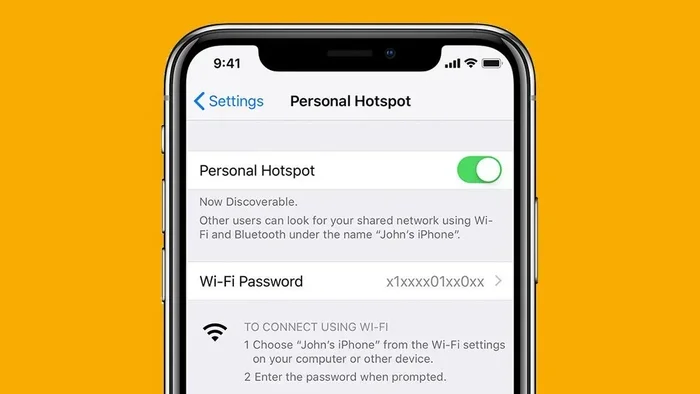
iPhone users can also use their device as a portable WiFi source. Apple calls this feature “Personal Hotspot.” It works in a similar way to Android, but the steps are slightly different. Here is how to get it running on your iPhone.
Step-by-Step iPhone Hotspot Setup
- Open Settings. Tap the gray gear icon on your home screen.
- Tap Personal Hotspot. You will find it in the main settings list. If you do not see it, go to Cellular and look for it there.
- Allow others to join. Toggle on “Allow Others to Join.”
- Set a password. Tap on the WiFi password field and enter a strong password.
- Connect your devices. On the other device, go to WiFi settings, find your iPhone’s name, and enter the password.
That is it! Your iPhone now acts as a mobile hotspot. Other devices can connect to it and use your cellular data. You can also connect via Bluetooth or USB if you prefer those methods.
iPhone Hotspot Extra Options
- Maximize Compatibility: iPhone has an option called “Maximize Compatibility.” Turn it on if older devices have trouble connecting to your hotspot.
- USB Connection: Plug your iPhone into a laptop with a cable. The laptop can use your phone’s data through iTunes or Finder. This is great for saving battery.
- Instant Hotspot: If you have other Apple devices signed into the same Apple ID, they can connect automatically without typing a password. This is a very convenient feature.
Data Usage and How to Stay Within Limits
One of the most important things to understand about phone tethering is how it affects your data usage. When you use your phone as a hotspot, every device connected to it is using your cellular data plan. This means you can burn through your data much faster than you might expect.
How Much Data Do Common Activities Use?
Different activities use different amounts of data. Here is a rough breakdown to help you plan:
- Web browsing: About 60 MB per hour of light reading and site visiting.
- Email: Very little data, around 1 to 5 MB per hour, depending on attachments.
- Music streaming: About 100 MB per hour on standard quality and up to 150 MB per hour on high quality.
- Video streaming: This is the big one. Standard definition uses about 1 GB per hour. HD video can use 3 GB or more per hour.
- Video calls: Apps like Zoom or FaceTime use about 1 to 1.5 GB per hour.
- Social media: Scrolling through feeds uses roughly 100 to 200 MB per hour, depending on video content.
Tips to Manage Hotspot Data Usage
- Check your data plan. Know how much data you have each month before you start tethering. Most plans have a set amount, and going over can mean extra charges.
- Lower video quality. If you are streaming, switch to standard definition instead of HD. This cuts your data use significantly.
- Use WiFi when available. If you are in a place with WiFi, connect your devices to that instead of using the hotspot.
- Turn off auto-updates. Make sure connected devices do not download updates automatically. These can use a lot of data without you noticing.
- Monitor usage regularly. Both Android and iPhone let you check how much data you have used. Check it often when you are using a hotspot.
- Set data warnings. Most phones let you set a data limit or warning. This alerts you before you go over your plan.
Keeping track of your data usage is one of the best habits you can build when using can I use my phone as a hotspot regularly. A little awareness goes a long way toward avoiding bill shock.
Tips to Improve Hotspot Performance and Battery Life
Running a mobile hotspot can be tough on your phone. It uses the cellular radio constantly and generates heat. Over time, this can drain your battery and slow down your connection. But there are simple steps you can take to keep things running smoothly.
Battery Saving Tips for Hotspot Users
- Plug in your phone. If you are going to use the hotspot for a long time, connect your phone to a charger or a power bank. This keeps the battery from dying mid-session.
- Reduce screen brightness. Your phone screen uses a lot of power. Lowering the brightness saves battery while the hotspot is running.
- Close unused apps. Apps running in the background use both data and battery. Close anything you are not actively using.
- Turn off location services. GPS uses extra power. If you do not need it, turn it off while tethering.
- Use a portable charger. A good quality power bank can keep your phone alive for hours while it serves as a hotspot. Look for one with at least 10,000 mAh capacity.
Performance Boosting Tips
- Stay in a strong signal area. The stronger your cell signal, the faster and more stable your hotspot will be. If you are in a weak signal area, move near a window or go outside.
- Limit the number of connected devices. The more devices connected, the slower the connection gets for each one. Keep it to only the devices that really need it.
- Restart your phone. Sometimes a simple restart clears up slow speeds and connection drops. It refreshes the cellular connection and frees up memory.
- Update your phone’s software. Phone updates often include fixes for connectivity issues. Keeping your software current helps your hotspot run better.
Taking care of your phone while it serves as a portable WiFi source ensures a better experience for everyone connected to it. A little maintenance goes a long way.
Hotspot Security: Keeping Your Connection Safe
When you share your internet connection, you also open a door to potential security risks. If your hotspot is unprotected, strangers could connect to it. They might use your data, slow down your connection, or even try to access your personal information. This is why hotspot security should never be an afterthought.
Best Practices for Hotspot Security
- Always use a strong password. This is the single most important step. Use a password that is at least 12 characters long and includes a mix of uppercase letters, lowercase letters, numbers, and symbols.
- Change the default hotspot name. Default names often reveal your phone model or carrier. A custom name is less inviting to strangers.
- Turn off the hotspot when not in use. An active hotspot that nobody is using is an open door. Disable it when you are done.
- Use WPA2 or WPA3 encryption. Both Android and iPhone use strong encryption by default. Make sure it is not set to “Open,” which means no encryption at all.
- Monitor connected devices. Check your hotspot settings regularly to see which devices are connected. If you see an unknown device, change your password immediately.
- Avoid using public hotspots for sensitive tasks. If you are connected to a hotspot in a public place, avoid banking or entering passwords on sensitive sites. Use a VPN if possible.
Taking these simple steps keeps your wireless tethering connection safe and your personal data secure. Security does not have to be complicated, but it does need to be a habit.
Common Hotspot Problems and How to Fix Them
Using your phone as a mobile hotspot is generally smooth, but sometimes things go wrong. Slow speeds, dropped connections, and devices that will not connect are common complaints. The good news is that most of these issues have simple fixes.
Slow Hotspot Speeds
If your hotspot is slow, the first thing to check is your cell signal strength. A weak signal means slow speeds. Moving to a different location can help a lot. Also, check how many devices are connected. Too many devices sharing one connection will slow things down for everyone. Try disconnecting devices you are not actively using.
Another common cause is background data usage on your phone. Apps updating or syncing in the background can eat up your bandwidth. Close unnecessary apps and turn off auto-sync while you are using the hotspot.
Devices Will Not Connect
If another device cannot find your hotspot, try these steps. First, make sure the hotspot is turned on and visible. Some phones have an option to hide the hotspot from other devices. Turn off any “hidden network” setting. Second, restart both your phone and the device trying to connect. Third, double-check the password. Passwords are case-sensitive, so make sure caps lock is off.
Phone Overheating
Hotspots can cause your phone to heat up, especially during long sessions. If your phone gets too hot, it may slow down or disconnect. To fix this, turn off the hotspot and let your phone cool down. Avoid using your phone for heavy tasks while the hotspot is running. Keep it out of direct sunlight and in a cool, well-ventilated area.
Data Runs Out Quickly
If you find your data disappearing too fast, check which devices are connected and what they are doing. Video streaming and large downloads use the most data. Consider setting a data limit on your phone so it automatically turns off the hotspot when you reach a certain amount. This protects you from unexpected overage charges.
Most hotspot issues are easy to solve with a little patience. Once you know what to look for, you can quickly get back online.
When Should You Use a Phone Hotspot vs. a Dedicated Mobile Hotspot Device?
While can I use my phone as a hotspot works great for most situations, there are times when a dedicated mobile hotspot device might be a better choice. Understanding the differences helps you pick the right tool for the job.
When a Phone Hotspot Works Best
- Short-term needs: If you just need internet for a few hours, your phone is perfect. No extra device to carry.
- Traveling light: When you want to travel with minimal gear, using your phone as a portable WiFi source saves space and weight.
- Emergency situations: If your home internet goes down, your phone hotspot is a quick and easy backup.
- Occasional use: If you only need tethering once in a while, there is no need to buy a separate device.
When a Dedicated Hotspot Device Makes Sense
- Heavy daily use: If you rely on a hotspot every day for work, a dedicated device preserves your phone battery and data.
- Many connected devices: Dedicated hotspots often handle more simultaneous connections better than a phone.
- Better battery life: Mobile hotspot devices are designed to run all day without needing a charge.
- Stronger signal: Some dedicated devices have better antennas and can pick up weaker signals than a phone.
For most people, using their phone as a mobile hotspot is more than enough. But if you find yourself relying on tethering every single day, a dedicated device might be worth the investment.
Final Thoughts on Using Your Phone as a Hotspot
Can I use my phone as a hotspot for internet on the go is a question that has a clear and empowering answer: yes, you absolutely can. It is one of the most practical features your smartphone offers, and it works whether you are on an Android device or an iPhone.
Setting up a mobile hotspot takes just a few minutes, and once you have it running, you can connect your laptop, tablet, or any other WiFi-enabled device to the internet almost anywhere. Just remember to keep an eye on your data usage, protect your connection with a strong password, and take care of your phone’s battery while tethering.
Whether you are traveling, working remotely, or just need a backup connection, your phone is ready to help. The next time you find yourself without WiFi, you will know exactly what to do. Embrace the freedom of internet on the go and stay connected wherever life takes you.
Frequently Asked Questions
Can I use my phone as a hotspot without using data?
No, a mobile hotspot uses your cellular data plan to share internet with other devices. Every device that connects to your hotspot consumes data from your plan. If you have an unlimited data plan, you can use a hotspot more freely, but most plans have some form of data management.
How many devices can connect to my phone hotspot at once?
Most phones can handle between 5 and 10 connected devices at the same time. However, the more devices you connect, the slower the connection will be for each one. For the best experience, limit the number of active devices to what you really need.
Does using my phone as a hotspot drain the battery quickly?
Yes, running a hotspot uses a lot of battery because your phone is constantly broadcasting a WiFi signal and managing data connections. You can extend battery life by plugging your phone into a charger, lowering screen brightness, and closing unused apps while tethering.
Is it safe to use my phone hotspot in public places?
It is generally safe if you take the right precautions. Always use a strong password, enable WPA2 or WPA3 encryption, and turn off the hotspot when you are not using it. Avoid accessing sensitive accounts like banking if you are in a crowded public area.
Will my carrier know if I use my phone as a hotspot?
Yes, your carrier can see your data usage, including hotspot data. Some carriers may throttle hotspot speeds after you reach a certain data limit, even on unlimited plans. Check your plan details to understand any restrictions on phone tethering.
Can I use my phone hotspot while on a call?
Yes, in most cases you can use your hotspot while on a call. However, the quality of both the call and the data connection may be affected, especially if you are on an older phone or in an area with weak signal. Modern smartphones handle this well in most situations.
=== CONCLUSION ===
Can I use my phone as a hotspot for internet on the go is a question that opens up a world of connectivity and convenience. With just a few taps, your smartphone becomes a powerful portable WiFi device that keeps you online anywhere. You have learned how to set up a hotspot on both Android and iPhone, how to manage your data usage, how to protect your connection, and how to troubleshoot common issues.
The key is to use this feature wisely. Monitor your data, keep your password strong, and take care of your phone’s battery. When you do, your phone hotspot becomes one of the most valuable tools in your digital toolkit. Stay connected, stay productive, and enjoy the freedom of internet on the go whenever you need it.