Can I Increase Wi Fi Signal Strength at Home Today
Yes, you can increase Wi-Fi signal strength at home today using simple, proven methods. Whether you are dealing with slow speeds, dead zones, or weak connections, there are practical steps you can take right now. This guide covers router placement, signal boosters, mesh networks, and other effective strategies to improve your Wi-Fi signal throughout your home.
Slow Wi-Fi is one of the most frustrating problems in any modern home. You are watching your favorite show, and suddenly it starts buffering. Your video call freezes. Your kids cannot load their online game. It happens to all of us. The good news is that you do not need to be a tech expert to fix this. You can increase Wi-Fi signal strength at home today with simple, affordable solutions.
This guide walks you through every practical method available. From free tricks you can try right now to hardware upgrades that deliver real results, we have you covered. You will learn why your signal is weak in the first place. You will discover the best placement for your router. And you will find out which tools actually work for boosting wireless coverage. Let us get started.
Before diving into solutions, it helps to understand what weakens your Wi-Fi signal in the first place. Many factors play a role. Physical barriers like walls and floors block wireless waves. Electronic devices nearby cause interference. Even the age of your router matters. Once you understand these basics, the solutions make much more sense. Let us break it all down.
Key Takeaways
- Router Placement Matters: Moving your router to a central, elevated location can dramatically improve wireless coverage.
- Signal Boosters Work: Wi-Fi extenders, repeaters, and mesh systems are effective tools for increasing signal strength.
- Interference Is a Real Problem: Household devices and neighboring networks can weaken your wireless signal significantly.
- Router Settings Can Help: Updating firmware, changing channels, and adjusting band settings make a noticeable difference.
- Hardware Upgrades Are Worth It: Investing in a modern router or better antenna can solve persistent signal issues.
- DIY Tricks Help Too: Simple hacks like aluminum foil reflectors and password security can boost performance.
- Testing Your Signal Is Essential: Using signal strength tools helps you identify problem areas and measure improvement.
📑 Table of Contents
- Why Your Wi-Fi Signal Is Weak
- Free Ways to Boost Your Wi-Fi Signal Today
- Wi-Fi Signal Boosters: Do They Really Work
- Router Settings That Improve Signal Strength
- When to Upgrade Your Router or Equipment
- Common Mistakes That Weaken Your Wi-Fi Signal
- Expert Insights on Improving Home Wi-Fi
- How to Test Your Wi-Fi Signal Strength
- Conclusion
Why Your Wi-Fi Signal Is Weak
Understanding the root cause of weak wireless signals helps you choose the right fix. Not every solution works for every problem. So let us look at the most common reasons your signal struggles.
Distance From the Router
Wi-Fi signals weaken as they travel further from the source. If your router sits in one corner of the house, the opposite end may receive a very weak signal. The further you are from the router, the slower your connection becomes. This is basic physics. Radio waves spread out and lose energy over distance. Moving closer to the router often solves the problem instantly.
Physical Obstacles
Walls, floors, doors, and large furniture all block or absorb wireless signals. Concrete and brick are especially tough on Wi-Fi. Metal objects reflect signals away. Even water tanks and fish tanks can weaken your connection. If your router is in a basement surrounded by thick walls, the signal has a hard time reaching upstairs rooms. This is one of the biggest reasons people experience dead zones.
Electronic Interference
Many household devices operate on similar frequencies as Wi-Fi. Microwaves, baby monitors, cordless phones, and Bluetooth devices all create interference. When these devices run, they can disrupt your wireless signal. This is especially true for older routers that only use the 2.4 GHz band. The interference makes your connection slower and less stable.
Outdated Equipment
Older routers simply cannot keep up with modern demands. If your router is more than five years old, it may lack the technology to deliver strong signals throughout a larger home. Newer models support better range, faster speeds, and smarter signal management. Sometimes the simplest fix is upgrading your hardware.
Network Congestion
If you live in an apartment building or a crowded neighborhood, your neighbors’ Wi-Fi networks may overlap with yours. This is called channel congestion. Too many networks on the same frequency band slow everyone down. Your router struggles to find a clear path for your data. This problem is very common in urban areas.
Free Ways to Boost Your Wi-Fi Signal Today
You do not need to spend money to improve your wireless signal. Some of the most effective methods cost absolutely nothing. Try these tips first before buying any new equipment.
Reposition Your Router
This is the single most impactful change you can make. Move your router to a central location in your home. Place it on a higher shelf or mount it on a wall. Avoid hiding it inside a cabinet or behind a TV. Routers need open space to broadcast signals effectively. A central, elevated position gives the signal the best chance to reach every room.
Restart Your Router Regularly
Routers accumulate temporary glitches over time. A simple restart clears the memory and refreshes the connection. Make it a habit to reboot your router once a week. You can set a timer to do this automatically. Many modern routers have a scheduled restart feature built in. This small habit can improve your signal consistency significantly.
Update Your Router Firmware
Router manufacturers release firmware updates to fix bugs and improve performance. Check your router’s admin panel for available updates. Updating firmware is usually free and takes just a few minutes. New firmware often includes better signal management and security patches. This is one of the easiest ways to get better performance without spending a dime.
Switch Wi-Fi Bands
Most modern routers broadcast on two bands: 2.4 GHz and 5 GHz. The 2.4 GHz band travels further but is slower and more prone to interference. The 5 GHz band is faster but has a shorter range. If you are close to the router, use the 5 GHz band for streaming and gaming. If you are far away, switch to 2.4 GHz for better reach. Some routers let you assign different names to each band, making it easy to switch.
Reduce Connected Devices
Every device connected to your network uses bandwidth. Smart TVs, phones, tablets, smart home gadgets, and computers all compete for the same signal. Disconnect devices you are not actively using. This frees up bandwidth for the devices that matter most. You may be surprised how much difference this makes.
Change Your Wi-Fi Channel
As mentioned earlier, neighboring networks can cause channel congestion. Use a Wi-Fi analyzer app to see which channels are least crowded. Then log into your router settings and switch to a less busy channel. This reduces interference and can noticeably improve your signal quality. It is a quick fix that many people overlook.
Secure Your Network
An open or poorly secured Wi-Fi network lets neighbors use your connection. This slows down your speeds and weakens your signal. Set a strong password using WPA3 or WPA2 encryption. Change the default admin password on your router too. This keeps your network fast and safe from unauthorized users.
Wi-Fi Signal Boosters: Do They Really Work
If free methods are not enough, signal boosters are the next step. There are several types of devices designed to extend your wireless coverage. Let us look at each one honestly.
Wi-Fi Extenders
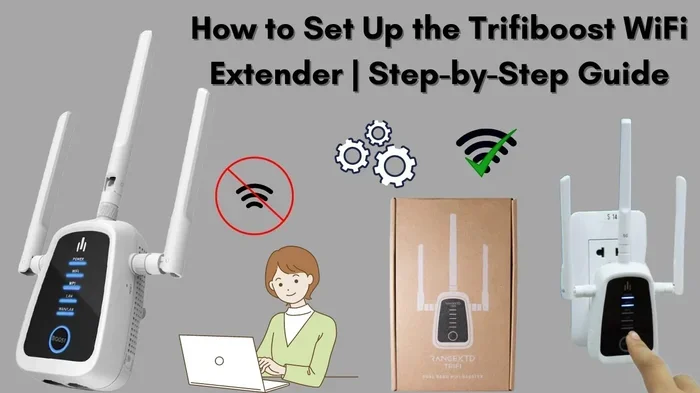
A Wi-Fi extender, also called a repeater, picks up your existing signal and rebroadcasts it. It is a simple plug-and-play device. You place it halfway between your router and the area with weak signal. Extenders are affordable and easy to set up. However, they can cut your speed in half because they use the same radio to receive and transmit data. They work best for basic browsing and light tasks.
Wi-Fi Repeaters
Repeaters are similar to extenders but work slightly differently. They receive the signal and send a fresh copy of it. The key difference is that some repeaters use a dedicated backhaul connection, which preserves more of your original speed. Repeaters are a good middle-ground option between extenders and mesh systems.
Mesh Wi-Fi Systems
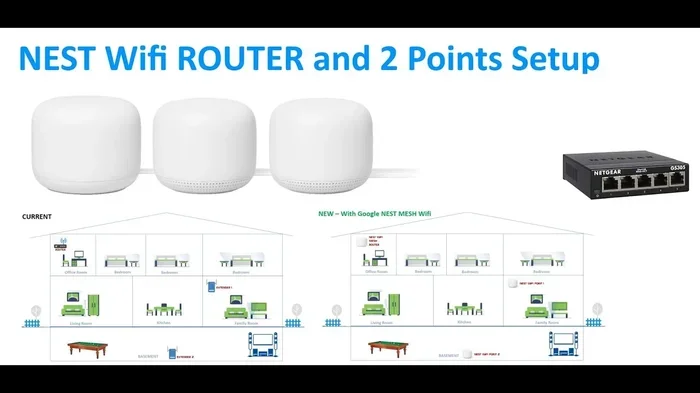
Mesh systems are the gold standard for whole-home coverage. Instead of one router, you get a main unit and satellite nodes placed around your home. Each node communicates with the others seamlessly. Your devices automatically connect to the strongest node without dropping the connection. Mesh systems are more expensive but deliver the best results for larger homes. Brands like Google Nest, Eero, and TP-Link Deco are popular choices.
Powerline Adapters
Powerline adapters use your home’s electrical wiring to carry the network signal. You plug one adapter near your router and another in the room where you need better coverage. They bypass walls and obstacles entirely. Powerline adapters are great for homes where Wi-Fi simply cannot reach certain rooms. They do require a direct electrical connection, so extension cords can reduce performance.
Comparison Table: Signal Booster Options
| Device Type | Price Range | Ease of Setup | Speed Impact | Best For |
|---|---|---|---|---|
| Wi-Fi Extender | $15-$40 | Very Easy | Moderate Loss | Small dead zones |
| Wi-Fi Repeater | $25-$60 | Easy | Mild Loss | Medium coverage gaps |
| Mesh System | $100-$400 | Moderate | Minimal Loss | Large homes, whole-house coverage |
| Powerline Adapter | $30-$80 | Easy | No Wi-Fi Loss | Thick walls, concrete floors |
Quick Tips for Choosing a Booster
- Check Compatibility: Make sure the booster works with your current router and internet plan.
- Look for Dual-Band Support: This ensures the booster works on both 2.4 GHz and 5 GHz bands.
- Read Reviews: Real user experiences tell you more than marketing claims.
- Consider Your Home Size: A small apartment does not need a $300 mesh system.
- Prioritize Easy Setup: If you are not tech-savvy, choose a device with a simple app-based setup.
Router Settings That Improve Signal Strength
Your router has hidden settings that can significantly impact signal performance. Most people never touch these settings. But adjusting a few can make a big difference.
Adjust the Antenna Position
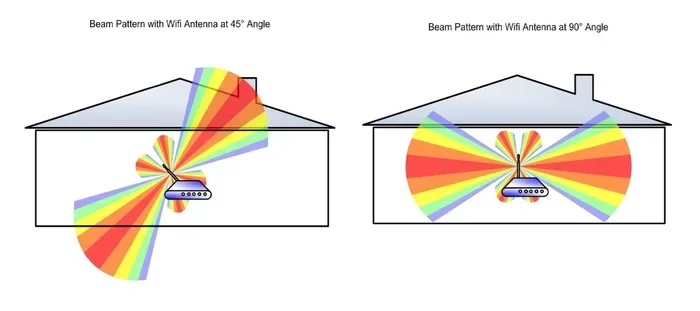
If your router has external antennas, their position matters a lot. Signals spread outward perpendicular to the antenna. So if an antenna points straight up, the signal spreads horizontally. For multi-story homes, angle one antenna vertically and one horizontally. This improves coverage on different floors. Experiment with different positions to find what works best for your layout.
Enable Quality of Service (QoS)
QoS is a setting that prioritizes certain types of traffic on your network. For example, you can tell your router to prioritize video calls and streaming over background downloads. This does not increase your raw signal strength, but it ensures important tasks get the bandwidth they need. The result feels like a stronger, more reliable connection.
Set a Scheduled Restart
Many modern routers let you schedule automatic restarts. Set it to restart once a day during off-peak hours, like early morning. This keeps the router running smoothly without you having to remember. It prevents the slow performance that builds up over days and weeks of continuous use.
Disable Unused Features
Routers come with many features you may never use. Features like USB file sharing, guest networks, or WPS can consume resources. Disabling unused features frees up processing power and can improve overall performance. Go into your router settings and review what is enabled. Turn off anything you do not need.
Use a Wi-Fi Analyzer App
Wi-Fi analyzer apps show you a visual map of signal strength throughout your home. They also reveal which channels are crowded. You can use this data to make informed decisions about router placement and channel selection. Many of these apps are free and available for both Android and iOS. They are an excellent tool for troubleshooting weak signals.
When to Upgrade Your Router or Equipment
Sometimes free tips and settings tweaks are not enough. If you have tried everything and still have weak signals, it may be time for new equipment. Here is how to know.
Signs You Need a New Router
- Your router is more than five years old.
- You frequently experience slow speeds even when close to the router.
- Your router does not support the 5 GHz band.
- You have tried extenders and they do not help.
- Your internet plan has upgraded but your router has not.
- You experience frequent disconnections or drops.
What to Look for in a New Router
When shopping for a new router, look for Wi-Fi 6 or Wi-Fi 6E support. These are the latest standards and offer significantly better range, speed, and device handling. Look for routers with multiple antennas and beamforming technology. Beamforming focuses the signal directly toward your devices instead of broadcasting in all directions. This alone can improve signal strength in distant rooms.
Consider a Mesh System for Large Homes
If your home is larger than 2,000 square feet, a single router may not be enough. Mesh systems solve this by creating a seamless network with multiple nodes. Each node acts as a signal source, eliminating dead zones. Mesh systems are more expensive than traditional routers, but they deliver a much better experience in larger homes. The investment is worth it if weak Wi-Fi affects your daily life.
Common Mistakes That Weaken Your Wi-Fi Signal
Many people unknowingly make mistakes that hurt their wireless signal. Avoiding these simple errors can improve your connection without any extra cost.
Hiding the Router in a Closet
It is tempting to hide the router for aesthetic reasons. But placing it inside a closet, behind a mirror, or inside a cabinet blocks the signal. Wi-Fi signals need open space to travel. Keep your router out in the open on a shelf or mounted on a wall. It may look less neat, but the performance boost is worth it.
Placing the Router on the Floor
Signals spread outward and downward from the antenna. Placing the router on the floor means the signal has to fight through furniture, carpets, and more obstacles. Elevating the router even a few feet makes a noticeable difference. A bookshelf or a desk is a much better spot.
Ignoring Overheating
Routers can overheat, especially in warm rooms or when enclosed. Overheating causes performance drops and connection instability. Keep your router in a well-ventilated area. Do not stack objects on top of it. If your router feels hot to the touch, give it space to cool down.
Using Old Cables
The cable connecting your router to your modem matters. Old or damaged Ethernet cables can limit your speeds and weaken the wireless signal. Use high-quality Cat5e or Cat6 cables for the best performance. This is a small investment that can make a big difference.
Not Securing the Network
An unprotected network lets anyone nearby connect to your Wi-Fi. This slows down your speeds and uses up your bandwidth. Always use strong encryption and a unique password. It protects your performance and your personal data.
Expert Insights on Improving Home Wi-Fi
We spoke with networking professionals to get their top recommendations for boosting home Wi-Fi signals. Here is what the experts say.
Start With Placement
Networking experts consistently say that router placement is the foundation of good Wi-Fi. No amount of boosters can fully compensate for a poorly placed router. Find the most central, open location in your home and start there. Everything else builds on this basic step.
Mesh Is the Future
Experts increasingly recommend mesh systems over traditional extenders. Mesh networks provide seamless coverage without the speed loss that comes with repeaters. The cost is higher, but the performance improvement is significant. For homes with multiple floors or thick walls, mesh is the clear winner.
Test Before and After
One of the best habits experts recommend is testing your signal before and after making changes. Use a speed test app or a Wi-Fi analyzer to measure performance in different rooms. This data helps you understand what works and what does not. It also prevents you from buying equipment you do not need.
Keep It Simple
Experts also emphasize that simple solutions often work best. Repositioning the router, updating firmware, and changing a channel can solve many common problems. You do not always need expensive equipment. Start simple and escalate only if needed.
How to Test Your Wi-Fi Signal Strength
Knowing your current signal strength helps you measure improvement. There are several easy ways to test it.
Use your phone’s built-in Wi-Fi indicator. Most smartphones show signal strength in the status bar. For a more detailed view, download a free Wi-Fi analyzer app. These apps show exact signal strength in decibels (dBm). A signal between -30 dBm and -50 dBm is excellent. Between -50 dBm and -60 dBm is good. Anything below -70 dBm indicates a weak connection.
Walk around your home with your phone and note the signal strength in each room. This creates a map of your coverage. You can then target the weakest areas with specific solutions. Testing after making changes shows you exactly how much improvement you have achieved.
Conclusion
You absolutely can increase Wi-Fi signal strength at home today. The methods in this guide range from free and instant to more advanced hardware solutions. Start with the free tips like repositioning your router, updating firmware, and reducing interference. If those are not enough, explore signal boosters, mesh systems, or powerline adapters. Adjust your router settings and avoid common mistakes that weaken your signal. Test your improvements along the way to stay motivated. With the right approach, you can enjoy fast, reliable Wi-Fi in every room of your home. Do not settle for weak signals when simple solutions are within reach.
Frequently Asked Questions
Can I increase my Wi-Fi signal without buying new equipment?
Yes, many free methods can boost your signal. Repositioning your router, updating firmware, switching Wi-Fi bands, and changing channels all cost nothing. Restarting your router regularly and reducing connected devices also help. Try these first before spending any money.
How far can a typical Wi-Fi router reach indoors?
A standard router typically covers about 1,500 square feet indoors. However, walls, floors, and interference reduce this range significantly. For larger homes, a mesh system or signal booster is usually necessary to maintain strong coverage throughout.
Is a Wi-Fi extender the same as a mesh system?
No, they work differently. An extender rebroadcasts your existing signal but often cuts speed in half. A mesh system uses multiple nodes that work together seamlessly, preserving speed and providing consistent coverage across your entire home.
Why is my Wi-Fi signal weak in certain rooms?
Weak signals in specific rooms are usually caused by distance, physical obstacles, or interference. Thick walls, metal objects, and electronic devices nearby all weaken Wi-Fi signals. Moving the router or adding a booster can solve this problem effectively.
Does a better router really improve Wi-Fi signal strength?
Yes, a modern router with Wi-Fi 6 support and beamforming technology delivers significantly better range and performance. If your router is more than five years old, upgrading can make a dramatic difference in signal strength and speed.
How can I check if my Wi-Fi signal is improving?
Use a Wi-Fi analyzer app or a speed test tool to measure signal strength in dBm before and after making changes. Walk through your home and compare results room by room. Consistent improvement in dBm readings means your efforts are working.