Can You Open Or Import An Mpp In Excel And Convert It
Yes, you can open and import MPP files in Excel, but it requires a few extra steps since Excel doesn’t natively support the Microsoft Project format. This guide walks you through every method — from using the built-in import wizard to converting MPP files to CSV before loading them into a spreadsheet. You will learn the best workflows, common pitfalls, and pro tips to make project data migration smooth and error-free.
If you have ever tried to double-click an MPP file and found Excel could not open it, you are not alone. Many project managers, analysts, and team leads run into this exact problem. The MPP file format is built specifically for Microsoft Project, and Excel simply does not recognize it as a native file type.
So what do you do when you need the project data inside a spreadsheet? The good news is that you have several practical options. You can convert the file, use an import wizard, or rely on a third-party tool. This guide covers every reliable method in detail. Whether you are working with a simple project schedule or a complex work breakdown structure, you will find a solution that fits your needs.
The process is simpler than most people think. Once you understand how project data is structured inside an MPP file, the rest becomes a matter of choosing the right conversion path. Let us walk through it together.
Key Takeaways
- Excel does not natively open MPP files — you need a conversion step or third-party tool to access the data.
- Converting MPP to CSV first is the most reliable and widely used method for bringing project data into Excel.
- Microsoft Project and Excel integration allows data sharing, but direct file opening is not supported.
- Third-party converters like ProjectManager and Aspose offer quick MPP-to-Excel workflows without needing a full Project license.
- Common mistakes include skipping data cleanup, ignoring formatting loss, and not verifying imported task hierarchies.
- Excel templates designed for project tracking can help you organize imported data more effectively after conversion.
- Always review imported data for accuracy, especially Gantt chart timelines and resource assignments.
📑 Table of Contents
- What Is an MPP File and Why Does Excel Not Open It Directly?
- Method 1: Convert MPP to CSV and Import Into Excel
- Method 2: Use the Built-In Excel Import Wizard
- Method 3: Use Third-Party Conversion Tools
- Common Mistakes to Avoid When Importing MPP Data
- Best Practices for Working with Imported Project Data in Excel
- Can You Edit MPP Data Directly in Excel After Import?
- Final Thoughts on Opening and Importing MPP Files in Excel
What Is an MPP File and Why Does Excel Not Open It Directly?
Understanding the MPP File Format
An MPP file is the default project file created by Microsoft Project. It stores everything related to a project, including task lists, resource allocation details, timelines, milestones, and Gantt chart data. Think of it as a complete project management database wrapped into a single file.
Excel, on the other hand, is a spreadsheet application. It was never designed to read the proprietary structure of an MPP file. The data inside an MPP file uses a format that Excel simply cannot parse on its own. This is why you get an error message when you try to open one directly.
The key difference comes down to file architecture. MPP files use a binary format specific to Microsoft Project. Excel understands spreadsheets, CSV files, and a few other common formats. Bridging this gap requires either a conversion step or a specialized tool that can translate the data.
Why You Might Need MPP Data in Excel
There are many reasons you would want to bring MPP data into Excel. Some teams prefer Excel for project tracking because it offers flexibility with formulas and custom dashboards. Others need to share project reports with stakeholders who do not have Microsoft Project installed.
Here are the most common reasons people look for ways to import MPP into Excel:
- Creating custom reports that go beyond what Microsoft Project offers
- Sharing data with team members who only have Excel available
- Building dashboards using Excel’s charting and visualization tools
- Performing advanced calculations on resource costs, timelines, or task durations
- Archiving project data in a universally accessible format
- Merging data from multiple project files into one master spreadsheet
No matter your reason, the goal is the same — get the project management data into a format Excel can work with.
Method 1: Convert MPP to CSV and Import Into Excel
This is the most popular and reliable method. It works with any version of Excel and does not require additional software. The process involves exporting your MPP file to a CSV format first, then importing that CSV into Excel.
Step-by-Step Conversion Process
Follow these steps to convert and import your project data:
- Open the MPP file in Microsoft Project (or a compatible viewer if you do not have a full license)
- Go to the File menu and select Save As
- Choose CSV as the file format from the dropdown
- Save the file to a location you can easily access
- Open Excel and go to File > Open
- Select the CSV file and follow the Text Import Wizard
- Choose the delimiter (comma is standard for CSV files)
- Click Finish to load the data into your spreadsheet
Once the data is in Excel, you can format it, add formulas, and create charts. This method preserves most of your task list information, including start dates, end dates, and resource names.
Limitations of the CSV Method
The CSV approach works well for basic project schedule data. However, it has some limitations. Gantt chart visual data does not transfer. Task dependencies and hierarchical structures may lose some formatting. You will also need to manually recreate any resource allocation views that were visual in Microsoft Project.
Expert Insight: The CSV method is your best bet when you need a quick, no-cost solution. It works reliably across all versions of Excel and Microsoft Project. Just be prepared to spend a few minutes cleaning up the data after import.
Method 2: Use the Built-In Excel Import Wizard
Excel has a powerful import wizard that can pull data from various file types. While it cannot directly read MPP files, it works well when combined with the CSV export method described above. This approach gives you more control over how data is structured during the import process.
How to Access the Import Wizard
Here is how to use the wizard for your project data migration:
- Open Excel and create a new blank workbook
- Go to the Data tab on the ribbon
- Click Get Data and select From Text/CSV
- Browse to your converted CSV file
- Preview the data in the import window
- Adjust data types for each column as needed
- Click Load to import the data into Excel
This method gives you more control than a simple file open. You can choose which columns to import, set data types, and even filter rows before they load into your spreadsheet. It is especially helpful when working with large project timelines that contain hundreds of tasks.
Quick Tips for Using the Import Wizard
Quick Tips:
- Always preview your data before loading it to catch formatting issues early
- Set date columns to the Date data type to avoid Excel treating them as text
- Use the Transform Data option if you need to clean or reshape the data during import
- Save your import settings as a query for future MPP file conversions
Method 3: Use Third-Party Conversion Tools
If you do not have access to Microsoft Project or want a faster workflow, third-party tools can convert MPP files directly to Excel format. Several reliable options exist that handle the conversion automatically.
Popular MPP-to-Excel Conversion Tools
Here are some trusted tools you can use for file conversion:
- Aspose.Tasks for Java/.NET — A developer-focused tool that can programmatically convert MPP to XLSX
- ProjectManager.com — An online platform that allows MPP uploads and Excel exports
- Seavus Project Viewer — A free viewer that supports exporting project data to Excel
- SpiraPlan — Offers MPP import capabilities with direct Excel output
These tools vary in cost and complexity. Some require a license, while others offer free trials. If you regularly work with project management files, investing in a reliable converter can save significant time.
Comparison Table: MPP Conversion Methods
| Method | Cost | Ease of Use | Data Fidelity | Best For |
|---|---|---|---|---|
| CSV Export via Microsoft Project | Free (with Project license) | Easy | Medium | One-time conversions |
| Excel Import Wizard | Free (with Excel) | Moderate | Medium | Controlled data imports |
| Third-Party Converters | Varies (free to paid) | Very Easy | High | Regular conversions |
| Manual Data Entry | Free | Difficult | Low | Small datasets only |
As you can see from the comparison, each method has its strengths. The CSV export method is free and straightforward. Third-party tools offer the best data fidelity for complex projects. Choose based on your specific needs and how often you need to perform the conversion.
Common Mistakes to Avoid When Importing MPP Data
Even with the right method, things can go wrong. Here are the most common mistakes people make when importing project data from MPP files into Excel:
Skipping Data Cleanup After Import
Imported data rarely comes in perfectly formatted. Columns may be misaligned. Dates might appear as numbers instead of proper date values. Taking a few minutes to clean up the data after import will save you headaches later when you build project reports or charts.
Ignoring Task Hierarchy Loss
MPP files store tasks in a hierarchical structure. When you convert to CSV, this hierarchy can flatten out. Summary tasks and subtasks may all appear at the same level. You will need to manually recreate the outline structure in Excel if it matters for your workflow.
Not Verifying Resource Assignments
Resource allocation data is critical for project management. After import, always double-check that resource names are correctly mapped to tasks. A simple delimiter issue during CSV conversion can scramble this data and make your project tracking unreliable.
Overlooking Formatting Limitations
Gantt charts, milestone markers, and visual formatting from Microsoft Project do not transfer to Excel. If your stakeholders expect a visual project timeline, you will need to recreate it using Excel’s charting tools after the import is complete.
Common Mistakes Section: The biggest mistake is assuming the import will be perfect on the first try. Always budget time for data review and cleanup. A 10-minute verification step can prevent hours of work based on incorrect data.
Best Practices for Working with Imported Project Data in Excel
Once your MPP file data is successfully imported, you can get much more value from it by following a few best practices. These tips will help you turn raw imported data into a powerful project tracking tool.
Use Excel Templates Designed for Project Management
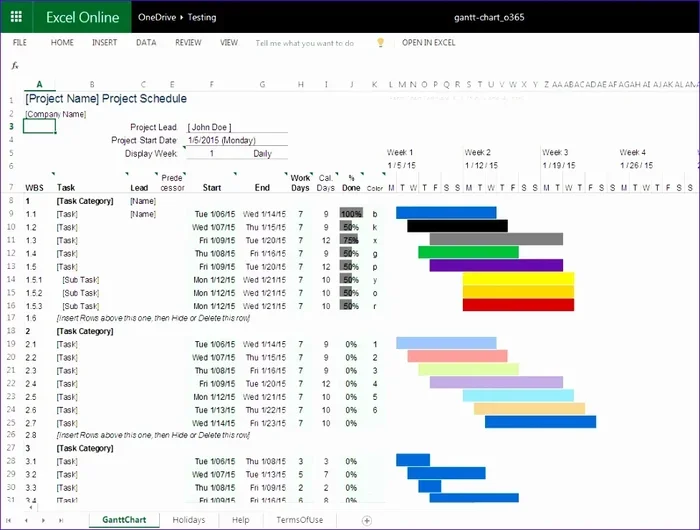
Excel offers built-in project management templates that work well with imported data. These templates include pre-built Gantt chart layouts, resource tracking sheets, and project milestone trackers. Using a template saves you the effort of building everything from scratch.
Set Up Conditional Formatting
Use conditional formatting to highlight overdue tasks, upcoming deadlines, and resource conflicts. This turns your flat imported data into a visual project schedule that is easy to read and share with your team.
Create Pivot Tables for Analysis
Pivot tables are one of Excel’s most powerful features. After importing your project data, use pivot tables to summarize task durations, analyze resource workloads, and track project progress. This is where Excel really shines compared to basic project management software.
Save Your Workflow as a Reusable Template
If you regularly import MPP files, save your cleaned-up Excel workbook as a template. This way, the next time you need to convert a new project file, you can simply import the CSV data into your pre-formatted template and start analyzing immediately.
Expert Insight: The real power of importing MPP data into Excel comes after the import is complete. Use Excel’s formulas, pivot tables, and charting capabilities to create insights that go beyond what Microsoft Project offers out of the box. This is where project data migration truly adds value.
Can You Edit MPP Data Directly in Excel After Import?
The short answer is yes, with some caveats. Once your project schedule data is in Excel, you can edit task names, dates, durations, and resource assignments just like any other spreadsheet data. However, this edited data will not sync back to the original MPP file automatically.
If you need to push changes back to Microsoft Project, you will need to export the edited Excel data and re-import it into Project. This creates a two-way workflow that requires discipline to keep in sync. For many teams, the one-way import into Excel is enough. They use Excel purely for analysis and reporting purposes.
If your team needs real-time collaboration between Project and Excel, consider using Microsoft’s built-in integration features. You can link Excel data to Project tasks or use Power Query to create a more dynamic connection between the two tools. This approach works best for teams that already use both applications as part of their project management software ecosystem.
Final Thoughts on Opening and Importing MPP Files in Excel
To answer the question directly — yes, you can open or import an MPP file in Excel, but not directly. You need to go through a conversion step, whether that means exporting to CSV from Microsoft Project or using a third-party conversion tool. The process is straightforward and well worth the effort for anyone who needs project data in a spreadsheet format.
The CSV export method remains the most accessible and reliable approach for most users. It works with any version of Excel, requires no additional software, and preserves the core task list and project timeline information you need. For teams that regularly work with MPP files, investing in a dedicated converter tool can streamline the workflow even further.
Remember to always review your imported data for accuracy. Check dates, resource names, and task hierarchies before building reports or sharing the data with stakeholders. A few minutes of verification can prevent significant problems down the road.
With the right method and a little patience, bringing project management data from an MPP file into Excel is a routine task that anyone can master. Start with the CSV export method, explore the import wizard options, and build a workflow that fits your team’s needs.
Frequently Asked Questions
Can Excel open MPP files natively?
No, Excel cannot open MPP files natively. The MPP format is proprietary to Microsoft Project. You must convert the file to a compatible format like CSV or XLSX before Excel can read the data. This is the most common question people ask when they first try to open an MPP file in Excel.
Do I need Microsoft Project to convert an MPP file?
Ideally yes, but not always. If you have Microsoft Project, you can export the MPP file to CSV directly. If you do not have a Project license, you can use a free viewer like Seavus Project Viewer or a third-party converter tool to access and convert the data.
Will my Gantt chart data transfer to Excel?
No, Gantt chart visuals do not transfer to Excel. The CSV export method preserves task names, dates, durations, and resource assignments, but the visual bar chart representation is lost. You can recreate a Gantt-style view in Excel using bar charts after the import is complete.
What is the best format to convert MPP to for Excel?
CSV is the best format for most users. It is universally supported, preserves the core project schedule data, and imports cleanly into Excel. If you need to preserve formatting and formulas, you can also convert to XLSX using a third-party tool.
Can I automate the MPP-to-Excel conversion process?
Yes, you can automate the process using macros, Power Query, or third-party tools that support batch conversion. This is especially useful for teams that regularly need to convert multiple project files into Excel format for reporting and analysis.
Is there a free way to convert MPP files to Excel?
Yes, the free method involves opening the MPP file in Microsoft Project (or a free viewer), exporting it to CSV, and then importing the CSV into Excel. This requires access to Microsoft Project or a compatible free viewer, but the actual conversion and import process costs nothing.
=== CONCLUSION ===
Opening and importing an MPP file in Excel is entirely possible with the right approach. You have multiple paths to choose from, whether you prefer the built-in CSV export method, the Excel import wizard, or a dedicated third-party conversion tool. Each method has its strengths, and the best choice depends on your specific needs, budget, and how often you need to perform the conversion.
The key is to start with a reliable conversion method, clean up the imported data, and then leverage Excel’s powerful analysis tools to get more value from your project management data. By following the steps and tips in this guide, you can confidently bring any MPP file into Excel and turn it into a useful project tracking and reporting resource.
Now that you know the answers, pick the method that works best for you and give it a try. Your project schedule data is just a few clicks away from being inside a powerful Excel workbook.