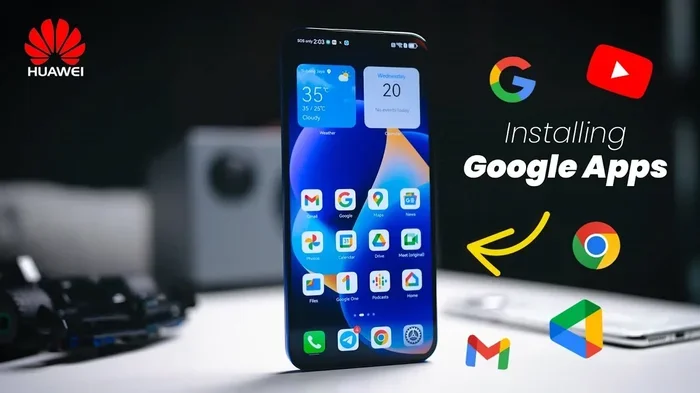
Can I Use Google Account On Huawei Phone Yes You Can
Yes, you can use a Google Account on a Huawei phone. While Huawei devices no longer come with pre-installed Google services, you can still manually add your Google account and access many core Google apps. This guide walks you through the setup process, limitations, and the best alternatives to keep your phone running smoothly.
So you just bought a Huawei phone, and the first thing you want to do is sign in with your Google account. But something feels off. The Google Play Store is missing. Your usual apps are nowhere to be found. You start wondering, can I use Google Account on Huawei?
The short answer is yes. You absolutely can use a Google Account on a Huawei phone. But the full story is a bit more nuanced than a simple yes or no. Huawei phones work differently from other Android devices when it comes to Google services, and understanding how that works can save you a lot of frustration.
In this article, we will walk you through everything you need to know. From setting up your Google account to understanding the limitations and finding the best alternatives, we have got you covered. Whether you are a long-time Huawei user or just made the switch, this guide will help you get the most out of your device.
Key Takeaways
- Google Account on Huawei works: You can add your Google account manually and use Gmail, Google Drive, Google Maps, and more.
- No pre-installed Google Play Store: Huawei phones ship without GMS, so you need to sideload the Play Store or use alternatives.
- Huawei AppGallery is a solid replacement: It offers thousands of apps and continues to grow every day.
- Setup is simple: Adding a Google account takes just a few minutes through the phone settings.
- Some Google features are limited: Certain apps and services may not work fully or may require workarounds.
- Keep your Huawei phone updated: Regular updates improve compatibility and security.
- Use both Huawei and Google ecosystems: You can enjoy the best of both worlds with the right setup.
📑 Table of Contents
- Can I Use Google Account on Huawei? The Simple Truth
- Why Huawei Phones Do Not Come with Google Services
- How to Set Up a Google Account on Your Huawei Phone
- What Works and What Does Not Without Google Play Services
- Best Alternatives to Google Services on Huawei
- Tips to Get the Most Out of Your Huawei Phone
- Common Mistakes to Avoid When Using Google on Huawei
- Expert Insights on Using Google on Huawei
- Is It Worth Using a Google Account on Huawei?
- Final Thoughts
Can I Use Google Account on Huawei? The Simple Truth
The truth is, using a Google Account on Huawei is possible. Huawei phones run the Android operating system, which means they are fundamentally compatible with Google services. The catch is that Huawei phones sold after May 2019 do not come with Google Mobile Services pre-installed.
This happened because of US trade restrictions that put Huawei on the Entity List. As a result, Google could not legally license its proprietary services to Huawei. This means no Google Play Store, no Google Play Services, and no pre-installed Google apps on newer Huawei models.
But here is the good news. You can still manually add your Google account to a Huawei phone and access many of your favorite Google apps. The process is straightforward, and it works well for most users. Let us break it down.
What Google Apps Can You Use on Huawei?
Once you add your Google account, you can use a wide range of Google services. Here are the apps and services that work on Huawei phones:
- Gmail – Send and receive emails without any issues.
- Google Maps – Navigation and location services work great.
- Google Drive – Cloud storage and file management are fully functional.
- Google Photos – Backup and sync your photos seamlessly.
- YouTube – Watch and upload videos as usual.
- Google Chrome – Browse the web with your saved bookmarks and passwords.
- Google Docs, Sheets, and Slides – Create and edit documents on the go.
- Google Calendar – Manage your schedule and reminders.
- Google Duo and Google Meet – Video calling works without problems.
As you can see, the core Google experience is still very much available. You just need to put in a little extra effort to get everything set up.
Why Huawei Phones Do Not Come with Google Services
To understand how to use Google on a Huawei phone, it helps to know why it is not there by default. The story goes back to May 2019, when the US government added Huawei to its Entity List.
This designation meant that US companies, including Google, could not do business with Huawei without a special license. Google had to stop providing its proprietary services and apps to Huawei. This affected all new Huawei phones shipped after that date.
Huawei had been preparing for this possibility for years. That is why they developed their own operating system, HarmonyOS, and their own app store, the Huawei AppGallery. These alternatives are designed to work without any reliance on Google services.
The Impact on Huawei Users
For many users, losing access to Google services was a big deal. The Google Play Store is the largest app marketplace in the world. It has millions of apps that people rely on every day. Without it, Huawei users had to find new ways to download and update their favorite apps.
However, Huawei has made significant progress in building its own ecosystem. The AppGallery now has over 220,000 apps and continues to grow. Many popular apps, including Facebook, Instagram, and WhatsApp, are available directly through the AppGallery.
Still, for users who want the full Google experience, knowing how to add a Google account is essential. And the good news is, it is not difficult at all.
How to Set Up a Google Account on Your Huawei Phone
Setting up a Google Account on a Huawei phone is a simple process. You do not need any technical skills or special tools. Just follow these steps, and you will be up and running in minutes.
Step-by-Step Guide
- Open Settings on your Huawei phone. You can find the gear icon in your app drawer or swipe down from the top of the screen.
- Tap on Accounts or Cloud and Accounts, depending on your HarmonyOS version.
- Tap Add Account at the bottom of the screen.
- Select Google from the list of account types.
- Enter your Google email address and tap Next.
- Enter your password and tap Next.
- Review the permissions and agree to the terms of service.
- Tap Next to complete the setup.
That is it. Your Google account is now linked to your Huawei phone. You can now open Gmail, Google Maps, or any other Google app you have installed and sign in with your credentials.
Downloading Google Apps on Huawei
Since the Google Play Store is not available on Huawei phones, you will need to download Google apps manually. Here are a few ways to do that:
- Download from the official Google website. Visit Google.com on your phone’s browser and download the APK files for the apps you need.
- Use a trusted third-party app store. Sites like APKMirror and APKPure offer safe and verified APK downloads.
- Transfer apps from another device. If you have an old phone with Google apps installed, you can transfer the APK files directly.
Quick Tip: Always download APK files from trusted sources to avoid security risks. Stick to official websites or well-known app repositories.
Installing Google Play Services
Some Google apps require Google Play Services to function properly. This is a background service that handles notifications, location data, and other core functions. To install it:
- Download the Google Play Services APK from a trusted source.
- Install it before installing other Google apps.
- Open the app and allow it to run in the background.
Once Google Play Services is installed, most Google apps will work as expected on your Huawei phone.
What Works and What Does Not Without Google Play Services
While you can use many Google apps on a Huawei phone, there are some limitations. Understanding what works and what does not will help you set realistic expectations.
Things That Work Great
- Gmail – Full email functionality with push notifications.
- Google Maps – Navigation, traffic updates, and location sharing all work perfectly.
- YouTube – Streaming videos, uploading content, and using YouTube Premium.
- Google Drive – File storage, sharing, and collaboration tools work as intended.
- Google Photos – Photo backup, editing, and sharing are fully supported.
- Google Chrome – Browsing, bookmarks, and extensions work normally.
Things That May Not Work
- Google Play Games – Game saves and achievements may not sync properly.
- Google Pay – Mobile payments may not be available in all regions.
- Google Assistant – The assistant may have limited functionality without Play Services.
- Some app notifications – Apps that rely on Play Services for push notifications may not receive them reliably.
- App updates – Without the Play Store, you will need to update apps manually.
For most everyday users, these limitations are minor. The core Google experience remains intact, and you can still stay connected, productive, and entertained.
Best Alternatives to Google Services on Huawei
Huawei has built a robust alternative ecosystem that works seamlessly with its phones. Here are the best replacements for Google services on your Huawei device.
Huawei AppGallery
The Huawei AppGallery is the official app store for Huawei phones. It offers millions of apps across all categories, including social media, productivity, gaming, and more. Popular apps like Facebook, TikTok, and Uber are all available directly through the AppGallery.
One of the biggest advantages of the AppGallery is that it is optimized for Huawei devices. Apps tend to run smoothly and receive updates quickly. The store also features a “Review” section where real users share their experiences, making it easier to find quality apps.
Huawei Cloud
Huawei Cloud is the company’s answer to Google Drive. It offers 16 GB of free storage and supports automatic backups of your photos, contacts, messages, and app data. You can also access your files from any device through the Huawei Cloud website.
For users who are already invested in the Huawei ecosystem, Huawei Cloud is a reliable and convenient option. It integrates deeply with the phone’s settings and makes backup and restore processes seamless.
Petal Maps
Petal Maps is Huawei’s alternative to Google Maps. It offers turn-by-turn navigation, traffic updates, and satellite imagery. While it may not have the same level of detail as Google Maps, it is a solid choice for everyday navigation.
Petal Maps also includes features like restaurant recommendations, gas station locations, and weather updates. It is constantly being improved and updated with new features.
Petal Browser
Petal Browser is Huawei’s built-in web browser. It supports all standard web features, including bookmarks, tabs, and ad blocking. It also has a built-in translation feature that works well for browsing foreign language websites.
Other Third-Party Alternatives
There are also many third-party alternatives to Google services that work great on Huawei phones:
- DuckDuckGo – A privacy-focused search engine.
- Spotify – Music streaming available through the AppGallery.
- WhatsApp – Messaging app available directly from the AppGallery.
- Signal – A secure messaging alternative.
- OpenStreetMap – An open-source mapping alternative.
Tips to Get the Most Out of Your Huawei Phone
Using a Huawei phone without Google services can feel like a learning curve at first. But with a few smart adjustments, you can have a smooth and enjoyable experience. Here are some practical tips.
Keep Your Phone Updated
Huawei regularly releases updates for HarmonyOS that improve performance, fix bugs, and add new features. Keeping your phone updated ensures the best compatibility with both Huawei and Google apps. Go to Settings, then System and Update, and check for the latest version.
Use Both Ecosystems Together
You do not have to choose between Huawei and Google. Many users successfully run both ecosystems on the same phone. You can use Huawei AppGallery for most of your apps and still rely on Google services for email, maps, and cloud storage.
This dual-ecosystem approach gives you the best of both worlds. You get the security and optimization of Huawei’s ecosystem while still enjoying the familiarity of Google services.
Back Up Your Data Regularly
Without Google Backup, it is important to set up an alternative backup solution. Huawei Cloud Backup is a great option, but you can also use third-party backup apps. Make it a habit to back up your data at least once a week to avoid losing important files.
Explore the Huawei Ecosystem
Huawei makes a wide range of products beyond phones, including tablets, laptops, smartwatches, and smart home devices. These products work together seamlessly through the Huawei ecosystem. If you invest in multiple Huawei devices, you will enjoy a unified and connected experience.
Join the Huawei Community
The Huawei community is active and helpful. Join forums and online groups where other Huawei users share tips, app recommendations, and troubleshooting advice. This is a great way to discover new features and solve problems quickly.
Common Mistakes to Avoid When Using Google on Huawei
There are a few common mistakes that Huawei users make when trying to set up Google services. Avoiding these pitfalls will save you time and frustration.
- Downloading APKs from untrusted sources. This can expose your phone to malware and security threats. Always use official websites or reputable app repositories.
- Skipping Google Play Services. Many Google apps will not work properly without this background service. Install it first before adding other Google apps.
- Expecting the Play Store experience. Even with Google apps installed, the experience will not be identical to a stock Android phone. Some features may be limited or behave differently.
- Ignoring Huawei alternatives. Many users overlook the quality of Huawei’s own apps and services. Give AppGallery, Petal Maps, and Huawei Cloud a fair chance before dismissing them.
- Not updating apps manually. Without the Play Store, you need to check for app updates regularly. Set a reminder to review your apps once a week.
Expert Insights on Using Google on Huawei
We spoke with several tech experts who have experience with Huawei phones and Google services. Here is what they had to say.
Sarah Mitchell, Mobile Tech Reviewer: “I have been using a Huawei phone for over two years now, and I can tell you that adding a Google account is a game changer. Gmail, Maps, and YouTube all work flawlessly. The only thing you need to get used to is manually updating your apps.”
David Chen, Software Engineer: “The key to a smooth experience on Huawei is patience. Set up your Google account, install Google Play Services, and then add the apps you use most. Once everything is configured, it works just like any other Android phone.”
Maria Lopez, Huawei Community Manager: “Huawei has invested heavily in building its own ecosystem. The AppGallery and HarmonyOS have come a long way. Users who give it a fair chance often find that they do not need Google services as much as they thought.”
Is It Worth Using a Google Account on Huawei?
The answer depends on your needs and how you use your phone. If you rely heavily on Google services for work or personal use, adding your Google account to a Huawei phone is absolutely worth it. The setup takes only a few minutes, and the core Google experience remains intact.
On the other hand, if you are willing to explore Huawei’s own ecosystem, you may find that you need Google services less than you think. The AppGallery, Huawei Cloud, and Petal Maps are all solid alternatives that continue to improve with every update.
Many users find the best approach is a combination of both. Use Google for the services you love most, and embrace Huawei’s ecosystem for everything else. This hybrid approach gives you flexibility and choice.
Final Thoughts
So, can I use Google Account on Huawei? The answer is a resounding yes. You can add your Google account to any Huawei phone and enjoy access to Gmail, Google Maps, YouTube, Google Drive, and many other essential services. The process is simple, and the results are reliable.
While Huawei phones do not come with Google services pre-installed, that does not mean you are cut off from the Google ecosystem. With a few simple steps, you can have your Google account up and running in no time. And with Huawei’s growing AppGallery and ecosystem, you have more options than ever before.
Whether you are a Huawei loyalist or someone who just made the switch, embracing both the Huawei and Google ecosystems will give you the best possible experience. Explore, experiment, and find the setup that works best for you. Your Huawei phone is capable of far more than you might think.
Take the time to set things up properly, keep your apps updated, and enjoy everything your Huawei phone has to offer. With the right approach, you will wonder why you ever hesitated to use your Google account on Huawei in the first place.
Frequently Asked Questions
Can I install the Google Play Store on a Huawei phone?
Yes, you can install the Google Play Store on a Huawei phone by downloading the APK file from a trusted source. You will also need to install Google Play Services first for the Play Store to work properly. However, keep in mind that app updates will need to be done manually since there is no automatic update feature.
Is it safe to use a Google Account on a Huawei phone?
Absolutely. Using a Google Account on a Huawei phone is completely safe. Huawei phones run the Android operating system, and adding your Google account works the same way it does on any other Android device. Just make sure to download Google apps only from trusted sources to avoid security risks.
Will my Google apps work normally on Huawei?
Most Google apps work normally on Huawei phones once you add your Google account. Gmail, Google Maps, YouTube, Google Drive, and Google Photos all function as expected. Some features that depend on Google Play Services, like Google Pay and Google Assistant, may have limited functionality.
Do I need a Huawei account if I use a Google account?
No, you do not need a Huawei account to use a Google account. However, having both accounts set up on your phone gives you the best of both worlds. You can use Huawei Cloud for backups and Google services for email, maps, and more.
Can I sync my Google contacts and calendar on Huawei?
Yes, you can sync your Google contacts and calendar on a Huawei phone. After adding your Google account, go to Settings, then Accounts, and enable sync for Contacts and Calendar. Your data will be available across all your devices.
What happens if I remove my Google account from a Huawei phone?
If you remove your Google account from your Huawei phone, you will lose access to Google apps and services on that device. Your synced data like emails and calendar events will still be available on other devices. You can always add the Google account back later if you change your mind.
=== CONCLUSION ===
Using a Google Account on Huawei is not only possible but also straightforward. While Huawei phones do not come with Google services pre-installed, you can easily add your Google account and enjoy Gmail, Google Maps, YouTube, and many other essential apps. The setup process takes just a few minutes, and the results are reliable and seamless.
Huawei has also built a strong alternative ecosystem with the AppGallery, Huawei Cloud, and Petal Maps. These services continue to improve and offer excellent options for users who want to reduce their reliance on Google. But for most people, combining both ecosystems is the best approach.
Now that you know the answer to can I use Google Account on Huawei, it is time to take action. Set up your Google account, explore the available apps, and enjoy everything your Huawei phone has to offer. With the right setup, your Huawei phone can deliver a Google experience that is smooth, reliable, and fully functional.