Does Airdrop Notify Other Devices on Your Home Network
AirDrop does not send notifications to other devices when you initiate a transfer. The receiving device will show a prompt to the person nearby, but your phone or Mac does not alert others that you are using AirDrop. Understanding how AirDrop notifications work helps you protect your privacy and avoid unwanted file requests on your home network.
Have you ever wondered whether AirDrop tells other people when you are sending a file? Maybe you are sitting in your living room, sharing a photo with a friend, and you suddenly think, “Can anyone else on my home network see this?” It is a fair question. With so much attention on digital privacy these days, it makes sense to want to know exactly what happens behind the scenes when you use AirDrop.
The short answer is no. AirDrop does not notify other devices when you send something. But there is more to the story. The person on the receiving end will see a prompt. And your own device settings can affect how visible you are to others nearby. Let us walk through all of this together, step by step, so you feel confident every time you use AirDrop at home.
AirDrop is one of Apple’s most convenient features. It lets you share photos, videos, documents, and more between Apple devices without needing email or messaging apps. But convenience should not come at the cost of privacy. That is exactly why understanding how AirDrop works on your home network matters. In this article, we will cover everything you need to know about notifications, visibility, and settings.
Key Takeaways
- AirDrop stays silent: Sending files via AirDrop does not notify other nearby devices or users on your home network.
- Receivers get the alert, not senders: Only the person receiving the file sees a notification prompt on their device.
- AirDrop settings control visibility: Your choice between “Contacts Only” and “Everyone” determines who can see your device.
- No browsing history is shared: AirDrop does not reveal your files, photos, or personal data to others.
- Home network matters: Being on the same Wi-Fi network and Bluetooth range affects AirDrop detection.
- You can block unwanted requests: Simple settings changes let you stop strangers from sending you files.
- Privacy is built in: Apple designed AirDrop with privacy in mind, but user settings still play a big role.
📑 Table of Contents
- How AirDrop Actually Works Behind the Scenes
- Does AirDrop Notify Other Devices When You Send Files?
- AirDrop Privacy Settings and How They Affect Visibility
- Can Someone on Your Home Network See Your AirDrop Activity?
- How to Control Who Can See Your AirDrop
- Common AirDrop Misconceptions
- Tips for Using AirDrop Safely at Home
- How AirDrop Compares to Other File Sharing Methods
- Expert Insights on AirDrop and Network Privacy
- Key Takeaways
- Conclusion
How AirDrop Actually Works Behind the Scenes
Before we answer whether AirDrop notifies other devices, it helps to understand the technology behind it. AirDrop uses a combination of Bluetooth and Wi-Fi to connect devices. Bluetooth handles the initial discovery. Wi-Fi Direct then takes over for the actual file transfer. This two-step process is what makes AirDrop so fast and reliable.
The Role of Bluetooth in AirDrop
Bluetooth is what allows your device to be seen by others nearby. When you turn on AirDrop, your device broadcasts a small signal using Bluetooth. This signal tells other Apple devices that you are available for file sharing. However, this signal does not contain your name or personal information unless you have set your AirDrop to show your Apple ID details.
Here is the key point. The Bluetooth signal is not a notification. It is more like a quiet hello. Other devices can pick up that hello, but nothing pops up on their screen telling them you are about to send something. The Bluetooth discovery process happens silently in the background.
Wi-Fi Direct and the Transfer Process
Once a connection is established through Bluetooth, Wi-Fi Direct kicks in. Wi-Fi Direct creates a direct, peer-to-peer connection between two devices. It does not need a router or a home network to work, though being on the same Wi-Fi network can help with initial discovery.
During the actual transfer, data moves directly from one device to another. There is no server involved. There is no cloud upload. This means your files stay between you and the intended recipient. Nobody else on your home network can intercept or see the transfer in progress.
Does AirDrop Notify Other Devices When You Send Files?
This is the big question, and the answer is clear. When you send a file using AirDrop, other devices nearby do not receive any notification. There is no alert, no banner, and no sound that tells someone else you are sharing something. The only person who gets notified is the person you are sending the file to.
Let us break this down further. When you tap the Share button and choose AirDrop, your device looks for nearby AirDrop-enabled devices. It does this using Bluetooth discovery. Once it finds a match, it shows you a list of available contacts or devices. You pick the person you want to share with, and the transfer begins.
On the receiving end, the other person sees a prompt. It shows your name or Apple ID photo, along with the file you are sending. They can choose to accept or decline. But nobody else on the same Wi-Fi network gets a heads-up. Your transfer stays private.
What About the “Everyone” Mode?
Some people switch AirDrop to “Everyone” mode, especially in social settings. This makes your device visible to all nearby Apple devices for a short period, usually about 10 minutes. Even in this mode, other devices do not get notified that you are sending a file. They only see the incoming request if they are the intended recipient.
Being visible in “Everyone” mode means strangers can send you files. It does not mean your outgoing transfers are broadcast to everyone nearby. This is an important distinction that many people miss.
What Happens When Someone Sends You a File?
While you are not notified when others send files, you will definitely notice when someone sends something to you. Your screen lights up with an incoming AirDrop request. You see a preview of the file and two buttons: Accept or Decline. If you decline, nothing happens. The sender just does not receive your file.
Here is a helpful tip. If you keep your AirDrop set to “Contacts Only,” only people saved in your contacts list can send you files. This adds an extra layer of control. Strangers on the same home network cannot send you anything unless they are in your contacts.
AirDrop Privacy Settings and How They Affect Visibility
Apple gives you several options to control how visible you are on AirDrop. These settings directly impact whether other devices can detect you, but they do not affect whether your outgoing transfers are noticed.
Contacts Only Setting
The “Contacts Only” setting is the most private option. When this is turned on, only people whose contact information matches your Apple ID can see your device. This means your AirDrop profile is tied to your contacts. If someone does not have your phone number or email saved, they cannot see you in their AirDrop list.
This setting is great for home use. If everyone in your household is in your contacts, you can share files freely without worrying about outside interference. And remember, even with this setting, your outgoing transfers remain invisible to others.
Everyone Setting
The “Everyone” setting opens up AirDrop to any nearby Apple device. This is useful in situations like group projects, family gatherings, or when you need to share something quickly with someone you do not have saved in your contacts.
Even with “Everyone” mode, your outgoing transfers stay private. Other devices do not know you are sending a file. They only know someone is trying to send them something if they are the target of that transfer.
Receiving Off Setting
If you want complete peace of mind, you can turn receiving off entirely. This stops your device from being visible to anyone. You will not receive any AirDrop requests until you turn receiving back on. This is a great option if you are not actively sharing files and want to avoid distractions.
Can Someone on Your Home Network See Your AirDrop Activity?
This is where things get interesting. Many people worry that being on the same home network means others can spy on their AirDrop activity. The good news is that this is not how AirDrop works.
AirDrop does not rely on your router or home network for the actual file transfer. It uses Bluetooth for discovery and Wi-Fi Direct for the transfer. Even if everyone in your house is connected to the same Wi-Fi, they cannot see your AirDrop activity.
Why Your Home Network Does Not Expose AirDrop Transfers
Think of it this way. Your home Wi-Fi network is like a road that all your devices travel on. AirDrop is like a private tunnel that goes directly from your device to another device. The road does not have access to what is inside the tunnel.
Other people on your home network cannot see:
- What files you are sending
- Who you are sending them to
- The size or type of the files being transferred
- Your AirDrop settings or preferences
This is because AirDrop uses a direct device-to-device connection. Your router simply does not get involved in the process. It provides the initial Wi-Fi connection, but the actual transfer bypasses it entirely.
What About Network Monitoring Tools?
Some tech-savvy users might wonder about network monitoring tools. Could someone use a packet sniffer or network analyzer to intercept AirDrop traffic? The short answer is no. AirDrop uses encrypted, peer-to-peer connections that are not visible to network monitoring tools on the same Wi-Fi network.
Apple has built strong encryption into AirDrop. The data is protected end-to-end. This means even if someone tried to intercept the transfer, they would not be able to read the contents. Your files stay safe and private.
How to Control Who Can See Your AirDrop
Taking control of your AirDrop visibility is simple. Apple makes it easy to adjust your settings right from your device. Here is how to do it on both iPhone and Mac.
Changing AirDrop Settings on iPhone
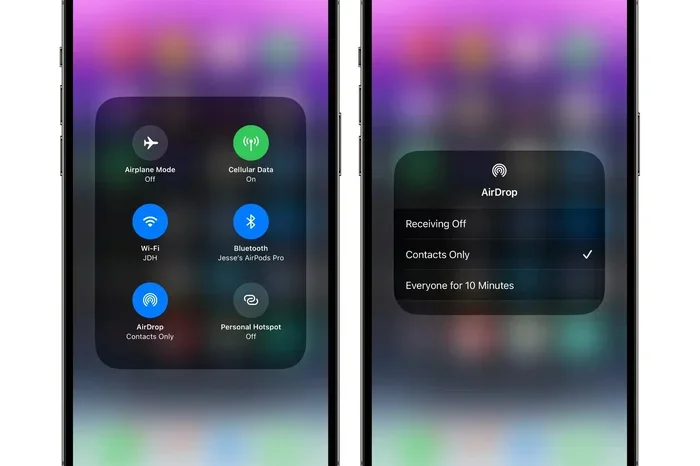
Open the Control Center by swiping down from the top right corner of your screen. Press and hold the network settings card. Tap the AirDrop icon. You will see three options:
- Receiving Off: No one can see your device.
- Contacts Only: Only people in your contacts can see you.
- Everyone: Any nearby Apple device can see you for 10 minutes.
Choose the option that fits your comfort level. For most home users, “Contacts Only” strikes the right balance between convenience and privacy.
Changing AirDrop Settings on Mac
On your Mac, open Finder. Click AirDrop in the sidebar. You will see a dropdown menu at the bottom of the window. Click it to choose your visibility level. The same three options apply:
- Receiving Off
- Contacts Only
- Everyone
Pro tip. If you share your home with multiple people, make sure everyone in the household has each other’s contact information saved. This way, AirDrop works seamlessly without exposing you to strangers.
Common AirDrop Misconceptions
There are a lot of myths floating around about AirDrop and privacy. Let us clear up some of the most common ones.
Myth 1: AirDrop Shows Your Entire Photo Library
Some people think that when you use AirDrop, others can see all your photos. This is completely false. AirDrop only shares the specific files you choose to send. Nobody can browse your photo library or access your personal data through AirDrop.
Myth 2: Being on the Same Wi-Fi Means Others Can See Your Transfers
As we discussed earlier, AirDrop does not use your home network for the actual transfer. Wi-Fi Direct handles the connection directly between devices. Your neighbors or housemates cannot spy on your AirDrop activity just because you share the same Wi-Fi.
Myth 3: AirDrop Works Like Bluetooth File Sharing
While AirDrop uses Bluetooth for discovery, it is much more advanced than traditional Bluetooth file sharing. AirDrop uses Wi-Fi Direct for faster speeds and encrypted connections. It also integrates with your contacts, making it more secure and user-friendly.
Myth 4: Turning Off Wi-Fi Stops AirDrop
AirDrop can work even without a Wi-Fi connection because it uses Wi-Fi Direct. However, being on the same Wi-Fi network can help with initial device discovery. If Wi-Fi is off, Bluetooth discovery still works, but the range might be slightly shorter.
Tips for Using AirDrop Safely at Home
Now that you understand how AirDrop notifications and privacy work, here are some practical tips to keep your experience safe and smooth.
Keep Your Contacts Updated
Make sure your family members and close friends are saved in your contacts. This ensures they can always find you on AirDrop without you needing to switch to “Everyone” mode.
Turn Off AirDrop When Not in Use
If you are not actively sharing files, set AirDrop to “Receiving Off.” This prevents unwanted requests and saves battery life. You can always turn it back on when you need it.
Decline Unknown Requests
If you are on “Everyone” mode and someone you do not know sends you a file, simply decline. There is no harm done. The sender will just not be able to transfer the file.
Teach Family Members About AirDrop Privacy
If you live with others, it is a good idea to talk about AirDrop privacy. Make sure everyone understands how it works and what settings to use. This prevents accidental sharing and keeps everyone comfortable.
How AirDrop Compares to Other File Sharing Methods
AirDrop is not the only way to share files. Let us compare it briefly with a few other popular methods.
| Feature | AirDrop | Bluetooth | Cloud Storage | |
|---|---|---|---|---|
| Speed | Very fast | Depends on attachment size | Slow | Depends on upload speed |
| Privacy | High | Moderate | Low | Moderate |
| Nearby Only | Yes | No | Yes | No |
| Requires Internet | No | Yes | No | Yes |
| Notifies Others | No | Yes | No | No |
As you can see, AirDrop stands out for its speed, privacy, and convenience. It is designed specifically for nearby sharing, and it does not notify other devices when you send files. This makes it one of the best options for quick, private file transfers at home.
Expert Insights on AirDrop and Network Privacy
Cybersecurity experts generally agree that AirDrop is a safe and private way to share files. The direct device-to-device connection, combined with end-to-end encryption, means your data stays between you and the intended recipient.
However, experts also recommend being mindful of your AirDrop settings. Leaving AirDrop on “Everyone” for extended periods can lead to unwanted requests. It is best to switch to “Contacts Only” or “Receiving Off” when you are not actively sharing.
Another expert tip is to keep your Apple devices updated. Software updates often include security patches that improve AirDrop privacy and performance. Staying current ensures you always have the latest protections in place.
Key Takeaways
- AirDrop stays silent: Sending files via AirDrop does not notify other nearby devices or users on your home network.
- Receivers get the alert, not senders: Only the person receiving the file sees a notification prompt on their device.
- AirDrop settings control visibility: Your choice between “Contacts Only” and “Everyone” determines who can see your device.
- No browsing history is shared: AirDrop does not reveal your files, photos, or personal data to others.
- Home network matters for discovery: Being on the same Wi-Fi network and Bluetooth range affects AirDrop detection, but not privacy of transfers.
- You can block unwanted requests: Simple settings changes let you stop strangers from sending you files.
- Privacy is built in: Apple designed AirDrop with privacy in mind, but user settings still play a big role.
Conclusion
So, does AirDrop notify other devices on your home network? The answer is a clear no. When you send a file using AirDrop, nobody else on your network gets a notification. The only person who knows about the transfer is the person you are sending the file to.
AirDrop is designed with privacy in mind. It uses direct device-to-device connections, encrypted transfers, and smart settings to keep your file sharing secure. Whether you are at home or in a public place, you can share files with confidence.
The most important thing you can do is manage your AirDrop settings wisely. Choose “Contacts Only” for everyday use. Switch to “Everyone” only when you need to. And turn off receiving when you are not sharing anything.
With the knowledge you now have, you can use AirDrop without worry. It is fast, convenient, and private. That is exactly how a great feature should work.
Frequently Asked Questions
Can someone on my home Wi-Fi see what I am sending via AirDrop?
No, they cannot. AirDrop uses a direct Wi-Fi Direct connection between devices, not your home router. Your transfers are invisible to everyone else on the network.
Does AirDrop show my name to strangers nearby?
Only if your AirDrop is set to “Everyone.” Even then, your name is limited to what is tied to your Apple ID. Setting it to “Contacts Only” restricts visibility to people you know.
Will the person I am sending a file to know it was me?
Yes. The recipient will see your name or Apple ID photo along with the file preview. This is normal and expected behavior for AirDrop.
Can I use AirDrop without being connected to Wi-Fi?
Yes. AirDrop uses Bluetooth for discovery and Wi-Fi Direct for transfers. It does not need an internet connection or a home Wi-Fi network to work.
Is AirDrop safe to use in public places?
It can be, as long as you use the right settings. “Contacts Only” is the safest option. Avoid “Everyone” mode in crowded public spaces to prevent unwanted file requests.
Do AirDrop transfers use up my data plan?
No. AirDrop transfers happen over Bluetooth and Wi-Fi Direct, not through your cellular data or internet connection. It uses no data from your plan.