Does Apple Have A Password Manager Here Is The Answer
Yes, Apple does have a built-in password manager called Apple Keychain. It comes free with every iPhone, Mac, iPad, and Apple device. Keychain saves, autofills, and syncs your login credentials across all Apple products securely. It also generates strong passwords and alerts you if your data has been compromised. However, it only works well inside the Apple ecosystem and lacks some features found in dedicated password managers.
So, does Apple have a password manager? The short answer is yes. Apple built one right into its devices, and millions of people use it every single day without even realizing it. If you own an iPhone, a Mac, or an iPad, you already have access to this tool. It is called Apple Keychain, and it handles your saved passwords, autofills your login details, and even creates strong new passwords for you.
But here is the bigger question most people ask. Is Apple Keychain good enough? Or should you look for a dedicated password manager app instead? That is exactly what we are going to explore in this article. We will break down how Apple Keychain works, what it can do, where it falls short, and how it compares to some of the best third-party options on the market. By the end, you will know exactly whether Apple’s built-in solution fits your needs or if you need something more.
Password security matters more than ever. Every year, millions of accounts get breached because people reuse weak passwords or store them in unsafe places. A reliable password manager solves this problem. And since Apple already gives you one for free, it is worth understanding what you are working with. Let us dive in.
Key Takeaways
- Apple Keychain is Apple’s native password manager: It is built into iOS, macOS, iPadOS, and Safari, so you do not need to download anything extra.
- It syncs securely through iCloud: Your saved passwords, Wi-Fi credentials, and credit card info are encrypted and shared across all your Apple devices.
- Apple Keychain includes a password generator: It creates strong, unique passwords when you sign up for new accounts.
- It has major limitations outside the Apple ecosystem: There is no dedicated app for Windows or Android, and browser support is limited to Safari.
- Security features are solid but not top-tier: Apple uses end-to-end encryption and offers two-factor authentication, but lacks advanced features like secure sharing or dark web monitoring.
- Third-party apps like Bitwarden and 1Password offer more flexibility: If you use mixed devices or want advanced features, a dedicated password manager may be a better fit.
- Setting up Apple Keychain is simple and free: It requires no extra cost and minimal setup time, making it a great starting point for basic password management.
📑 Table of Contents
- What Is Apple’s Built-In Password Manager?
- How Apple Keychain Works Across Your Devices
- Key Features of Apple’s Password Manager
- Does Apple’s Password Manager Compare to Third-Party Apps?
- How to Set Up and Use Apple’s Password Manager
- Should You Stick with Apple Keychain or Switch to a Dedicated Password Manager?
- Final Thoughts
What Is Apple’s Built-In Password Manager?
Apple Keychain is the company’s native password management system. It is not a standalone app you need to download. Instead, it is deeply integrated into Apple’s operating systems. You will find it in iOS, macOS, iPadOS, and even watchOS. It stores your usernames, passwords, Wi-Fi network details, and credit card information. Everything stays encrypted and synced through your iCloud account.
The way Apple Keychain works is simple. When you log into a website or an app, Safari asks if you want to save the credentials. If you say yes, Keychain stores them. The next time you visit that site, Safari autofills the login form automatically. You do not need to remember a single password. This is the core promise of any password manager, and Apple delivers on it within its own ecosystem.
One thing that makes Apple Keychain stand out is its simplicity. There is no separate app to open, no extra subscription to pay for, and no learning curve. It just works in the background. For people who live entirely inside the Apple ecosystem, this convenience is hard to beat. But convenience does not always mean completeness, and that is where things get interesting.
How Apple Keychain Stores Your Data
Apple uses end-to-end encryption for everything stored in Keychain. This means only you can access your saved passwords. Not even Apple can read them. The encryption keys are tied to your Apple ID, and your data is protected by your device passcode or biometric authentication like Touch ID and Face ID.
When you save a new password, it gets encrypted on your device first. Then it travels through iCloud to your other Apple devices. Each device decrypts the data locally. This process keeps your credentials safe during transit and while stored on Apple’s servers. Apple also uses a technology called Secure Enclave, which is a separate isolated chip inside your device. It handles the most sensitive encryption tasks, adding another layer of protection.
It is worth noting that Apple also introduced a feature called Passwords in iOS 15 and macOS Monterey. This gave Keychain a dedicated app-like interface where you can view, edit, and organize all your saved credentials. Before that, you had to dig through Settings to find your stored passwords. Now it is much more accessible and user-friendly.
How Apple Keychain Works Across Your Devices
The real strength of Apple Keychain lies in its seamless sync across devices. If you save a password on your iPhone, it appears on your Mac, your iPad, and your Apple Watch. This happens automatically through iCloud. You do not need to export anything or use a third-party sync tool. Apple handles it all behind the scenes.
Let us say you buy a new laptop and log into your email on your phone first. Keychain saves that password. Then, when you open your laptop and visit the same email site, Safari suggests the saved credentials. You tap autofill, and you are in. No typing, no searching for that sticky note you used last time. It is fast, smooth, and genuinely convenient.
But this sync only works between Apple devices. If you also use a Windows PC or an Android phone, you are out of luck. There is no native Keychain app or extension for those platforms. You can access some saved passwords through iCloud.com on a web browser, but the experience is clunky and limited. This is the single biggest limitation of Apple’s password manager.
The iCloud Sync Process
iCloud sync is the engine behind Apple Keychain. When you make a change on one device, that change pushes to iCloud and then downloads to your other devices. The entire process uses end-to-end encryption, so your data stays private.
Apple also introduced a feature called iCloud Keychain Sync that lets you choose which devices sync your credentials. You can turn it off for specific devices if you want extra control. This is useful if you share a family computer or use a device that others also access.
Another useful detail is that Keychain also syncs your Wi-Fi passwords. This means your Apple devices can auto-connect to known networks without you typing in the password each time. It also syncs credit card details and addresses stored in Safari, making online shopping faster and more streamlined.
Key Features of Apple’s Password Manager
Apple Keychain comes packed with features that make it a solid everyday password manager. Let us walk through the most important ones so you know exactly what you are getting.
Password Autofill
The autofill feature is the bread and butter of Apple Keychain. When you visit a saved website, Safari automatically fills in your username and password. It works across apps too. If a mobile app asks you to log in, iOS can pull the saved credentials from Keychain and fill them in with a single tap.
Autofill also works for credit card information and addresses. When you check out online, Safari can suggest your saved payment details. This saves time and reduces the chance of typos that can cause payment errors. It is one of those features you do not think about until it is gone.
Password Generator
Apple Keychain includes a built-in password generator. When you create a new account, Safari suggests a strong, random password. These passwords typically include a mix of letters, numbers, and special characters. They are nearly impossible to guess, which is exactly what you want.
You can customize the suggested password length and character types. Most people stick with the default settings, which produce passwords that are both secure and compatible with most websites. The generated password gets saved to Keychain automatically, so you never have to remember it.
Security Recommendations
Apple takes password security seriously. The Passwords app and Safari both include security recommendations that alert you to potential issues. For example, if a website you use has been part of a known data breach, Safari will warn you. It also flags passwords you have reused across multiple sites and suggests changing them.
These recommendations are based on a database of known compromised credentials. Apple checks your saved passwords against this database regularly and silently in the background. If a match is found, you get a notification. This feature alone can dramatically improve your online security without any effort on your part.
Biometric Authentication
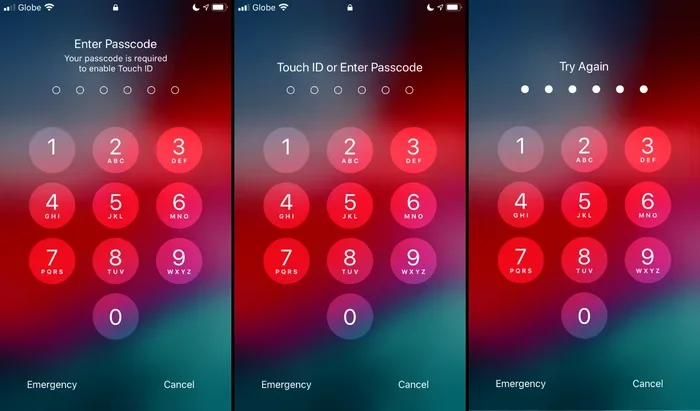
Accessing your saved passwords requires verification. Apple uses Face ID, Touch ID, or your device passcode to unlock Keychain. This means someone would need your physical device and your biometric data or passcode to view your stored credentials. It adds a strong layer of protection on top of the encryption already in place.
You can also use Face ID or Touch ID to autofill passwords. This means you do not even need to enter your device passcode to log into a website. Just glance at your phone or press your finger, and you are in. It is fast, secure, and incredibly convenient.
Wi-Fi and Credit Card Storage
Beyond passwords, Apple Keychain also stores Wi-Fi network passwords and credit card details. This makes connecting to known networks effortless and speeds up online purchases. All of this data is encrypted and synced through iCloud, so it is available whenever and wherever you need it.
Does Apple’s Password Manager Compare to Third-Party Apps?
Now for the part most people really want to know about. How does Apple Keychain stack up against dedicated password managers like Bitwarden, 1Password, LastPass, and Dashlane? The answer depends on what you value most. Let us break it down.
Apple Keychain vs. Bitwarden
Bitwarden is an open-source password manager known for its transparency and strong security. It works across all platforms, including Windows, Android, Linux, and browsers like Chrome and Firefox. Bitwarden offers features like secure file storage, emergency access, and detailed password health reports.
Apple Keychain wins on convenience for Apple users. It requires zero setup and costs nothing extra. Bitwarden wins on cross-platform support and advanced features. If you use a mix of Apple and non-Apple devices, Bitwarden is the clear winner.
Apple Keychain vs. 1Password
1Password is widely regarded as one of the best premium password managers available. It offers a polished interface, excellent family sharing features, and strong support for Windows and Android. 1Password also includes a travel mode feature that temporarily removes sensitive data from your devices when crossing borders.
Apple Keychain is simpler and free. 1Password costs money but delivers a richer experience. For power users who want full control over their credentials and need support on multiple platforms, 1Password is hard to beat. For casual Apple users who want something that just works, Keychain is perfectly fine.
Apple Keychain vs. LastPass
LastPass has been around for a long time and remains a popular choice. It offers browser extensions for all major browsers, cross-platform apps, and features like dark web monitoring and password sharing. The free version is generous, but the premium tier adds even more value.
Where Apple Keychain falls behind is browser compatibility. LastPass works in Chrome, Firefox, Edge, and Brave. Keychain works best in Safari and has limited support on Chrome and other browsers. If you are a Safari-only user, this gap matters less. If you switch between browsers, LastPass gives you much more flexibility.
Comparison Table
| Feature | Apple Keychain | Bitwarden | 1Password | LastPass |
|---|---|---|---|---|
| Price | Free | Free / $10/year | $36/year | Free / $36/year |
| Platform Support | Apple only | All platforms | All platforms | All platforms |
| Browser Extensions | Safari only | All major browsers | All major browsers | All major browsers |
| Password Generator | Yes | Yes | Yes | Yes |
| Cross-Device Sync | iCloud only | Cloud sync | Cloud sync | Cloud sync |
| Dark Web Monitoring | No | No (free) | Yes (premium) | Yes (premium) |
| Secure Sharing | Limited | Yes | Yes | Yes |
| Biometric Unlock | Yes | Yes | Yes | Yes |
How to Set Up and Use Apple’s Password Manager
Getting started with Apple Keychain is straightforward. You do not need to create a separate account or install any software. It is already on your device, waiting to be used. Here is how to set it up and make the most of it.
On iPhone and iPad
Open the Settings app and tap your name at the top. Select iCloud, then tap Keychain. Toggle iCloud Keychain to on. Your device will start syncing your saved passwords across all Apple devices signed into the same Apple ID. You can also go to Settings and tap Passwords to view and manage your saved credentials directly.
Make sure your device passcode is strong. Since Keychain is protected by your passcode or biometrics, a weak passcode undermines the entire security setup. Use a six-digit numeric code or an alphanumeric password for the best protection.
On Mac
On your Mac, open System Settings and click your Apple ID. Select iCloud and make sure Keychain is toggled on. You can also open the Passwords app from the Applications folder or through Spotlight search. This gives you a full view of all saved credentials and lets you add, edit, or delete entries as needed.
On Mac, you can also use Safari preferences to manage passwords. Go to Safari, then Settings, then Passwords. This opens the same Passwords interface and lets you handle everything from one place.
Quick Tips for Getting the Most Out of Apple Keychain
- Always allow Safari to save new passwords. This builds your Keychain library over time.
- Check the Passwords app regularly for security recommendations and reused passwords.
- Enable two-factor authentication on your Apple ID. This adds a critical extra layer of protection to your entire Keychain.
- Use the built-in password generator for every new account. Do not reuse old passwords.
- Review saved credit cards and remove any you no longer use.
Should You Stick with Apple Keychain or Switch to a Dedicated Password Manager?
This is the million-dollar question, and the answer depends entirely on your situation. If you live entirely inside the Apple ecosystem, use Safari as your primary browser, and do not need advanced features like secure sharing or dark web monitoring, Apple Keychain is a great choice. It is free, it is convenient, and it is secure.
But if you use Windows or Android devices, if you switch between browsers like Chrome and Firefox, or if you need features like family sharing, emergency access, or secure file storage, a dedicated password manager makes more sense. Apps like Bitwarden offer excellent free tiers, while 1Password and Dashlane deliver premium experiences for a modest monthly fee.
Some people use a hybrid approach. They rely on Apple Keychain for quick autofill on their iPhone and Mac while using a dedicated app like Bitwarden for cross-platform access and advanced features. This is a perfectly valid strategy and gives you the best of both worlds.
The most important thing is that you use some form of password management. Whether it is Apple Keychain or a third-party app, having a system that creates, stores, and autofills strong, unique passwords is one of the best things you can do for your digital security. Do not let the perfect be the enemy of the good. Start with what you have, and upgrade when your needs grow.
Common Mistakes People Make with Apple Keychain
Even though Apple Keychain is straightforward, people still make avoidable mistakes. One common error is not enabling two-factor authentication for their Apple ID. Without it, someone who gains access to your Apple ID could potentially access your entire Keychain. Always turn on two-factor authentication. It takes two minutes and adds enormous protection.
Another mistake is ignoring security recommendations. Apple will alert you if a saved password appears in a known data breach. Many people dismiss these alerts. Do not. Change those passwords immediately. A breached password is an open door for hackers.
Finally, some users never review their saved passwords. Over time, Keychain accumulates old, unused, and weak entries. Take a few minutes every few months to clean up your stored credentials. Delete what you no longer need and update anything that looks outdated.
Final Thoughts
So, does Apple have a password manager? Absolutely. Apple Keychain is a capable, convenient, and completely free tool that handles the basics of password management very well. It autofills your credentials, generates strong passwords, syncs through iCloud, and keeps your data encrypted. For Apple users who want a no-hassle solution, it is hard to argue with.
But no tool is perfect for everyone. Apple Keychain’s biggest weakness is its limited reach outside the Apple ecosystem. If you use mixed devices or need advanced security features, a dedicated password manager will serve you better. The good news is that you have options, and the most important step is simply to use a password manager at all.
Take a few minutes today to check your Apple Keychain settings. Make sure iCloud sync is on, review your security recommendations, and start using the password generator for new accounts. Small steps like these make a huge difference in keeping your digital life safe and organized. Your future self will thank you.
Frequently Asked Questions
Is Apple Keychain a real password manager?
Yes, Apple Keychain is a fully functional password manager built into Apple devices. It saves, autofills, and syncs your login credentials across all Apple products using iCloud encryption.
Can I use Apple Keychain on Windows or Android?
Not natively. Apple Keychain does not have a dedicated app for Windows or Android. You can access some passwords through iCloud.com on a web browser, but the experience is limited compared to using it on Apple devices.
Is Apple Keychain secure?
Apple Keychain uses end-to-end encryption and Secure Enclave technology to protect your saved credentials. It also supports biometric authentication through Face ID and Touch ID, adding an extra layer of security.
Does Apple Keychain work with Chrome and other browsers?
Apple Keychain works best with Safari. It has limited autofill support in Chrome and other browsers, so if you use multiple browsers regularly, a dedicated password manager may be a better choice.
Do I have to pay for Apple Keychain?
No, Apple Keychain is completely free. It comes built into every Apple device at no extra cost. There are no premium tiers or subscriptions required.
What happens if I forget my Apple ID password?
If you forget your Apple ID password, you can reset it through Apple’s account recovery process. However, you may lose access to your Keychain data until you regain access. This is why keeping your Apple ID secure and enabling two-factor authentication is so important.
=== CONCLUSION ===
Does Apple have a password manager? Yes, and it is called Apple Keychain. It is free, built right into your devices, and handles the essentials of password management with ease. For Apple users who want a simple, no-cost solution, it is an excellent starting point. It saves passwords, autofills logins, generates strong new credentials, and warns you about security risks. All of this happens silently in the background, which is exactly how a good password manager should work.
That said, Apple Keychain is not without its limits. Its sync only works across Apple devices, it lacks advanced features like dark web monitoring and secure sharing, and its browser support is mostly limited to Safari. If these limitations matter to you, there are many great third-party options to explore.
Ultimately, the best password manager is the one you will actually use. And Apple Keychain makes that easy. Start with it, see how it fits your workflow, and upgrade if your needs evolve. The most important step is taking control of your password security today.