Can I See The Password For Wi Fi On Any Mobile Device
Can I see the password for WiFi on any mobile device? Yes, you absolutely can, and it is much easier than you think. Whether you use an iPhone or an Android phone, finding your saved WiFi password takes just a few simple steps. This guide walks you through every method with clear instructions. You will also learn how to share your WiFi password safely and fix common issues. WiFi password recovery has never been this straightforward.
This is a comprehensive guide about Can I See Password For Wi Fi.
Key Takeaways
- iPhone Users: You can view your WiFi password directly in your device settings or through your iCloud Keychain.
- Android Users: Most Android phones let you see WiFi passwords in the network settings, and some even offer QR code sharing.
- QR Code Sharing: Both iOS and Android support sharing WiFi passwords using QR codes, making guest access a breeze.
- Windows and Mac: You can also retrieve saved WiFi passwords on desktop computers using built-in tools.
- Router Access: The original WiFi password is always printed on your router or available in the router admin panel.
- Security First: Always share WiFi passwords safely and avoid writing them on public surfaces.
- Troubleshooting: If you cannot see your password, try restarting your device or checking your permissions first.
[FEATURED_IMAGE_PLACEHOLDER]
Have you ever been in a situation where a friend or guest asks for your WiFi password, and you have no idea what it is? Maybe you connected to the network months ago and never bothered to remember it. Or perhaps you just got a new phone and need to set up the connection again. Whatever the reason, knowing how to find your WiFi password on your mobile device is a skill everyone should have.
The good news is that both iPhones and Android phones make it surprisingly easy to view saved WiFi passwords. You do not need to be a tech expert. A few taps here and there, and you will have your password right in front of you. In this article, we will cover every method step by step.
Can I see the password for WiFi on any mobile device? The short answer is yes. Whether you are using the latest iPhone or a budget Android phone, the process is simple and built right into your device. Let us walk through it together.
What Is a WiFi Password and Why Do You Need It?
A WiFi password, also called a network security key, is the code that protects your wireless network from unauthorized access. When you set up a router at home or work, you create a password that keeps strangers from using your internet connection. Without it, anyone within range could hop on your network and slow things down.
Knowing your WiFi password matters for several reasons. First, you need it when connecting new devices. Second, you may need to share it with guests or family members. Third, if you reset your router or change your phone, you will need the password again. And sometimes, you simply forget it because you have been auto-connected for so long.
Your WiFi password is stored securely on your mobile device once you connect to the network. Both iOS and Android operating systems save this information so you do not have to type it in every time. The question is simply how to access that stored password when you need it.
How to See WiFi Password on iPhone
If you use an iPhone, Apple has made it easy to view your saved WiFi passwords. However, the exact method depends on your iOS version and whether you use iCloud Keychain. Let us break it down.
Using iPhone Settings (iOS 16 and Newer)
Apple finally added a direct way to view WiFi passwords in the settings app. Here is how to do it:
- Open the Settings app on your iPhone.
- Tap on WiFi to see your saved networks.
- Find the network you want the password for.
- Tap the info icon (the small “i” in a circle) next to the network name.
- Tap on Password on the next screen.
- Your device will ask for Face ID, Touch ID, or your passcode.
- After verification, the WiFi password will be displayed.
This method works on iPhone 11 and newer models running iOS 16 or later. It is the fastest and most direct way to see your saved WiFi password without needing a computer.
Using iCloud Keychain on Mac
If your iPhone does not support the direct method, you can use your Mac instead. As long as you use iCloud Keychain and the same Apple ID, your WiFi passwords sync across devices.
- Open Keychain Access on your Mac. You can find it in the Applications folder under Utilities.
- Use the search bar to find the name of your WiFi network.
- Double-click on the network entry.
- Check the box that says Show Password.
- Enter your Mac login password when prompted.
- The WiFi password will now be visible.
This trick is incredibly useful when you have a Mac nearby. It works for any WiFi network your iPhone has ever connected to, as long as iCloud Keychain is turned on.
Sharing WiFi Password from iPhone
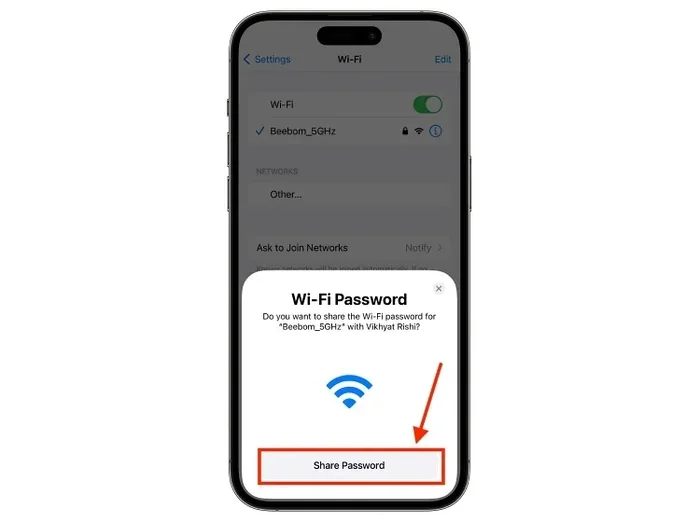
One of the coolest features on iPhone is the ability to share your WiFi password with someone nearby. When a guest tries to connect to your network, your iPhone will prompt you to share the password automatically. The other person simply needs to be in range and have their phone nearby. The password is shared securely through a direct peer-to-peer connection.
How to See WiFi Password on Android Devices
Android phones also offer straightforward ways to view saved WiFi passwords. The exact steps may vary slightly depending on your phone brand and Android version, but the process is generally similar across devices.
Using Android Settings (Stock Android and Pixel Phones)
On Google Pixel phones and devices running stock Android, here is what you need to do:
- Open the Settings app on your Android phone.
- Tap on Network & Internet or Connections, depending on your device.
- Tap on WiFi to see your saved networks.
- Tap on the network name you want the password for.
- Look for a Share button or a gear icon.
- If you see a Share button, tap it.
- Your phone will show a QR code that contains the WiFi password.
- You may need to authenticate with your fingerprint or PIN first.
On some Android phones, you can also tap Show Password directly after selecting the network. This will display the WiFi password in plain text on your screen.
Viewing WiFi Password on Samsung Phones
Samsung phones use a slightly different menu layout, but the process is still simple:
- Go to Settings and tap Connections.
- Tap on WiFi.
- Find the network you want and tap the gear icon next to it.
- Tap Share or View Password.
- Authenticate with your Samsung account or fingerprint.
- The password will appear on screen or as a QR code.
Samsung devices also let you scan the QR code with another phone to connect to the network instantly. This is a great feature for sharing WiFi with friends and family without having to type out a long, complicated password.
Using QR Codes to Share WiFi Passwords
Both iPhone and Android support WiFi password sharing through QR codes. This method is secure and convenient. The person wanting to connect simply opens their phone’s camera, points it at the QR code, and their phone automatically connects to the network. No typing required. No mistakes. Just a quick scan and you are online.
To generate a QR code for your WiFi on Android, tap the Share button next to the network. On iPhone, the QR code appears automatically when you choose to share the password with a nearby device. This is one of the best features of modern smartphones when it comes to WiFi sharing.
How to Find WiFi Password on Windows and Mac Computers
Sometimes you might not have your phone handy but still need your WiFi password. Maybe you are setting up a new router or helping a friend connect their laptop. In these cases, knowing how to find the password on your computer is very helpful.
On Windows 10 and 11
- Right-click on the Start button and select Network Connections.
- Click on Network and Sharing Center.
- Next to your active WiFi connection, click the blue link showing the network name.
- Click Wireless Properties.
- Go to the Security tab.
- Check the box that says Show characters.
- The WiFi password will now be visible in plain text.
This method works for any WiFi network your Windows computer has previously connected to. It is a lifesaver when you need to share the password with a new device or when you set up a second router.
On Mac Computers
If you use a Mac, you can find your WiFi password using Keychain Access, just like we discussed for iPhone users:
- Open Keychain Access from the Applications > Utilities folder.
- Search for your WiFi network name in the search bar.
- Double-click the network entry.
- Check Show Password.
- Enter your Mac admin password to reveal the WiFi password.
Mac users also benefit from iCloud Keychain syncing, which means the password you find on your Mac is the same one stored on your iPhone and iPad. This makes cross-device password recovery seamless and effortless.
How to Find Your WiFi Password on the Router Itself
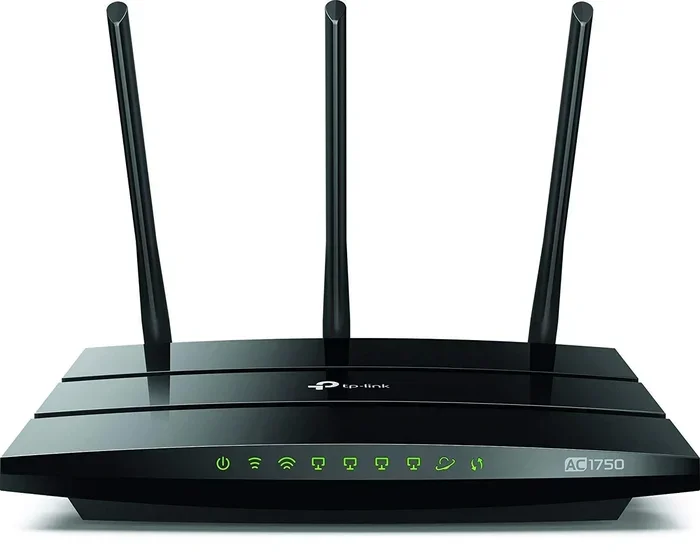
If you have never connected a device to your WiFi network and need the original password, do not worry. Your router holds the answer. Every router comes with a default WiFi password printed on a sticker on the back or bottom of the device.
Look for a label that says SSID or Network Name and Password or Security Key. The password is usually a mix of letters and numbers. If you have changed the password in the past and forgotten it, you can log into your router’s admin panel.
To access the router admin panel, type your router’s IP address into a web browser. Common addresses include 192.168.1.1 or 192.168.0.1. Log in with the admin credentials (often found on the same sticker), and navigate to the wireless settings section. There you will find or reset your WiFi password.
This method is especially useful when you are setting up a brand new router or when none of your devices have the password saved anymore. It is the ultimate backup plan for WiFi password recovery.
Common Mistakes When Trying to See WiFi Passwords
Many people run into problems when trying to view their WiFi passwords. Most of these issues are easy to fix. Let us look at the most common mistakes and how to avoid them.
Not Having the Right Permissions
On both iPhone and Android, you need proper authentication to view saved WiFi passwords. On iPhone, you must use Face ID, Touch ID, or your passcode. On Android, you need your fingerprint, PIN, or pattern lock. If you cannot verify your identity, the phone will not show the password. Make sure you remember your device lock screen credentials.
Using an Outdated Operating System
The direct method for viewing WiFi passwords on iPhone requires iOS 16 or later. If your iPhone is running an older version of iOS, you will not see the Password option in the WiFi settings. Similarly, older Android versions may not support the QR code sharing feature. Keeping your device updated ensures you always have access to the latest features.
Confusing WiFi Password with Router Admin Password
People often mix up their WiFi password with their router admin password. These are two different things. The WiFi password is what you use to connect wireless devices to your network. The router admin password is what you use to log into your router’s settings page. Make sure you are looking for the right one.
Trying to View a Password for a Network You Never Connected To
Your phone only stores WiFi passwords for networks you have actually connected to. If you have never joined a particular network, your device will not have the password saved. In that case, you will need to check the router directly or ask the network owner for the password.
Tips for Managing and Securing Your WiFi Password
Now that you know how to find your WiFi password, let us talk about keeping it safe and organized. Good password management prevents unauthorized access and keeps your internet running smoothly.
First, change your default WiFi password as soon as you set up a new router. The factory password is easy to guess and can be found online for many router models. A strong WiFi password should be at least 12 characters long and include a mix of uppercase letters, lowercase letters, numbers, and symbols.
Second, consider using a password manager app. Apps like 1Password, LastPass, or Bitwarden can securely store all your WiFi passwords in one place. You will never have to worry about forgetting them again. These apps also make it easy to share passwords with trusted family members.
Third, regularly check the list of devices connected to your network. Most routers let you view connected devices in the admin panel. If you see any unfamiliar devices, change your WiFi password immediately. This keeps your network secure and your internet speed fast.
Fourth, enable WPA3 encryption on your router if it supports it. WPA3 is the latest and most secure WiFi encryption standard. It protects your network from brute-force attacks and other common security threats. If your router only supports WPA2, that is still good, but WPA3 is better.
Finally, update your router firmware regularly. Router manufacturers release updates that fix security vulnerabilities and improve performance. Checking for updates once a month takes just a couple of minutes but can make a big difference for your network security.
Why You Might Need to See Your WiFi Password Again
There are many situations where you will need to retrieve your WiFi password. Let us look at some of the most common ones.
You buy a new phone and need to reconnect to your home network. A friend comes over and wants to use your WiFi. You set up a smart home device like a camera or smart speaker that requires manual network entry. You are troubleshooting a connection issue and need to verify the password you are using. Or maybe you simply have not looked at the password in years and want to update it for security reasons.
No matter the reason, knowing how to quickly find your WiFi password on your mobile device saves time and frustration. It is one of those small skills that makes everyday life easier. Once you learn the steps, you will never have to guess or ask for the password again.
Conclusion
So, can I see the password for WiFi on any mobile device? Absolutely. Whether you are on an iPhone or an Android phone, your saved WiFi password is just a few taps away. Apple and Google have both made it easy to view, share, and manage your WiFi passwords directly from your mobile device. You do not need any third-party apps or technical expertise.
Remember to keep your WiFi password secure and update it regularly. Use QR code sharing when you need to give guests access. And if you ever get stuck, the router itself always has the original password printed on a sticker. With the tips in this guide, you are now equipped to handle any WiFi password situation with confidence.
Take a few minutes today to find your WiFi password and save it somewhere safe. You will be glad you did the next time a friend asks for it or you need to set up a new device. WiFi password management is a small habit that makes a big difference in your daily digital life.
Frequently Asked Questions
Can I see the password for WiFi on my phone without any extra apps?
Yes, both iPhone and Android phones have built-in features that let you view saved WiFi passwords without downloading any additional apps. On iPhone, you can use the Settings app (iOS 16 or newer) or iCloud Keychain through a Mac. On Android, you can view or share the password directly from the WiFi settings menu. No third-party tools are needed.
Why can’t I see the Show Password option on my Android phone?
This usually happens because your Android version is outdated or your phone manufacturer uses a different settings layout. Try updating your phone to the latest software version first. If the option still does not appear, you can use the QR code sharing method instead, which works on most Android devices. You can also check your router for the original password.
Is it safe to share my WiFi password using a QR code?
Yes, sharing your WiFi password through a QR code is safe. Both iPhone and Android use encrypted, peer-to-peer connections when sharing passwords. The QR code only works for devices that are physically near you. No data is sent over the internet, and the recipient must accept the connection invitation on their device.
Can I see the WiFi password on a phone I have never connected to?
No, your phone only stores passwords for networks you have previously connected to. If you have never joined a specific WiFi network, your device will not have the password saved. In that case, you will need to check the router directly or contact the network owner for the password.
How do I find my WiFi password if I changed it and forgot the new one?
If you changed your WiFi password and forgot it, you can log into your router’s admin panel using a web browser. Type your router’s IP address (usually 192.168.1.1 or 192.168.0.1) into the address bar, log in with admin credentials, and navigate to the wireless settings section. From there, you can view or reset the password to a new one.
Can I see the WiFi password on a tablet the same way as on a phone?
Yes, tablets follow the same process as phones. iPad users can view WiFi passwords through Settings on iOS 16 or later, or through iCloud Keychain on a Mac. Android tablet users can find saved WiFi passwords in the Network & Internet or Connections settings, depending on the tablet model and Android version.
=== CONCLUSION ===
Knowing how to see the password for WiFi on any mobile device is a practical skill that everyone should have. Whether you use an iPhone, an Android phone, or even a computer, the steps are simple and built right into your device. You do not need to be a tech wizard to find your WiFi password when you need it.
We covered everything in this guide, from viewing passwords on iPhone and Android to sharing them safely with QR codes. We also looked at how to find passwords on Windows and Mac computers and how to access them directly on your router. Each method is straightforward and takes just a few minutes to learn.
Keep your wireless network secure by using strong passwords and updating them regularly. Share your WiFi safely with guests using the built-in sharing features on your phone. And if you ever get stuck, remember that your router always has the original password waiting for you on its sticker.
Now that you have all the tools and knowledge at your fingertips, you will never be stuck without your WiFi password again. Take action today, and make sure your saved WiFi password is easy to find whenever you need it.