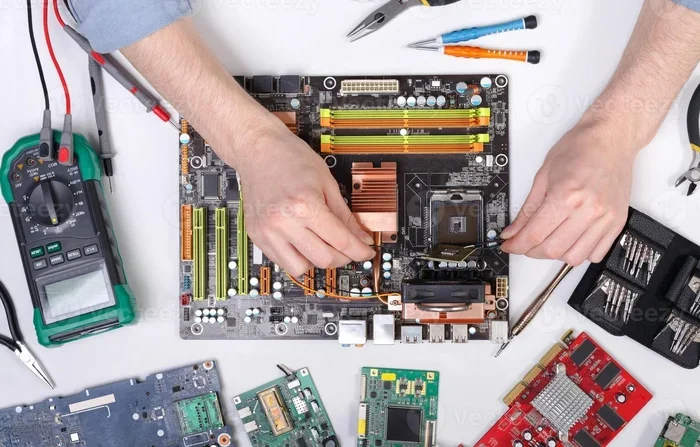
Can You Add Wi Fi to a Non Wi Fi Motherboard Easily
Yes, you can absolutely add WiFi to a non WiFi motherboard with a USB adapter or a PCIe WiFi card. Whether you have a desktop or a laptop, wireless connectivity is just a quick upgrade away. This guide walks you through every option, from easy plug-and-play solutions to internal cards that deliver the best speed and range. You will learn how to choose the right adapter, install it step by step, and avoid common mistakes that slow down your wireless signal.
If your computer does not have built-in WiFi, you are not stuck. You have options. Adding wireless internet to a non WiFi motherboard is simpler than most people think. Whether you are working from home, gaming online, or just browsing the web, wireless connectivity makes life so much easier. You do not need to run Ethernet cables across your room or office. A small adapter can change everything.
The good news is that there are two main ways to get WiFi on a computer without it. You can use a USB WiFi adapter, or you can install a PCIe WiFi card inside your machine. Both methods work well. Both are affordable. And both get you online without needing to replace your entire motherboard. This guide covers everything you need to know. We will look at each option in detail. We will also cover installation, setup, and how to pick the best adapter for your needs.
Let us start with the basics. A non WiFi motherboard simply means your computer’s main circuit board does not include a wireless network card. It might have an Ethernet port for wired internet, but it cannot connect to a WiFi router on its own. That is completely normal. Many budget and older motherboards leave WiFi out to keep costs down. The good news is that adding wireless capability is straightforward and affordable.
Key Takeaways
- USB WiFi adapters are the easiest and fastest way to add wireless internet to any PC without opening the case.
- PCIe WiFi cards offer better speed, range, and stability compared to USB options, making them ideal for gaming and streaming.
- Bluetooth capability often comes bundled with modern WiFi adapters, so you can connect wireless peripherals too.
- WiFi 6 and WiFi 5 standards are the most popular choices for modern wireless networking, and both work on older motherboards.
- Driver software is essential after installation, and skipping this step is the most common mistake users make.
- Internal WiFi cards need a compatible PCIe slot and proper antenna placement for the best wireless signal strength.
- Your wireless internet speed depends on your adapter, router, and the environment, not just your motherboard.
📑 Table of Contents
- What Does It Mean to Have a Non WiFi Motherboard?
- Why You Should Add WiFi to Your PC
- USB WiFi Adapters: The Easiest Way to Get Wireless
- PCIe WiFi Cards: The Best Performance Option
- How to Choose the Right WiFi Adapter for Your Setup
- Step-by-Step: Adding WiFi to a Non WiFi Motherboard
- How to Get the Best Wireless Performance
- Can You Add WiFi to a Laptop Without Built-In WiFi?
- Final Thoughts on Adding WiFi to a Non WiFi Motherboard
What Does It Mean to Have a Non WiFi Motherboard?
When we say a motherboard does not have WiFi, we mean it lacks a built-in wireless networking chip. This chip is what allows your computer to send and receive wireless signals from a router. Without it, your computer can only connect to the internet through a cable. Many desktop PCs come this way. Some laptops also have non WiFi boards, especially older models or certain budget lines.
Here is something important to understand. A non WiFi motherboard does not mean your computer cannot access the internet. It just means you need an external or internal device to provide that connection. Think of it like a TV without a built-in tuner. You can still watch TV. You just need a set-top box. WiFi works the same way. You need a small device to tune into the wireless signal.
Why Do Motherboards Leave WiFi Out?
Manufacturers leave WiFi off many motherboards for a few reasons. First, it keeps the price lower. A wireless chip adds cost to the board. Second, not everyone needs WiFi. Some users only connect via Ethernet cable. Third, leaving WiFi out lets buyers choose their own adapter. This gives you more control over the quality and type of wireless card you use.
Another reason is that WiFi standards change fast. By the time a motherboard is sold, WiFi 6 or WiFi 7 might already be the latest standard. If a board includes WiFi, it might already be outdated. So many manufacturers prefer to let you add your own adapter. This way, you can pick the latest wireless standard that fits your budget and needs.
Why You Should Add WiFi to Your PC
Adding wireless internet to a computer without WiFi opens up a lot of possibilities. Let us look at why this upgrade matters so much.
First, wireless freedom is huge. You are not tied to a desk with a cable. You can move around your home or office while staying connected. This is especially helpful for laptop users who want a more reliable connection than what their built-in card provides.
Second, modern WiFi standards offer speeds that rival or even beat wired Ethernet in many cases. WiFi 6 and WiFi 6E adapters can deliver multi-gigabit speeds. That is more than enough for streaming, gaming, video calls, and large file downloads.
Third, Bluetooth support often comes with WiFi adapters. This means you can connect wireless mice, keyboards, headphones, and speakers without extra dongles. A single adapter handles both your wireless internet and your wireless peripherals.
Fourth, adding WiFi is much cheaper than buying a new motherboard or a new computer. A good USB adapter costs under fifty dollars. A PCIe card might run you thirty to eighty dollars. Compare that to the cost of a whole new system, and the value is clear.
Quick Tips
- Check if your router supports WiFi 5 or WiFi 6 before buying an adapter. You want to match the standards for the best speeds.
- Consider where your PC sits in your home. Distance from the router affects wireless signal strength a lot.
- If you game online, a PCIe card will give you lower latency than a USB adapter.
- Keep your adapter drivers updated. Outdated drivers cause slow speeds and connection drops.
USB WiFi Adapters: The Easiest Way to Get Wireless
A USB WiFi adapter is the simplest way to add wireless internet to any computer. You plug it into a USB port. You install the driver software. And you are connected. No opening the case. No technical skills needed. This is the best option for most people who just want quick wireless connectivity.
USB adapters come in many shapes and sizes. Some are small and barely noticeable. Others are larger and offer better performance. The small ones are great for travel. The larger ones usually have better antennas and faster speeds. You can find adapters that support WiFi 5, WiFi 6, and even WiFi 6E standards.
How USB WiFi Adapters Work
A USB WiFi adapter contains a wireless radio and antenna inside a small device. When you plug it into a USB port, the computer recognizes it as a network device. The adapter sends and receives wireless signals just like a built-in WiFi card would. The difference is that it connects to the computer through USB instead of being soldered onto the motherboard.
Most USB adapters work on Windows, Mac, and even some Linux systems. You just need to install the right driver software. Many adapters come with a driver CD, but it is usually better to download the latest driver from the manufacturer’s website. This ensures you get the most recent updates and the best performance.
Pros and Cons of USB WiFi Adapters
USB adapters have clear advantages. They are easy to install. They are portable. You can use them on any computer with a USB port. They are affordable. And they do not require opening your PC case. However, they also have some downsides. USB connections are slower than PCIe slots. This means USB adapters may not reach the full speed of the latest WiFi standards. They can also be less stable and more prone to interference from other USB devices.
| Feature | USB WiFi Adapter | PCIe WiFi Card |
|---|---|---|
| Installation Difficulty | Very Easy | Moderate |
| Speed | Good | Excellent |
| Prices | $15 to $60 | $30 to $100 |
| Portability | High | Low |
| Wireless Range | Average | Better |
| Bluetooth Support | Often Included | Often Included |
| Best For | Quick Setup | Gaming and Streaming |
Best USB WiFi Adapters to Consider
When shopping for a USB adapter, look for ones that support at least WiFi 5 (802.11ac). If your router supports WiFi 6, get a WiFi 6 adapter for the best future-proofing. Brands like TP-Link, ASUS, Netgear, and Intel make reliable USB adapters that work well with non WiFi motherboards. Check the adapter’s speed rating, antenna design, and driver support before buying.
PCIe WiFi Cards: The Best Performance Option
If you want the fastest and most reliable wireless connection, a PCIe WiFi card is the way to go. This card installs directly into a PCIe slot on your motherboard. It connects internally, which means better signal strength and faster speeds. A PCIe card is the best choice for gaming PCs, workstations, and anyone who needs top-tier wireless performance.
PCIe WiFi cards look similar to graphics cards but are much smaller. They slot directly into the motherboard and often come with external antennas that you can position for the best wireless signal. Some cards also include Bluetooth support, so you get both wireless internet and wireless peripheral connectivity in one device.
How PCIe WiFi Cards Work
A PCIe WiFi card connects to your computer through the PCIe bus. This is the same connection used by graphics cards and SSDs. Because it is a direct motherboard connection, it has much more bandwidth than a USB connection. This means it can handle the faster wireless speeds that modern WiFi standards offer. You get lower latency, better stability, and stronger signal reception.
The card processes wireless signals using its own dedicated chip. This offloads the work from your CPU and can actually improve overall system performance. The external antennas on most PCIe cards can be positioned for the best reception. This is a big advantage over USB adapters, which have small antennas built into the device.
Pros and Cons of PCIe WiFi Cards
The biggest advantage of a PCIe card is performance. You get faster speeds, better range, and lower latency. The build quality is usually higher too. These cards are designed to stay inside your PC and work reliably for years. The downside is that installation is more involved. You need to open your PC case, find a free PCIe slot, and install the card and antennas. It is not difficult, but it does require a bit more effort than a USB adapter.
Another consideration is compatibility. You need a free PCIe slot on your motherboard. Most modern desktops have several slots available. But if you have a small form factor PC or an older motherboard, you might need to check before buying. Also, PCIe cards are not portable. They are fixed inside your computer and cannot be moved to another device easily.
Quick Tips for PCIe Card Installation
- Turn off your PC and unplug it before opening the case. Safety first.
- Ground yourself by touching a metal part of the case to prevent static damage.
- Install the card in a PCIe x1 slot for best compatibility. Most WiFi cards use this smaller slot size.
- Position the antennas vertically or at a 45-degree angle for the best wireless coverage.
- Keep the card away from other components that might cause interference, like graphics cards or power supplies.
How to Choose the Right WiFi Adapter for Your Setup
Choosing the right adapter depends on a few factors. Your motherboard type matters. Your internet usage matters. And your budget matters too. Let us break down what to consider.
Match the WiFi Standard to Your Router
If your router supports WiFi 6, you should get a WiFi 6 adapter to take full advantage of those speeds. If your router is older and only supports WiFi 5, a WiFi 5 adapter will work perfectly fine. You do not need to buy the latest standard if your router does not support it. But if you plan to upgrade your router soon, it is smart to future-proof with a WiFi 6 or WiFi 6E adapter.
Consider Your Use Case
If you mainly browse the web and check email, a basic USB adapter is more than enough. If you stream 4K video or game online, you will want a faster adapter. PCIe cards shine in these scenarios because of their superior speed and stability. If you work from home and need a rock-solid connection for video calls, a PCIe card with external antennas will give you the most reliable performance.
Budget Considerations
USB WiFi adapters are the most affordable option. You can get a solid one for under thirty dollars. PCIe cards cost a bit more but deliver much better performance. If you are building or upgrading a gaming PC, the extra cost of a PCIe card is well worth it. For casual users, a USB adapter provides excellent value.
Expert Insights
Networking experts often recommend PCIe cards for desktop users who want the best experience. USB adapters are perfect for people who need a quick, no-hassle solution. The key is to match your adapter to your actual needs. Do not overpay for features you will not use, but also do not cheap out if you need reliable performance for work or gaming.
Step-by-Step: Adding WiFi to a Non WiFi Motherboard
Now let us walk through the actual process. Whether you choose a USB adapter or a PCIe card, the steps are straightforward.
Method 1: Setting Up a USB WiFi Adapter
Plug the USB adapter into an available port on your computer. If you are using a desktop, a rear USB port on the motherboard is best. These ports provide more stable power and better performance than front panel ports. Wait a few seconds for Windows to recognize the device.
Next, install the driver software. Most adapters come with a driver CD, but downloading from the manufacturer’s website is better. Go to the support page for your adapter model, download the latest driver, and run the installer. Restart your computer if prompted. Once the setup is complete, you should see available wireless networks in your WiFi settings. Click on your network, enter the password, and you are online.
Method 2: Installing a PCIe WiFi Card
Start by shutting down your computer and unplugging the power cable. Open the PC case. Locate a free PCIe slot on your motherboard. A PCIe x1 slot works perfectly for most WiFi cards. Remove the metal bracket covering the slot from the back of the case.
Hold the WiFi card by its edges and align it with the PCIe slot. Press it down firmly until it clicks into place. Secure it with a screw. Next, attach the external antennas to the card. Position them for the best signal coverage. Close the case, plug in the power cable, and turn on your PC.
Once Windows boots up, install the driver software just like you would for a USB adapter. Download from the manufacturer’s website if a CD is not included. After installation, restart your computer. You should now see wireless networks and be able to connect to your router. That is it. You have successfully added WiFi to a non WiFi motherboard.
Common Mistakes to Avoid
The biggest mistake people make is skipping driver installation. Without the proper driver, your adapter will not work correctly. Another common mistake is plugging a USB adapter into a front panel port that does not provide enough power. This can cause connection drops and slow speeds. Some users also place their PCIe card too close to other components, which causes interference and weak signals.
Do not buy the cheapest adapter you can find either. Very cheap adapters often use older WiFi standards and poor-quality components. They may not support the speeds your internet plan and router are capable of. Spend a little more on a reputable brand and you will get a much better experience.
How to Get the Best Wireless Performance
Once your WiFi adapter is installed, there are a few things you can do to improve your wireless connection. First, position your router in a central location in your home. Walls, floors, and furniture all weaken wireless signals. The closer your PC is to the router, the better your connection will be.
Second, keep your adapter drivers updated. Manufacturers regularly release updates that improve performance and fix bugs. Check the manufacturer’s website every few months for driver updates. Third, reduce interference. Other electronic devices like microwaves, cordless phones, and baby monitors can interfere with your wireless signal. Keep your adapter away from these devices.
Fourth, if you are using a USB adapter, try a USB extension cable. This lets you position the adapter away from your PC case and closer to the router. It can also reduce interference from other internal components. Fifth, consider upgrading your router if it is more than a few years old. A newer router with WiFi 6 support will make a huge difference in speed and range.
Understanding WiFi Standards
WiFi standards have evolved a lot over the years. WiFi 5 (802.11ac) is still very common and offers fast speeds for most users. WiFi 6 (802.11ax) is the current mainstream standard and offers better speed and efficiency. WiFi 6E adds support for the 6GHz band, which is less crowded and can deliver even faster speeds. When choosing an adapter, look for the WiFi standard it supports and match it to your router for the best results.
It is also worth noting that your actual wireless internet speed depends on many factors. Your adapter quality, your router capability, your distance from the router, and the number of devices on your network all play a role. No single adapter can overcome a poor router or a very weak signal. Think of your wireless setup as a chain, and the weakest link determines your overall speed.
Can You Add WiFi to a Laptop Without Built-In WiFi?
Laptops without built-in WiFi are rare these days, but they do exist. Some older laptops and certain budget models come with non WiFi motherboards. The good news is that you can still add wireless connectivity. A USB WiFi adapter is the easiest solution for laptops. Just plug it into any available USB port, install the driver, and you are connected.
For laptops, you want to choose a compact USB adapter that does not block other USB ports. Many adapters now come in very small form factors that barely stick out from the side of your laptop. This makes them perfect for portable use. You can unplug the adapter when you do not need it and plug it in again when you do. It is that simple.
Some people wonder if they can use a PCIe card in a laptop. The answer is generally no. Laptops do not have standard PCIe slots that are user-accessible. So USB adapters are the go-to solution for laptop WiFi upgrades. They work on both Windows and Mac laptops, making them a versatile choice for any non WiFi setup.
Key Takeaways
- USB adapters are the best choice for laptop WiFi upgrades because they are plug-and-play and portable.
- PCIe cards are not an option for most laptops, so USB is your only practical choice.
- Driver installation is just as important for laptops as it is for desktops. Do not skip this step.
- Small form factor adapters are ideal for laptops because they do not block other ports.
- Bluetooth support on your USB adapter lets you connect wireless peripherals without extra dongles.
Final Thoughts on Adding WiFi to a Non WiFi Motherboard
Adding WiFi to a non WiFi motherboard is one of the easiest and most rewarding PC upgrades you can do. Whether you choose a USB adapter or a PCIe card, you will be surfing the web, streaming videos, and gaming online in no time. The process is simple, the cost is low, and the results are immediate. You do not need to be a tech expert to do it.
The key is choosing the right adapter for your needs. If you want quick and easy, go with a USB WiFi adapter. If you want the best performance and speed, invest in a PCIe WiFi card. Either way, you will enjoy the freedom and convenience of wireless internet. Your non WiFi motherboard does not have to hold you back anymore.
So go ahead. Pick the adapter that fits your setup. Follow the installation steps in this guide. And enjoy seamless wireless connectivity on your PC. It is easier than you think, and once you are online without cables, you will wonder why you did not do it sooner.
Frequently Asked Questions
Can I add WiFi to any desktop motherboard?
Yes, you can add WiFi to virtually any desktop motherboard. Whether your board has WiFi or not, a USB adapter or PCIe card will work. The only requirement is that you have a free USB port or a PCIe slot available. Both options are universal and work with all major operating systems.
Is a USB WiFi adapter as good as a built-in WiFi card?
A USB adapter is very close in performance to a built-in card, but a PCIe card is usually faster and more stable. USB adapters are convenient and easy to use. PCIe cards offer better speeds and range. For most everyday tasks, a good USB adapter is more than sufficient. For gaming and heavy use, a PCIe card is the better choice.
Do I need to install drivers after plugging in a WiFi adapter?
Yes, driver installation is essential. Windows may recognize the adapter and install a basic driver automatically, but you should always download the latest driver from the manufacturer’s website. Updated drivers ensure the best speed, stability, and compatibility with the latest WiFi standards like WiFi 6 and WiFi 6E.
Can I use a WiFi adapter with a Mac computer?
Yes, many USB WiFi adapters work with Mac computers. However, you should check the manufacturer’s compatibility list before buying. Some adapters are designed specifically for Windows and may not have Mac drivers available. Look for adapters that explicitly support macOS for the best experience.
How much does it cost to add WiFi to a non WiFi motherboard?
USB WiFi adapters range from $15 to $60 depending on speed and features. PCIe WiFi cards cost between $30 and $100 for high-performance models. Both options are very affordable compared to replacing a motherboard or buying a new computer. The cost is a small investment for the convenience of wireless internet.
Will adding a WiFi adapter slow down my computer?
No, adding a WiFi adapter will not slow down your computer. In fact, a PCIe WiFi card can improve overall network performance by offloading wireless processing from your CPU. USB adapters use minimal system resources as well. You should notice no negative impact on your computer’s speed or performance.