How Do I Connect My Phone To My Firestick Without Remote
Connecting your phone to your Firestick without a remote is easier than you think. You can use the Fire TV app, screen mirroring, or even your phone’s built-in casting features to take full control. This guide walks you through every method with clear steps, so you can start streaming right away.
You sit down on the couch, ready to binge your favorite show. But then it hits you — the Firestick remote is missing. Panic sets in. Don’t worry. This happens more often than you’d think. The good news is that you can absolutely connect your phone to your Firestick without the remote. You have several options, and they are all simpler than you might expect.
Whether your remote died, got lost, or simply isn’t working, your smartphone can step in as a powerful Firestick remote replacement. In this guide, we will walk you through every method step by step. You will learn how to use the Fire TV app, cast your screen, and even troubleshoot when things go wrong. By the end, you will be back to streaming content in minutes.
Key Takeaways
- Use the Fire TV app: Turn your phone into a fully functional remote replacement with ease.
- Try screen mirroring: Cast your phone screen directly to your Firestick for a wireless connection.
- Set up Wi-Fi first: A stable wireless connection is essential for all methods to work smoothly.
- Use the Alexa app: It doubles as a Firestick remote and lets you control playback, volume, and more.
- Troubleshoot common issues: Reset, restart, and reconnect if your phone won’t connect to the Firestick.
- No special hardware needed: Your smartphone and Firestick are all you need for most solutions.
📑 Table of Contents
- Why Connect Your Phone to Your Firestick?
- Method 1: Use the Fire TV App
- Method 2: Screen Mirroring From Your Phone
- Method 3: Use the Alexa App as a Remote
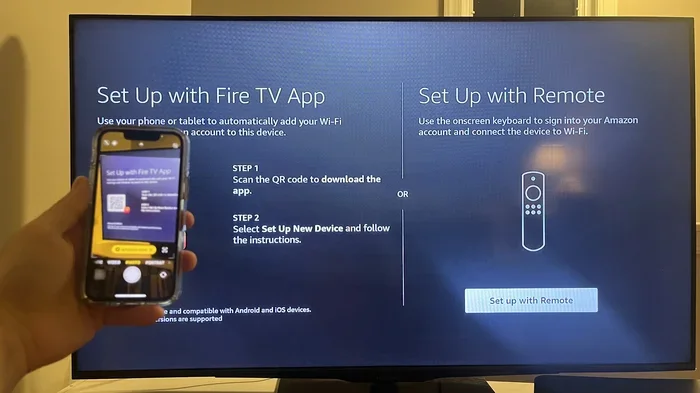
- Setting Up Your Firestick Without a Remote for the First Time
- Troubleshooting Common Connection Issues
- Comparison: Fire TV App vs. Alexa App vs. Screen Mirroring
- Advanced Tips for a Better Experience
- Can You Use Any Phone With Any Firestick?
- Conclusion
Why Connect Your Phone to Your Firestick?
There are many reasons you might need to ditch the physical remote. Maybe the batteries died. Maybe the remote got lost under the couch cushions. Or perhaps the buttons stopped working altogether. Whatever the reason, your phone can fill that gap beautifully.
Using your phone as a smartphone as remote gives you several advantages:
- Full keyboard access: Typing search queries on your phone is way faster than using the on-screen remote.
- Voice control: Many apps let you use voice commands to find content instantly.
- Touch controls: Swipe and tap instead of navigating with d-pad buttons.
- No batteries needed: Your phone is always charged and ready to go.
- Multi-device control: Some apps let you manage other smart home devices too.
Beyond just replacing a lost remote, connecting your phone opens up mobile casting possibilities. You can mirror your entire phone screen or cast specific apps like YouTube or Netflix directly to your TV. This is incredibly useful when you want to share something with family or friends.
Method 1: Use the Fire TV App
The Fire TV app is the most direct way to connect your phone to your Firestick. It turns your smartphone into a full-featured remote control. Both iPhone and Android users can use it. Here is how to get started.
Step 1: Download the Fire TV App
Go to the App Store on iPhone or the Google Play Store on Android. Search for “Fire TV” and download the official app. Make sure it is the app made by Amazon. The icon looks like a small television with a flame on it.
Step 2: Connect to the Same Wi-Fi Network
This is the most important step. Your phone and your Firestick must be on the same Wi-Fi network. Open your phone’s settings and check your Wi-Fi connection. Then go to your TV and check the Firestick’s network. They must match. If they do not, you will not be able to connect.
Quick Tip: If your router has both 2.4 GHz and 5 GHz bands, make sure both devices connect to the same one. Some older Firestick models work better on 2.4 GHz.
Step 3: Pair Your Phone with the Firestick
Open the Fire TV app on your phone. Tap the “Devices” icon at the bottom. The app will scan for available Firestick devices. When your Firestick appears, tap on it. A pairing code will show up on your TV screen. Enter that code on your phone to complete the connection.
Once paired, your phone screen will look just like a remote. You will see a directional pad, a home button, a microphone for voice search, and a keyboard for typing. It works exactly like the physical remote, but with extra perks.
Step 4: Start Using Your Phone as a Remote
You can now navigate your Firestick menus, open apps, search for shows, and control playback. The app also lets you type text using your phone’s keyboard, which is a huge time-saver compared to using the on-screen remote. You can even use voice commands through the app’s microphone button.
Expert Insight: The Fire TV app also has a “Keyboard” feature that pops up a full QWERTY keyboard on your phone. Use this for logging into Netflix, typing passwords, or searching for specific movies. It saves so much time.
Method 2: Screen Mirroring From Your Phone
Screen mirroring lets you display everything on your phone screen directly onto your TV through the Firestick. This is different from using the Fire TV app as a remote. With mirroring, your TV shows exactly what your phone shows.
For Android Users
Most Android phones support screen mirroring natively. Here is how to do it:
- Make sure your phone and Firestick are on the same Wi-Fi network.
- Swipe down from the top of your phone screen to open Quick Settings.
- Look for “Cast,” “Screen Cast,” or “Smart View.” The name varies by phone brand.
- Tap it and select your Firestick from the list of available devices.
- Your phone screen will now appear on your TV.
You can also use third-party apps like “AirScreen” or “LocalCast” if your phone does not have built-in casting support. These apps add mobile casting features to your device quickly.
For iPhone Users
Apple uses AirPlay for screen mirroring, and the Firestick supports it. Here is the process:
- Swipe down from the top-right corner of your iPhone screen to open Control Center.
- Tap the “Screen Mirroring” icon, which looks like two overlapping rectangles.
- Select your Firestick from the list.
- Enter the AirPlay code that appears on your TV screen if prompted.
- Your iPhone screen is now mirrored to your TV.
Quick Tip: Screen mirroring uses more battery than normal use. Keep your phone plugged in while mirroring for long periods. Also, a strong Wi-Fi signal makes the mirrored experience much smoother.
Limitations of Screen Mirroring
While screen mirroring is convenient, it has some drawbacks. Not all apps support mirroring due to copy protection. Netflix, Disney+, and some other streaming apps may show a black screen when mirrored. For those apps, use the Fire TV app as a remote or cast directly from within the app instead.
Method 3: Use the Alexa App as a Remote
Many people already have the Alexa app installed on their phones. This app can also serve as a Fire TV remote control. It works alongside the Fire TV app and gives you another option for controlling your Firestick.
Here is how to set it up:
- Open the Alexa app on your phone.
- Go to “Devices” at the bottom of the screen.
- Tap the “+” icon and select “Add Device.”
- Choose “Fire TV” from the list.
- Follow the on-screen prompts to pair your Firestick.
Once connected, the Alexa app gives you remote controls right inside the app. You get directional navigation, a home button, and voice search through Alexa. This method is especially handy if you already use Alexa for other smart home devices.
Key Takeaway: The Alexa app is a great backup option. If the Fire TV app is not working for some reason, try the Alexa app instead. Both apps use the same wireless connection principles.
Setting Up Your Firestick Without a Remote for the First Time
What if you just bought a new Firestick and do not have a remote at all? You can still set it up using your phone. This is a slightly different process than just replacing a lost remote.
What You Will Need
- A Firestick plugged into your TV’s HDMI port.
- A smartphone with Wi-Fi capability.
- The Fire TV app or Alexa app installed.
- A USB cable and power adapter for the Firestick.
When you first plug in the Firestick, it will show a setup screen. The Firestick will create its own Wi-Fi hotspot. Your phone will detect this network. Connect your phone to the Firestick’s hotspot network. Then open the Fire TV app and follow the on-screen setup instructions. You will connect the Firestick to your home Wi-Fi network during setup.
This method works because the Firestick broadcasts a temporary network during initial setup. It is a clever workaround that Amazon built in specifically for this situation.
Troubleshooting Common Connection Issues
Sometimes things do not go smoothly. Your phone might not find the Firestick, or the connection might drop unexpectedly. Here are the most common problems and how to fix them.
Phone Cannot Find the Firestick
This is the most common issue. Try these steps:
- Check your Wi-Fi: Make sure both devices are on the same network.
- Restart your Firestick: Go to Settings > My Fire TV > Restart.
- Restart your phone: A simple reboot often fixes connection issues.
- Check your router: Restart your router by unplugging it for 30 seconds.
- Move closer: Ensure your phone and Firestick are in the same room with a strong signal.
Connection Keeps Dropping
If your connection is unstable, the wireless connection between your phone and Firestick may be weak. Try moving your router closer to the TV. You can also try switching to the 2.4 GHz band if you are currently on 5 GHz, as it has better range through walls.
Firestick Remote App Freezes or Lags
Close the app completely and reopen it. Make sure your phone has enough storage and RAM available. Also check that your Firestick has the latest software update. Go to Settings > My Fire TV > About > Check for Updates on the Firestick itself.
Pairing Code Does Not Work
If the pairing code fails, try unpairing the device from the app and pairing it again. Make sure you entered the code exactly as it appears on your TV screen. If the issue persists, restart both devices and try a fresh pairing.
Common Mistakes to Avoid: Do not switch your phone to mobile data during setup. The connection must be over Wi-Fi. Also, do not try to connect from a phone that is too far from the Firestick. Keep them in the same room during initial pairing.
Comparison: Fire TV App vs. Alexa App vs. Screen Mirroring
Not sure which method is best for you? Here is a quick comparison to help you decide.
| Feature | Fire TV App | Alexa App | Screen Mirroring |
|---|---|---|---|
| Remote Replacement | Yes | Yes | No |
| Voice Control | Yes | Yes | No |
| Keyboard Input | Yes | Yes | No |
| Screen Casting | No | No | Yes |
| Setup Difficulty | Easy | Easy | Easy |
| Works With iPhone | Yes | Yes | Yes (AirPlay) |
| Works With Android | Yes | Yes | Yes (Chromecast) |
For most people, the Fire TV app is the best choice. It gives you the most control and the smoothest experience. Screen mirroring is great for sharing content but not ideal for everyday navigation. The Alexa app is a solid backup option.
Advanced Tips for a Better Experience
Once you have your phone connected, here are some tips to make the experience even better:
- Use voice search: Instead of typing movie names, just press the microphone button and speak. It is much faster.
- Keep apps updated: Both the Fire TV app and your Firestick firmware should stay current for the best performance.
- Use a Bluetooth keyboard: If you type a lot, consider pairing a Bluetooth keyboard with your Firestick for even faster input.
- Explore the Fire TV app settings: The app has settings for notifications, parental controls, and more. Take a few minutes to explore them.
- Use casting within apps: Many apps like YouTube and Spotify have a built-in cast button. This is often smoother than full screen mirroring.
Expert Insight: If you frequently lose your remote, consider buying a replacement or a third-party universal remote. But for most situations, your phone is the best Firestick remote replacement you can have. It is always with you, always charged, and always ready.
Can You Use Any Phone With Any Firestick?
Yes, for the most part. The Fire TV app works with both Android and iOS devices. Screen mirroring works on Android via Chromecast built-in and on iPhone via AirPlay. The key requirement is that both your phone and Firestick support the same device pairing method.
Older Firestick models may have slightly different setup steps, but the core methods remain the same. Amazon has kept the process simple across all generations of Firestick devices.
One thing to keep in mind is that very old phones may not support the latest versions of the Fire TV app. If your phone is several years old, check the app store to see if the Fire TV app is still available for your device.
Conclusion
Losing your Firestick remote does not mean you are stuck watching a blank TV screen. You now know multiple ways to connect your phone to your Firestick without remote. Whether you use the Fire TV app, screen mirroring, or the Alexa app, you are covered. Each method is straightforward and takes only a few minutes to set up.
The Fire TV app is the best all-around option for daily use. Screen mirroring shines when you want to share your phone screen on the big TV. And the Alexa app serves as a reliable backup when you need it most.
Remember to keep both devices on the same Wi-Fi network, keep your apps updated, and use the troubleshooting steps if anything goes wrong. With these tools and tips, you will never be stranded without a way to control your Firestick again. So grab your phone, follow the steps in this guide, and get back to streaming content right away.
Frequently Asked Questions
Can I use my phone as a Firestick remote without Wi-Fi?
No, you need a Wi-Fi connection for the Fire TV app and screen mirroring to work. Both your phone and Firestick must be on the same wireless network. Without Wi-Fi, the devices cannot communicate with each other.
Does the Fire TV app work on both iPhone and Android?
Yes, the Fire TV app is available for both platforms. You can download it from the App Store on iPhone or Google Play Store on Android. The setup process is nearly identical for both.
Why can’t I find my Firestick in the Fire TV app?
The most common reason is that your phone and Firestick are not on the same Wi-Fi network. Double-check your Wi-Fi settings on both devices. Also try restarting the Firestick and your router, then open the app again.
Is screen mirroring the same as casting?
Not exactly. Screen mirroring shows everything on your phone screen on the TV. Casting sends content from a specific app to the TV while you can still use your phone for other things. Casting within apps like YouTube usually gives a better experience than full mirroring.
Can I connect multiple phones to one Firestick?
Yes, you can pair multiple phones to the same Firestick. Each phone needs to be on the same Wi-Fi network and use the Fire TV app to connect. However, only one phone can control the Firestick at a time through the app.
What should I do if the Fire TV app keeps disconnecting?
Try these steps: restart your phone, restart your Firestick, make sure both are on the same Wi-Fi network, and check for app updates. If the problem continues, uninstall and reinstall the Fire TV app on your phone, then pair again from scratch.
=== META TITLE ===
How Do I Connect My Phone to Firestick Without Remote
=== URL SLUG ===
/connect-phone-firestick-without-remote
=== SEO TITLE ===
How Do I Connect My Phone To My Firestick Without Remote
=== OPENING SUMMARY ===
Connecting your phone to your Firestick without a remote is quick, easy, and surprisingly straightforward. You have several powerful options at your fingertips, from the official Fire TV app to screen mirroring and the Alexa app. This guide walks you through every method step by step, so you can get back to streaming content in no time. Whether your remote is lost, broken, or simply out of batteries, your smartphone can step in as a full-featured Firestick remote replacement. Keep reading to discover the simplest and most effective ways to take control of your streaming device using just your phone.