Can I Set Up Xfinity Wifi Without The App Right Now
Can I Set Up Xfinity Wifi Without The App? Yes, you absolutely can. You do not need the Xfinity app to configure your gateway, activate your internet plan, or set up your wireless network. This guide walks you through every step of the Xfinity modem setup process using a web browser, a computer, and a few basic tools. Whether you are avoiding app downloads or troubleshooting a phone issue, you can still get your Xfinity home network running in minutes.
Have you ever wondered if you can set up Xfinity WiFi without the app? The answer is yes — you absolutely can. Many people assume they need the Xfinity app to get their internet working, but that is not true at all. You can complete the entire Xfinity modem setup using just a web browser and a few basic steps.
This guide is for anyone who wants to avoid downloading apps, has a broken phone, or simply prefers a computer-based setup. You will learn exactly how to activate your Xfinity gateway, configure your wireless network settings, and get every device connected. The process is simpler than most people think, and by the end of this article, you will feel confident doing it yourself.
We also cover common mistakes, expert tips, and troubleshooting steps so you do not get stuck at any point. Let us get started with the basics of self-install WiFi for your Xfinity internet service.
Key Takeaways
- You can set up Xfinity WiFi without the app: A web browser and Ethernet cable are all you need to activate and configure your gateway.
- You will need specific equipment: Your Xfinity gateway, a computer, an Ethernet cable, and your Xfinity account credentials.
- The setup process is straightforward: Connect hardware, activate through the Xfinity website, configure wireless settings, and test your connection.
- Common mistakes slow you down: Skipping firmware updates, using the wrong cable, or ignoring modem lights can cause setup failures.
- Expert tips save time: Place your gateway centrally, keep firmware updated, and use the Xfinity speed test to verify performance.
- Support is always available: If you get stuck, Xfinity customer service can walk you through the process over the phone.
📑 Table of Contents
What Is Xfinity WiFi and How Does It Work?
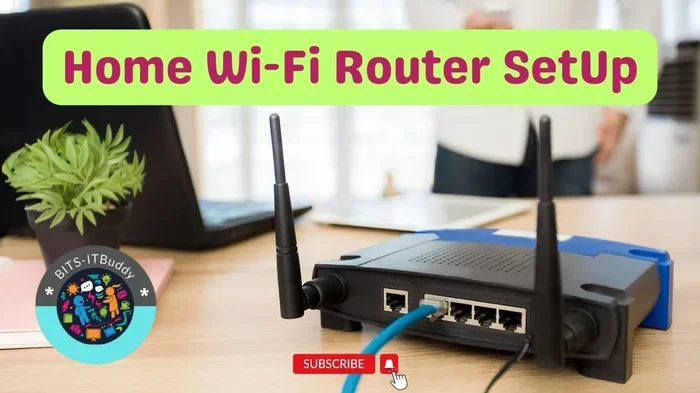
Before you dive into the setup, it helps to understand what you are working with. Xfinity WiFi is the wireless network that comes with your Xfinity internet plan. It runs through a device called the Xfinity gateway, which is basically a modem and router combined into one box.
Understanding Your Xfinity Gateway
The Xfinity gateway is the heart of your Xfinity home network. It takes the internet signal from your cable line and turns it into a WiFi signal that your phones, laptops, and smart devices can use. When you look at the gateway, you will see a few lights on the front. These Xfinity modem lights tell you whether the device is powered on, connected to the internet, and broadcasting WiFi.
Each light has a meaning. A solid green light usually means everything is working. A blinking or red light means something needs attention. Knowing what these lights mean helps you troubleshoot issues during and after setup.
How the Xfinity xFi System Works
Xfinity also offers the xFi platform, which is their advanced WiFi management system. The xFi app lets you control your Xfinity wireless settings, set up parental controls, and see which devices are connected. However, the xFi app is optional. You can manage most of these settings through your web browser instead.
Your Xfinity internet plan determines your speed and data allowance. The gateway you receive matches your plan. Whether you have the Xfinity Performance plan or a lower-tier option, the setup process remains the same. The only difference is the speed you experience once everything is connected.
Can I Set Up Xfinity WiFi Without The App?
The Short Answer Is Yes
Yes, you can set up Xfinity WiFi without the app. The Xfinity app is a convenience tool, not a requirement. Xfinity designed their gateways to work with both the app and the web-based portal. This means you have options, and you are not locked into using a phone app if you do not want to.
When you self-install WiFi without the app, you use the Xfinity website to activate your account, configure your WiFi router configuration, and set your network name and password. Everything you can do in the app, you can also do through a browser on your computer or tablet.
Setting Up With the App vs. Without the App
Here is a quick look at how the two methods compare.
| Feature | With the App | Without the App |
|---|---|---|
| Activation Method | Phone-based wizard | Web browser portal |
| Device Management | Full xFi controls | Basic settings via browser |
| Speed Test Access | Built-in | Xfinity website or third-party |
| Parental Controls | Full access | Limited browser access |
| Troubleshooting Tools | Guided fixes | Manual modem light check |
| Setup Time | 10–15 minutes | 15–20 minutes |
As you can see, both methods get you online. The app offers a few extra features, but the browser method covers all the essentials. If your goal is simply to get Xfinity activation done and your network running, the web method works perfectly.
What You Need Before You Start the Setup
Gathering everything before you start saves a lot of frustration. Here is what you need for a smooth Xfinity self-install kit experience.
Equipment Checklist
- Xfinity gateway: The modem-router combo box provided by Xfinity. Make sure it is the correct model for your plan.
- Ethernet cable: Usually included in the box. You need this to connect your computer to the gateway.
- Coaxial cable: This connects your wall outlet to the gateway. Make sure it is tight and secure.
- Power adapter: The gateway needs to be plugged into a working electrical outlet.
- A computer or laptop: Any device with a web browser will work. A wired connection through Ethernet is best during setup.
- Your Xfinity account credentials: You need your Xfinity username and password to log in and activate.
Preparing Your Xfinity Account
Before you touch any cables, make sure you can log in to your Xfinity account. Go to xfinity.com on your computer and sign in. If you do not have an account yet, you need to create one before the setup begins. Having your account ready means you can move straight through activation without any delays.
Also, make sure you know your Xfinity service address. This is the address registered with Xfinity for your location. It is usually the address you used when you signed up for the Xfinity internet plan. Having this handy speeds up the activation process significantly.
Step-by-Step Guide to Setting Up Without the App
Now for the part you have been waiting for. Here is the full walkthrough for setting up your Xfinity WiFi without using the app. Follow these steps in order and you will be online in no time.
Step 1: Connect Your Hardware
Start by placing your Xfinity gateway in a central location in your home. Avoid closets, cabinets, or corners. Good placement helps your Xfinity WiFi hotspot reach every room. Once you have a good spot, plug in the power adapter and wait for the gateway to turn on.
Next, connect the coaxial cable from the wall outlet to the gateway. Then plug one end of the Ethernet cable into the gateway and the other end into your computer. Wait about two minutes for the gateway to fully power up. Watch the Xfinity modem lights on the front panel. You want to see a solid green power light and an online light.
Step 2: Activate Your Xfinity Gateway
Open your web browser and go to xfi.com or 10.0.0.1 in the address bar. This takes you to the Xfinity activation portal. Log in using your Xfinity account credentials.
Follow the on-screen prompts to activate your Xfinity WiFi. The portal will ask you to confirm your service address and account details. Once everything checks out, the system will activate your internet connection. This step usually takes about five minutes.
Step 3: Configure Your Wireless Settings
After activation, you will see a screen to set up your wireless network. Here you can choose your Xfinity wireless settings:
- Network Name (SSID): Pick a name that is easy to recognize but does not reveal personal information.
- Password: Create a strong password with at least 12 characters, mixing uppercase, lowercase, numbers, and symbols.
- Security Type: Choose WPA3 if available. If not, WPA2 is the next best option.
- Guest Network: Consider enabling a guest network for visitors so they do not use your main password.
Save your settings and wait for the gateway to apply them. This usually takes less than a minute.
Step 4: Test Your Connection
Now it is time to verify everything works. Open a browser on your computer and visit any website. If the page loads, your wired connection is good. Next, disconnect the Ethernet cable and connect your phone or tablet to the WiFi network you just created.
Run a Xfinity speed test at speed.xfinity.com. Compare your results to the speeds promised by your Xfinity internet plan. If the speeds are close to what you pay for, your setup is complete and working correctly.
Quick Tips for a Successful Setup
- Keep your gateway plugged into a surge protector to protect against power surges.
- Do not move the gateway around during activation. Let it stay in one place for at least 10 minutes.
- If the portal does not load, try clearing your browser cache or using a different browser.
- Write down your network name and password and keep it in a safe place.
- Restart your gateway once after setup to ensure all settings are applied properly.
Common Mistakes to Avoid During Setup
Even with a simple process, mistakes can happen. Here are the most common errors people make during Xfinity modem setup and how to avoid them.
Skipping the firmware update. After activation, your gateway may prompt you to update its firmware. Do not skip this. Firmware updates fix bugs, improve security, and boost performance. A gateway running outdated firmware can cause slow speeds and connection drops.
Using a weak WiFi password. It is tempting to use a simple password like “password123” or your street address. Do not do this. A weak password makes your Xfinity home network vulnerable to strangers and hackers. Always use a strong, unique password.
Placing the gateway in a bad spot. Putting the gateway in a basement, behind a TV, or inside a closed cabinet kills your WiFi signal. Place it on a high shelf in an open area for the best coverage across your home.
Ignoring the modem lights. The lights on your gateway tell a story. A blinking online light means the gateway is still trying to connect. A red light means there is a problem. If you ignore these signals, you might waste hours trying to fix issues that are easy to solve.
Not restarting after setup. A simple restart after configuration ensures all settings are applied. Unplug the gateway, wait 30 seconds, and plug it back in. This small step prevents many common issues.
Expert Tips and Quick Fixes
Expert Insights: According to Xfinity support specialists, the most common reason for setup failures is an incomplete coaxial connection. Make sure the cable is hand-tight plus a quarter turn with a wrench. Over-tightening can damage the connector, and under-tightening causes intermittent signal loss.
Another expert tip is to use the Xfinity website to check for service outages in your area before you start setup. If there is a known outage in your neighborhood, you will not be able to activate regardless of how perfect your setup is. Visit xfinity.com/outages or call the Xfinity support number to check.
For those who want extra control over their Xfinity router configuration, consider accessing the advanced settings through the web portal. You can change channel bands, set up Xfinity WiFi hotspot sharing, and adjust firewall settings. These options give you more power over your wireless network setup than the app offers in some cases.
Quick Fixes for Common Issues
- Gateway not connecting: Unplug the power, wait 60 seconds, and plug it back in. Check all cable connections.
- Slow speeds after setup: Move the gateway to a central location away from walls and electronic devices.
- Cannot find the WiFi network: Make sure the wireless setting is enabled in the gateway admin panel.
- Activation keeps failing: Double-check your service address and account credentials. Clear your browser cache and try again.
- Forgot WiFi password: Log in to the Xfinity web portal and reset your network password under the wireless settings section.
Troubleshooting and When to Call Support
Most setup issues can be solved with the steps above. But sometimes you need help. Here is when to contact Xfinity customer service.
Call support if your gateway lights stay red or blinking for more than 15 minutes after following all the steps. Call if the activation portal keeps rejecting your account credentials even though you are sure they are correct. And call if your Xfinity speed test shows speeds far below what your plan promises, even after restarting and repositioning the gateway.
You can reach Xfinity support by phone, chat, or through the Xfinity website. Have your account number and service address ready when you call. This helps the support agent pull up your account faster and get you back online sooner.
If you prefer not to use the Xfinity app alternatives, the web portal and phone support are your best options. Xfinity is committed to providing multiple ways to manage your service, and the setup process reflects that flexibility.
Conclusion
So, can I set up Xfinity WiFi without the app? Absolutely. The entire Xfinity modem setup process is designed to work through a web browser, and you do not need a smartphone or the app to get online. From connecting your hardware to configuring your wireless network settings, every step can be done on your computer.
Remember to gather your equipment, place your gateway in a central spot, and follow each step carefully. Avoid the common mistakes, use the quick fixes when needed, and do not hesitate to call Xfinity customer service if you get stuck. With the right approach, your Xfinity home network will be up and running in under 30 minutes.
Take what you learned from this guide and apply it today. A smooth, app-free setup is entirely possible, and you now have all the knowledge to make it happen. Your Xfinity internet plan is ready to deliver fast, reliable WiFi — no app required.
Frequently Asked Questions
Do I need the Xfinity app to activate my internet service?
No, you do not need the app. You can activate your Xfinity service through the web portal at xfi.com or by calling Xfinity customer service. The app is just a convenient tool, not a requirement.
Can I use a tablet or Chromebook instead of a computer for setup?
Yes, any device with a web browser works. You can use a tablet, Chromebook, or even a friend’s phone to access the Xfinity activation portal. Just make sure you connect via Ethernet during the initial setup for the most reliable connection.
What if I forgot my Xfinity account password?
You can reset your password on the Xfinity login page by clicking “Forgot Password.” You will need your Xfinity username or service address to complete the reset. Once you regain access, you can log in to the activation portal and continue your setup.
How long does the Xfinity WiFi setup take without the app?
Most people complete the entire process in 15 to 20 minutes. Hardware connection takes about 5 minutes, activation takes another 5 to 10 minutes, and configuring wireless settings takes just a few more minutes. The total time is shorter than many people expect.
Can I change my WiFi name and password after the initial setup?
Yes, you can change your Xfinity wireless settings at any time by logging into the Xfinity web portal. Go to the wireless settings section, update your network name or password, and save. All connected devices will need the new password to reconnect.
Is it safe to set up Xfinity WiFi without the app?
Yes, it is completely safe. The Xfinity web portal uses secure encryption to protect your account information. As long as you use a strong WiFi password and keep your gateway firmware updated, your Xfinity home network remains secure whether you use the app or the browser.