How Do I Create A Number Line In Microsoft Word Steps
Creating a number line in Microsoft Word is simpler than you think. Whether you need it for math homework, a classroom worksheet, or a professional document, Word gives you all the tools you need. This guide walks you through every step to build a custom number line quickly and easily. You will learn multiple methods, from using built-in shapes to drawing your own with precision. By the end, you will know exactly how to create a polished number line in Microsoft Word that looks great and works perfectly.
Have you ever stared at a blank page in Microsoft Word, trying to figure out how to draw a number line? You are not alone. Many people need a number line for school projects, homework help, or work presentations, and they assume it requires complicated software. The truth is, creating a number line in Microsoft Word is straightforward and takes just a few minutes once you know the steps.
A number line is one of the most useful tools in math education. It helps kids understand addition, subtraction, negative numbers, fractions, and much more. Teachers use them constantly. Parents use them to help with homework. And professionals use them in reports and presentations. Whatever your reason, Microsoft Word has everything you need to make one from scratch. In this article, we will show you exactly how to do it, step by step.
Key Takeaways
- Multiple Methods Available: You can create a number line using shapes, the ruler, or the equation editor in Word.
- Easy to Customize: Adjust intervals, labels, colors, and scales to fit your specific needs.
- Great for Education: Number lines are essential tools for teaching math concepts to kids and students.
- Saves Time: Once you learn the steps, you can recreate number lines in seconds for any project.
- No Special Software Needed: Everything you need is already built into Microsoft Word.
- Printable and Shareable: Your finished number line can be printed or shared digitally with ease.
📑 Table of Contents
- Why Create a Number Line in Microsoft Word?
- Method 1: Create a Number Line Using Shapes
- Method 2: Use the Ruler and Tab Stops
- Method 3: Use the Equation Editor for Advanced Number Lines
- Customizing Your Number Line
- Quick Tips for Creating a Perfect Number Line
- Common Mistakes to Avoid
- Expert Insights on Number Lines in Word
- How to Save and Reuse Your Number Line
- Conclusion
Why Create a Number Line in Microsoft Word?
You might wonder why you should bother making a number line in Word instead of buying one or using an online tool. There are some really good reasons. First, Microsoft Word is already on most computers. You do not need to download anything extra or create a new account. Second, a custom number line lets you control exactly what goes on it. You pick the numbers, the spacing, the colors, and the size. Third, it saves you money. Free printable number lines online often have limited options or require subscriptions.
Using Word also means you can save your template and reuse it anytime. Need a number line for a different range of numbers next week? Just open your saved file and adjust it. This makes creating a number line in Microsoft Word a smart long-term investment for teachers, parents, and students alike.
Who Can Benefit from This Guide?
This guide is for anyone who needs a number line in a Word document. That includes elementary school teachers making worksheets, parents helping children with math at home, students working on assignments, and professionals preparing educational materials. No matter your skill level with Word, the steps below will walk you through the process clearly and simply.
Method 1: Create a Number Line Using Shapes
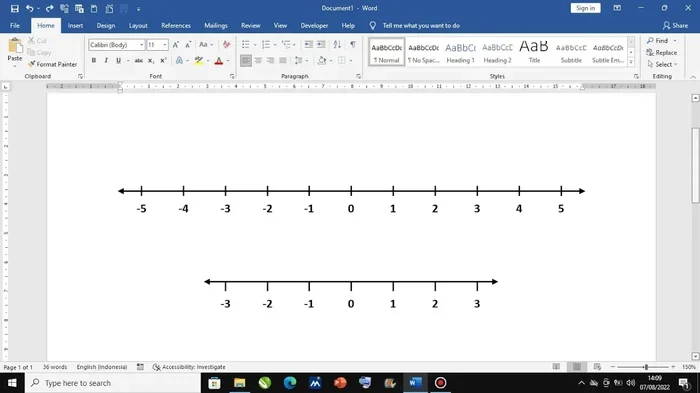
The first and most popular way to make a number line is by using Word’s built-in Shapes tool. This method gives you full control over the line, the tick marks, and the numbers. Let us walk through it together.
Step 1: Open a New Document
Start by opening Microsoft Word and creating a blank document. Make sure your page orientation is set to landscape if you want a wide, horizontal number line. To do this, go to the Layout tab and click Orientation, then select Landscape. This gives you more room to work with.
Step 2: Insert a Horizontal Line
Click on the Insert tab at the top of the screen. Then click Shapes. Under the Lines section, choose the straight line tool. Click on the page and drag your mouse to the right to draw a long horizontal line. This will serve as the base of your number line. Hold down the Shift key while dragging to keep the line perfectly straight.
Step 3: Add Tick Marks
Next, you need to add small vertical lines at each interval. Go back to Insert, click Shapes, and choose the short line shape. Draw a small vertical line at one end of your horizontal line. This is your starting point. Now, copy and paste that tick mark, and place it at regular intervals along the line. A quick way to do this is to select the tick mark, press Ctrl+D to open the Repeat dialog box, and set the horizontal offset to move the mark a fixed distance each time.
Step 4: Label the Numbers
Now comes the fun part. Click on Insert, then Word Art, and choose a text style. Type the first number, such as 0, and place it just below the first tick mark. Repeat this for each interval. If you are working with negative numbers on a number line, start from the center and go left for negative values and right for positive values. This is a great way to teach kids about the number line and how numbers work in both directions.
Step 5: Format and Customize
Select your line and tick marks to change their color, thickness, and style. You can make the line thicker so it stands out, or change it to blue or red for visual appeal. Use the Shape Format tab that appears when you click on a shape to access these options. You can also group all the elements together by selecting them all, right-clicking, and choosing Group. This makes it easy to move your entire number line template around the page.
Method 2: Use the Ruler and Tab Stops
If you want a more precise and evenly spaced number line, the ruler and tab stops method works really well. This approach is especially helpful when you need exact intervals.
Step 1: Show the Ruler
Go to the View tab at the top of Word and check the box next to Ruler. This will display the horizontal and vertical rulers at the top and left side of your document. The ruler helps you measure and space your tick marks accurately.
Step 2: Draw a Baseline
Switch to the Insert tab and choose Shapes again. Draw a horizontal line across the page, aligning it with a specific point on the ruler. For example, you might start the line at the 1-inch mark and end it at the 9-inch mark. This gives you a consistent and clean base for your math number line.
Step 3: Set Tab Stops for Even Spacing
Go to the Home tab and click the small arrow in the Paragraph section to open the Paragraph dialog box. Click Tabs. Set a tab stop at every inch or half-inch mark along the ruler. Now, when you press the Tab key with the ruler visible, Word will snap your cursor to each stop. You can use this to place tick marks and numbers at perfectly even intervals. This method is excellent for creating a number line worksheet with uniform spacing.
Step 4: Add Numbers and Labels
Type each number at the corresponding tab stop. Use the same font size and style for a clean, professional look. If you are making a number line for kids, consider using a larger font size and bright colors to make it more engaging and easier to read.
Method 3: Use the Equation Editor for Advanced Number Lines
For those who need a more technical or academic number line, the Equation Editor in Word offers powerful tools. This method works well for fraction number lines, decimal intervals, or algebraic number lines.
Step 1: Open the Equation Editor
Click on the Insert tab and select Equation. A dropdown menu will appear with pre-built equation templates. You can also click Equation to open a blank equation box where you can build your own.
Step 2: Build the Line and Intervals
Use the equation tools to insert a horizontal line and overlay numbers or expressions above or below it. The Equation Editor supports fractions, radicals, and other math symbols, so you can create a fraction number line or a decimal number line with ease. This is especially useful for middle school and high school math teachers who need precise number lines for their lessons.
Step 3: Save as a Template
Once you have created your advanced number line, save the document as a Word template (.dotx file). This way, you can open it anytime and make a new number line without starting from scratch. Simply go to File, Save As, and choose Word Template as the file format.
Customizing Your Number Line
One of the best things about making a number line in Word is how much you can customize it. A basic number line is fine for simple tasks, but a customized one can make your work stand out and serve your specific needs much better.
Choosing the Right Scale
Think about what numbers you need on your line. Are you working with whole numbers from 0 to 10? Or do you need a number line with negative numbers from -10 to 10? Maybe you need intervals of 0.5 or fractions like 1/4. Decide on your scale first, and then build the line around it. A good scale on a number line makes the difference between a useful tool and a confusing one.
Adding Color and Style
Color makes number lines more engaging, especially for young learners. You can change the line color to green, blue, or orange using the Shape Format options. You can also add arrowheads at each end of the line to show that it continues in both directions. To add an arrowhead, click on the line, go to Shape Format, click Shape Outline, and choose the arrow option from the dropdown. This gives your horizontal number line a polished, professional look.
Including Labels and Annotations
Labels help users understand what the number line represents. You can add a title above the line, such as “Number Line from -5 to 5” or “Counting by Twos.” You can also add annotations below specific points to explain what each number or interval means. These extra touches make your number line more informative and easier to use.
Adding Gridlines or Background
If you want your number line to look like graph paper, you can add a light background grid. Go to the Design tab, click Page Color, and choose a very light gray or light blue fill. Then add vertical gridlines using the Shapes tool or by inserting a table with no borders and using cell borders selectively. This creates a number line with graph paper background that looks clean and organized.
Quick Tips for Creating a Perfect Number Line
Here are some fast tips that will save you time and improve your results every time you build a number line in Word:
- Use the Shift key when drawing lines to keep them perfectly horizontal or vertical.
- Group all elements together so you can move or resize the entire number line as one unit.
- Save a template for each common scale you use, so you never have to start from zero again.
- Use Word Art for numbers to make them bold and easy to read, especially on printed worksheets.
- Lock the aspect ratio of shapes by holding Shift while resizing to prevent distortion.
- Use the Align tools under the Format tab to evenly space tick marks and labels.
- Preview in Print Layout before finalizing to make sure everything looks right on paper.
Common Mistakes to Avoid
Even experienced Word users make mistakes when building a number line. Here are some common errors and how to avoid them:
- Uneven spacing: This is the biggest mistake people make. Always use the ruler, tab stops, or the Shift key to keep intervals consistent.
- Forgetting negative numbers: If your number line needs to go below zero, make sure you include those labels. A number line without negative numbers is only half the tool.
- Using too small a font: Numbers that are hard to read defeat the purpose. Stick to at least 12-point font for printed materials.
- Not grouping elements: If you do not group the line, tick marks, and numbers together, they can shift out of alignment when you move or resize the object.
- Skipping the preview: Always print a test page or use Print Preview to check how your number line looks on paper before sharing it.
Expert Insights on Number Lines in Word
Educators and designers who use Word regularly share a few insights that can help you get better results. First, they recommend starting with a template if you need to create many number lines. A good number line template Word saves hours of work over time. Second, they suggest using the Developer tab for advanced users who want to create interactive number lines with clickable elements. Third, they emphasize the importance of keeping the design simple and clean. Too many colors or decorations can distract from the actual math content.
Professional educators also note that a well-designed number line helps students visualize math concepts much faster than a plain worksheet. The visual representation of numbers on a line makes abstract ideas concrete. When you invest time in creating a clear, accurate number line in Word, you are giving your students or children a powerful learning tool that they will use again and again.
How to Save and Reuse Your Number Line
Once you have created a great number line, you will probably want to use it again. Here is how to save it properly.
First, save the file as a Word Template (.dotx). Go to File, click Save As, and choose Word Template from the file type dropdown. Name it something descriptive, like “Number Line Template -10 to 10.” Now, whenever you need a new number line, just open the template, adjust the numbers if needed, and save it as a new document.
You can also save your number line as an image. Right-click on the grouped number line object, select Save as Picture, and choose PNG or JPEG format. This lets you insert the number line into other documents, emails, or presentations without needing the original Word file. It is a great way to share your work quickly and easily.
Conclusion
Creating a number line in Microsoft Word is a simple skill that opens up a lot of possibilities. Whether you are a teacher making worksheets, a parent helping with homework, or a student working on a project, Word gives you all the tools you need. You can use shapes for a quick and easy number line, the ruler for precise spacing, or the Equation Editor for advanced math number lines. The key is to practice the steps until they become second nature.
Remember to customize your number line with the right scale, clear labels, and engaging colors. Avoid common mistakes like uneven spacing and unreadable fonts. Save your work as a template so you can reuse it anytime. With these techniques, you will be able to create a number line in Microsoft Word quickly, easily, and professionally every single time.
Now that you know how to do it, open Word and try building your own number line today. You will be surprised at how fast and satisfying the process can be. Happy creating!
Frequently Asked Questions
Can I create a number line with fractions in Microsoft Word?
Yes, you can. Use the Equation Editor to insert fraction symbols above or below the line. You can also use text boxes to place fraction labels at specific intervals on your number line. This works great for teaching fraction concepts to students.
What is the easiest way to make a number line in Word?
The easiest way is to use the Shapes tool under the Insert tab. Draw a horizontal line, add small vertical tick marks at regular intervals, and label each mark with a number. This method takes less than five minutes and requires no special skills.
Can I print a number line I created in Word?
Absolutely. Once your number line is complete, simply go to File and select Print. Use Print Preview first to make sure it looks good on the page. You can also save it as a PDF for easy sharing and printing from any device.
How do I make my number line look professional?
Use consistent spacing, a clean font, and a limited color palette. Group all elements together so they stay aligned. Add arrowheads at both ends of the line to show it extends infinitely. These small touches make a big difference in the final appearance.
Can I create a vertical number line in Word?
Yes, you can. Instead of drawing a horizontal line, draw a vertical line using the Shapes tool. Add horizontal tick marks and place numbers to the left or right of each mark. A vertical number line is useful for teaching concepts like temperature or elevation.
Is there a pre-made number line template in Microsoft Word?
Word does not include a built-in number line template, but you can easily create one and save it as a template file for future use. You can also find free downloadable templates online that you can open directly in Word and customize to your needs.
=== CONCLUSION ===
Now you know everything you need to create a number line in Microsoft Word with confidence. From the simple Shapes method to the advanced Equation Editor approach, you have multiple options to choose from. The steps are clear, the tools are free, and the results are professional. Start with Method 1 if you are new to Word, and explore the other methods as you get more comfortable. Practice a few times, and you will be able to create any type of number line in just minutes. Your worksheets, lessons, and projects will look polished and help your audience understand math concepts more clearly. Go ahead and give it a try right now in Word. You will be glad you did.