How Do I Mirror My Iphone To My Monitor Step By Step
Want to know how do I mirror my iPhone to my monitor? This guide walks you through every method, from wireless AirPlay to wired HDMI adapters. You’ll learn step-by-step instructions, quick tips, and common mistakes to avoid for a flawless screen mirroring experience.
Have you ever wanted to share your iPhone screen on a bigger display? Maybe you need to show photos to friends, give a presentation, or play a mobile game on a monitor. How do I mirror my iPhone to my monitor is a question many people ask every day. The good news is that it is simpler than you think. You can use wireless technology or a simple cable. This guide covers every method you need. You will learn the steps, find quick tips, and avoid common mistakes. Let us get started.
Screen mirroring means copying your iPhone display onto another screen in real time. You see everything on your phone, but now it fills a larger monitor. This is perfect for streaming videos, sharing slides, or even using apps on a big display. Many people think they need expensive equipment. That is not true. You might already own what you need. A smart TV, a simple adapter, or a free app can do the job. This article breaks it all down for you. You will feel confident after reading it.
We will explore wireless options like AirPlay and wired solutions with HDMI cables. I will share expert insights and practical examples. Each section gives clear steps. I also include a troubleshooting guide. By the end, you will know exactly which method fits your setup. You will be able to mirror your iPhone like a pro. Let us dive into the details.
Key Takeaways
- AirPlay is the easiest wireless method for iPhones to mirrors on Apple TV or compatible smart TVs.
- Wired HDMI adapters provide a reliable, lag-free connection for presentations and gaming.
- Third-party apps like Replica or AirServer offer flexibility for non-Apple monitors.
- Check your monitor’s input ports before buying an adapter.
- Wi-Fi network quality affects wireless mirroring performance significantly.
- Restart both devices if you encounter connection issues for a quick fix.
📑 Table of Contents
Why Mirror Your iPhone to a Monitor?
Mirroring your iPhone to a monitor opens up many possibilities. You are not just making the picture bigger. You are unlocking new ways to work and play. Here are some reasons why people do this every day.
- Presentations and meetings: Show your iPhone screen to a whole room without passing the device around.
- Gaming: Play mobile games on a large monitor with better visibility and sound.
- Photo and video sharing: Display your latest vacation photos or family videos on a TV during gatherings.
- Productivity: Use your iPhone as a secondary display or extend your workspace for multitasking.
- Education: Teachers can mirror instructional apps or student work for the entire class to see.
Each of these use cases benefits from a simple, reliable connection. The method you choose depends on your monitor, your iPhone model, and what you want to achieve. Some people prefer the freedom of wireless mirroring. Others need the stability of a wired link. I will cover both paths in detail.
Understanding Screen Mirroring Basics
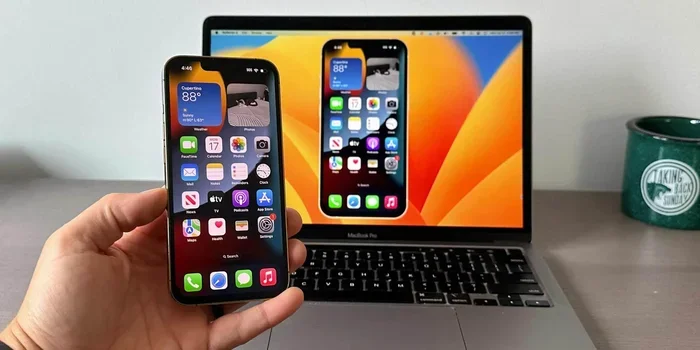
Screen mirroring sends your iPhone’s screen output to another display over Wi-Fi or a physical cable. The monitor receives the signal and shows the same content. You control everything from your iPhone. No extra keyboard or mouse is needed unless you use specific apps. The quality of the mirror depends on your Wi-Fi speed or cable quality. A strong Wi-Fi signal gives a smooth, lag-free picture. A good HDMI cable gives a perfect, instant copy. Both methods are worth trying.
Wireless Methods: AirPlay and Smart TVs
Wireless mirroring is the most popular way to share your iPhone screen. It uses AirPlay, Apple’s built-in technology. You do not need any cables. You just need a Wi-Fi network and a compatible display. This method is perfect for home use and casual sharing.
How AirPlay Works
AirPlay lets your iPhone send video and audio to a receiver. The receiver can be an Apple TV, a smart TV with AirPlay built in, or a third-party AirPlay receiver. Both devices must be on the same Wi-Fi network. Once connected, your iPhone screen appears on the monitor instantly. You can mirror the whole screen or stream specific content like videos from apps.
Step-by-Step Guide to Mirror iPhone via AirPlay
Follow these simple steps to mirror your iPhone wirelessly:
- Connect both devices to the same Wi-Fi network. Make sure your iPhone and the monitor or TV are on the same network.
- Open Control Center on your iPhone. Swipe down from the top right corner of your screen (or swipe up from the bottom on older models).
- Tap the Screen Mirroring icon. It looks like two overlapping rectangles.
- Select your monitor or TV from the list. Choose the device you want to mirror to.
- Enter the code if prompted. Some TVs show a four-digit code on the big screen. Type it into your iPhone to confirm.
- Your iPhone screen is now mirrored. You can open any app, and it will show on the monitor.
That is all you need. The process takes less than 30 seconds. If you do not see your TV in the list, make sure both devices are on the same Wi-Fi and that AirPlay is enabled on the TV. Most modern smart TVs support AirPlay natively. You can check the TV’s settings menu for the AirPlay option.
Quick Tips for Wireless Mirroring
- Keep your iPhone and TV close to the router. A strong Wi-Fi signal reduces lag and stuttering.
- Turn off Bluetooth if you experience interference. Sometimes Bluetooth can cause minor disruptions.
- Use a 5 GHz Wi-Fi band for better performance than a 2.4 GHz band.
- Restart your router if the connection drops frequently.
- Disable VPNs on your iPhone before mirroring, as they can block the connection.
Wired Solutions: HDMI Adapters and Cables
Wireless mirroring is convenient, but it is not perfect. Sometimes you need a zero-lag, rock-solid connection. That is where wired solutions shine. Using an HDMI adapter gives you a direct, stable link between your iPhone and the monitor. This method is ideal for presentations, gaming, and any situation where a dropped frame is not acceptable.
Types of HDMI Adapters for iPhone
Apple offers a few official adapters. The most common is the Lightning to HDMI adapter. If you have a newer iPhone with USB-C, you need a USB-C to HDMI adapter or cable. You plug the adapter into your iPhone, then connect a standard HDMI cable from the adapter to the monitor. That is it. No Wi-Fi needed. No network setup required.
Step-by-Step Guide to Mirror iPhone with an HDMI Adapter
Here is how you set up a wired mirror:
- Check your iPhone port. Is it Lightning or USB-C? Buy the correct adapter.
- Plug the adapter into your iPhone. It fits snugly into the charging port.
- Connect an HDMI cable to the adapter. Use a good quality cable for the best signal.
- Plug the other end of the HDMI cable into your monitor. Use any available HDMI port.
- Switch your monitor to the correct HDMI input. Use the monitor’s source or input button to select HDMI.
- Your iPhone screen should appear on the monitor automatically. If not, try unlocking your iPhone and pressing the Home button or swiping up.
This method works with almost all iPhones. It does not depend on Wi-Fi at all. You get a perfect copy of your screen with no compression or delay. The only downside is the cable limits your movement. But for a desk setup or a presentation, that is a small trade-off.
Comparison: Wireless vs Wired Mirroring
| Feature | Wireless (AirPlay) | Wired (HDMI Adapter) |
|---|---|---|
| Setup time | Under 1 minute | Under 1 minute |
| Cable needed | No | Yes (HDMI cable and adapter) |
| Latency | Small delay possible | Zero lag |
| Mobility | High, no cables | Low, tethered to monitor |
| Reliability | Depends on Wi-Fi | Very stable |
| Best for | Home viewing, casual sharing | Presentations, gaming, professional use |
Both methods have their place. Choose wireless for comfort and wired for precision. Many people use both depending on the situation.
Using Third-Party Apps for Mirroring
What if your monitor does not support AirPlay? What if you want more features than AirPlay offers? Third-party apps fill that gap. These apps use your Wi-Fi network to send your iPhone screen to a computer or a smart TV. They work with almost any monitor that can receive a network signal. Some apps are free, and others require a small one-time purchase.
Popular Apps for iPhone Screen Mirroring
- Replica: A simple app that mirrors your iPhone to a web browser on any device on the same network. No extra hardware needed.
- AirServer: Turns your Windows or Mac PC into an AirPlay receiver. You can then mirror your iPhone to the PC and output the PC screen to any monitor.
- LetsView: A free app that supports AirPlay and Miracast. Works with smart TVs, PCs, and Android devices.
- ApowerMirror: Offers both wireless and USB mirroring. Great for screen recording and annotation.
How to Use Replica App (Example)
Replica is a great example of a simple solution. Here is how it works:
- Download Replica from the App Store on your iPhone.
- Download the Replica desktop app on your PC or Mac.
- Connect both devices to the same Wi-Fi network.
- Open the Replica app on your computer. It will show a local IP address.
- Open Safari or any browser on your iPhone.
- Type the IP address into the browser address bar.
- Your iPhone screen appears in the browser. You can now display that browser window on your monitor.
This method is clever because it does not require special hardware. You just need a computer connected to your monitor. The image quality is good enough for most uses. It is not as smooth as AirPlay or HDMI, but it works in a pinch.
Quick Tips for App-Based Mirroring
- Always use the same Wi-Fi network for the iPhone and the receiving device.
- Close other apps on your iPhone before mirroring to save battery and processing power.
- Check the app’s settings for resolution options. Some apps let you lower the quality to reduce lag.
- Keep your iPhone plugged in during long mirroring sessions to avoid battery drain.
Troubleshooting Common Mirroring Issues
Even with the right setup, you might run into problems. Do not worry. Most issues have simple fixes. Here are the most common problems and how to solve them quickly.
Black Screen or No Signal
If your monitor shows a black screen or no signal, check the cable connections first. A loose HDMI cable is the most common cause. Unplug it and plug it back in firmly. If you are using an adapter, make sure it is fully inserted into the iPhone. Try a different HDMI cable or a different port on the monitor. Sometimes the monitor is set to the wrong input source. Use the monitor’s button to cycle through inputs until you find the correct one.
Lag or Stuttering During Wireless Mirroring
Wireless mirroring can stutter if the Wi-Fi signal is weak. Move closer to your router. If possible, switch your router to the 5 GHz band. This band is less crowded and faster. Also, turn off other devices that might be using heavy bandwidth, like a streaming box or a download in progress. Restarting your iPhone and the receiving device can also clear temporary glitches. Simply power them off and back on.
iPhone Says “Screen Mirroring Not Available”
This message usually means your TV or receiver does not support AirPlay, or it is not on the same network. Check that your TV has AirPlay enabled in its settings. If you are using a third-party app, make sure the app is running on the receiving device. Also, ensure your iPhone is not in Low Power Mode, as this can disable AirPlay. Go to Settings and turn off Low Power Mode, then try again.
Audio Is Not Mirroring
Sometimes the video shows but there is no sound. Check the volume on both your iPhone and the monitor or TV. Some monitors have separate volume controls for different inputs. Make sure the monitor is not muted. On your iPhone, open Control Center and check that the volume slider is up. If you are using an adapter, the audio should travel through the HDMI cable automatically. If it does not, try a different adapter or cable.
Best Practices for a Smooth Mirroring Experience
To get the best results every time, follow these simple habits. They will save you frustration and make your mirroring sessions seamless.
- Keep your iPhone software up to date. Apple regularly improves AirPlay and screen mirroring stability in iOS updates.
- Use high-quality cables and adapters. Cheap cables can cause signal loss or audio dropouts. Look for MFi-certified Lightning or USB-C cables.
- Close background apps before mirroring. This frees up memory and processing power for a smoother display.
- Restart your devices before important presentations. A fresh start clears temporary bugs and ensures a clean connection.
- Use a dedicated Wi-Fi network for mirroring if possible. This prevents interference from other household devices.
- Adjust your iPhone brightness to a comfortable level. A very bright screen can drain battery faster during long mirroring sessions.
- Lock your iPhone after starting the mirror. This prevents accidental touches from interrupting the display.
These habits take only a few seconds. They make a huge difference in the quality of your mirrored screen. Whether you are mirroring for fun or for work, these tips keep everything running smoothly.
Conclusion
Now you know exactly how do I mirror my iPhone to my monitor. You have learned the wireless AirPlay method, the wired HDMI solution, and the third-party app alternatives. You also have a troubleshooting guide for common problems. The best method depends on your needs. For quick, casual sharing, use AirPlay. For presentations and gaming, use an HDMI adapter. For flexible, software-based mirroring, try a third-party app. Each approach is simple and effective. You do not need to be a tech expert. Just follow the steps in this guide. You will be mirroring your iPhone in minutes. Start with the method that suits your setup and enjoy your content on the big screen.
Frequently Asked Questions
Can I mirror my iPhone to a non-smart monitor?
Yes, you can. If your monitor has an HDMI port, you just need a Lightning to HDMI or USB-C to HDMI adapter. Plug the adapter into your iPhone, connect an HDMI cable to the monitor, and switch the monitor to that input. Your iPhone screen will appear instantly.
Does mirroring my iPhone drain the battery quickly?
It can. Screen mirroring uses extra processing power and, if wireless, keeps the Wi-Fi radio active. For long sessions, plug your iPhone into a charger or a power bank. This prevents the battery from running out and keeps the mirror stable.
Why is there a delay when I mirror my iPhone wirelessly?
Wireless mirroring always has a tiny delay because the video signal travels over Wi-Fi. A weak Wi-Fi signal, network congestion, or a router placed far away can make the delay noticeable. Use a strong 5 GHz Wi-Fi signal and stay close to the router for the best experience.
Can I mirror my iPhone to a Windows PC monitor?
Yes. You can use an HDMI adapter for a wired connection. For wireless, you can install apps like AirServer or Replica on your Windows PC. The PC then sends the image to the monitor. This works with any monitor that has a HDMI or VGA input and a connected computer.
Is AirPlay the only way to mirror an iPhone wirelessly?
No, AirPlay is the easiest and most native way, but it is not the only one. Apps like Replica, LetsView, and ApowerMirror let you mirror your iPhone screen over Wi-Fi to almost any device on the same network. They are great alternatives when AirPlay is not available.
Do I need an Apple TV to mirror my iPhone?
No, you do not need an Apple TV. You can mirror directly to any AirPlay-compatible smart TV, or you can use a third-party app on a PC or Mac. You can also use a wired HDMI adapter for a direct connection without any Apple TV at all.