Can You Connect Rca Cables To Hdmi Without Any Hassle
Yes, you can connect RCA cables to HDMI using a simple converter or adapter. This guide walks you through every method, device type, and common mistake so you can set up your older gear with modern displays in minutes. Whether you have a vintage DVD player, an old gaming console, or a legacy stereo system, the right RCA to HDMI converter makes the connection easy and reliable.
Have you ever dug out an old DVD player, a vintage game console, or a legacy stereo system and wondered how to hook it up to your shiny new TV? If your device uses RCA cables and your TV only has HDMI ports, you are not alone. This is one of the most common connection problems people face when mixing older equipment with modern displays. The good news is that connecting RCA cables to HDMI is simpler than most people think. You just need the right adapter and a little guidance. In this article, we will walk you through every step of the process. You will learn what each cable type does, which converter to buy, and how to avoid the mistakes that trip up most beginners. By the end, you will feel confident making this connection on your own.
The short answer to the question can you connect RCA cables to HDMI is a definite yes. You just need a converter that changes the analog signal from your RCA cables into a digital signal that an HDMI cable can carry. Think of it like a translator between two people who speak different languages. The RCA to HDMI converter does the heavy lifting so your old devices can work with new screens. Whether you want to watch movies on a classic DVD player or play retro games on a modern monitor, this guide covers everything you need to know. Let us dive in and make your setup work without any hassle.
Many people assume that because their old gear uses RCA connections, it is obsolete. That is far from the truth. Plenty of high-quality devices still use this older connection style. And with the right cable adapter, you can bring them back to life. You will save money, reduce e-waste, and enjoy content from devices you already own. So let us break down exactly how this works and what you need to get started.
Key Takeaways
- RCA and HDMI are different signal types: RCA carries analog signals while HDMI carries digital signals, so you need a converter to bridge the gap.
- An RCA to HDMI converter is the most common solution: These small devices translate analog signals into digital output that modern TVs and monitors can read.
- You do not need expensive equipment: Budget-friendly converters work well for most setups and deliver solid picture and sound quality.
- Check your cable type first: Composite RCA (yellow, red, white) and component RCA cables require different handling, so identify yours before buying a converter.
- Common mistakes cause poor quality: Using the wrong cables, skipping audio setup, or choosing a low-quality converter can lead to signal issues.
- Audio and video must be synced: Always test both sound and picture after connecting to make sure everything works together smoothly.
- The process is simple and beginner-friendly: With the right adapter and a few minutes of your time, anyone can connect older RCA devices to modern HDMI displays.
📑 Table of Contents
- Understanding RCA Cables and HDMI Connections
- Why You Might Need to Connect RCA to HDMI
- How to Connect RCA Cables to HDMI Step by Step
- Types of RCA to HDMI Converters Available
- Common Problems When Connecting RCA to HDMI and How to Fix Them
- Expert Tips for Getting the Best Connection Quality
- Conclusion
Understanding RCA Cables and HDMI Connections
What Are RCA Cables?
RCA cables have been around since the 1940s. They are the classic red, white, and yellow plugs that most people recognize from older audio and video equipment. The yellow cable carries composite video, while the red and white cables handle stereo audio — red for the right channel and white for the left. These cables transmit analog signals, which means they carry a continuous electrical wave that represents sound and picture. Many people also refer to them as AV cables or phono connectors. They were the standard way to connect devices like VCRs, cassette players, and early gaming consoles to televisions for decades.
There is also a type called component RCA cables. These use three separate video cables — usually green, blue, and red — to carry a higher-quality video signal. Component cables offer better display resolution than composite cables, but they are still analog. Both types require a converter to work with modern HDMI ports. Understanding which type of RCA cable you have is the first step toward a successful connection.
What Is HDMI and Why Is It Different?
HDMI stands for High-Definition Multimedia Interface. It is a digital connection that carries both high-quality audio and video through a single cable. Unlike RCA cables, which send separate signals for audio and video, HDMI bundles everything together in one clean digital stream. This makes the setup much simpler and the output much sharper. Modern TVs, monitors, and projectors almost exclusively use HDMI ports because they support higher resolutions like 1080p and even 4K.
The key difference between RCA and HDMI comes down to signal conversion. RCA uses analog signals, and HDMI uses digital signals. Your TV cannot directly read an analog RCA signal through an HDMI port. That is where a converter comes in. It takes the analog input from your RCA cables and converts it into a digital HDMI signal that your TV can display. Once you understand this basic difference, the rest of the process makes a lot more sense.
Why You Might Need to Connect RCA to HDMI
There are many reasons you might need to make this connection. Maybe you inherited a collection of old DVDs and want to watch them on your flat-screen TV. Perhaps you have a retro gaming console that only outputs through composite cables. Or maybe you run a small business that uses an older presentation setup with legacy devices. Whatever the reason, the need is real and more common than you might think.
Many people also have vintage equipment that simply sounds or looks better than modern alternatives. A classic stereo receiver or an old camcorder might produce audio and video quality that rivals newer budget devices. But if you cannot connect them to your current display, you lose access to that quality. Using an RCA to HDMI adapter lets you keep using your favorite older gear while enjoying it on a modern screen. It is a practical and cost-effective solution that extends the life of equipment you already own.
Another reason is simplicity. Some older devices, like certain DVD players or VHS converters, only have RCA outputs. If you want a clean, single-cable setup, converting to HDMI lets you run one HDMI cable from the converter to your TV. This reduces cable clutter and makes your home theater setup look much cleaner. It also makes switching between devices easier since most modern TVs have limited HDMI ports and you want to use them efficiently.
How to Connect RCA Cables to HDMI Step by Step
Step One: Identify Your RCA Cable Type
Before you buy anything, take a moment to look at your cables. If you see a single yellow plug along with red and white audio plugs, you have composite RCA cables. These carry standard-definition video. If you see three video cables — usually green, blue, and red — along with red and white audio cables, you have component RCA cables. Component cables offer better picture quality than composite cables. Knowing which type you have helps you choose the right converter and set realistic expectations for your output quality.
Step Two: Choose the Right Converter
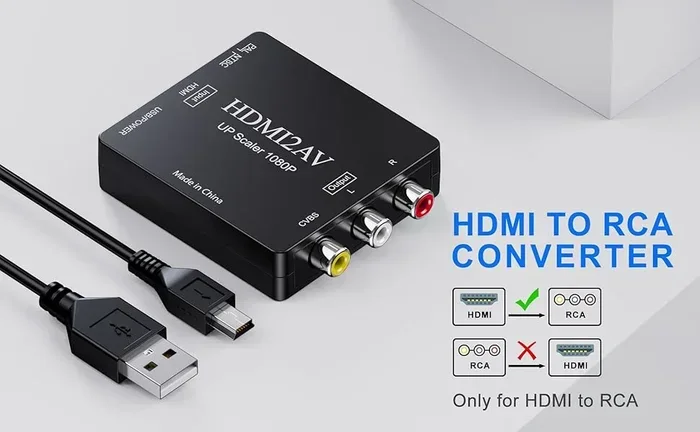
Now you need an RCA to HDMI converter. These small boxes have RCA input ports on one side and an HDMI output on the other. You plug your RCA cables into the input, connect an HDMI cable from the converter to your TV, and you are good to go. Look for a converter that supports both video and audio. Many budget options work well for standard-definition content. If you have component cables, make sure the converter specifically supports component input. Some converters only handle composite, so check the product description before you buy.
When shopping, pay attention to a few details. Look for converters that support audio video sync so your sound and picture stay in line. Check if the device needs its own power source — most do, usually through a small USB cable. And read reviews to make sure the signal conversion is reliable. A good converter should not introduce lag, flickering, or audio delays.
Step Three: Connect the Cables
Start by plugging your RCA cables into the matching color-coded ports on the converter. The yellow goes to video, red to right audio, and white to left audio. Next, connect an HDMI cable from the converter’s HDMI output to an available HDMI port on your TV. Then plug the converter into a power source using the included adapter or USB cable. Turn on your TV and switch to the correct HDMI input channel. You should see your device’s image on the screen. If you do not see anything, double-check each connection and make sure the converter is powered on.
Step Four: Adjust Your TV Settings
Once the connection is live, you may need to tweak a few settings on your TV. Go to your TV’s display or picture settings and make sure the HDMI input is set to the correct resolution. Some converters output at 480p or 720p, which is perfectly fine for older content. If your TV tries to upscale the signal, you might notice slight lag or blurriness. In most cases, the default settings work fine. Also check your TV’s audio output settings to make sure sound is coming through the right channel — either your TV speakers or an external sound system.
Types of RCA to HDMI Converters Available
Basic RCA to HDMI Converters
The most common type is a simple RCA to HDMI converter box. These small devices accept composite RCA input and output an HDMI signal. They are affordable, usually under $30, and work well for standard-definition content. They are perfect for connecting older DVD players, VCRs, or retro game consoles to modern TVs. Most of these converters include a built-in upscaling feature that improves the picture quality slightly by boosting the resolution to match your TV’s capabilities.
Component to HDMI Converters
If you have component RCA cables, you need a converter that specifically supports component input. These converters handle the three separate video channels and produce a higher-quality digital output. They are slightly more expensive than basic composite converters but deliver noticeably better display resolution. Component to HDMI converters are ideal for connecting older high-definition equipment like early Blu-ray players or HD camcorders that used component outputs.
RCA to HDMI Converters with Audio Extraction
Some converters include audio extraction features. This means they can separate the audio signal from the video and send it to a different output, like a stereo system or soundbar. This is useful if you want better audio quality than what your TV speakers provide. These converters usually have multiple output options, including optical audio, coaxial connection, or standard 3.5mm headphone jacks. They cost a bit more but offer greater flexibility for your home theater setup.
Wireless RCA to HDMI Converters
If you hate dealing with cables, wireless converters are worth considering. These devices receive the RCA input and transmit the signal to an HDMI receiver over Wi-Fi or a dedicated wireless frequency. They eliminate the need for long cable runs and make it easy to set up devices in different rooms. The trade-off is that wireless converters can sometimes introduce slight latency or signal interference. They work best for casual viewing rather than competitive gaming where every millisecond counts.
Common Problems When Connecting RCA to HDMI and How to Fix Them
No Picture or No Sound
The most common issue is getting no image or no audio after connecting everything. This usually happens because of a loose cable connection or the wrong TV input channel. Start by unplugging all cables and plugging them back in firmly. Make sure each RCA cable is pushed in until it clicks. Then check that your TV is set to the correct HDMI input. If you still see nothing, try a different HDMI port on your TV or swap the HDMI cable to rule out a faulty cable.
Poor Picture Quality
If your picture looks blurry, grainy, or has color issues, the problem is often the RCA cables themselves. Old cables can degrade over time and lose signal quality. Try replacing them with new composite cables or component cables from a reputable brand. Also check that your converter is receiving power. A converter without power will not process the signal properly. If you are using a very long RCA cable run, signal loss can occur. Keep your cable lengths as short as possible for the best results.
Audio and Video Are Out of Sync
When the sound does not match the picture, it is frustrating but fixable. This audio video sync issue often happens with budget converters that process the signal slowly. Try adjusting the audio delay settings on your TV if it has that option. If your converter has a built-in delay adjustment, tweak it until the sound and picture align. Upgrading to a higher-quality converter usually solves this problem permanently. Look for converters that specifically advertise low-latency or real-time processing.
Converter Overheating
Some converters can get warm during extended use. This is normal to a degree, but if the device becomes too hot to touch or shuts off unexpectedly, there is a problem. Make sure the converter has adequate ventilation and is not sitting on top of other electronic devices. Never cover the converter with fabric or place it in an enclosed space. If overheating persists, the converter may be defective or underpowered for your setup. In that case, replace it with a model that has better heat dissipation or a more powerful power supply.
Expert Tips for Getting the Best Connection Quality
Getting a great connection from your RCA devices to your HDMI display comes down to a few simple best practices. First, always use short, high-quality cables. Long RCA runs lose signal strength, which degrades both picture and sound. Second, invest in a converter from a trusted brand. Cheap no-name converters often produce unreliable results and may not last long. Third, keep your cables organized and away from power cords to avoid interference. Electromagnetic interference from power cables can cause static in your audio or visual artifacts on your screen.
Another great tip is to test each connection before you finalize your setup. Plug everything in, power on your devices, and watch for at least five minutes. Check for any flickering, audio dropouts, or picture distortion. If everything looks clean, you are good to go. Also, remember that the quality of your output depends heavily on the source material. A standard-definition DVD will not look like 4K content no matter what converter you use. That is just the nature of the source. But a good converter will make the most of what your older device can offer.
If you want to take your setup to the next level, consider adding a small AV receiver between your devices and your TV. An AV receiver can handle the signal conversion while also improving audio quality. It gives you more control over volume, equalizer settings, and audio output options. This is especially useful for a dedicated home theater setup where sound quality matters as much as picture quality.
Finally, keep your converter’s firmware updated if it supports updates. Some smart converters receive software improvements that enhance compatibility and performance. Check the manufacturer’s website periodically for firmware downloads. This small step can make a big difference in the long run and keeps your setup running smoothly for years.
Conclusion
Connecting RCA cables to HDMI is straightforward once you understand the basics. You need the right converter, the correct cables, and a few minutes of your time. Whether you are using composite RCA cables or component RCA cables, there is a converter that fits your needs and budget. The process works for DVD players, retro game consoles, old camcorders, and plenty of other legacy devices. By following the steps in this guide, you can bring your older equipment into the modern era without spending a fortune.
Remember to identify your cable type first, choose a compatible converter, and test your setup thoroughly. Avoid the common mistakes we covered, like using damaged cables or skipping audio configuration. With the right approach, your old devices will look and sound great on your new TV. Connecting RCA cables to HDMI opens up a world of possibilities for enjoying content from all your favorite older devices. So go ahead, give it a try, and enjoy your setup with confidence.
Frequently Asked Questions
Can I connect RCA cables directly to an HDMI port without a converter?
No, you cannot connect RCA cables directly to an HDMI port because they use different signal types. RCA carries analog signals while HDMI carries digital signals. You need an RCA to HDMI converter to translate the analog signal into a digital format that your TV can read. Without a converter, the connection simply will not work.
What is the difference between composite and component RCA cables?
Composite RCA cables use a single yellow plug for video and red and white plugs for audio. They carry standard-definition video. Component RCA cables use three separate video plugs — green, blue, and red — along with red and white audio plugs. Component cables deliver higher-quality video and better display resolution than composite cables. Both types need a converter to connect to HDMI.
Do RCA to HDMI converters need external power?
Most RCA to HDMI converters do need external power. They typically come with a small USB cable that you plug into a wall adapter or a USB port on your TV. The power is needed to run the signal conversion process that changes the analog RCA input into a digital HDMI output. Always check the product specifications before you buy to confirm the power requirements.
Will connecting RCA cables to HDMI reduce the picture quality?
The picture quality depends on the source material and the quality of your converter. RCA cables carry standard-definition or enhanced-definition signals, so the output will not match true high-definition content. However, a good converter with upscaling capabilities can improve the image and make it look much better on a modern TV. The conversion process itself should not introduce noticeable quality loss if you use quality cables and a reliable converter.
Can I use an RCA to HDMI converter for gaming consoles?
Yes, many retro gaming consoles that use composite cables or component cables work perfectly with RCA to HDMI converters. This is a popular setup for players who want to use classic consoles like the Nintendo Wii, PlayStation 2, or older arcade sticks on modern TVs. Make sure your converter has low input lag if you plan to use it for fast-paced games where timing matters.
How much does an RCA to HDMI converter cost?
Basic RCA to HDMI converters are very affordable, usually ranging from $10 to $30. More advanced models with audio extraction, component support, or wireless capabilities can cost between $40 and $80. You do not need to spend a lot to get reliable results. Focus on buying from a reputable brand and reading customer reviews to find the best value for your specific needs.