How Do I Mirror My Phone To My Mac Using Usb Today
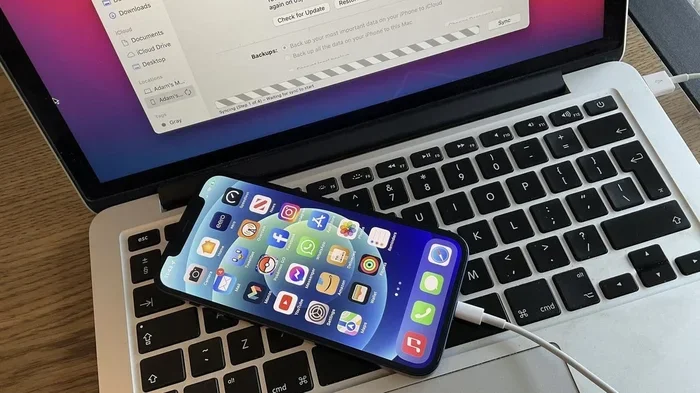
Mirroring your phone to your Mac using USB gives you a fast, stable, and lag-free way to share your screen. Whether you have an iPhone or an Android device, a simple cable connection can turn your Mac into a powerful display for your phone. This guide walks you through every method, tool, and troubleshooting tip you need to mirror phone to Mac using USB right now.
Have you ever wanted to see your phone screen on your Mac? Maybe you need to show someone a photo, share a notification, or simply enjoy a bigger display. Mirroring your phone to your Mac using USB is one of the easiest and most reliable ways to do this. Unlike wireless methods that can suffer from lag or connection drops, a USB cable gives you a direct, stable link between your devices.
In this guide, we will walk you through every step. We will cover how to mirror iPhone to Mac using USB, how to connect Android phones, and which tools work best. Whether you are a beginner or someone who has tried before and run into issues, this article has you covered. Let us get started.
Key Takeaways
- USB mirroring is faster and more stable than wireless options like AirPlay or screen mirroring apps.
- Both iPhone and Android phones can be connected to a Mac using a USB cable for screen sharing.
- QuickTime Player is a free built-in tool for iPhone users who want to mirror their device to a Mac.
- Third-party apps like ApowerMirror and LonelyScreen offer advanced features for USB phone mirroring.
- Common issues like cable compatibility and driver problems can be solved with simple fixes.
- USB-C to Lightning or USB-C to USB-C cables are essential for modern devices.
- Wired mirroring reduces latency and improves the overall viewing experience on your Mac screen.
📑 Table of Contents
- What Does It Mean to Mirror Your Phone to Your Mac Using USB?
- Why Use USB Instead of Wireless Mirroring?
- How to Mirror iPhone to Mac Using USB
- How to Mirror Android Phone to Mac Using USB
- Best Apps and Tools for USB Phone Mirroring
- Troubleshooting Common USB Mirroring Issues
- Expert Tips for a Smooth USB Mirroring Setup
What Does It Mean to Mirror Your Phone to Your Mac Using USB?
Phone mirroring means displaying your phone screen on another device in real time. When you mirror your phone to your Mac using USB, you are using a cable to create a direct connection. Your Mac then shows exactly what is happening on your phone screen.
This is different from wireless mirroring. With wireless options, your phone sends the screen signal over Wi-Fi or Bluetooth. These methods can be convenient, but they often come with delays, compression, or disconnections. A USB connection avoids most of these problems. The signal travels directly through the cable, which means less lag and better quality.
There are a few reasons people want to do this. Some use it for presentations. Others use it to manage phone notifications on a bigger screen. Gamers love it because a larger display makes mobile games more fun. No matter your reason, USB mirroring is a solid choice for anyone who wants a dependable connection.
How USB Mirroring Works
When you plug your phone into your Mac, the devices communicate through a protocol. For iPhones, this is often handled by Apple’s native ecosystem. For Android phones, it may require a third-party app or driver. The basic idea is the same: the cable transfers data, and your Mac receives a live feed of your phone screen.
The speed of this transfer depends on the cable and the port. A USB-C cable will generally be faster than an older USB-A connection. If your Mac and phone both support USB-C, you will get the best results. If you are using an older USB-A port, you may need an adapter.
Why Use USB Instead of Wireless Mirroring?
You might wonder why you should bother with a cable when wireless options exist. There are several good reasons to choose wired screen mirroring over wireless methods.
Stability is the biggest advantage. Wi-Fi connections can drop, especially if your network is busy. A USB cable stays connected no matter what. You will not see your mirror session suddenly cut out in the middle of a presentation or a game.
Speed is another major benefit. USB connections have lower latency than wireless ones. This means what you do on your phone shows up on your Mac almost instantly. For gaming or video playback, this difference is very noticeable.
Security also plays a role. Wireless mirroring sends data over your network. Anyone on the same Wi-Fi could potentially intercept it. A USB cable keeps everything local and private. Your screen data never leaves the physical connection between the two devices.
Quality is yet another factor. Wired connections tend to deliver a sharper, smoother image. Wireless mirroring often compresses the video signal to save bandwidth. With USB, you get a more faithful reproduction of your phone screen.
Quick Comparison: USB vs. Wireless Mirroring
Here is a simple breakdown of the two approaches:
- USB Mirroring: Fast, stable, secure, high quality, requires a cable.
- Wireless Mirroring: Convenient, no cables needed, can suffer from lag, depends on Wi-Fi signal strength.
If you need a reliable setup for work or play, USB is the way to go. It is simple, dependable, and works with most phones and Macs.
How to Mirror iPhone to Mac Using USB
iPhone users have a big advantage. Apple builds tools right into macOS that make iPhone to Mac USB mirroring very straightforward. You do not need to download anything extra for basic mirroring. Here is how to do it.
Step-by-Step: Using QuickTime Player
QuickTime Player is a free app that comes with every Mac. It can record your screen, play videos, and yes, mirror your iPhone. Here is the process:
- Grab a USB cable. Use the cable that came with your iPhone or a certified USB-C to Lightning cable.
- Plug your iPhone into your Mac. Use any available USB port on your Mac.
- Unlock your iPhone. You may see a prompt asking if you trust this computer. Tap “Trust” and enter your passcode.
- Open QuickTime Player on your Mac. You can find it in your Applications folder or by searching with Spotlight.
- Click File in the menu bar. Then select “New Movie Recording.”
- Click the dropdown arrow next to the record button. You will see options for camera and microphone.
- Select your iPhone from the camera dropdown. Your iPhone screen should now appear in the QuickTime window.
- Click the red record button to start mirroring. You can also just leave it open to view your screen live.
That is it. You are now mirroring your iPhone to your Mac using a USB cable. It really is that simple. QuickTime Player is one of the easiest tools for this task, and it works without any extra software.
Tips for the Best iPhone Mirroring Experience
Here are a few tips to make your experience smoother:
- Use an original Apple cable or a certified MFi cable. Cheap cables can cause connection issues.
- Keep your iPhone unlocked during mirroring. If your phone locks, the mirror may pause.
- Turn on Do Not Disturb if you do not want notifications to interrupt your session.
- Close unnecessary apps on your iPhone to keep the mirroring smooth.
- Use a short cable for a more stable connection and less cable clutter on your desk.
Limitations of QuickTime Mirroring
QuickTime Player works well for basic mirroring, but it has some limits. It does not let you control your iPhone from your Mac. You can only view the screen. Also, QuickTime does not support Android phones, so this method is iPhone-only. If you need more features, you may want to explore third-party apps, which we will cover later.
How to Mirror Android Phone to Mac Using USB
Android users do not have a built-in tool like QuickTime, but that does not mean you are out of luck. There are several great options for mirroring Android to Mac via USB. Some are free, and some offer premium features. Let us look at the best approaches.
Method 1: Using Scrcpy
Scrcpy is a free and open-source app that mirrors Android screens to computers. It works over USB and offers excellent performance. Here is how to set it up:
- Download Scrcpy from the official website. It is available for macOS and is free to use.
- Enable Developer Options on your Android phone. Go to Settings, tap Build Number seven times, and you will see a message that Developer Options are enabled.
- Enable USB Debugging. Go to Settings, then Developer Options, and toggle on USB Debugging.
- Connect your Android phone to your Mac using a USB cable.
- Open Terminal on your Mac. Navigate to the Scrcpy folder and run the app.
- Authorize USB Debugging on your phone if prompted.
- Your Android screen will now appear on your Mac.
Scrcpy is lightweight and fast. It has very low latency, which makes it great for gaming or showing off apps. The setup is a bit more technical than QuickTime, but it works reliably once configured.
Method 2: Using ApowerMirror
ApowerMirror is a popular third-party app that supports both iPhone and Android. It has a user-friendly interface and works over USB. Here is the process:
- Download ApowerMirror for Mac from the official website.
- Install the app and open it.
- Connect your Android phone to your Mac using a USB cable.
- Enable USB Debugging on your phone if it is not already on.
- Select your phone from the app. Your screen will appear on your Mac.
ApowerMirror offers both free and paid versions. The free version has some limitations, such as watermarks, but it works well for basic mirroring. The paid version removes these limits and adds features like screen recording and remote control.
Method 3: Using LonelyScreen
LonelyScreen is another option that supports AirPlay and USB connections. It works well for iPhone users who want an alternative to QuickTime. The setup is similar to the other methods: connect your phone, open the app, and start mirroring. LonelyScreen is especially useful if you want a simple, no-fuss experience.
Which Android Mirroring Method Should You Choose?
Here is a quick comparison to help you decide:
- Scrcpy: Free, fast, low latency, but requires some technical setup.
- ApowerMirror: Easy to use, supports both platforms, but the free version has watermarks.
- LonelyScreen: Simple and clean, great for beginners, but fewer advanced features.
For most users, ApowerMirror is the easiest choice. If you are comfortable with a bit of technical work and want the best performance, Scrcpy is hard to beat.
Best Apps and Tools for USB Phone Mirroring
The built-in tools are great, but third-party apps can add features you might love. Here are some of the best options for USB phone mirroring to Mac.
Top Apps for Mirroring Your Phone to Your Mac
- QuickTime Player: Free, built into macOS, works with iPhone via USB. Best for basic mirroring needs.
- ApowerMirror: Supports iPhone and Android, offers screen recording and remote control. Great all-in-one tool.
- Scrcpy: Free and open-source, excellent for Android users who want speed and low latency.
- LonelyScreen: Simple interface, works with AirPlay and USB, good for casual users.
- Reflector: Premium app with advanced features like multi-device support and recording. Ideal for professionals.
- AirServer: Similar to Reflector, supports AirPlay and works well with Mac systems.
What to Look for in a Mirroring App
Not all mirroring apps are created equal. Here are the key features to consider:
- USB support: Make sure the app works with a cable connection, not just Wi-Fi.
- Low latency: You want the screen to update in real time without noticeable delay.
- Screen quality: Look for apps that deliver crisp, clear images.
- Compatibility: Check that the app works with your phone model and macOS version.
- Price: Many apps have free versions. Try before you buy to make sure it meets your needs.
- Extra features: Screen recording, remote control, and multi-device support can add real value.
Troubleshooting Common USB Mirroring Issues
Even with the best setup, you might run into problems. USB phone mirroring is generally reliable, but issues can happen. Here are the most common problems and how to fix them.
Your Mac Does Not Detect Your Phone
This is the most common issue. Start by checking your cable. A damaged or low-quality cable is often the culprit. Try a different cable, preferably one that came with your phone or is certified by the manufacturer.
Next, try a different USB port on your Mac. Some ports may not provide enough power or data transfer speed. If you are using a hub or adapter, try connecting directly to your Mac instead.
For Android users, make sure USB Debugging is turned on. Go to Developer Options in your phone settings and enable it. You may also need to change the USB connection mode from “Charging only” to “File Transfer” or “MTP.”
Mirroring Is Laggy or Delayed
Lag can ruin the experience. First, check that you are using a high-quality USB cable. Cheap cables can slow down data transfer. Also, make sure your cable is not too long. Shorter cables tend to have better performance.
Close any apps on your Mac that might be using up resources. A busy system can cause delays in mirroring. You can also try lowering the resolution of the mirror display if your app allows it.
Your Phone Keeps Disconnecting
Loose connections are a common cause. Make sure the cable is firmly plugged into both devices. If your phone case is very thick, it might interfere with the connection. Try removing the case and plugging in again.
For iPhone users, make sure you tapped “Trust” on your phone when prompted. If you accidentally tapped “Don’t Trust,” you will need to reset the trust settings. Disconnect the cable, go to Settings on your iPhone, tap Reset Location & Privacy, and try again.
Audio Is Not Coming Through
Some mirroring setups only show video and do not transmit audio. In QuickTime, make sure your microphone settings are correct. For Android mirroring apps, check the app settings to see if audio streaming is enabled.
If audio still does not work, try a different cable. Some cables are designed for charging only and do not support data transfer, which is needed for audio.
Expert Tips for a Smooth USB Mirroring Setup
Here are some insider tips that will help you get the most out of your mirroring setup:
- Keep your macOS and phone software up to date. Updates often fix bugs and improve compatibility.
- Use a powered USB hub if you are connecting multiple devices. This ensures your Mac has enough power to handle everything.
- Clean your phone and Mac ports regularly. Dust and lint can block connections.
- Restart both devices before setting up mirroring. A fresh start can resolve many connection issues.
- Use a cable with a braided jacket. These cables are more durable and last longer than basic cables.
- Adjust your Mac display settings to match your phone resolution for the best viewing experience.
Final Thoughts on Mirroring Your Phone to Your Mac Using USB
Mirroring your phone to your Mac using USB is a simple, reliable, and high-quality way to share your screen. Whether you use QuickTime Player for your iPhone or Scrcpy for your Android device, the process is straightforward and the results are excellent. You get a stable connection, low latency, and a clear image every time.
The right cable, the right app, and a few minutes of setup are all you need. Once you start using USB mirroring, you will wonder how you ever managed without it. It is perfect for work, presentations, gaming, and everyday use.
Take some time to try the methods in this guide. Test a few apps if needed. Find the setup that works best for your devices and your needs. With the right approach, mirroring your phone to your Mac using USB becomes second nature. Enjoy the bigger screen and the seamless connection that a wired setup provides.
Frequently Asked Questions
Can I mirror my phone to my Mac using USB without installing any software?
Yes, if you have an iPhone, you can use QuickTime Player, which comes free with macOS. Just connect your iPhone with a USB cable, open QuickTime, and select your phone as the camera source. No extra software is needed for basic mirroring.
What kind of USB cable do I need to mirror my phone to my Mac?
For iPhones, you need a USB-C to Lightning cable or a USB-A to Lightning cable. For Android phones, a USB-C cable works with most modern devices. Make sure the cable supports data transfer, not just charging, for mirroring to work.
Is USB mirroring better than wireless mirroring?
Yes, USB mirroring is generally better in terms of stability, speed, and quality. A wired connection has lower latency, fewer disconnections, and a sharper image compared to wireless methods like AirPlay or Wi-Fi mirroring apps.
Can I control my phone from my Mac while mirroring via USB?
It depends on the app you use. QuickTime only displays the screen and does not allow control. Apps like ApowerMirror and Scrcpy let you control your Android phone from your Mac. iPhone users may need a third-party app for remote control features.
Why is my Android phone not showing up on my Mac when connected via USB?
This is usually caused by USB Debugging being off or the wrong connection mode. Go to Developer Options on your phone and make sure USB Debugging is enabled. Also, change the USB connection mode to File Transfer (MTP) when you plug in the cable.
Are there any free apps for mirroring my phone to my Mac via USB?
Yes, QuickTime Player is free for iPhone users. Scrcpy is also free and works with Android phones. ApowerMirror has a free version with basic features, though it may add watermarks to recorded screens.
=== CONCLUSION ===
Mirroring your phone to your Mac using USB is one of the simplest and most effective ways to get more done on a bigger screen. Whether you are sharing content, presenting to a team, or just enjoying your favorite apps, a USB connection delivers speed, stability, and quality that wireless methods cannot match.
We covered how to mirror iPhone and Android phones, explored the best apps, and tackled common troubleshooting issues. With the right cable, the right app, and a few simple steps, you can set up a seamless mirroring experience in minutes. The methods in this guide work for most phones and Macs, so you should be up and running quickly.
Now that you know how to mirror your phone to your Mac using USB, it is time to try it yourself. Plug in your cable, open your preferred app, and enjoy the benefits of a wired screen-sharing setup. You will be glad you did.