How Do I Play Stuff From My Phone To My Projector Screen
Playing content from your phone to a projector screen is easier than you think. Whether you want to share videos, photos, or presentations, there are multiple ways to connect your device to a projector. This guide covers every method so you can stream from your phone to your projector screen with confidence.
Have you ever wanted to share something from your phone on a big screen? Maybe it is a funny video, a slideshow of vacation photos, or an important work presentation. Whatever the reason, playing stuff from your phone to your projector screen opens up a world of possibilities. You do not need to be a tech expert to make it happen either.
In this guide, we will walk you through every method available. We will cover wireless options, wired connections, and everything in between. By the end, you will know exactly how to play content from your phone to a projector screen like a pro. Let us get started.
Key Takeaways
- Wireless screen mirroring lets you cast your phone display to a projector without any cables.
- HDMI adapters provide a reliable wired connection for stable playback and better quality.
- Chromecast and AirPlay are popular options depending on your phone type and projector features.
- Wi-Fi-enabled projectors offer built-in casting support for a seamless experience.
- Troubleshooting tips can fix most common connection problems quickly.
- Audio settings matter just as much as video when projecting from your phone.
- Testing before your event saves time and prevents awkward technical issues.
📑 Table of Contents
- Why Connect Your Phone to a Projector Screen
- Methods to Play Stuff From Your Phone to Your Projector Screen
- Step-by-Step Guide to Wireless Projection
- Wired Connection Options and Setup
- Troubleshooting Common Connection Issues
- Tips for the Best Projecting Experience
- Expert Insights on Phone-to-Projector Connections
- Key Takeaways
- Frequently Asked Questions
- Conclusion
Why Connect Your Phone to a Projector Screen
There are so many reasons people want to cast their phone to a projector. Some need it for work. Others want to create a movie night experience at home. Whatever your reason, understanding the benefits helps you choose the right method.
First, a projector screen makes everything bigger and more visible. Your phone screen is small. A projector can turn that into a shared experience. Second, it gives you flexibility. You can move around the room while controlling what plays. Third, modern projectors support many connection types. This means almost any phone works with almost any projector.
Think about movie nights with friends. Imagine showing off your travel photos on a wall that is ten feet wide. Or picture giving a presentation without fumbling with cables and adapters. All of this becomes possible when you know how to connect your phone to a projector screen properly.
Methods to Play Stuff From Your Phone to Your Projector Screen
Wireless Screen Mirroring
Wireless screen mirroring is the most popular way to stream from your phone to your projector screen. It sends your phone display to the projector without any cables. You just need a compatible projector or a streaming device.
Most modern smart projectors support Miracast for Android devices and AirPlay for iPhones. These built-in features make the process simple. You go into your phone settings, find the screen mirror option, and select your projector. That is really all there is to it.
Some people also use Chromecast devices. These small dongles plug into your projector HDMI port. They connect to your Wi-Fi network and let you cast content directly from apps on your phone. Google Home makes this process very user-friendly.
Here are the main wireless options available:
- Miracast works best with Android phones and most smart projectors.
- AirPlay is ideal for iPhone and iPad users with Apple-compatible projectors.
- Chromecast supports both Android and iOS through the Google Home app.
- Wi-Fi Direct connects your phone directly to the projector without a router.
- Bluetooth casting works for audio but is less common for video projection.
HDMI Adapter Connections
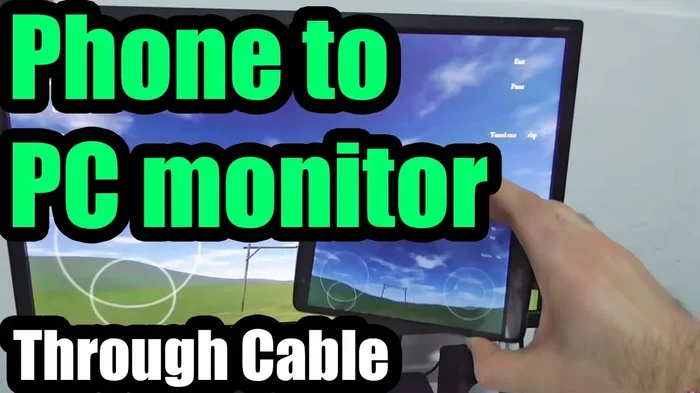
Not everyone wants to go wireless. A wired connection through an HDMI adapter gives you a stable, high-quality connection. This method works great when you need zero lag or perfect image quality.
For Android phones, you typically need a USB-C to HDMI adapter or a MHL cable. These adapters plug into your phone and connect directly to the projector HDMI port. The projector then displays your phone screen exactly as it appears.
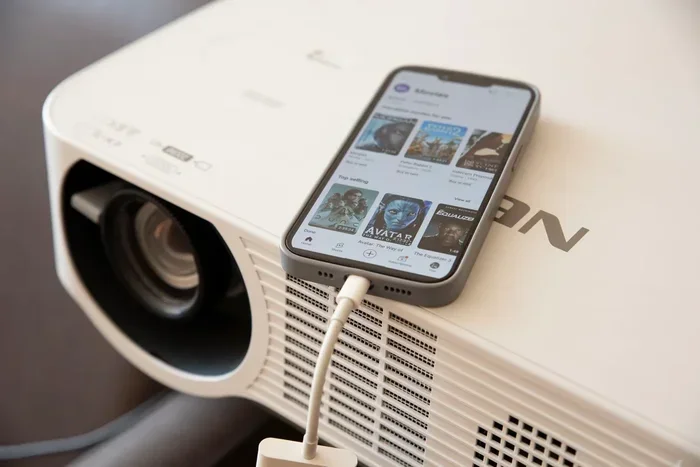
iPhone users have a different path. Apple makes the Lightning to HDMI adapter. It costs a bit more but delivers excellent results. You plug it into your iPhone, connect an HDMI cable, and your phone screen appears on the projector instantly.
Wired connections also have a big advantage: they do not depend on Wi-Fi. If your projector is in a location with poor internet, a cable connection still works perfectly. This makes it ideal for outdoor events or presentations in large venues.
Using a Streaming Device
Streaming devices act as a bridge between your phone and projector. You plug the device into the projector, and it handles the wireless connection for you. This is a great option if your projector does not have built-in smart features.
Amazon Fire TV Stick is a popular budget choice. It connects to Wi-Fi and supports casting from both Android and iOS devices. The Roku Streaming Stick works similarly and has a wide app compatibility range.
For Apple ecosystem users, the Apple TV box provides the most seamless experience. It supports AirPlay natively and delivers outstanding video quality. While it costs more, the reliability and ease of use make it worth it for many people.
| Streaming Device | Phone Compatibility | Price Range | Best For |
|---|---|---|---|
| Chromecast | Android & iOS | $20-$50 | Budget-friendly casting |
| Amazon Fire TV Stick | Android & iOS | $25-$55 | Alexa integration |
| Apple TV | iOS & Android | $100-$150 | Apple users |
| Roku Streaming Stick | Android & iOS | $25-$50 | Wide app support |
Step-by-Step Guide to Wireless Projection
Setting up wireless projection is straightforward once you know the steps. Here is a simple walkthrough for most setups.
Step 1: Check projector compatibility. Make sure your projector supports wireless connectivity. Look for Wi-Fi or smart features in the product manual. If your projector does not have built-in wireless, you will need a streaming device.
Step 2: Connect both devices to the same network. Your phone and projector (or streaming device) need to be on the same Wi-Fi network. This is essential for screen mirroring to work properly.
Step 3: Enable screen mirroring on your phone. On Android, pull down your notification shade and tap “Smart View” or “Screen Mirroring.” On iPhone, open Control Center and tap “Screen Mirroring.”
Step 4: Select your projector from the list. Your phone will scan for available devices. Tap on your projector name when it appears.
Step 5: Start playing your content. Once connected, anything on your phone screen appears on the projector. Open your video, photo gallery, or presentation and enjoy the big screen experience.
Quick Tip: If your projector does not appear in the list, restart both devices. Also make sure nothing is blocking the Wi-Fi signal between them. Moving closer to the router can sometimes help too.
Wired Connection Options and Setup
Wired connections remain a reliable choice for many users. They offer consistent performance and do not rely on Wi-Fi signal strength. If you are presenting in a busy office or at an event, wired connections reduce the risk of interference.
USB-C to HDMI adapters work with most modern Android phones. Samsung, Google Pixel, and OnePlus devices all support this connection type. Just plug the adapter into your phone, connect an HDMI cable, and you are ready to go.
Lightning to HDMI adapters are the go-to option for iPhone users. Apple’s official adapter works with most apps and delivers clean video output. Third-party adapters also work but may have compatibility issues with some apps.
Mini DisplayPort and VGA adapters are older options but still useful. Some projectors only have VGA inputs. In that case, you may need a USB-C to VGA adapter or a Lightning to VGA adapter depending on your phone.
Keep in mind that wired connections limit your mobility. You are tethered to the projector by a cable. This can be fine for presentations but less ideal for casual movie watching or photo sharing.
Troubleshooting Common Connection Issues
Sometimes things do not go as planned. Your phone might not find the projector, or the connection might drop mid-presentation. These issues are usually easy to fix.
Phone Does Not Detect the Projector
This is the most common problem. First, check that both devices are on the same Wi-Fi network. Then restart the wireless display feature on your phone. Sometimes simply turning it off and back on fixes the issue.
If you are using a streaming device, try restarting it too. Unplug it from power, wait ten seconds, and plug it back in. This clears temporary glitches and refreshes the connection.
Video Lag or Freezing
Lag usually happens when the Wi-Fi signal is weak. Move closer to your router or reduce the number of devices using the network. Streaming high-resolution video puts more strain on your connection.
For wired connections, try a different HDMI cable. Cheap cables sometimes cause signal issues. A certified high-speed HDMI cable makes a big difference in video quality and stability.
Audio Not Playing Through the Projector
Some projectors have built-in speakers. Others require external audio output. Check your projector settings to see if audio is set to the correct input source.
On your phone, go to sound settings and make sure the audio output is set to the projector or streaming device. Sometimes your phone defaults to its own speakers even when connected to an external display.
Tips for the Best Projecting Experience
Getting the connection right is only half the battle. A few extra tips can make your projected content look and sound much better.
Adjust your phone brightness. When screen mirroring, your phone display brightness affects what the projector shows. Turn it up for a brighter image, especially in well-lit rooms.
Turn off notifications. Nothing ruins a presentation faster than a sudden text alert appearing on the big screen. Put your phone in Do Not Disturb mode before you start projecting.
Use landscape mode for videos. Most projectors are wider than they are tall. Rotating your phone to landscape gives you the best fit and avoids black bars on the sides.
Keep your phone charged. Screen mirroring drains battery quickly. Plug your phone into a charger while projecting. This ensures you do not lose power mid-presentation.
Test before your audience arrives. Always do a quick test run before anyone else sees your setup. This gives you time to fix any issues and adjust the image positioning.
Expert Insights on Phone-to-Projector Connections
Technology experts agree that the best method depends on your specific needs. For casual home use, wireless mirroring is the easiest path. For professional presentations, a wired HDMI connection provides the most reliability.
Pro tip from AV specialists: Invest in a good-quality streaming device if your projector does not have smart features. A Chromecast with Google TV or Amazon Fire TV Stick 4K transforms any projector into a smart display. You get access to streaming apps, better casting performance, and more connection options.
Another expert recommendation: Always check your projector’s refresh rate support. Some older projectors only support 30Hz input. This can cause flickering or lag when mirroring high-frame-rate content from your phone. Newer projectors support 60Hz, which delivers much smoother video playback.
One more thing to keep in mind: not all apps support screen mirroring equally. Some streaming apps like Netflix block screen casting due to copyright restrictions. In these cases, you may need to use the projector’s built-in apps or a different streaming source. This is a common frustration, but it is not something you can easily fix on your end.
Key Takeaways
- Wireless screen mirroring lets you cast your phone display to a projector without any cables.
- HDMI adapters provide a reliable wired connection for stable playback and better quality.
- Chromecast and AirPlay are popular options depending on your phone type and projector features.
- Wi-Fi-enabled projectors offer built-in casting support for a seamless experience.
- Troubleshooting tips can fix most common connection problems quickly.
- Audio settings matter just as much as video when projecting from your phone.
- Testing before your event saves time and prevents awkward technical issues.
Frequently Asked Questions
Can I play stuff from my phone to any projector screen?
Most modern projectors support some form of phone connection. Smart projectors have built-in Wi-Fi and screen mirroring features. Older projectors may need an HDMI adapter or a streaming device. Check your projector manual to see what connection options it supports.
Do I need Wi-Fi to cast from my phone to a projector?
It depends on the method. Wireless mirroring and streaming devices need Wi-Fi. However, wired HDMI adapters do not require any internet connection. If Wi-Fi is unavailable, a cable connection is your best bet for playing content from your phone to your projector screen.
Why is my phone not connecting to my projector wirelessly?
The most common reason is that both devices are not on the same Wi-Fi network. Restart the wireless display feature on your phone and make sure your projector is set to receive connections. If the problem persists, restart both devices and try again.
Can I play Netflix from my phone on a projector?
Many streaming apps block screen mirroring to prevent piracy. You may see a black screen when trying to mirror Netflix. Your best option is to use the projector’s built-in smart apps if it has them, or connect a streaming device like Chromecast or Fire TV Stick directly to the projector.
What is the best way to connect an iPhone to a projector?
For wireless connection, use AirPlay if your projector supports it. For a wired connection, use Apple’s Lightning to HDMI adapter. These options give you the most reliable and highest-quality connection from an iPhone to a projector screen.
Does screen mirroring affect phone battery life?
Yes, screen mirroring uses a lot of battery because your phone is continuously sending its display to another device. Keep your phone plugged into a charger while projecting. Lowering your screen brightness can also help conserve battery during extended sessions.
Conclusion
Playing stuff from your phone to your projector screen is a skill that makes life more fun and presentations more effective. You now know all the main methods. Wireless mirroring gives you freedom and convenience. Wired HDMI connections deliver reliability and quality. Streaming devices bridge the gap for older projectors.
The key is choosing the right method for your situation. Consider what you are projecting, where you are doing it, and how much freedom of movement you need. With the right setup, you can turn any wall or screen into a powerful display powered by your phone.
Start with the simplest method that fits your needs. Test it thoroughly before your next movie night or presentation. Once you get comfortable with the process, you will wonder how you ever managed without it. Your phone and projector together create a versatile entertainment and presentation tool that is always ready when you are.