How Do I Reset My Rockspace Extender Password Fast
Resetting your Rockspace extender password is quick and easy when you follow the right steps. This guide shows you exactly how to restore your WiFi extender password using the admin panel, reset button, or Rockspace app. You will learn simple methods to recover your login credentials and secure your wireless network again.
Have you ever been in a situation where you cannot connect to your WiFi because you forgot your Rockspace extender password? It happens to the best of us. Maybe you changed the password months ago and never wrote it down. Or perhaps someone else set up the extender and you never got the details. Whatever the reason, forgetting your Rockspace extender password can be frustrating.
The good news is that resetting your password is much easier than you think. You do not need to be a tech expert. In fact, most people can complete the process in under 10 minutes. This guide will walk you through every step in simple, clear language. By the end, you will know exactly how to reset your Rockspace extender password fast and get back online.
We will cover three main methods: using the reset button, accessing the admin panel, and using the Rockspace app. Each method works well, and we will explain when to use which one. We will also share tips on creating a strong new password and keeping your wireless network secure. Let us dive right in.
Key Takeaways
- Easy Reset Options: You can reset your Rockspace extender password using the reset button, admin panel, or Rockspace app.
- Default Login Details: Most Rockspace extenders use admin/admin or admin/password as default credentials.
- Factory Reset vs Password Reset: A factory reset wipes all settings, while a password reset keeps your configuration intact.
- Security Matters: Always create a strong new password after resetting to protect your wireless network.
- Quick Process: The entire password reset process takes just 5 to 10 minutes.
- App Support: The Rockspace app makes password management even simpler on mobile devices.
📑 Table of Contents
- Why You Might Need to Reset Your Rockspace Extender Password
- Method 1: Reset Using the Reset Button
- Method 2: Reset Through the Admin Panel
- Method 3: Reset Using the Rockspace App
- How to Create a Strong New Password
- Common Mistakes to Avoid
- Expert Insights on Rockspace Extender Password Management
- Troubleshooting Common Password Reset Issues
- Key Takeaways
- Frequently Asked Questions
- Conclusion
Why You Might Need to Reset Your Rockspace Extender Password
Before we get into the how-to, let us talk about why password resets happen so often. Understanding the reasons can help you prevent future issues. Here are the most common situations:
- Forgot the password: This is the number one reason. We all have too many passwords to remember.
- Moved to a new home: You want to set up your range extender with a new network name and password.
- Security concerns: You suspect someone else knows your current password.
- Sharing with guests: You want to create a fresh password after giving access to visitors.
- Old password is weak: You want to upgrade to a stronger WiFi password for better network security.
No matter the reason, knowing how to reset your password gives you control over your internet connection. It is a basic skill that every WiFi user should have.
Method 1: Reset Using the Reset Button
The reset button method is the simplest approach. It works on almost all Rockspace extender models. This method performs a factory reset, which means it will erase all your current settings and restore them to defaults.
Step-by-Step Instructions
Follow these steps carefully to reset your password using the reset button:
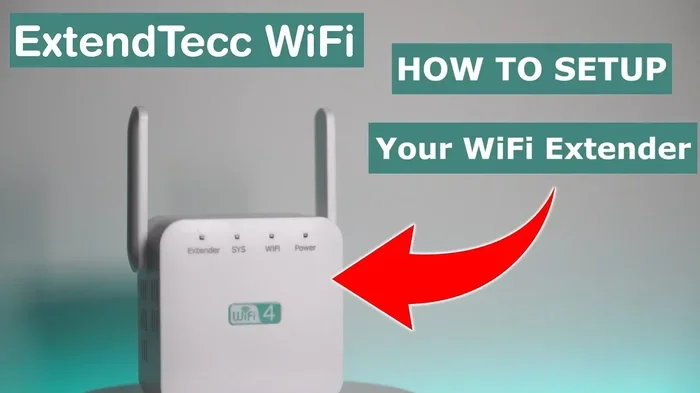
- Locate the reset button: Look at the back or bottom of your Rockspace extender. You will see a small pinhole labeled “Reset.”
- Prepare a paperclip or pin: You need something thin and pointed to press the button inside the hole.
- Plug in your extender: Make sure the device is powered on and the LED lights are active.
- Press and hold the reset button: Use the paperclip to press the button. Hold it for 10 to 15 seconds.
- Wait for the lights to flash: The LED lights will blink, indicating the device is resetting.
- Release the button: Once the lights flash, let go. The extender will restart automatically.
- Wait for the reboot: This takes about 2 to 3 minutes. The device will return to its default settings.
After the reboot, your Rockspace extender will use the default password. Most models use “admin” as both the username and password. Some models use “admin” and “password.” Check the label on the bottom of your device for the exact default login credentials.
Important Things to Know
Keep these points in mind when using the reset button method:
- A factory reset removes all custom settings, including your WiFi name and password.
- You will need to reconfigure your WiFi setup after the reset.
- This method is best when you have completely lost access to your extender settings.
- The process works even if you cannot connect to the extender’s WiFi network.
Once the reset is complete, open your browser and go to the default IP address (usually 192.168.1.1 or 192.168.0.1). Log in with the default credentials and set up a new admin password right away.
Method 2: Reset Through the Admin Panel
If you can still access your Rockspace extender’s admin panel, you can reset your password without doing a full factory reset. This method keeps your other settings intact, which saves you time.
How to Access the Admin Panel
Here is how to log into the admin panel and change your password:
- Connect to your extender: Join the Rockspace extender WiFi network on your phone or computer.
- Open a web browser: Use Chrome, Firefox, Safari, or any browser you prefer.
- Type in the IP address: Enter 192.168.1.1 or 192.168.0.1 in the address bar. Press Enter.
- Enter login details: Use your current username and password to log in.
- Navigate to settings: Look for the “Wireless Settings” or “WiFi Password” section.
- Change the password: Enter your new desired password in the password field.
- Save changes: Click “Apply” or “Save” to confirm the new password.
That is it! Your Rockspace extender password is now updated. Make sure to write down your new password or store it in a secure place. You can also use a password manager app to keep track of it safely.
Tips for the Admin Panel Method
- If you forgot your current password, this method will not work. Use the reset button method instead.
- Always choose a strong password with a mix of letters, numbers, and symbols.
- Avoid using easy-to-guess passwords like “123456” or “password.”
- Change your password every few months for better network security.
This method is ideal when you just need a password recovery and your extender is still working normally otherwise.
Method 3: Reset Using the Rockspace App
Rockspace offers a dedicated app that makes managing your extender much easier. The app lets you change your password, check your connection status, and update settings from your phone. It is a great option if you prefer using mobile devices.
Setting Up the App for Password Reset
Here is how to use the Rockspace app to reset your password:
- Download the Rockspace app: Search for “Rockspace” in the App Store or Google Play Store.
- Install and open the app: Follow the on-screen instructions to set it up.
- Connect to your extender: The app will scan for nearby Rockspace devices.
- Select your extender: Tap on your device from the list of available devices.
- Go to settings: Find the “Wireless Settings” or “Security” section.
- Update your password: Enter your new password and save the changes.
The app method is the fastest and most user-friendly option. It is perfect for people who are not comfortable using a web browser to access the admin panel. The app also sends you helpful notifications about your internet connection and device status.
Benefits of Using the Rockspace App
- Easy-to-use interface that anyone can navigate.
- Quick access to all extender settings.
- Real-time status updates about your WiFi signal.
- Ability to update firmware and improve performance.
- Simple WiFi setup process for new users.
Even if you have never used the app before, it is worth downloading. It makes managing your wireless network a breeze.
How to Create a Strong New Password
After resetting your password, the next step is to create a strong new one. A weak password leaves your wireless network vulnerable to unauthorized access. A strong password keeps your internet connection safe and private.
What Makes a Password Strong?
Here are the key elements of a strong WiFi password:
- Length: Use at least 12 characters. Longer is always better.
- Mix of characters: Include uppercase letters, lowercase letters, numbers, and symbols.
- No personal info: Avoid using your name, birthday, or address.
- No common words: Stay away from words like “password,” “admin,” or “welcome.”
- Random combinations: Use a random mix that is hard to guess.
Example of a Strong Password
Here is an example of a strong password: R0ck$pace!WiFi#2024
Notice how it uses uppercase and lowercase letters, numbers, and special symbols. It is also long and does not contain any personal information. This type of password is very hard for anyone to crack.
Quick Tips for Password Security
- Never share your password with strangers.
- Use a different password for your extender than for other accounts.
- Write your password down and store it in a safe place.
- Consider using a password manager to store all your passwords securely.
- Change your password every 3 to 6 months.
Taking these simple steps goes a long way in protecting your wireless network and keeping your internet connection fast and reliable.
Common Mistakes to Avoid
When resetting your Rockspace extender password, many people make avoidable mistakes. Here are the most common ones and how to prevent them:
Mistake 1: Holding the Reset Button Too Short
Some people press the reset button for only 5 seconds and think it worked. Most Rockspace extenders need 10 to 15 seconds of holding. If you release too early, the device will not reset. Hold the button steadily until the lights flash.
Mistake 2: Forgetting to Reconfigure After Reset
A factory reset clears all settings. If you do not reconfigure your WiFi setup afterward, your extender will not work properly. Make sure to set up your network name, password, and security type again after any reset.
Mistake 3: Using the Default Password Forever
After a factory reset, your extender uses the default password. Leaving it as “admin” or “password” is a huge security risk. Always change it to something unique and strong right away.
Mistake 4: Not Checking the IP Address
Some Rockspace models use different default IP addresses. If 192.168.1.1 does not work, try 192.168.0.1 or check the label on your device. Using the wrong address will prevent you from accessing the admin panel.
Mistake 5: Ignoring Firmware Updates
Outdated firmware can cause connection issues and security vulnerabilities. After resetting your password, check for firmware updates in the admin panel or Rockspace app. Keeping your device updated ensures the best performance.
Expert Insights on Rockspace Extender Password Management
Managing your Rockspace extender password is not just about resetting it when you forget. It is about building good habits that keep your wireless network secure and running smoothly. Here are some expert tips:
Tip 1: Label your extender. Put a small sticker on your extender with the current network name and password. This saves you from forgetting them later. Just make sure the sticker does not reveal sensitive info to visitors.
Tip 2: Use the same password for all WiFi devices. Having one strong password for your router and extender is easier to manage than multiple different ones. Just make sure it is strong enough.
Tip 3: Restart your extender regularly. A simple restart every few weeks can improve performance and resolve minor connection issues. Unplug the extender, wait 30 seconds, and plug it back in.
Tip 4: Monitor connected devices. Check your admin panel regularly to see which devices are connected to your wireless network. If you see unfamiliar devices, change your password immediately.
Tip 5: Keep your user manual handy. The Rockspace user manual has all the default settings, IP addresses, and reset procedures. Save a digital copy on your phone for quick reference.
Troubleshooting Common Password Reset Issues
Sometimes things do not go as smoothly as we hope. Here are solutions to common problems you might face when resetting your Rockspace extender password:
Problem: I Cannot Access the Admin Panel
If you cannot log into the admin panel, try these fixes:
- Make sure you are connected to the extender’s WiFi network.
- Double-check the IP address. Try both 192.168.1.1 and 192.168.0.1.
- Clear your browser cache and try again.
- Try a different browser or device.
- Perform a factory reset using the reset button method.
Problem: The Reset Button Does Not Work
If pressing the reset button does not reset the device:
- Make sure your extender is plugged in and powered on.
- Hold the button for a full 15 to 20 seconds.
- Use a straightened paperclip, not a bent one.
- Try pressing the button while the extender is still warm from being plugged in.
Problem: I Cannot Find the Rockspace App
If the app is not showing up in your app store:
- Check that your phone or tablet is connected to the internet.
- Search for “Rockspace WiFi” instead of just “Rockspace.”
- Visit the Rockspace official website for a direct download link.
- Make sure your device meets the app’s system requirements.
Key Takeaways
- Reset Button Method: The simplest way to factory reset your Rockspace extender and restore default settings including the default password.
- Admin Panel Method: Best for changing your password without losing other settings. Requires current login access.
- Rockspace App Method: The most user-friendly option for managing your extender password from your phone.
- Strong Passwords Matter: Always create a unique, strong password with at least 12 characters for better network security.
- Avoid Common Mistakes: Hold the reset button long enough, reconfigure after reset, and never keep default passwords.
- Troubleshooting Helps: Know the solutions to common issues so you can fix problems quickly on your own.
Frequently Asked Questions
How long does it take to reset a Rockspace extender password?
The entire process takes about 5 to 10 minutes. Using the reset button takes a few extra minutes for the device to reboot. The admin panel and app methods are even faster since they do not require a full reset.
What is the default password for a Rockspace extender?
Most Rockspace extenders use “admin” as both the username and password. Some models use “admin” and “password.” You can also check the label on the bottom of your device for the exact default login credentials.
Will resetting my Rockspace extender delete my WiFi settings?
Yes, if you use the reset button method, it performs a factory reset that erases all custom settings. The admin panel and app methods only change the password and keep your other settings intact. Always reconfigure your WiFi setup after a factory reset.
Can I reset my Rockspace extender password without a computer?
Absolutely. You can use the reset button method with just a paperclip and your phone. You can also use the Rockspace app on your smartphone to change the password without needing a computer at all.
How often should I change my Rockspace extender password?
Experts recommend changing your WiFi password every 3 to 6 months. You should also change it immediately if you suspect someone unauthorized has access to your wireless network. Regular updates improve your network security.
What should I do if the reset button method does not work?
Try holding the reset button for a longer duration, up to 20 seconds. Make sure the extender is powered on. If it still does not work, try accessing the admin panel or Rockspace app instead. You can also contact Rockspace customer support for further assistance.
Conclusion
Resetting your Rockspace extender password does not have to be a stressful experience. With the three methods we covered, you can restore access to your wireless network quickly and easily. Whether you use the reset button, admin panel, or Rockspace app, each method gets the job done effectively.
Remember to always create a strong new password after resetting. Use a mix of letters, numbers, and symbols. Keep your password in a safe place. And make it a habit to update your password regularly for the best network security.
Your Rockspace extender is a valuable tool that extends your WiFi coverage and keeps you connected throughout your home. Taking a few minutes to reset and secure your password ensures that your internet connection stays fast, reliable, and safe. Apply what you learned from this guide today, and enjoy a seamless WiFi experience every single day.