Can I Use A Range Extender With Xfinity Wifi Router
Yes, you can use a range extender with your Xfinity wifi router. A wifi range extender helps expand your internet coverage to rooms where the signal is weak or nonexistent. Whether you have an Xfinity xFi gateway or a standard Xfinity modem, a wireless extender can eliminate dead zones and improve your wifi speed throughout your home.
Have you ever walked into a room and found your wifi signal completely dropped? You are not alone. Many Xfinity internet users deal with dead zones in their homes. These are spots where your wireless signal just cannot reach.
The good news is that you can fix this problem. A wifi range extender is one of the easiest and most affordable solutions. But the big question remains: can I use a range extender with Xfinity wifi router? The short answer is yes. Let us dive into everything you need to know.
In this guide, we will cover how range extenders work with Xfinity equipment. We will look at setup steps, placement tips, and the best options available. By the end, you will know exactly how to improve your home network and get stronger wifi coverage everywhere.
Key Takeaways
- Compatibility: Most range extenders work with Xfinity routers, but choosing the right one matters.
- Setup is Simple: You can set up an extender in minutes using the Xfinity xFi app or a web browser.
- Placement Matters: Where you place your extender determines how well it boosts your signal.
- Xfinity xFi Pods: Xfinity offers its own mesh extenders that integrate seamlessly with your network.
- Speed Loss: Expect some bandwidth reduction when using an extender, but dual-band models minimize this.
- Alternatives Exist: Mesh networks and powerline adapters are great alternatives to traditional extenders.
📑 Table of Contents
- Can I Use A Range Extender With Xfinity Wifi Router?
- How Does A Wifi Range Extender Work?
- Best Range Extenders For Xfinity Routers
- How To Set Up A Range Extender With Xfinity
- Common Mistakes To Avoid
- Xfinity xFi Pods vs. Third-Party Extenders
- Tips To Maximize Your Range Extender Performance
- When Should You Consider a Mesh Network Instead?
- Final Thoughts
Can I Use A Range Extender With Xfinity Wifi Router?
The short answer is a definite yes. Xfinity routers are compatible with most wifi range extenders on the market. Your Xfinity xFi gateway or standard Xfinity modem works with third-party extenders just fine.
However, not all extenders perform equally well. Some models work better than others. The key is picking an extender that matches your router’s specs. For example, if you have a dual-band Xfinity xFi Advanced Gateway, you should get a dual-band extender too.
Why Compatibility Matters
Xfinity routers use specific wireless standards. Most modern Xfinity equipment supports 802.11ac or 802.11ax (Wi-Fi 6). Your extender should support the same or a newer standard. This ensures you get the best signal strength and bandwidth possible.
Using an older extender with a newer router can limit your speeds. Think of it like trying to pour a gallon of water through a small cup. The cup (extender) becomes the bottleneck. Always check the extender’s specs before buying.
What About Xfinity xFi Pods?
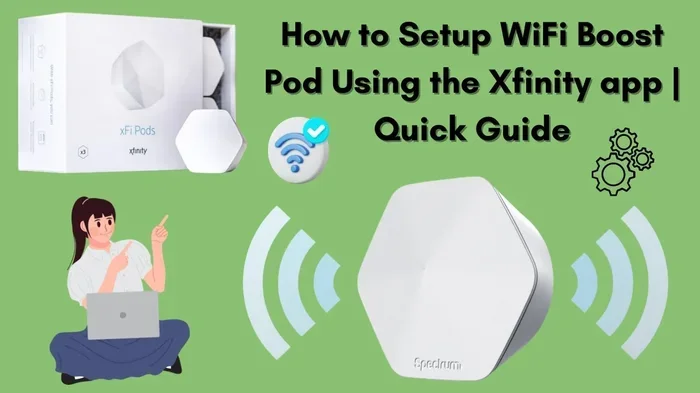
Xfinity offers its own mesh extenders called xFi Pods. These are designed specifically for Xfinity gateways. They plug directly into a wall outlet and extend your wifi coverage automatically.
xFi Pods are easy to set up. You just press the button on the pod and your router. They work seamlessly with the Xfinity xFi app. If you want the simplest possible setup, xFi Pods are a great choice.
How Does A Wifi Range Extender Work?
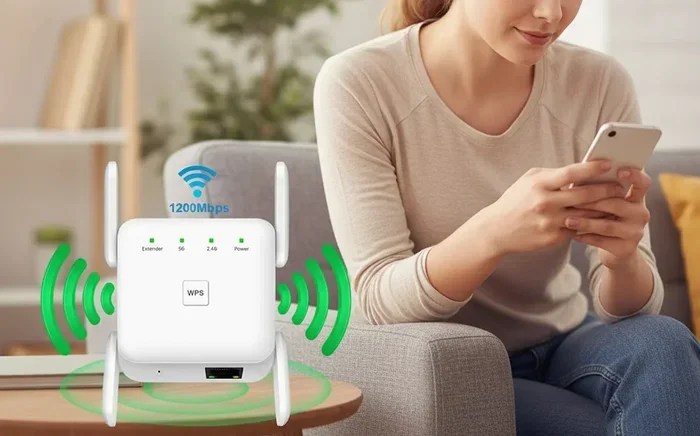
A wifi range extender receives your existing wifi signal. It then rebroadcasts that signal to areas where it is weak. Think of it like a megaphone for your router’s signal.
The extender connects to your Xfinity router wirelessly. It picks up the signal and sends it further. This helps cover larger homes or buildings with thick walls.
The Two-Band Advantage
Most modern extenders are dual-band. This means they work on two frequency bands: 2.4 GHz and 5 GHz. Each band has its own strengths.
- 2.4 GHz band: Covers longer distances but offers slower speeds. Great for basic browsing and email.
- 5 GHz band: Offers faster speeds but covers shorter distances. Best for streaming and gaming.
A dual-band network extender gives you flexibility. You can choose the band that works best for each area of your home.
How Extenders Affect Speed
Here is something important to know. An extender can reduce your wifi speed slightly. This happens because the extender receives and then retransmits the signal. This process takes a small amount of time.
However, modern dual-band extenders minimize this speed loss. Some even use ethernet backhaul for a wired connection between the router and extender. This gives you the best of both worlds: wide coverage and full speed.
Best Range Extenders For Xfinity Routers
Not all extenders are created equal. Some work great with Xfinity equipment, while others fall short. Here are some of the best options you can consider.
Xfinity xFi Pods
If you want the easiest setup possible, go with Xfinity’s own pods. They are designed to work perfectly with Xfinity gateways. You just plug them in, and they extend your internet coverage automatically.
xFi Pods are affordable and reliable. They work well for homes up to 2,000 square feet. For larger homes, you may need more than one pod.
TP-Link RE605X
The TP-Link RE605X is a popular choice. It supports Wi-Fi 6 and works with any router, including Xfinity equipment. It offers fast speeds and easy setup through the Tether app.
This extender is great for medium-sized homes. It handles streaming and online gaming without noticeable lag.
Netgear EX6120
The Netgear EX6120 is a solid budget option. It is a dual-band extender that works well with Xfinity routers. Setup is straightforward using the Nighthawk app.
It may not be the fastest on the market, but it gets the job done. It is perfect for basic home use and small offices.
Extender Comparison Table
| Extender | Wi-Fi Standard | Band Support | Best For | Price Range |
|---|---|---|---|---|
| Xfinity xFi Pods | Wi-Fi 5/6 | Dual-Band | Xfinity users wanting easy setup | $30 – $60 |
| TP-Link RE605X | Wi-Fi 6 | Dual-Band | Fast speeds and modern homes | $60 – $90 |
| Netgear EX6120 | Wi-Fi 5 | Dual-Band | Budget-friendly coverage boost | $25 – $40 |
| TP-Link RE700X | Wi-Fi 6 | Tri-Band | Large homes with heavy usage | $100 – $130 |
How To Set Up A Range Extender With Xfinity
Setting up a wifi signal booster with your Xfinity router is easier than you might think. Most extenders come with a simple app or web-based setup. Here is a step-by-step guide.
Step 1: Choose the Right Location
Placement is everything when it comes to extenders. You want to place your extender halfway between your Xfinity router and the dead zone. This gives the extender the best chance to receive a strong signal from the router.
Do not place the extender too far from the router. If the extender cannot get a good signal, it cannot rebroadcast effectively. Think of it as a relay race. The baton (signal) needs to be passed smoothly.
Step 2: Plug In the Extender
Plug your extender into a wall outlet in the chosen location. Wait for the power light to turn on. Most extenders have a setup button on the side or back. Press it to put the extender into pairing mode.
Step 3: Connect Through the App
Download the extender’s app on your phone. For Xfinity xFi Pods, use the Xfinity xFi app. For TP-Link, use the Tether app. For Netgear, use the Nighthawk app.
Follow the on-screen instructions. The app will guide you through connecting the extender to your Xfinity network. You will need to enter your wifi password.
Step 4: Test Your Connection
Once setup is complete, walk around your home and test the signal. Check the wifi speed in areas that were previously weak. You should notice a significant improvement in internet coverage.
If the signal is still weak in some spots, try moving the extender slightly. Even a few feet can make a big difference in signal strength.
Common Mistakes To Avoid
Setting up a range extender seems simple, but small mistakes can cause big problems. Here are some common errors to watch out for.
Placing the Extender Too Far From the Router
This is the number one mistake people make. If the extender is too far from the Xfinity router, it will not get a strong enough signal to rebroadcast. The result is slow or dropped connections in the extended area.
Keep the extender within a reasonable distance of your router. A good rule of thumb is to place it where you still get at least two bars of signal.
Using an Incompatible Extender
Not every extender works well with every router. Using an older or incompatible model can cause connection issues. Always check that your extender supports the same wireless standards as your Xfinity gateway.
Look for extenders that support Wi-Fi 5 or Wi-Fi 6 for the best performance with modern Xfinity equipment.
Ignoring Firmware Updates
Extenders, like routers, need firmware updates. These updates fix bugs and improve performance. Many people set up their extender and forget about it.
Check for updates regularly through the extender’s app. Keeping your device updated ensures the best network extender performance.
Setting Up Only on One Band
If your extender is dual-band, use both bands. Some people only set up the 2.4 GHz band because it reaches further. But the 5 GHz band is much faster for close-range use.
Using both bands gives you the best of both worlds. You get long-range coverage from 2.4 GHz and fast speeds from 5 GHz.
Xfinity xFi Pods vs. Third-Party Extenders
When it comes to boosting your Xfinity wifi signal, you have two main options. You can use Xfinity’s own xFi Pods, or you can buy a third-party extender. Both have their pros and cons.
Xfinity xFi Pods
xFi Pods are designed specifically for Xfinity gateways. They integrate seamlessly with the xFi platform. You can manage them through the Xfinity app.
The main advantage is simplicity. You do not need to fiddle with settings. Just plug them in, and they work. They are also very affordable for what they offer.
The downside is that xFi Pods may not offer the same advanced features as third-party options. They are basic extenders, and that is exactly what makes them easy to use.
Third-Party Extenders
Third-party extenders give you more options and features. Brands like TP-Link and Netgear offer powerful models with advanced settings.
You can fine-tune your home network setup with these devices. You get more control over bands, channels, and placement. However, the setup process can be more complex.
Third-party extenders also tend to be more expensive than xFi Pods. But they often deliver better performance for heavy internet users.
Which Should You Choose?
If you want simplicity and ease of use, go with xFi Pods. If you want more control and better performance, a third-party extender is the way to go. Both options will improve your wifi coverage significantly.
Tips To Maximize Your Range Extender Performance
Getting an extender is only half the battle. To get the best results, you need to use it correctly. Here are some expert tips to help you get the most out of your wifi signal booster.
Keep Your Extender in a Central Location
Ideally, your extender should be in a central area of your home. This allows it to reach all rooms more evenly. Avoid placing it in corners or against walls.
Elevate the extender on a shelf or table. Signals spread better when the device is off the floor. Walls and furniture can block wifi signals, so keep the extender in an open area.
Restart Regularly
Just like your router, your extender benefits from occasional restarts. Restarting clears the memory and refreshes the connection. Make it a habit to restart your extender once a week.
Use Ethernet Backhaul When Possible
Some extenders support wired backhaul. This means you connect the extender to your router using an ethernet cable. This eliminates wireless signal loss and gives you the fastest possible speeds.
If your extender has an ethernet port, use it. Run a cable from your Xfinity router to the extender. You will notice a big improvement in bandwidth and stability.
Change the Extender Channel
Wifi interference can slow down your connection. Other devices, microwaves, and even neighboring networks can cause interference.
Most extender apps let you change the channel. Try different channels to find the one with the least interference. This simple step can significantly improve your wifi speed.
When Should You Consider a Mesh Network Instead?
Range extenders work well for many homes. But they are not the only solution. A mesh network is another option worth considering.
A mesh system uses multiple nodes placed around your home. Each node acts as a mini router. They all work together to create one seamless network.
Mesh systems are great for large homes. They provide better coverage than a single extender. They also handle handoffs more smoothly. When you walk from room to room, your device switches between nodes without dropping the connection.
Xfinity offers its own mesh solution through xFi Pods. Other popular mesh brands include Google Nest Wifi and Amazon Eero. These systems are more expensive than single extenders but offer superior performance.
If you have a small to medium home, a range extender is usually enough. If you have a large home or office, a mesh network might be a better investment.
Final Thoughts
Can I use a range extender with Xfinity wifi router? Absolutely yes. A wifi range extender is one of the best ways to eliminate dead zones and improve your internet coverage. Whether you choose Xfinity xFi Pods or a third-party model, you will see a noticeable difference in your wifi signal.
Remember to place your extender correctly, keep it updated, and use both bands if your model supports it. These simple steps will help you get the most out of your Xfinity xFi gateway and extender setup.
Your home network extender is a small device that makes a big impact. It turns weak signals into strong, reliable connections. So go ahead, set up your extender, and enjoy seamless wifi coverage in every room of your home.
Frequently Asked Questions
Will a range extender slow down my Xfinity internet speed?
A range extender may cause a slight reduction in speed because it rebroadcasts the signal. However, modern dual-band and tri-band extenders minimize this speed loss. Using an ethernet backhaul connection can help you maintain near-full speeds.
How many range extenders can I use with my Xfinity router?
You can use multiple extenders with your Xfinity router, but too many can cause interference. For most homes, one or two extenders are enough. If you need more coverage, consider switching to a mesh network system instead.
Do I need a special extender for Xfinity routers?
No, you do not need a special extender. Most standard wifi range extenders work with Xfinity routers. However, choosing an extender that supports the same wireless standards as your Xfinity gateway ensures the best performance.
Can I use Xfinity xFi Pods with any router?
Xfinity xFi Pods are designed specifically for Xfinity xFi gateways. They may not work properly with non-Xfinity routers. If you use a different router, a third-party range extender is a better choice.
What is the difference between a wifi extender and a wifi repeater?
Both devices boost your wifi signal, but they work slightly differently. A repeater rebroadcasts the signal on the same channel, which can reduce speed. An extender often creates a new network or uses smarter technology to minimize speed loss.
Where is the best place to put a range extender with my Xfinity router?
Place your extender halfway between your Xfinity router and the area with weak signal. Keep it in an open, elevated spot away from walls and metal objects. Avoid placing it too far from the router where the signal is already weak.
=== CONCLUSION ===
Using a range extender with Xfinity wifi router is simple, effective, and affordable. It solves the common problem of weak wifi signals in certain areas of your home. Whether you pick Xfinity xFi Pods or a third-party model, you can enjoy better internet coverage and stronger signal strength.
Follow the setup tips and placement advice in this guide. Avoid the common mistakes that trip up most users. With the right extender in the right spot, your home network will feel faster and more reliable than ever before.