Does Amazon Smart Tv Have Bluetooth And How To Use It
Does Amazon Smart Tv Have Bluetooth? The answer depends on your specific model, but many Fire TV devices and Fire TV Edition smart TVs do include wireless connectivity. You can connect Bluetooth headphones, speakers, and even game controllers for a private listening experience. If your TV lacks built-in Bluetooth, a simple adapter can add this feature easily.
Have you ever wondered, Does Amazon Smart Tv Have Bluetooth? It is a common question for anyone who wants to watch movies without disturbing the family. The good news is that many Amazon smart TVs and Fire TV devices do support Bluetooth. This lets you connect wireless headphones, speakers, and even game controllers. You can enjoy private listening or fill a room with rich sound. The exact features depend on your specific TV model and the Fire TV hardware you use. In this guide, we will walk you through everything you need to know. You will learn how to check if your TV has Bluetooth, how to pair devices, and what to do if it does not. We also share tips for the best Bluetooth accessories and how to fix common problems. By the end, you will feel confident using wireless audio with your Amazon Smart TV.
Bluetooth technology has become a standard feature in most modern electronics. It allows devices to talk to each other over short distances without cables. For your television, this means you can listen through wireless headphones or a portable speaker. Amazon has embraced this in many of its smart TV products. However, not every model includes it. Understanding what your TV can do helps you get the most out of your entertainment setup. Let us dive into the details and answer your questions once and for all.
Key Takeaways
- Most Amazon Fire TV devices support Bluetooth for headphones and speakers.
- Check your TV model to confirm built-in Bluetooth availability.
- Pairing is simple through the Settings menu on your Fire TV.
- A Bluetooth adapter can add wireless capability if your TV lacks it.
- Use low-latency headphones to avoid audio-video sync issues.
- Alexa can act as a Bluetooth speaker for streaming audio.
- Common issues like disconnections are often fixed with a quick restart.
📑 Table of Contents
- Does Amazon Smart Tv Have Bluetooth? Here Is The Answer
- How To Check If Your Amazon Smart TV Supports Bluetooth
- How To Connect Bluetooth Devices To Your Amazon Smart TV
- Using A Bluetooth Adapter To Add Bluetooth To Amazon Smart TV
- Best Bluetooth Headphones And Speakers For Amazon Smart TV
- Troubleshooting Bluetooth Problems On Your Amazon Smart TV
- Final Thoughts On Amazon Smart TV Bluetooth
Does Amazon Smart Tv Have Bluetooth? Here Is The Answer
The short answer is yes, but with a small catch. Not every Amazon smart television comes with wireless audio built in. Fire TV Edition TVs from brands like Toshiba, Insignia, and Element often include Bluetooth support right out of the box. Standard smart TVs that rely on a Fire TV Stick or Cube might not have the feature directly on the TV itself. You need to check the specific model to be sure. Bluetooth lets you connect headphones, speakers, and even game controllers without wires. It is a great way to watch movies late at night without disturbing anyone. The technology uses short-range radio waves to send audio from your TV to your device. Most modern Fire TV devices support Bluetooth 4.0 or later. This means you get a stable connection with low latency. If you are buying a new TV, look for the Bluetooth logo in the specs. That tells you the TV can pair with wireless accessories. Some older Amazon TVs might only support Wi-Fi audio streaming. They do not have a Bluetooth radio. So always double-check before you buy.
What Is A Fire TV Edition Smart TV?
A Fire TV Edition smart TV is a television that has Amazon Fire TV built directly into the hardware. You do not need a separate streaming stick or box. These TVs run the same Fire OS you see on Fire TV devices. They offer voice control through Alexa, access to streaming apps, and often include Bluetooth. The Bluetooth feature allows you to connect wireless audio devices directly to the TV. This is different from a regular smart TV where you might need an external streaming device. Fire TV Edition TVs are made by various manufacturers like Toshiba, Insignia, and Element. Each model may have slightly different Bluetooth capabilities. Always check the product page for the exact specs before you purchase.
Which Amazon Models Include Bluetooth?
Most Fire TV Edition smart TVs include Bluetooth. The Fire TV Stick 4K Max and Fire TV Cube also have Bluetooth built in. These devices connect to any HDMI TV and give it smart features. If your TV is not a Fire TV Edition, the Fire TV Stick or Cube might still provide Bluetooth. The TV itself may not have Bluetooth, but the Fire TV device does. The audio then streams from the device to your Bluetooth headphones. This works well for private listening. You will need to check the settings on the Fire TV device to confirm. Look for the Bluetooth option in the main menu. If it is there, you are good to go.
Bluetooth vs. Wi-Fi For Audio Streaming
You might wonder why use Bluetooth when Wi-Fi streaming exists. Bluetooth creates a direct, private connection between your TV and your headphones. Wi-Fi streaming sends audio over your home network to another device like a speaker. Both have their place. Bluetooth is simple and works without a home network. It is perfect for late-night watching with headphones. Wi-Fi streaming is better for whole-home audio with devices like Amazon Echo. For most users, Bluetooth on the Fire TV is the easiest solution. It requires no setup beyond pairing. Wi-Fi streaming may need extra apps or configurations. Choose Bluetooth for simplicity and privacy.
How To Check If Your Amazon Smart TV Supports Bluetooth
You need to confirm your TV has Bluetooth before you try pairing. The easiest way is to look in the settings menu. Turn on your Amazon Fire TV. Go to the top menu and select Settings. Scroll right to the Display & Sounds section. Look for Bluetooth Devices or Remotes & Accessories. If you see that option, your TV supports Bluetooth. If you do not see it, your TV might not have built-in Bluetooth. Another quick method is to check the model number. Write down the model number from the back of your TV or the Settings menu. Search that number on Amazon’s website or the manufacturer’s site. Look for Bluetooth in the connectivity specs. You can also ask Alexa. Say, “Alexa, does my TV have Bluetooth?” She might know if your Fire TV device supports it. This saves time. If you are still unsure, try to pair a device. Go to Settings, select Bluetooth Devices, and choose Add a new device. If the TV starts searching, you have Bluetooth. If it gives an error or does nothing, it likely lacks the feature. In that case, do not worry. You can still add Bluetooth with an adapter.
Finding Bluetooth In Your TV Settings
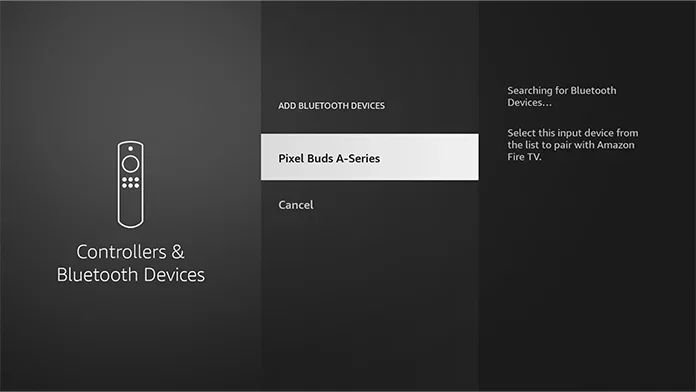
The Settings menu is your control center. On a Fire TV Edition TV, the Bluetooth option is usually under Display & Sounds. On a Fire TV Stick, it is under Controllers & Bluetooth Devices. The exact path can vary slightly. Look for any menu item that mentions Bluetooth. If you find it, your TV is ready to pair. If you cannot find it, the TV may not support Bluetooth natively. Do not panic. You still have options. A Bluetooth adapter can add the feature to almost any TV. Just make sure you have a free USB port or HDMI input available.
Using The Fire TV Remote To Search
Your Fire TV remote can help you check for Bluetooth. Press the Home button to go to the main screen. Navigate to the top menu and choose Settings. Scroll down to the Bluetooth section. If the menu shows “Bluetooth Devices” and a toggle, your TV supports Bluetooth. You can also use the remote to start a search. Select “Add a Bluetooth device” and see if it finds any nearby devices. If it does, your TV is Bluetooth-enabled. If nothing happens, the feature is missing. This is a quick and reliable test. It takes less than a minute to complete.
Checking The Model Number Online
If you do not have your TV in front of you, check the model number online. Find the model number on the back of the TV or in the user manual. Go to the manufacturer’s website or Amazon’s product page. Look for the technical specifications section. Search for “Bluetooth” in the list of features. If it says “Bluetooth 4.0” or higher, your TV has it. If Bluetooth is not listed, the TV does not include it. This method works for any smart TV brand. It is a foolproof way to confirm before you buy a Bluetooth accessory.
How To Connect Bluetooth Devices To Your Amazon Smart TV
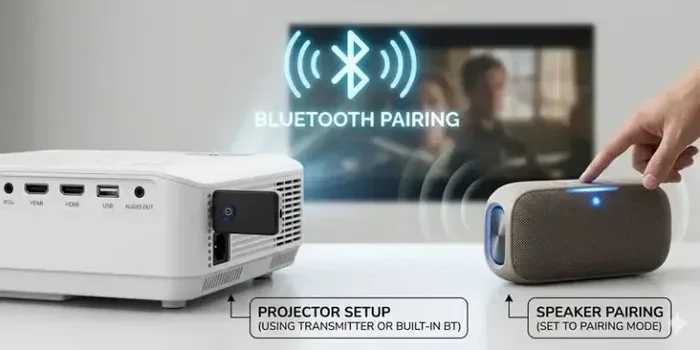
Connecting a Bluetooth device to your Amazon Smart TV is simple. First, make sure your headphones or speaker are in pairing mode. Most devices have a button that blinks when ready. On your Fire TV, go to Settings. Select Bluetooth Devices. Choose Add a Bluetooth device. Your TV will scan for nearby devices. When you see your headphone name, select it. Wait a few seconds for the connection. You will hear a confirmation sound. Now the audio plays through your headphones. Not all Bluetooth headphones work perfectly with every TV. For a list of compatible options, check out our guide on Can I Use Any Bluetooth Headphones With My TV. Some cheap headphones might have audio delay or dropouts. Use name-brand headphones for the best experience. To connect a Bluetooth speaker, follow the same steps. Put the speaker in pairing mode. Go to Settings > Bluetooth Devices on your TV. Select the speaker. The TV audio will now stream to the speaker. This is great for parties or filling a room with sound. You can also connect a Bluetooth game controller. Go to Settings > Controllers & Bluetooth Devices. Add a new controller. Follow the pairing instructions on the controller. This lets you play games wirelessly.
Pairing Bluetooth Headphones Step By Step
Pairing headphones is the most common use for Bluetooth on Amazon Smart TVs. Start by turning on your headphones and putting them in pairing mode. This usually means holding down the power button or a dedicated Bluetooth button. The indicator light will blink rapidly. On your Fire TV, go to Settings > Bluetooth Devices. The TV will begin scanning. After a few seconds, your headphone name should appear on the screen. Select it and wait for the connection. Once paired, the audio will automatically route to the headphones. You can adjust the volume using the TV remote or the headphone controls. If the headphones are already connected to another device, disconnect them first. Bluetooth can only connect to one source at a time. A Quick Tip: Keep your Bluetooth device close to the TV during pairing. Walls and furniture can block the signal. Once paired, you can move further away. Also, turn off other Bluetooth devices that are not in use. This reduces interference.
Connecting Bluetooth Speakers
Bluetooth speakers are a fantastic way to boost your TV audio. The process is the same as pairing headphones. Put your speaker in pairing mode. Go to Settings > Bluetooth Devices on your Fire TV. Select the speaker from the list. The TV will stream its audio to the speaker. You can now fill the room with rich sound. Bluetooth speakers are portable, so you can move them around the house. Some speakers support multi-point connection, allowing them to pair with two devices at once. This is handy if you want to switch between your TV and a phone. A Common Mistake: forgetting to put the speaker in pairing mode. If your TV does not find the device, check if it is blinking. If it is solid, it is already connected to something else. Unpair it first and try again.
Using A Bluetooth Game Controller
You can also connect a Bluetooth game controller to your Amazon Smart TV. This is perfect for playing games on Fire TV. Go to Settings > Controllers & Bluetooth Devices. Choose Add a new controller. Put your controller in pairing mode. The TV will find it and complete the connection. You can now play supported games without any wires. The controller will also work for navigating the Fire TV interface. A Quick Tip: Some controllers need to be charged. Keep them powered up for the best experience. If the controller disconnects during a game, check the battery level first.
Quick Tips For A Smooth Pairing Process
- Always put your Bluetooth device in pairing mode before searching.
- Keep the device within 3 feet of the TV during initial pairing.
- Turn off other nearby Bluetooth devices to reduce interference.
- Restart your Fire TV if the scan does not find any devices.
- Update your Fire TV software to the latest version.
- Use name-brand headphones or speakers for reliable performance.
Using A Bluetooth Adapter To Add Bluetooth To Amazon Smart TV
What if your Amazon Smart TV does not have Bluetooth? You are not stuck. A Bluetooth adapter can add this feature easily. A Bluetooth adapter is a small dongle that plugs into your TV’s USB port or HDMI port. It sends and receives Bluetooth signals. This turns any TV into a Bluetooth-enabled device. There are two main types. USB adapters work with Fire TV sticks that have a USB port. HDMI adapters plug directly into an HDMI input. Both types are affordable and simple to use. To set up a Bluetooth adapter, plug it into your TV. Go to the TV’s input source or USB settings. The adapter should power on. Then, on your Fire TV, go to Settings > Bluetooth Devices. The TV should detect the adapter as a Bluetooth device. Follow the pairing steps to connect your headphones. If you want a detailed walkthrough, read our article Can I Use A Bluetooth Adapter On My TV. You can also learn how to make your TV Bluetooth with an adapter in Can I Make My Tv Bluetooth With An Adapter. These guides explain which adapters work best.
What Is A Bluetooth Adapter?
A Bluetooth adapter is a tiny receiver that adds wireless capability to your TV. It acts as a bridge between your TV’s audio output and your Bluetooth headphones or speakers. Most adapters are plug-and-play. You do not need to install any software. The adapter creates its own Bluetooth radio. Your Fire TV sees it as a standard Bluetooth device. This is the easiest way to add Bluetooth to a TV that lacks it. Adapters cost between $10 and $30. They are a budget-friendly solution for private listening. A Quick Tip: Buy an adapter that supports Bluetooth 5.0 or higher. This gives you a longer range and better stability. Cheap adapters with old Bluetooth versions might cause audio lag.
How To Set Up A Bluetooth Adapter On Your Fire TV
Setting up a Bluetooth adapter is straightforward. First, plug the adapter into a free USB port or HDMI input on your TV. If using a USB adapter, make sure the port provides data power, not just charging. Some Fire TV Stick USB ports only provide power. In that case, use the HDMI adapter instead. Turn on your TV and switch to the correct input source. The adapter should power on automatically. Now, on your Fire TV, go to Settings > Bluetooth Devices. The TV will scan and find the adapter. Select it and follow the on-screen prompts to pair your headphones. The adapter will handle the Bluetooth connection. Your Fire TV does not need to know the difference. An Expert Insight: Some adapters come with their own remote control. This makes switching between TV audio and Bluetooth audio easy. You do not need to go into the TV settings every time.
When You Need An Adapter
You need a Bluetooth adapter if your TV does not have built-in Bluetooth. This is common with older smart TVs or TVs that use a Fire TV Stick instead of a Fire TV Edition. Even if your TV has Wi-Fi, it might not have a Bluetooth radio. The adapter solves this problem instantly. It is also useful if your TV’s Bluetooth is broken or outdated. Upgrading to a Bluetooth 5.0 adapter can improve your connection quality. A Common Mistake: plugging the adapter into a USB port that only provides power. Always check if the USB port supports data transfer. If you are unsure, use the HDMI adapter for guaranteed performance.
Best Bluetooth Headphones And Speakers For Amazon Smart TV
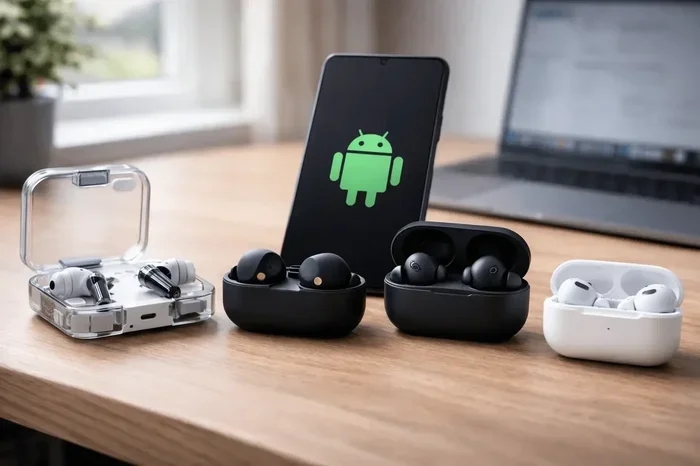
Not all Bluetooth audio devices are created equal. When you want to watch movies or play games, audio delay is the enemy. Look for headphones that advertise low latency or aptX codec support. These reduce the gap between video and audio. For headphones, over-ear models are comfortable for long viewing sessions. In-ear earbuds are portable but might fall out. For speakers, portable Bluetooth speakers with a 3.5mm input are versatile. You can also use smart speakers like Amazon Echo as a speaker. Did you know you can use Alexa as a Bluetooth speaker? Check out Can I Use Alexa As A Bluetooth Speaker for details. The Amazon Echo Dot can stream your Fire TV audio wirelessly. This is handy if you want sound in another room. When choosing a speaker, look for ones with a clear dialogue mode. This makes voices stand out during movies. A Quick Tip: Test the latency before you buy. Many online retailers have return policies. Buy from a store that allows easy returns. If the audio lags, you can send it back.
What To Look For In Bluetooth Audio Devices
The most important spec is low latency. This means the audio stays in sync with the video. Look for headphones that support the aptX Low Latency codec. Standard Bluetooth headphones may have a delay of 100 to 200 milliseconds. This causes the audio to lag behind the picture. Low-latency codecs reduce this to under 40 milliseconds. You will not notice the delay. Battery life is also important. Choose headphones with at least 10 hours of playtime. This ensures they last through a long movie night. Comfort matters too. Over-ear headphones with soft cushions are best for extended wear. Weight is a factor. Light headphones are less tiring. A Common Mistake: buying the cheapest Bluetooth headphones. They often have poor range and high latency. Spend a little more for a reliable brand like Sony, JBL, or Anker. Your viewing experience will improve dramatically.
Top Picks For Low Latency Headphones
Several headphones stand out for Amazon Smart TV use. The Sony WH-1000XM4 offers excellent noise cancellation and low latency. The JBL Live 660NC is a lighter, more affordable option with good sync. For budget buyers, the Anker Soundcore Life Q30 provides solid performance. All of these support Bluetooth 5.0 and aptX codecs. They connect easily to Fire TV devices. The key is to look for the aptX Low Latency label on the box. This guarantees a smooth audio-video experience. A Quick Tip: If you wear glasses, choose headphones with soft ear cushions. They reduce pressure and provide a better seal for sound isolation.
Speakers That Work Great With Fire TV
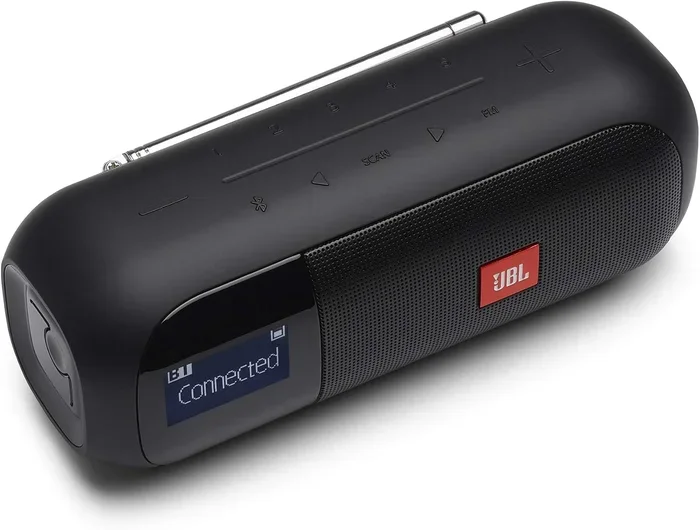
Bluetooth speakers are perfect for filling a room with sound. The JBL Flip 5 is a popular choice. It is waterproof, portable, and delivers clear audio. The Amazon Echo Dot can also act as a Bluetooth speaker. It connects directly to your Fire TV. The Echo Dot 4th generation has excellent sound for its size. For larger rooms, the Echo Studio provides rich, room-filling bass. All these speakers pair with Amazon Smart TVs in seconds. A Common Mistake: placing the speaker too far from the TV. Bluetooth range is about 30 feet in open space. Walls and furniture reduce this. Keep the speaker in the same room as the TV for the best connection.
Troubleshooting Bluetooth Problems On Your Amazon Smart TV
Sometimes Bluetooth does not work perfectly. Audio delay is a common issue. The video plays, but the sound arrives a split second later. This ruins the experience. To fix this, check if your headphones support low-latency codecs. If not, try moving closer to the TV. Walls cause signal loss. Another fix is to reduce the number of connected Bluetooth devices. Too many devices can cause interference. If your device won’t pair, make sure it is in discovery mode. Turn it off and on again. On your Fire TV, remove the device from the Bluetooth list and try again. Interference from Wi-Fi routers can also cause dropouts. Move your router away from the TV or use the 5GHz band. A Quick Tip: Restart both your Fire TV and the Bluetooth device. This clears temporary glitches. Unplug the Fire TV for 30 seconds. Plug it back in. Then try pairing again. If nothing works, factory reset the Bluetooth settings. Go to Settings > Bluetooth Devices. Select the device and choose Forget. Then pair from scratch.
Audio Delay Or Lip Sync Issues
Audio delay is the most frustrating Bluetooth problem. The dialogue does not match the lip movements. This happens because standard Bluetooth adds a small processing delay. To reduce this, enable any low-latency mode on your headphones. Some headphones have a dedicated low-latency switch. If yours does not, move the headphones closer to the TV. The signal strength affects the delay. A weaker signal means more processing time. You can also try changing the audio output format on your Fire TV. Go to Settings > Display & Sounds > Audio > Audio Output Format. Switching from PCM to Bitstream (Do Not Pass Through) can sometimes help. An Expert Insight: Bluetooth audio delay is a physical limitation of the technology. Even the best codecs have some lag. If you need perfect sync, use a wired connection or a low-latency wireless transmitter designed for TVs.
Device Won’t Pair
If your device refuses to pair, do not panic. First, make sure the Bluetooth device is in pairing mode. The indicator light should blink rapidly. If it is solid, it is already connected to another device. Turn it off and on again. On your Fire TV, go to Settings > Bluetooth Devices. Find the device in the list and select Forget Device. Now try pairing again from scratch. Sometimes the TV’s Bluetooth cache gets stuck. Restarting the Fire TV clears this. Unplug the power cord for 30 seconds. Plug it back in. Wait for the home screen to appear. Then try the pairing process again. A Common Mistake: trying to pair too many devices at once. Fire TV supports a limited number of paired devices. Delete old, unused pairings to free up space.
Interference From Other Devices
Bluetooth uses the 2.4GHz radio band. This band is crowded with Wi-Fi networks, microwaves, and other wireless devices. Interference can cause dropouts or stuttering audio. To fix this, move your Fire TV and Bluetooth device away from the router. If possible, switch your Wi-Fi to the 5GHz band. This keeps the 2.4GHz band less crowded. You can also change the channel on your router. A Quick Tip: Bluetooth adapters with external antennas have better range and less interference. If you use an adapter, place it near the TV with a clear line of sight to your headphones.
Resetting The Bluetooth Connection
A full reset often solves stubborn Bluetooth problems. On your Fire TV, go to Settings > Bluetooth Devices. Select the problematic device and choose Forget. This removes the pairing completely. Now put your Bluetooth device back in pairing mode. Go to Settings > Bluetooth Devices > Add a Bluetooth device. Let the TV scan and select the device again. This fresh pairing usually works. If the problem persists, restart your Fire TV and the Bluetooth device. A Common Mistake: ignoring firmware updates. Your Fire TV and Bluetooth devices need the latest software. Check for updates in Settings > My Fire TV > About > Check for Updates. An Expert Insight: Some Bluetooth adapters have a firmware update tool. Use the manufacturer’s app to keep them current. This solves many connection issues.
Final Thoughts On Amazon Smart TV Bluetooth
Does Amazon Smart Tv Have Bluetooth? Yes, many models do, and it is a fantastic feature for wireless listening. Whether your TV has built-in Bluetooth or you add an adapter, you can enjoy private, tangle-free audio. The process is simple: check for Bluetooth in settings, pair your device, and start watching. If you run into problems, the troubleshooting tips above will help you fix them quickly. Invest in low-latency headphones for the best experience. Use a Bluetooth adapter if your TV lacks the feature. Keep your devices updated and your connections strong. With these steps, you will master Bluetooth on your Amazon Smart TV. Now sit back, relax, and enjoy your favorite shows without disturbing anyone else in the house.
Frequently Asked Questions
Can I use any Bluetooth headphones with my Amazon Smart TV?
Most Bluetooth headphones work with Amazon Smart TVs, but compatibility can vary. Look for headphones that support the AVRCP profile for basic controls. Low-latency headphones provide the best experience for watching videos. Always check the headphone manual for Bluetooth compatibility details.
How do I know if my Fire TV Stick has Bluetooth?
Go to Settings > Controllers & Bluetooth Devices on your Fire TV Stick. If you see an option to add a Bluetooth device, your Stick supports Bluetooth. The Fire TV Stick 4K Max and newer models include Bluetooth built in.
Why is there a delay between the video and audio when using Bluetooth?
Bluetooth adds a small processing delay, which is normal. Standard Bluetooth headphones can lag by 100 to 200 milliseconds. Using low-latency headphones with aptX support reduces this delay significantly. Moving closer to the TV can also help minimize the lag.
Can I connect multiple Bluetooth headphones to my Amazon Smart TV?
Most Fire TV devices only support one Bluetooth audio output at a time. You cannot connect multiple headphones directly to the TV. However, you can use a Bluetooth transmitter that supports multi-point connections to share audio with several headphones.
Does a Bluetooth adapter work with all Amazon Smart TVs?
A Bluetooth adapter works with almost any TV that has a USB port or HDMI input. Make sure the USB port provides data power, not just charging. HDMI adapters are the most reliable option for adding Bluetooth to any TV.
Can I use my Amazon Echo as a Bluetooth speaker for my Fire TV?
Yes, you can use an Amazon Echo as a Bluetooth speaker. Go to the Alexa app, select your Echo, and enable the Bluetooth speaker mode. Then pair it with your Fire TV. This streams your TV audio wirelessly to the Echo in another room.