Does My LG Smart TV Have Bluetooth Capability Guide
Does My LG Smart TV Have Bluetooth Capability? Many LG Smart TVs do include built-in Bluetooth, but it depends on the model and year. You can check your TV’s settings, use the LG ThinQ app, or connect a Bluetooth adapter if your TV lacks native support. This guide walks you through everything you need to know about LG Smart TV Bluetooth pairing, troubleshooting, and alternatives.
You just settled on the couch with your favorite snack. The movie is about to start. But then it hits you — you want to listen with headphones, not speakers. Or maybe you want to connect a Bluetooth speaker for a better sound experience. The big question is: does your LG Smart TV even support Bluetooth?
This is a common question that many LG TV owners ask. The answer is not always straightforward. Some LG Smart TVs come with Bluetooth capability built right in. Others do not. And some need a little help from an external device. In this guide, we will walk you through everything you need to know about LG Smart TV Bluetooth support.
We will cover how to check if your TV has Bluetooth, how to pair devices, what to do if it does not, and plenty of practical tips along the way. Whether you want to connect Bluetooth headphones, a wireless speaker, or a soundbar, this guide has you covered. Let us dive in.
Key Takeaways
- Built-in Bluetooth: Most modern LG Smart TVs come with Bluetooth, but older or budget models may not.
- Check Your Model: You can verify Bluetooth support through TV settings, the LG ThinQ app, or the LG website.
- Pairing Is Easy: Once confirmed, pairing headphones or speakers takes just a few steps.
- Bluetooth Adapters Work: If your TV lacks Bluetooth, a Bluetooth adapter is an affordable fix.
- Wireless Audio Matters: Bluetooth lets you enjoy wireless audio without disturbing others in your home.
- Range and Latency: Understanding Bluetooth range and potential audio delay helps you get the best experience.
📑 Table of Contents
- How to Check If Your LG Smart TV Has Bluetooth
- Which LG Smart TV Models Have Bluetooth?
- How to Pair Bluetooth Devices With Your LG Smart TV
- What If Your LG TV Does Not Have Bluetooth?
- Tips for the Best Bluetooth Experience on Your LG TV
- Common Bluetooth Issues and How to Fix Them
- Benefits of Bluetooth on Your LG Smart TV
- Bluetooth vs. Wired Connections: Which Is Better?
- Final Thoughts
How to Check If Your LG Smart TV Has Bluetooth
The first step is figuring out whether your TV supports Bluetooth. There are a few simple ways to do this. You do not need to be a tech expert. Anyone can follow these steps.
Method 1: Check the TV Settings Menu
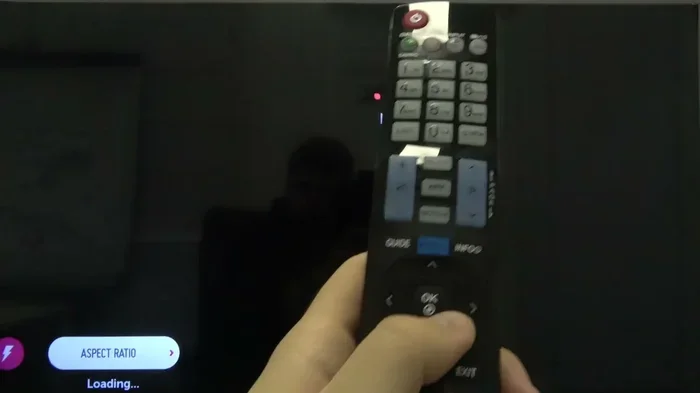
Turn on your LG Smart TV. Grab your remote and follow these steps:
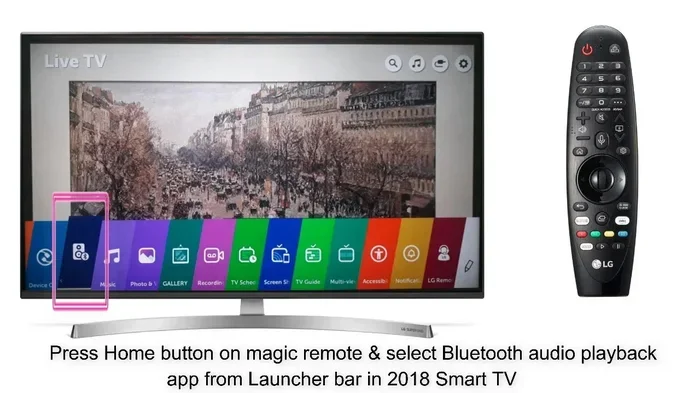
- Press the Home button on your remote.
- Navigate to Settings. It usually looks like a gear icon.
- Look for a section called Sound or All Settings.
- Inside Sound settings, look for Bluetooth or Sound Out.
- If you see a Bluetooth option, your TV has Bluetooth capability.
This is the easiest and fastest way to check. If your TV shows a Bluetooth menu, you are good to go. You can start pairing devices right away.
Method 2: Use the LG ThinQ App
The LG ThinQ app is a free app that lets you control your LG TV from your phone. Here is how to use it to check for Bluetooth:
- Download the LG ThinQ app on your phone.
- Make sure your phone and TV are on the same Wi-Fi network.
- Open the app and select your TV.
- Go to Settings or Device Preferences.
- Look for a Bluetooth option.
If the app shows Bluetooth settings, your TV supports it. This method works great if you do not want to dig through the TV menu.
Method 3: Check the LG Website
You can also visit the LG website and look up your TV model. Go to the LG support page and enter your model number. The product specifications will list whether Bluetooth is supported. This is a reliable method if you have your model number handy.
Which LG Smart TV Models Have Bluetooth?
Not all LG Smart TVs are created equal when it comes to Bluetooth compatibility. Here is a general breakdown of what to expect.
Newer Models (2020 and Later)
Most LG Smart TVs from 2020 onward include built-in Bluetooth. This includes popular series like:
- LG OLED models — These premium TVs almost always have Bluetooth.
- LG NanoCell models — These also support Bluetooth in most cases.
- LG UHD models — Many mid-range UHD TVs from recent years include Bluetooth.
- LG webOS models — The webOS platform on newer TVs typically supports Bluetooth.
If you bought your LG TV in the last few years, there is a very good chance it has Bluetooth. Check your settings to be sure.
Older Models (Pre-2020)
Older LG Smart TVs may or may not have Bluetooth. Some models from around 2018 and earlier include it, but many do not. Budget models from any era are less likely to have Bluetooth capability. If you own an older LG TV, do not worry. There are still ways to add Bluetooth, which we will cover later in this guide.
Budget and Entry-Level Models
Budget LG TVs sometimes skip Bluetooth to keep costs low. These models may only have Wi-Fi and USB connections. If you own a budget model, check the settings first. If Bluetooth is missing, a Bluetooth adapter will be your best friend.
How to Pair Bluetooth Devices With Your LG Smart TV
So your LG Smart TV has Bluetooth. Great! Now what? Pairing a device is simple once you know the steps. Here is how to do it for the most common devices.
Pairing Bluetooth Headphones
Want to watch movies late at night without waking anyone? Bluetooth headphones are a game-changer. Here is how to pair them:
- Turn on your Bluetooth headphones and put them in pairing mode.
- On your LG TV, go to Settings > Sound > Sound Out.
- Select Bluetooth Speaker List.
- Your TV will search for nearby devices.
- When your headphones appear, select them.
- The TV will connect. You should hear a confirmation sound.
That is it. You are now listening through your headphones. Most LG TVs remember paired devices, so you will not need to repeat this process every time.
Pairing a Bluetooth Speaker
Want louder, richer sound? A Bluetooth speaker can boost your TV audio. The pairing process is the same as headphones:
- Put your speaker in pairing mode.
- Go to Settings > Sound > Bluetooth Speaker List on your TV.
- Select your speaker from the list.
- Wait for the connection to complete.
Keep in mind that the sound quality depends on your speaker. A quality Bluetooth speaker will sound much better than a cheap one.
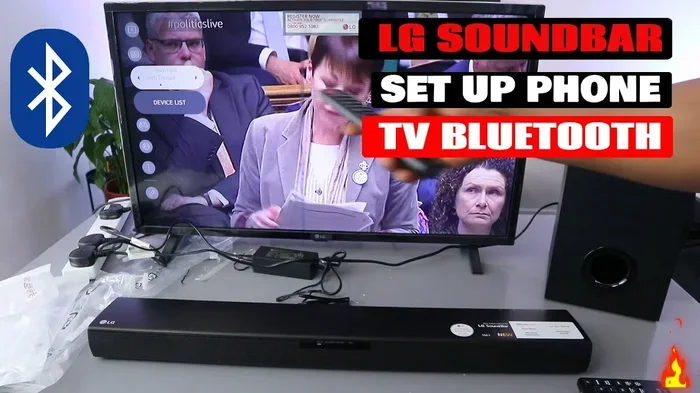
Pairing a Soundbar
Many LG owners use a Bluetooth soundbar for better audio. The process is similar:
- Put your soundbar in pairing mode.
- Go to your TV Bluetooth settings.
- Select the soundbar from the device list.
- Test the audio by playing a video.
Some soundbars connect via HDMI or optical cable instead. Bluetooth is a convenient option, but a wired connection may offer better audio quality and less Bluetooth latency.
What If Your LG TV Does Not Have Bluetooth?
Not every LG Smart TV has built-in Bluetooth. That does not mean you are out of luck. There are simple and affordable ways to add Bluetooth capability to any TV.
Option 1: Use a Bluetooth Adapter
A Bluetooth adapter is a small device that plugs into your TV and adds Bluetooth support. It is one of the easiest solutions. Here is what to look for:
- Make sure the adapter is compatible with your TV.
- Choose one with a 3.5mm audio output or RCA connection.
- Plug the adapter into your TV’s audio output.
- Pair your Bluetooth device with the adapter.
Bluetooth adapters cost between $15 and $50. They are a great budget-friendly option. You can learn more about using adapters with TVs in our guide on Can I Use a Bluetooth Adapter on My TV.
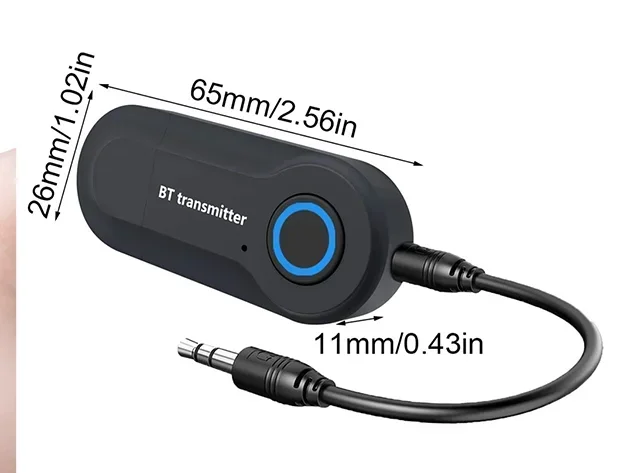
Option 2: Use a Bluetooth Transmitter
A Bluetooth transmitter works similarly to an adapter but often offers better range and audio quality. These devices connect to your TV’s audio output and transmit Bluetooth signals. They are especially useful if you want to connect Bluetooth headphones for late-night watching.
Option 3: Use a Streaming Device
Some streaming devices like Roku or Chromecast support Bluetooth audio output. You can connect these devices to your TV and use them to stream audio to your Bluetooth headphones or speakers. This is a less common solution but worth considering if you already own one of these devices.
For a deeper dive into making any TV Bluetooth-capable, check out our article on Can I Make My TV Bluetooth With an Adapter.
Tips for the Best Bluetooth Experience on Your LG TV
Bluetooth technology has come a long way, but it still has some quirks. Here are some practical tips to get the best experience when using Bluetooth with your LG Smart TV.
Keep Devices Close
Bluetooth works best within about 30 feet of your TV. If your headphones or speaker is too far away, you may experience connection drops or audio lag. Keep your Bluetooth device in the same room as your TV for the best results.
Minimize Interference
Other wireless devices can interfere with your Bluetooth signal. Wi-Fi routers, microwaves, and even other Bluetooth devices can cause issues. If you experience problems, try moving away from other wireless devices.
Update Your TV Software
LG regularly releases software updates for its Smart TVs. These updates often improve Bluetooth performance and fix bugs. Make sure your TV is running the latest software version. You can check for updates in Settings > All Settings > Support > Software Update.
Watch for Audio Lag
One common issue with Bluetooth audio is a slight delay between the video and the sound. This is called latency. It is usually not a big problem for watching movies or shows. But it can be noticeable during gaming or fast-paced content. If latency bothers you, try using a wired connection or look for a Bluetooth transmitter with low-latency support.
Use the Right Audio Settings
Your LG TV has audio settings that can affect Bluetooth performance. Go to Settings > Sound > Sound Out and make sure Bluetooth is selected as the audio output. You can also adjust the equalizer settings to improve sound quality through your Bluetooth device.
Disconnect When Not in Use
If you are not using Bluetooth, turn it off on your TV. This saves power and reduces the chance of unwanted connections. You can turn Bluetooth off in your TV settings whenever you are done using it.
Common Bluetooth Issues and How to Fix Them
Even with the best setup, you may run into some Bluetooth hiccups. Here are the most common problems and how to solve them.
Device Not Showing Up in the List
If your Bluetooth device does not appear in the TV’s device list, try these steps:
- Make sure your device is in pairing mode.
- Turn Bluetooth off and back on your TV.
- Restart your TV and the Bluetooth device.
- Move the device closer to the TV.
Audio Keeps Cutting Out
If your audio keeps cutting out, it is usually a range or interference issue. Try moving closer to the TV. Also, make sure nothing is blocking the signal between the devices.
Paired but No Sound
If your device connects but you hear no sound, check the audio output setting on your TV. Make sure Bluetooth is selected as the sound output. Also check the volume on both the TV and the Bluetooth device.
Connection Drops Frequently
Frequent disconnections can be frustrating. This often happens with older Bluetooth versions. If possible, use devices that support Bluetooth 5.0 or higher. These offer a more stable connection and better range.
Benefits of Bluetooth on Your LG Smart TV
Having Bluetooth capability on your LG Smart TV opens up a lot of possibilities. Here are some of the best benefits:
- Private Listening: Watch movies or shows late at night with headphones. No one else has to hear the audio.
- Better Sound Quality: Connect a quality Bluetooth speaker or soundbar for richer, more immersive audio.
- Wireless Freedom: Move around your room without being tethered to your TV by cables.
- Easy Setup: Pairing a Bluetooth device takes just a few minutes. No cables or complicated setup needed.
- Multiple Devices: You can pair multiple devices and switch between them easily.
- No Extra Apps: Unlike some smart TV features, Bluetooth works directly through your TV settings.
Bluetooth is one of the most useful features on any modern Smart TV. It makes your viewing experience more flexible and enjoyable. Whether you are a late-night movie watcher, a gamer, or someone who wants better sound, Bluetooth on your LG Smart TV delivers.
Bluetooth vs. Wired Connections: Which Is Better?
Both Bluetooth and wired connections have their pros and cons. Here is a quick comparison to help you decide.
| Feature | Bluetooth | Wired (HDMI/Optical) |
|---|---|---|
| Convenience | Very convenient, no cables | Requires cables and extra setup |
| Audio Quality | Good, but can vary | Excellent, consistent quality |
| Range | Up to 30 feet | Limited by cable length |
| Latency | Slight delay possible | No delay |
| Setup | Quick and easy | More steps involved |
| Cost | No extra cost if built-in | Cables may cost extra |
For most people, Bluetooth is the go-to choice for everyday TV watching. But if you are an audiophile or a serious gamer, a wired connection may be the better option. You can also use both at the same time in some setups.
Final Thoughts
So, does your LG Smart TV have Bluetooth capability? The answer is most likely yes, especially if you own a model from 2020 or later. Check your TV settings to confirm. If your TV does not have Bluetooth, a Bluetooth adapter or transmitter is an affordable and easy solution.
Bluetooth makes your LG Smart TV more versatile and enjoyable. You can listen privately, upgrade your sound, and connect wirelessly with just a few taps. It is one of those features that you will wonder how you lived without once you start using it.
Take a few minutes today to check your TV’s Bluetooth settings. Pair your favorite headphones or speaker. You will be glad you did. And if you run into any issues, just refer back to this guide. We have covered all the common problems and their solutions.
Enjoy your wireless audio experience on your LG Smart TV. Happy watching!