Does Nintendo Switch Support USB Controllers Find Out Now
Yes, the Nintendo Switch supports USB controllers in multiple ways, including wired USB connections, USB adapters, and compatible third-party gamepads. Whether you prefer the official Switch Pro Controller or want to use a wireless USB adapter, this guide covers everything you need to know about Nintendo Switch USB controller support and how to set them up for the best gaming experience.
If you love gaming on your Nintendo Switch, you have probably wondered whether you can use a USB controller instead of the default Joy-Cons. Maybe you want better comfort during long gaming sessions, or perhaps you prefer the feel of a traditional gamepad. Whatever your reason, the good news is that the answer is more flexible than you might think.
The Nintendo Switch does support USB controllers, and there are several ways to connect them. You can plug controllers in directly through the dock, use a USB-C to USB-A adapter, or even connect wireless controllers with a USB wireless adapter. In this guide, we will walk through every option, share practical tips, and help you find the best setup for your needs.
Whether you are a casual player or someone who takes competitive gaming seriously, understanding your controller options can make a huge difference. Let us dive into everything you need to know about Nintendo Switch USB controller support.
Key Takeaways
- Full USB Support: The Nintendo Switch supports USB controllers through its dock, USB-C port, and USB adapters for wired and wireless setups.
- Official Pro Controller Works: The Switch Pro Controller connects via Bluetooth but charges through USB-C and is fully supported.
- Third-Party Controllers Work Too: Many aftermarket USB controllers are compatible, though some may need extra setup steps.
- Wired USB Controllers Offer Low Latency: Plugging in a controller directly reduces input lag for competitive gaming.
- USB Hubs Expand Options: You can use a USB hub to connect multiple controllers or accessories at once.
- Check Compatibility First: Not all USB controllers work flawlessly, so always verify support before purchasing.
📑 Table of Contents
- Does Nintendo Switch Support USB Controllers
- Types of USB Controllers You Can Use
- How to Connect a USB Controller to the Nintendo Switch
- Best USB Controllers for the Nintendo Switch
- Common Issues and How to Fix Them
- Tips for Getting the Best USB Controller Experience
- Comparing USB Controllers vs. Joy-Cons
- Can You Use USB Controllers in Handheld Mode
- Expert Insights on Nintendo Switch USB Controllers
- Final Thoughts
Does Nintendo Switch Support USB Controllers
The short answer is yes. The Nintendo Switch fully supports USB controllers in several configurations. Nintendo designed the console with flexibility in mind, so you are not limited to just the Joy-Con controllers that come in the box.
When you dock your Switch and connect it to a TV, you gain access to the USB ports on the dock. These ports open up a world of controller possibilities. You can plug in wired USB controllers, use USB adapters for wireless ones, or even connect multiple controllers for local multiplayer sessions.
The Switch also has a USB-C port on the underside of the console itself. While this port primarily serves charging purposes, it can work with certain USB accessories when the console is in handheld mode or docked. This gives you even more flexibility for your USB controller setup.
How USB Controller Support Works on the Switch
Nintendo built the Switch operating system to recognize a wide range of USB input devices. When you plug a compatible controller into the dock or use an adapter, the system detects it almost instantly. You do not need to install drivers or perform complicated setup steps in most cases.
The Switch supports standard USB input protocols, which means most controllers that follow these protocols will work. This includes Xbox-style controllers, PlayStation-style controllers, and many generic USB gamepads. The system is designed to be user-friendly, so even people who are not tech-savvy can get started quickly.
One thing to keep in mind is that the Switch uses a specific driver profile for most USB controllers. This means that while a controller may physically connect, some buttons or features might not map perfectly. We will cover how to troubleshoot these issues later in this guide.
Types of USB Controllers You Can Use
Not all USB controllers are created equal. The Nintendo Switch works with several different types, and each has its own advantages. Let us break down the main categories so you can decide which one fits your style.
Wired USB Controllers
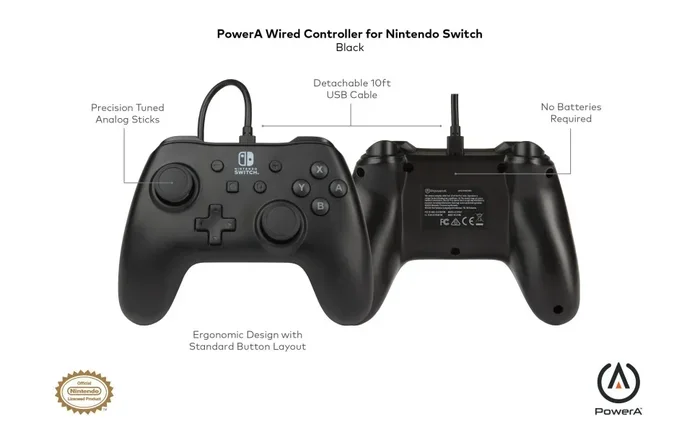
Wired USB controllers connect directly to the Switch dock through a standard USB cable. These controllers offer the lowest input lag, which makes them ideal for competitive or fast-paced games. Since there is no wireless signal involved, you get a rock-solid connection every time.
Some popular wired USB controller options include generic USB gamepads and certain arcade-style stick controllers. These work great for fighting games, retro emulation, and any game where precision matters. The main downside is the cable, which limits your range of movement.
Wireless USB Controllers with Adapters
Many wireless controllers come with a small USB receiver, also called a dongle. You plug this receiver into the Switch dock, and the controller communicates through it. This gives you the freedom of wireless play without sacrificing the stability of a wired connection.
Some 2.4 GHz wireless controllers use this approach and work well with the Switch. Brands like 8BitDo and PowerA offer wireless adapters that are compatible with the console. Just make sure the adapter uses a standard USB connection that fits the dock.
Bluetooth Controllers (USB-C Charging)
While Bluetooth controllers do not use a USB data connection, they often charge through USB-C. The official Nintendo Switch Pro Controller is a great example of this. It connects wirelessly via Bluetooth but uses a USB-C cable for charging.
Many third-party Bluetooth controllers follow the same pattern. They pair with the Switch over Bluetooth and charge through a USB-C cable. These are convenient because you do not need to keep them plugged in during gameplay, and you can use them wirelessly just like the Pro Controller.
How to Connect a USB Controller to the Nintendo Switch
Setting up a USB controller on your Switch is straightforward. Here is a step-by-step guide that works for most controllers.
Step-by-Step Connection Guide
- Dock your Nintendo Switch and make sure it is connected to your TV.
- Locate the USB ports on the top of the dock. You will usually find at least two ports.
- Plug your USB controller directly into one of the dock ports using a compatible cable.
- Wait a few seconds for the Switch to recognize the controller. You should see a player indicator light up on the screen.
- Open a game and test the controller inputs to make sure everything works correctly.
If you are using a wireless USB adapter, plug the adapter into the dock first, then turn on your controller and pair it following the manufacturer’s instructions. The process is similar to connecting a controller to a PC.
Using a USB Hub for Multiple Controllers
Want to connect more than one controller? A small USB hub is a great solution. You can plug the hub into one dock port and then connect multiple controllers to the hub. This works well for local multiplayer games where each player needs their own controller.
Just make sure you use a powered USB hub if you are connecting several devices at once. The Switch dock may not provide enough power through a single port for multiple high-draw accessories. A self-powered hub solves this problem easily.
Best USB Controllers for the Nintendo Switch
Not all controllers work equally well with the Switch. Here are some of the best options that offer reliable USB support and great performance.
Nintendo Switch Pro Controller
The official Pro Controller is the gold standard for Switch gaming. It features a comfortable design, excellent battery life, and precise analog sticks. While it connects via Bluetooth, it charges through USB-C and is fully supported by the console.
If you want the most seamless experience, the Pro Controller is hard to beat. It works out of the box with every game, and the build quality is top-notch. The only downside is the price, but most players feel it is worth it.
8BitDo Ultimate Controller
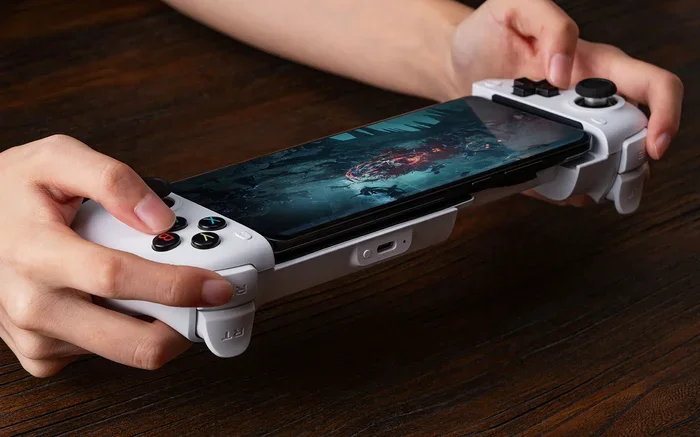
The 8BitDo Ultimate Controller is a popular third-party option that works beautifully with the Switch. It supports both wired USB and wireless connections and offers customizable button mapping. Many players love it for retro gaming and indie titles.
Generic USB Gamepads
If you are on a budget, generic USB gamepads can be a solid choice. Look for controllers that follow standard USB HID protocols, as these are the most likely to work without issues. You can find affordable options that perform surprisingly well for casual gaming.
Common Issues and How to Fix Them
While most USB controllers work smoothly with the Switch, you might run into occasional issues. Here are the most common problems and how to solve them.
Controller Not Recognized
If your controller does not show up when you plug it in, try a different USB cable or port. Some cables are charge-only and do not support data transfer. A data-capable USB cable is essential for wired controllers to work properly.
You can also try unplugging and replugging the controller, or restarting the Switch entirely. Sometimes a simple reboot fixes detection issues right away.
Button Mapping Problems
Some controllers may have buttons that do not map correctly. This happens because the Switch expects a specific button layout. In most cases, you can remap buttons within the game settings or use the Switch’s built-in controller configuration options.
For more advanced remapping, consider using a controller that comes with its own software. Many modern controllers allow you to customize button layouts through a companion app on your phone or computer.
Input Lag or Delay
If you notice a delay between pressing a button and seeing the action on screen, first check your connection type. Wired USB controllers should have virtually no input lag. If you are using a wireless adapter, make sure it is plugged directly into the dock and not through a long extension cable.
Interference from other wireless devices can also cause lag. Try moving your Switch closer to the controller or away from other wireless electronics to see if that helps.
Tips for Getting the Best USB Controller Experience
Want to squeeze every bit of performance out of your USB controller setup? Here are some expert tips that make a real difference.
- Use short, high-quality USB cables. Longer cables can introduce signal degradation and slightly higher latency.
- Keep your controller firmware updated. Check the manufacturer’s website for firmware updates that improve compatibility and fix bugs.
- Test your controller in multiple games. Some games handle controller input differently, so testing across titles helps you identify any quirks.
- Invest in a good USB hub. A quality hub ensures stable connections when using multiple controllers or accessories at the same time.
- Consider your gaming setup. If you play on a TV, a wired USB connection gives you the most responsive experience. For handheld mode, Bluetooth controllers are more convenient.
These small adjustments can significantly improve your gaming experience. Taking a few minutes to optimize your setup pays off in smoother, more enjoyable gameplay.
Comparing USB Controllers vs. Joy-Cons
It is worth comparing USB controllers to the Joy-Cons that come with your Switch. Each has its strengths and weaknesses, and the right choice depends on your preferences.
| Feature | USB Controllers | Joy-Cons |
|---|---|---|
| Connection Type | Wired USB or USB adapter | Bluetooth wireless |
| Input Lag | Very low (wired) | Low (wireless) |
| Comfort | Full-size grips, comfortable | Small, can cause hand fatigue |
| Multiplayer | Great for local play | Built-in but limited |
| Price | Varies widely | Included with console |
| Versatility | Works on PC and Switch | Switch only |
As you can see, USB controllers offer clear advantages for comfort and input responsiveness. Joy-Cons are convenient because they come included, but many players find them too small for extended play sessions. Using a USB controller is a great upgrade if you play frequently.
Can You Use USB Controllers in Handheld Mode
This is a common question, and the answer is a bit nuanced. The Nintendo Switch does not have a standard USB-A port on the console itself. The USB-C port on the bottom is primarily for charging.
However, you can use a USB-C to USB-A adapter or a USB-C compatible controller to play in handheld mode. Some controllers connect directly through the USB-C port, while others need an adapter. Always check the controller’s specifications to confirm handheld mode compatibility.
For a seamless handheld experience, Bluetooth controllers are often the easier choice. They pair directly with the Switch without needing any extra cables or adapters. But if you prefer the reliability of a wired connection, a USB-C adapter can work well too.
Expert Insights on Nintendo Switch USB Controllers
From a technical standpoint, the Nintendo Switch is quite capable when it comes to USB controller support. The console uses a Linux-based operating system that handles USB HID (Human Interface Device) class controllers natively. This means most standard USB gamepads should work without any special software.
However, Nintendo does implement some restrictions to ensure a consistent gaming experience. For example, some games may not recognize certain third-party controllers, or they might limit the number of simultaneous USB inputs. These limitations are usually game-specific rather than system-wide.
If you run into a game that does not recognize your USB controller, try switching to a different USB port on the dock or using a different cable. Sometimes the issue is as simple as a faulty connection. In most cases, the problem is temporary and easy to resolve.
Final Thoughts
The Nintendo Switch offers excellent support for USB controllers, giving you plenty of options to customize your gaming setup. Whether you go with the official Pro Controller, a third-party wired gamepad, or a wireless controller with a USB adapter, you will find a solution that fits your needs and budget.
The key is to choose a controller that matches your playstyle. If you value low latency and reliability, a wired USB controller is hard to beat. If you prefer freedom of movement, a wireless option with a USB adapter or Bluetooth connectivity gives you the best of both worlds.
Take some time to explore your options, test different setups, and find what works best for you. With the right USB controller, your Nintendo Switch gaming sessions will feel more comfortable, responsive, and enjoyable than ever before.
And if you are curious about other Switch accessories or connectivity options, check out our guide on Can I Pair My Airpods To My Switch for tips on connecting wireless devices to your console. You can also learn more about connecting USB devices across systems in our article on Can I Connect A USB Device To 2 Computers, which covers USB connectivity tips that apply to many devices. For those wondering about USB cable types, our guide on Can I Connect USB C To USB A explains everything you need to know about USB adapters and cables.
Frequently Asked Questions
Can I Use Any USB Controller With the Nintendo Switch?
Most USB controllers that follow standard USB HID protocols will work with the Switch. However, some third-party controllers may have limited button mapping or compatibility issues. Always check the controller’s specifications before buying to ensure Switch support.
Do I Need an Adapter to Use a USB Controller on the Switch?
It depends on the controller type. Wired USB controllers plug directly into the Switch dock without any adapter. Wireless controllers with a USB receiver need the receiver plugged into the dock. Bluetooth controllers pair wirelessly and do not need an adapter for connectivity.
Can I Connect Multiple USB Controllers at Once?
Yes, you can connect multiple USB controllers simultaneously. Using a powered USB hub is the best way to connect several controllers at once. The Switch dock has multiple USB ports, but a hub gives you more flexibility and stable power delivery.
Are Wired USB Controllers Better Than Wireless for the Switch?
Wired USB controllers generally offer lower input lag and more stable connections. They are ideal for competitive gaming and fast-paced titles. Wireless controllers provide more freedom of movement and are better suited for casual or handheld play.
Can I Use a USB Controller in Handheld Mode on the Switch?
Yes, but it requires a USB-C adapter or a controller that connects directly through the USB-C port on the Switch. Some USB-C compatible controllers work in handheld mode without any adapter. Bluetooth controllers are often the easiest option for handheld play.
Why Is My USB Controller Not Working on the Nintendo Switch?
Common reasons include using a charge-only cable instead of a data cable, plugging into the wrong port, or controller incompatibility. Try a different cable, a different dock port, or restart the Switch. If the issue persists, check the controller’s compatibility with the Switch.
=== CONCLUSION ===
The Nintendo Switch definitely supports USB controllers, and the options are more varied than most people realize. From the official Switch Pro Controller to affordable generic USB gamepads, you have plenty of choices to enhance your gaming experience. Wired USB controllers deliver the lowest input lag, while wireless options with USB adapters give you flexibility and convenience.
Setting up a USB controller on your Switch is quick and easy. Whether you are docking the console for TV play or using it in handheld mode, there is a controller solution that fits your needs. Just remember to check compatibility, use quality cables, and keep your firmware updated for the best results.
With the right USB controller, your Nintendo Switch sessions will feel more comfortable, responsive, and fun. So go ahead, explore your options, and level up your gaming setup today.