Can We Connect Any Controller To Mobile Devices Easily
Yes, you can connect many controllers to mobile devices, but not every controller works with every phone. Whether you want to use an Xbox, PlayStation, or third-party gamepad, your phone’s operating system and connection method matter. This guide walks you through everything you need to know about connecting a controller to mobile for the best gaming experience.
You have a phone. You have a controller. The question is simple — can you connect them and start playing your favorite mobile games with a real gamepad? The answer is yes, but with some important caveats. Not every controller pairs perfectly with every phone. Your device type, the controller brand, and the connection method all play a role.
Mobile gaming has grown into a massive industry. Millions of people play games on their phones every day. But touch controls are not always the best option. A physical gamepad can make a huge difference. It gives you better precision, more comfort, and a more immersive experience. This is especially true for racing games, platformers, and fighting games.
In this article, we will explore everything you need to know about connecting a controller to mobile devices. We will cover Bluetooth pairing, USB connections, controller compatibility, and practical tips. By the end, you will know exactly what works, what does not, and how to get the best setup for your phone.
Key Takeaways
- Bluetooth and USB OTG are the two main ways to connect a controller to mobile devices.
- Xbox and PlayStation controllers have the best native support on both Android and iOS.
- Nintendo Switch Pro Controllers work well but may need extra setup steps.
- Not all controllers are compatible with all phones, so always check before buying.
- Third-party controllers and adapters can expand your options significantly.
- Mobile gaming is better with a physical controller for certain game types.
- Firmware updates and driver support can affect controller compatibility.
📑 Table of Contents
- Why Connect a Controller to Your Mobile Device?
- How Controllers Connect to Mobile Devices
- Controller Compatibility With Android Phones
- Controller Compatibility With iPhones and iOS
- Common Controller Connection Problems and Fixes
- Best Controllers for Mobile Gaming
- Tips for the Best Mobile Gaming Experience
- Expert Insights on Mobile Controller Gaming
- Common Mistakes People Make When Connecting Controllers to Mobile
- Final Thoughts
Why Connect a Controller to Your Mobile Device?
You might wonder why bother with a controller at all. Your phone has touchscreen controls. They work fine for casual games. But for more complex games, touch controls fall short. A wireless controller or a wired setup gives you physical buttons and analog sticks. This changes the entire gaming experience.
Better Precision and Control
Touchscreens are flat. They do not give you real tactile feedback. A game controller has raised buttons, triggers, and sticks. You can feel each input. This matters a lot in fast-paced games where timing is everything.
More Comfortable Gaming Sessions
Holding your phone with one hand and tapping the screen with the other gets tiring fast. A mobile gaming setup with a controller lets you relax. You can game for longer without hand cramps or fatigue.
Access to Better Games
Many games on the Google Play Store and Apple App Store are designed with controller support. Games like Fortnite, Genshin Impact, and Minecraft play much better with a physical controller. You unlock a whole library of titles that feel like console games.
How Controllers Connect to Mobile Devices
There are two main ways to connect a controller to a mobile device. You can use Bluetooth or a wired connection through USB. Each method has its pros and cons. Let us break them down.
Bluetooth Connection
Bluetooth is the most common way to pair a controller with a phone. Most modern controllers support Bluetooth natively. This includes the Xbox Wireless Controller, PlayStation DualSense, and many third-party options.
Here is how Bluetooth pairing usually works:
- Turn on your controller and put it in pairing mode.
- Open Bluetooth settings on your phone.
- Find the controller in the list of available devices.
- Tap to connect and wait for the confirmation.
Bluetooth is convenient. You do not need any extra cables or adapters. The downside is that Bluetooth can introduce slight input lag. For most casual and mid-core games, this is not noticeable. But for competitive or fast-paced games, it might matter.
USB Connection (Wired)
A wired connection gives you the most stable and responsive experience. You can plug a controller directly into your phone using a USB OTG adapter. OTG stands for On-The-Go. It allows your phone to recognize USB devices like controllers.
USB OTG is great because:
- It has virtually zero input lag.
- It does not rely on Bluetooth signal strength.
- It works even if your phone does not support Bluetooth well.
The downside is that you need an adapter cable. Not all phones support USB OTG. You need to check your phone’s specifications first.
Controller Compatibility With Android Phones
Android is the most flexible operating system when it comes to controller compatibility. Google has built strong support for external gamepads into the system. Most Android phones running version 10 or newer work well with a wide range of controllers.
Xbox Controllers on Android
The Xbox Wireless Controller is one of the best options for Android mobile gaming. It connects via Bluetooth or USB. Android has native support for Xbox controllers, which means you rarely need extra apps. The buttons map automatically in most games.
PlayStation Controllers on Android
The DualShock 4 and DualSense controllers also work well on Android. They connect through Bluetooth. However, some buttons may not map perfectly in every game. You might need to adjust settings inside the game itself.
Third-Party Controllers
Brands like 8BitDo, Razer, and 8BitDo make excellent third-party controllers for Android. These controllers often come with extra customization options. They are usually more affordable than official Xbox or PlayStation pads.
| Controller | Bluetooth | USB Wired | Android Support |
|---|---|---|---|
| Xbox Wireless Controller | Yes | Yes (with OTG) | Excellent |
| PlayStation DualSense | Yes | Yes (with OTG) | Very Good |
| PlayStation DualShock 4 | Yes | Yes (with OTG) | Very Good |
| Nintendo Switch Pro Controller | Yes | No | Good |
| 8BitDo Ultimate | Yes | Yes | Excellent |
| Razer Kishi | No (wired) | Yes | Excellent |
This table shows the general compatibility landscape. Your experience may vary depending on the specific phone model and game you are playing.
Controller Compatibility With iPhones and iOS
Apple takes a more controlled approach to mobile gaming. iOS has good controller support, but it is more limited than Android. Apple uses a proprietary protocol called MFi, which stands for Made for iPhone.
MFi Certified Controllers
Only controllers that are MFi certified work natively with iPhones. The Xbox Wireless Controller and DualSense are both MFi certified. This means they connect directly through Bluetooth without any extra setup.
Nintendo Switch Pro Controller on iOS
The Nintendo Switch Pro Controller is not MFi certified. It can still connect to iPhones via Bluetooth, but you may experience issues. Some games may not recognize it properly. The touchpad on the Switch Pro Controller also does not map well to iOS.
Using Controllers on iOS Games
Apple has made it easier for developers to add controller support to their games. The App Store now requires games that claim controller support to work properly. Still, not all iOS games support external controllers. Always check the game description before you buy.
Common Controller Connection Problems and Fixes
Even with the best setup, you might run into issues. Connecting a controller to a mobile device is not always plug-and-play. Here are the most common problems and how to solve them.
Controller Not Showing Up in Bluetooth
If your controller does not appear in the Bluetooth list, try these steps:
- Make sure the controller is fully charged.
- Turn off Bluetooth on your phone and turn it back on.
- Reset the controller by holding the pairing button for 10 seconds.
- Restart your phone and try again.
Input Lag or Delayed Response
Input lag can ruin your gaming experience. To reduce lag:
- Use a wired USB connection instead of Bluetooth when possible.
- Keep your phone close to the controller.
- Close background apps that might be using Bluetooth bandwidth.
- Check for firmware updates for your controller.
Buttons Not Mapping Correctly
Sometimes the buttons on your controller do not match the in-game controls. This is common with third-party controllers. You can fix this by:
- Using a controller mapping app like Gamepad Companion.
- Checking the game’s settings for controller customization.
- Buying a controller from a trusted brand with good Android or iOS support.
Phone Does Not Recognize the Controller at All
If your phone simply will not recognize the controller, the problem might be with your phone, not the controller. Some budget phones have weak Bluetooth chips. Others do not support USB OTG. Check your phone’s specs and try a different controller if needed.
Best Controllers for Mobile Gaming
Not all controllers are created equal. Some work better than others for mobile gaming. Here are the top options you should consider.
Xbox Wireless Controller (Xbox One / Xbox Series X)
This is the gold standard for mobile gaming with a controller. It works on both Android and iOS. It has a comfortable grip, responsive buttons, and excellent battery life. The Bluetooth connection is stable and reliable.
8BitDo Ultimate Bluetooth Controller
The 8BitDo Ultimate is a fantastic budget option. It supports Bluetooth and works with Android, iOS, and even PCs. It has customizable buttons and a rechargeable battery. It is one of the most versatile controllers available.
Razer Kishi
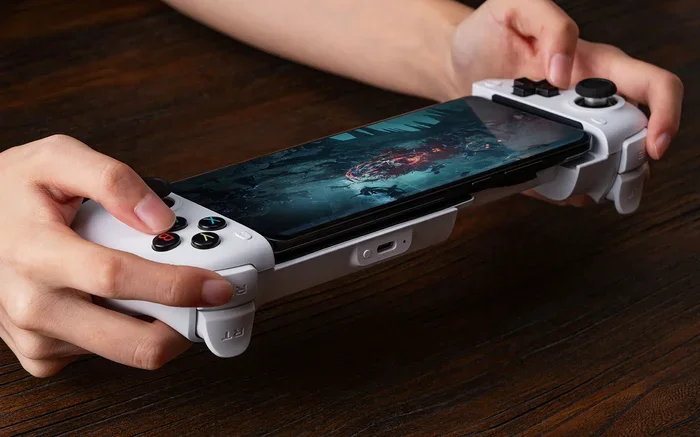
The Razer Kishi is a unique controller that plugs directly into your phone’s charging port. It is not a traditional gamepad. Instead, it wraps around your phone and gives you full-size buttons and analog sticks. It is perfect for on-the-go gaming.
PlayStation DualSense Controller
The DualSense offers advanced features like haptic feedback and adaptive triggers. It works well on both Android and iOS. The touchpad can be tricky on mobile, but the overall build quality and feel are top-notch.
Tips for the Best Mobile Gaming Experience
Once you have your controller connected, you want to make sure you are getting the most out of it. Here are some practical tips to improve your mobile gaming setup.
Keep Your Phone Cool
Gaming can make your phone heat up quickly. Overheating causes performance drops and lag. Use a cooling fan attachment or take breaks between gaming sessions. A cool phone runs games more smoothly.
Update Your Controller Firmware
Controller manufacturers release firmware updates regularly. These updates fix bugs and improve compatibility. Check the manufacturer’s app for your controller and install any available updates.
Use a Phone Mount or Stand
Holding your phone and a controller at the same time gets uncomfortable fast. A phone mount or stand holds your device at the perfect angle. You can game for hours without strain.
Check Game-Specific Controller Support
Not every game supports every controller. Before you buy a game, check if it lists controller support in the app description. Some games only work with specific controller brands.
Consider a Controller with a Phone Clip
Controllers like the Razer Kishi or Backbone One have built-in phone clips. They hold your phone securely in place. This creates a handheld console-like experience that is incredibly fun and portable.
Expert Insights on Mobile Controller Gaming
According to gaming industry analysts, mobile gaming revenue is expected to surpass $100 billion in 2025. A huge part of that growth comes from players who want a better experience than touch controls can offer. The demand for mobile controller compatibility has never been higher.
Tech experts recommend starting with an Xbox Wireless Controller if you want the easiest setup. It works on virtually all modern Android phones and recent iPhones. For a more portable option, clip-on controllers like the Razer Kishi are excellent choices.
One thing to keep in mind is that Apple continues to tighten its ecosystem. While iOS supports controllers well, the options are fewer than on Android. If you are an iPhone user, stick with MFi-certified controllers for the smoothest experience.
Common Mistakes People Make When Connecting Controllers to Mobile
Avoid these common mistakes to save yourself frustration:
- Buying a controller without checking compatibility. Always verify that the controller works with your specific phone model and operating system.
- Ignoring firmware updates. Outdated firmware can cause connection problems and button mapping issues.
- Using a non-OTG USB cable. Not all USB cables support data transfer. You need the right cable for a wired connection.
- Playing in an area with heavy Bluetooth interference. Other wireless devices can disrupt your controller connection.
- Assuming all games support controllers. Always check the game settings before you assume controller input is available.
Final Thoughts
So, can we connect any controller to mobile? The short answer is no, but the long answer is much more encouraging. Most major controllers work well with modern smartphones. Xbox and PlayStation controllers offer the best compatibility. Third-party options like 8BitDo and Razer give you even more choices.
The key is to know your phone’s capabilities. Check if your device supports Bluetooth and USB OTG. Choose a controller that matches your phone’s ecosystem. And always test the setup before you dive into an important gaming session.
Connecting a controller to your mobile device opens up a whole new world of gaming. You get better precision, more comfort, and access to a wider range of games. It is one of the best upgrades you can make for your mobile gaming setup. Try it out and you will never go back to touch controls.
Whether you are a casual gamer or a competitive player, a mobile controller setup makes a real difference. Pick the right controller, follow the pairing steps in this guide, and enjoy your games the way they were meant to be played.
Frequently Asked Questions
Can I connect any Bluetooth controller to my phone?
Most Bluetooth controllers can connect to modern smartphones, but compatibility depends on your phone’s operating system and the controller’s support. Android phones are generally more flexible, while iPhones require MFi-certified controllers for the best experience. Always check compatibility before you buy.
Do I need an adapter to connect a controller to my phone?
You do not need an adapter for Bluetooth controllers. They connect wirelessly. However, if you want a wired connection, you need a USB OTG adapter. Some controllers, like the Razer Kishi, plug directly into your phone without any extra accessories.
Why does my controller disconnect from my phone during gaming?
Disconnections usually happen due to low battery, Bluetooth interference, or outdated firmware. Keep your controller charged, stay close to your phone, and update the controller software regularly. Using a wired connection eliminates this problem entirely.
Can I use an Xbox controller with an iPhone?
Yes, the Xbox Wireless Controller works with iPhones. It is MFi certified, which means it connects natively through Bluetooth. You do not need any extra apps or adapters. Just pair it in your iPhone Bluetooth settings and start gaming.
Are clip-on controllers worth it for mobile gaming?
Clip-on controllers like the Razer Kishi and Backbone One are excellent for on-the-go gaming. They hold your phone securely and give you a console-like feel in a compact form. They are worth it if you game frequently while traveling or commuting.
Which mobile games support external controllers?
Many popular games support external controllers, including Fortnite, Genshin Impact, Minecraft, and Emulators. Always check the game’s description in the app store to confirm controller support before you download it.
=== CONCLUSION ===
Connecting a controller to mobile devices is easier than most people think. With Bluetooth and USB options available, you have plenty of ways to set up your perfect mobile gaming setup. Whether you choose an Xbox controller, a PlayStation pad, or a third-party option, the key is finding the right fit for your phone and your gaming style.
Keep these tips in mind. Check compatibility before you buy. Use the right connection method. Keep your firmware updated. And most importantly, have fun with it. Mobile gaming with a physical controller is a game-changer. Once you try it, you will wonder how you ever played without one.