How Do I Cancel Bluetooth Connection On My Phone
Learning how to cancel Bluetooth connection on your phone is easier than you think. Whether you want to disconnect a paired device, stop automatic connections, or troubleshoot Bluetooth problems, this guide covers everything. You will find clear steps for iPhone and Android, plus tips to prevent unwanted connections. Cancel Bluetooth in seconds with our simple methods.
Have you ever wanted to cancel Bluetooth connection on your phone but did not know where to start? Maybe your phone keeps connecting to a device you no longer use. Or perhaps you need to disconnect quickly to save battery. Whatever the reason, cancelling a Bluetooth connection is a simple process once you know the steps.
Bluetooth is a short-range wireless technology that lets your phone talk to other devices. It connects things like headphones, speakers, car stereos, and printers. But sometimes, you need to turn off Bluetooth or remove a paired device. This guide walks you through every method in plain, easy language. You will learn how to disconnect, forget, and troubleshoot Bluetooth on both iPhone and Android phones.
By the end of this article, you will feel confident managing your Bluetooth connections. No more mystery connections or unwanted pairing. Let us dive in and take control of your wireless connection settings today.
Key Takeaways
- Turn off Bluetooth quickly: Use your phone settings or quick settings panel to disable Bluetooth instantly.
- Forget paired devices: Remove unwanted Bluetooth connections permanently by forgetting the device in your settings.
- Fix common Bluetooth issues: Clear cache, restart your phone, and update software to resolve connection problems.
- Prevent auto-connections: Adjust settings so your phone does not reconnect to old Bluetooth devices without your permission.
- Works on both iPhone and Android: Step-by-step instructions cover all major phone types and operating systems.
📑 Table of Contents
- Why Would You Cancel a Bluetooth Connection?
- How to Cancel Bluetooth on iPhone
- How to Cancel Bluetooth on Android
- Common Bluetooth Problems and How to Fix Them
- How to Prevent Unwanted Bluetooth Connections
- Advanced Bluetooth Tips for Power Users
- When to Seek Professional Help
- Frequently Asked Questions
- Conclusion
Why Would You Cancel a Bluetooth Connection?
There are many reasons to cancel Bluetooth on your phone. Understanding these reasons helps you decide which method works best for your situation. Here are the most common ones.
Saving Battery Life
Bluetooth uses power even when you are not actively using it. If your phone is constantly searching for or connected to a Bluetooth device, your battery drains faster. Turning off Bluetooth connectivity can add hours to your phone’s battery life. This is especially helpful when you are traveling or away from a charger.
Privacy and Security
An active Bluetooth connection can be a security risk. Hackers can sometimes access your phone through an open Bluetooth signal. Cancelling your Bluetooth connection when you are not using it protects your personal data. It is a simple step that makes your phone much safer.
Troubleshooting Connection Problems
Sometimes Bluetooth acts up. Devices may not connect properly, or audio may cut out. Resetting Bluetooth or forgetting a paired device often fixes these issues. This is one of the first steps tech support recommends when your wireless connection is not working right.
Switching Between Devices
You might want to connect your phone to a different Bluetooth speaker or headphones. Before pairing with a new device, you should cancel the existing Bluetooth connection. This prevents confusion and ensures a clean pairing with the new device.
How to Cancel Bluetooth on iPhone
iPhone users have a straightforward way to manage Bluetooth connections. Apple keeps the process simple and easy to find. Here is how to turn off Bluetooth on your iPhone step by step.
Method 1: Use Control Center
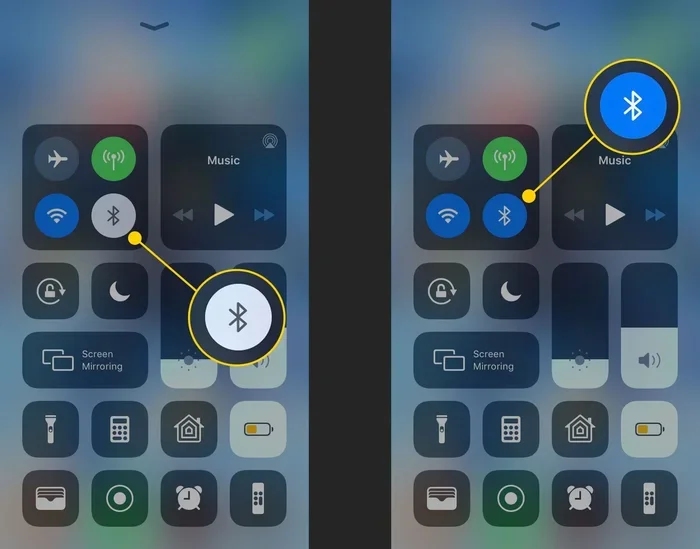
The fastest way to disable Bluetooth on iPhone is through Control Center. Follow these steps:
- Swipe down from the top-right corner of your screen.
- Look for the Bluetooth icon. It looks like a sideways “B.”
- Tap the icon once. It will turn gray, meaning Bluetooth is off.
This method disconnects your current Bluetooth pairing but does not remove the device from your list. You can reconnect anytime by tapping the icon again.
Method 2: Use Settings App
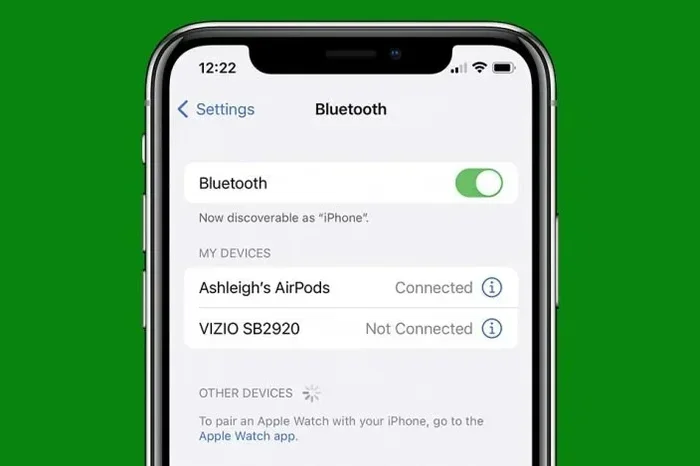
For more control, use the Settings app to manage your Bluetooth connection:
- Open the Settings app on your iPhone.
- Tap “Bluetooth” near the top of the screen.
- Toggle the switch next to Bluetooth to the off position.
This gives you access to your list of paired Bluetooth devices. You can see which devices are connected and which are nearby.
Method 3: Forget a Paired Device
If you want to permanently remove a device from your iPhone, you need to forget it:
- Go to Settings and tap Bluetooth.
- Find the device you want to remove in the “My Devices” list.
- Tap the “i” icon next to the device name.
- Select “Forget This Device” and confirm.
This completely removes the device from your Bluetooth settings. You will need to pair it again if you want to use it later. This is the best way to cancel Bluetooth connection permanently on an iPhone.
How to Cancel Bluetooth on Android
Android phones offer similar options but with slightly different paths. The steps may vary a little depending on your phone brand, but the process is very similar across all Android devices.
Method 1: Use Quick Settings
The quickest way to turn off Bluetooth on Android is through Quick Settings:
- Swipe down from the top of your screen to open the notification panel.
- Swipe down again to see the full Quick Settings panel.
- Look for the Bluetooth icon and tap it once.
- The icon will change color, showing that Bluetooth is now off.
This instantly disconnects all Bluetooth devices. It is the fastest way to stop your phone from connecting to any wireless device nearby.
Method 2: Use the Settings Menu
For more detailed control, use the Settings menu:
- Open the Settings app on your Android phone.
- Look for “Connected Devices” or “Bluetooth” and tap it.
- Find the toggle switch and turn it off.
You will see a list of all your paired Bluetooth devices. You can tap on any device to see more options or disconnect it individually.
Method 3: Unpair a Device
To permanently remove a device from your Android phone:
- Go to Settings and tap on Bluetooth.
- Find the device you want to remove.
- Tap the gear icon or the device name.
- Select “Unpair” or “Forget Device.”
This removes the device from your Bluetooth connection list completely. It is the best method when you want to cancel Bluetooth connection for good on your Android phone.
Common Bluetooth Problems and How to Fix Them
Sometimes canceling Bluetooth does not work as expected. Your phone might keep reconnecting, or devices might not pair properly. Here are the most common problems and their solutions.
Bluetooth Keeps Reconnecting Automatically
Your phone may automatically connect to a previously paired Bluetooth device when it is in range. This happens because your phone remembers the device and tries to reconnect. To stop this, you need to forget the device in your settings. On iPhone, go to Settings > Bluetooth and tap “Forget This Device.” On Android, go to Settings > Connected Devices and unpair the device. Once forgotten, your phone will not try to reconnect automatically.
Bluetooth Is Not Showing in Settings
If you cannot find Bluetooth in your settings, try restarting your phone. This refreshes the system and often brings back the Bluetooth settings menu. On iPhone, you can also try turning Airplane Mode on and then off. On Android, you can toggle Airplane Mode the same way. This simple trick resets your wireless connections and usually fixes the problem.
Bluetooth Connects but No Sound
Sometimes your phone connects to a Bluetooth speaker or headphones, but you hear no sound. First, check the volume on both your phone and the Bluetooth device. Second, make sure the Bluetooth device is selected as your audio output. On iPhone, go to Settings > Bluetooth and tap the device. On Android, pull down the notification panel and select the Bluetooth device as your audio output. This should restore your sound immediately.
Bluetooth Keeps Turning Off by Itself
If your Bluetooth keeps disconnecting on its own, the issue might be battery optimization settings. Both iPhone and Android phones have power-saving features that can turn off Bluetooth to save energy. Check your battery settings and exclude Bluetooth from optimization. This keeps your Bluetooth connection stable and prevents unwanted disconnections.
How to Prevent Unwanted Bluetooth Connections
Prevention is always better than fixing problems. Here are some tips to stop unwanted Bluetooth connections before they happen.
- Turn off Bluetooth when not in use: Make it a habit to turn off Bluetooth when you leave the house. This saves battery and keeps your phone secure.
- Make your phone invisible: Set your phone to “Non-Discoverable” mode so other devices cannot see it. This prevents random pairing requests.
- Regularly review paired devices: Go through your Bluetooth settings once a month. Remove any devices you no longer use. This keeps your list clean and organized.
- Keep your phone updated: Software updates often fix Bluetooth bugs and improve connection stability. Always install the latest updates for your phone.
- Reset network settings when needed: If Bluetooth problems persist, resetting your network settings can help. This clears all saved wireless connections and starts fresh.
Advanced Bluetooth Tips for Power Users
Once you master the basics of cancelling Bluetooth connections, you can explore some advanced features. These tips help you get the most out of your Bluetooth technology.
Use Bluetooth for Smart Home Devices
Many smart home devices use Bluetooth connectivity to work with your phone. Speakers, lights, and thermostats can all connect through Bluetooth. Knowing how to manage and cancel these connections helps you troubleshoot smart home issues quickly. If a device is not responding, try forgetting it in Bluetooth settings and pairing it again.
Bluetooth Range and Interference
Bluetooth has a typical range of about 30 feet. Walls, furniture, and other electronics can weaken the Bluetooth signal. If your connection keeps dropping, try moving closer to the device. Also, keep your phone away from microwaves and other wireless devices that cause Bluetooth interference. Understanding range helps you manage your wireless connections better.
Bluetooth and Car Audio Systems
Many cars now support Bluetooth connectivity for hands-free calling and music streaming. If your car radio does not connect properly, you can reset the Bluetooth connection on both your phone and your car. Some car systems also allow you to make your car radio Bluetooth capable with an adapter. Check out our guide on making your car radio Bluetooth capable for more details.
Multi-Device Bluetooth Connections
Some modern Bluetooth devices can connect to multiple phones at once. This is useful for shared speakers or headphones in a family. However, it can also cause confusion when your phone connects to someone else’s device. Knowing how to cancel and manage these connections keeps your audio private and secure.
When to Seek Professional Help
Most Bluetooth issues resolve with the steps above. But sometimes, the problem is deeper. Here are signs you should seek professional help:
- Your phone’s Bluetooth has completely stopped working after multiple resets.
- You notice your phone overheating when Bluetooth is turned on.
- Bluetooth connections drop constantly even after forgetting and re-pairing devices.
- Your phone shows error messages related to Bluetooth hardware.
In these cases, visit your phone manufacturer’s support center or a trusted repair shop. They can check for hardware issues and provide advanced troubleshooting. Most Bluetooth problems are software-related and easy to fix, but hardware issues need professional attention.
Frequently Asked Questions
How do I cancel Bluetooth on my phone quickly?
The fastest way is to swipe down from the top of your screen and tap the Bluetooth icon in Quick Settings. This instantly turns off Bluetooth and disconnects all paired devices. You can also go to Settings > Bluetooth and toggle it off. This method works on both iPhone and Android phones.
Will forgetting a Bluetooth device delete any data?
No, forgetting a Bluetooth device does not delete any data from your phone or the other device. It simply removes the pairing information. You will need to pair the devices again if you want to use them together in the future. Your files, photos, and settings remain completely safe.
Why does my phone keep connecting to a Bluetooth device I want to cancel?
Your phone remembers previously paired devices and tries to reconnect automatically when they are in range. To stop this, you need to forget the device in your Bluetooth settings. On iPhone, go to Settings > Bluetooth and tap “Forget This Device.” On Android, go to Settings > Connected Devices and unpair the device.
Can I cancel Bluetooth for just one device and keep it on for others?
Yes, you can. Instead of turning off Bluetooth entirely, you can disconnect a specific device. Go to Settings > Bluetooth, find the device you want to disconnect, and tap it. Then select “Disconnect.” This keeps Bluetooth on for your other paired devices while stopping the connection to the one you do not want.
How do I stop Bluetooth from draining my battery?
Turn off Bluetooth when you are not actively using it. Also, check your battery settings to see which apps are using Bluetooth in the background. Some apps keep Bluetooth active even when you are not using them. Closing these apps or restricting their background activity can significantly reduce battery drain.
Is it safe to use Bluetooth in public places?
Bluetooth is generally safe, but you should take precautions. Turn off Bluetooth in crowded public places when you are not using it. This reduces the risk of unauthorized connections. Also, avoid pairing with unknown devices in public. Keeping your Bluetooth off when not needed is the best safety practice.
Conclusion
Knowing how to cancel Bluetooth connection on your phone gives you control over your wireless experience. Whether you want to save battery, protect your privacy, or fix connection issues, the methods in this guide help you get it done fast. You now know how to turn off Bluetooth, forget paired devices, and troubleshoot common problems on both iPhone and Android.
Managing your Bluetooth settings does not have to be complicated. With the steps above, you can disconnect any device in seconds. Make it a habit to review your paired devices regularly and remove anything you no longer use. This keeps your phone running smoothly and your connections secure.
Remember, cancelling Bluetooth is not just about turning it off. It is about understanding how your wireless connections work and taking control. Apply what you learned here today, and you will never struggle with unwanted Bluetooth connections again. Your phone, your rules, your Bluetooth settings.
For more helpful guides on Bluetooth and wireless technology, explore our other articles on using Bluetooth headphones with your TV, turning your stereo into Bluetooth, and Bluetooth functionality on Apple Watch. These guides cover related topics that expand your knowledge of wireless connections.