How Can I Connect My Phone To Projector Without Usb
You can connect your phone to a projector without a USB cable using wireless mirroring, HDMI adapters, or streaming devices like Roku. Whether you want to share photos, watch movies, or give a presentation, there are several easy options that work with both Android and iPhone. This guide walks you through every method step by step so you can start projecting without any USB hassle.
Have you ever been in a situation where you want to show something on a big screen but your only cable is a USB? It happens more often than you might think. The good news is that connecting your phone to a projector without USB is easier than most people believe. You have several options that work wirelessly or with simple adapters. Let us walk you through every method so you can pick the one that fits your needs best.
Whether you are at home wanting to watch a movie on a wall, giving a work presentation, or setting up an outdoor movie night, you do not need a USB connection to get the job done. Modern phones and projectors support a range of connection types that make this process smooth and straightforward. In this article, we will cover wireless mirroring, HDMI adapters, streaming devices, and troubleshooting tips to help you succeed every time.
Key Takeaways
- Wireless mirroring lets you cast your phone screen to a projector using Wi-Fi or Bluetooth without any cables at all.
- HDMI adapters are a reliable wired alternative when you need a stable connection and better audio quality.
- Streaming devices like Roku can plug directly into your projector and let you stream content from your phone wirelessly.
- Screen mirroring apps are free or low-cost solutions that work across different phone and projector brands.
- Knowing your projector’s ports helps you choose the right connection method quickly and easily.
- Troubleshooting tips can save you time when connections drop or audio doesn’t sync properly.
📑 Table of Contents
- Why Connect Your Phone to a Projector Without USB?
- Wireless Methods to Connect Your Phone to a Projector
- Using HDMI Adapters and Cables as an Alternative
- Streaming Devices That Eliminate the Need for USB
- Troubleshooting Common Connection Issues
- Quick Tips for the Best Projector Experience
- Expert Insights on Phone-to-Projector Connections
- Key Takeaways
Why Connect Your Phone to a Projector Without USB?
USB connections are not always the best option for projecting your phone screen. Sometimes the USB port on your projector only supports firmware updates, not video input. Other times, your phone simply does not have the right USB connector. Understanding why USB might not work helps you choose a better alternative right away.
Here are a few common reasons people look for non-USB options:
- The projector USB port only charges devices or reads storage files.
- Your phone uses USB-C or Lightning, and the projector expects a different USB type.
- You want a wireless setup for more flexibility and fewer cables on the floor.
- You are sharing content quickly and do not want to fiddle with adapters.
- USB connections can sometimes cause lag or lower display quality.
Once you understand these limitations, it becomes clear why wireless and alternative wired methods are so popular. They give you more freedom and often deliver a better viewing experience.
Wireless Methods to Connect Your Phone to a Projector
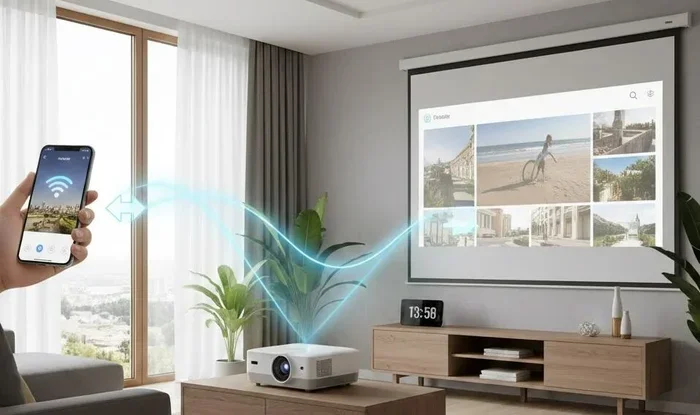
Wireless connections are the most convenient way to get your phone screen onto a projector. You do not need any cables, adapters, or extra equipment in most cases. All you need is a Wi-Fi network or a built-in wireless feature on your projector.
Use Screen Mirroring (Miracast or AirPlay)
Most modern projectors come with built-in screen mirroring support. If your projector has Wi-Fi, you can mirror your phone screen directly. For Android phones, this works through Miracast technology. For iPhones, AirPlay handles the wireless connection.
Here is how to do it:
- Make sure your phone and projector are on the same Wi-Fi network.
- Open your projector’s wireless display settings.
- On your phone, pull down the notification panel and tap “Smart View” (Android) or “Screen Mirroring” (iPhone).
- Select your projector from the list of available devices.
- Your phone screen should now appear on the projector instantly.
If you want to learn more about mirroring your iPhone specifically, check out our guide on can I mirror my iPhone to a projector. It covers AirPlay setup in detail.
Use a Wireless HDMI Transmitter
A wireless HDMI transmitter is a small device that plugs into your phone or streaming source and sends the signal to your projector without any cables. You just pair the transmitter with a receiver connected to the projector’s HDMI port. This method gives you high-quality video and audio without the clutter of wires.
Popular brands like IOGEAR and WirelessHD make reliable transmitters. They work great for presentations and movie nights. The setup takes about two minutes, and the range is usually around 30 feet.
Bluetooth Connectivity Options
Some projectors support Bluetooth connections for audio and screen sharing. While Bluetooth is not as common for video as Wi-Fi, it works well for audio streaming. You can pair your phone to a Bluetooth-enabled projector and play music or videos directly.
Keep in mind that Bluetooth may have a slight delay compared to Wi-Fi mirroring. For presentations where timing matters, Wi-Fi is the better choice. But for casual music or podcast sharing, Bluetooth works perfectly fine.
Using HDMI Adapters and Cables as an Alternative
If you prefer a wired connection but do not want to use USB, an HDMI adapter is your best friend. These small adapters plug into your phone’s charging port and convert the signal to HDMI, which you can then connect directly to your projector.
Lightning to HDMI Adapters for iPhone
If you have an iPhone, you need a Lightning to HDMI adapter. Apple sells its own version, but many third-party options work just as well. You plug the adapter into your iPhone, connect an HDMI cable from the adapter to the projector, and your phone screen appears on the big screen.
This method gives you a stable, lag-free connection. It also charges your phone while you project, which is a nice bonus. For more details on connecting iPhones to external displays, read our article on can I connect iPhone to HDMI.
USB-C to HDMI Adapters for Android Phones
Most modern Android phones use USB-C ports. A USB-C to HDMI adapter works the same way as the Lightning adapter. You plug it into your phone, connect an HDMI cable, and your screen appears on the projector.
Make sure your phone supports MHL (Mobile High-Definition Link) or DisplayPort Alt Mode. Not all USB-C phones support video output, so check your phone’s specs before buying an adapter. This is an important step that saves time and money.
Do You Need a Separate Audio Connection?
Some HDMI adapters carry both video and audio through one cable. Others might only send video, which means you need a separate audio solution. If your projector has built-in speakers, you are all set. If not, you can connect a Bluetooth speaker or use the projector’s audio output jack.
For a deeper look at using HDMI connections with phones, our article on can I connect my phone to HDMI TV covers everything you need to know about HDMI adapters and cable options.
Streaming Devices That Eliminate the Need for USB
Streaming devices are a fantastic way to get content from your phone to a projector without using USB. These small devices plug into your projector’s HDMI port and create their own wireless connection that your phone can tap into.
Using a Roku with Your Projector
Roku devices are affordable and easy to set up. You plug the Roku into your projector’s HDMI port, connect it to Wi-Fi, and then use the Roku mobile app to cast content from your phone. This method works beautifully for streaming movies, TV shows, and apps directly to your projector screen.
Roku supports screen mirroring through its built-in feature. You can also cast from apps like Netflix, YouTube, and Hulu directly. If you want to explore this option further, we have a detailed guide on can I use a Roku with a projector that covers setup and compatibility.
Chromecast and Other Streaming Sticks
Google Chromecast is another popular option. It plugs into your projector’s HDMI port and lets you cast content from your phone using the Google Home app. Chromecast supports Android phones and iPhones, so it works regardless of your device.
Other options include Amazon Fire TV Stick and Apple TV. Each has its own app ecosystem, but they all serve the same purpose: getting your phone content onto a big screen without any USB connection.
Which Streaming Device Should You Choose?
Here is a quick comparison to help you decide:
- Roku: Affordable, wide app support, works with most projectors.
- Chromecast: Great for Google ecosystem users, simple casting.
- Fire TV Stick: Good for Amazon Prime users, voice remote included.
- Apple TV: Best for iPhone users, premium quality, higher price.
All of these devices eliminate the need for USB entirely. You just need an HDMI port on your projector and a Wi-Fi connection.
Troubleshooting Common Connection Issues
Even with the best setup, you might run into problems sometimes. Do not worry, these issues are usually easy to fix. Here are the most common problems and how to solve them.
Phone Screen Does Not Appear on the Projector
Start by checking your Wi-Fi connection. Both your phone and projector need to be on the same network. If you are using an adapter, try a different HDMI cable. Sometimes cables are faulty, and swapping them solves the problem immediately.
Audio Is Not Playing Through the Projector
If you can see the video but hear no sound, check your phone’s audio output settings. On Android, go to Settings and look for audio output or cast audio. On iPhone, open Control Center and make sure the audio is routing to the projector. Also, check that your projector’s volume is turned up and not muted.
Lag or Delay During Screen Mirroring
Wireless mirroring can sometimes have a slight delay. This is normal for Wi-Fi-based connections. To reduce lag, make sure no one else is streaming heavy content on the same network. Using a 5GHz Wi-Fi band instead of 2.4GHz can also improve performance significantly.
Adapter Not Recognized by Phone
If your adapter is not working, try unplugging it and plugging it back in. Restart both your phone and the projector. Make sure the adapter is compatible with your phone model. Some adapters only work with specific phone brands or operating system versions.
Quick Tips for the Best Projector Experience
Getting your phone connected to a projector is only half the battle. Making sure everything looks and sounds great is the other half. Here are some quick tips to elevate your setup.
- Use a dark room: Projectors work best in low-light conditions. Close the curtains and turn off unnecessary lights for the sharpest image.
- Adjust the projector focus: A blurry image ruins the experience. Take a moment to focus the projector before you start.
- Keep your phone charged: Screen mirroring drains battery fast. Plug your phone into a charger during long sessions.
- Use a high-quality HDMI cable: Cheap cables can cause signal drops and poor picture quality. Invest in a certified cable.
- Close background apps: This frees up memory and prevents lag during mirroring or casting.
- Update your phone’s software: Updates often fix connectivity bugs that could affect projection quality.
These small steps make a big difference. Your projected image will look sharper, sound better, and run more smoothly with just a little preparation.
Expert Insights on Phone-to-Projector Connections
Technology experts agree that wireless methods are the future of phone-to-projector connections. As Wi-Fi standards improve and projectors become smarter, the need for cables is shrinking. However, wired connections still hold an edge in professional settings where reliability and zero latency matter most.
For everyday users, wireless mirroring and streaming devices offer the best balance of convenience and quality. You get a big-screen experience without dealing with cables or adapters. The key is choosing the right method for your specific situation and equipment.
If you are setting up a home theater or office presentation system, consider having both a wireless option and a wired backup. This way, you are prepared for any scenario. A simple HDMI adapter in your bag can save the day when wireless connections fail.
Key Takeaways
- Wireless mirroring through Wi-Fi or Bluetooth is the easiest way to connect your phone to a projector without USB.
- HDMI adapters provide a stable wired alternative for users who want reliable, lag-free connections.
- Streaming devices like Roku and Chromecast offer flexible wireless options that work with both Android and iPhone.
- Checking compatibility before buying any adapter or device saves time and prevents frustration.
- Troubleshooting basics like checking Wi-Fi, restarting devices, and using quality cables solve most issues.
- Preparation and the right equipment make every projection session smooth and enjoyable.
Connecting your phone to a projector without USB is entirely possible and simpler than you might think. Whether you choose wireless mirroring, an HDMI adapter, or a streaming device, each method has its own strengths. Wireless options give you freedom and convenience, while adapters and streaming devices offer reliability and high-quality output. The best choice depends on your setup, your phone type, and what you plan to do with the projector.
Start with the method that fits your situation best. Try wireless mirroring first since it requires no extra equipment. If that does not work or you need a more stable connection, grab an HDMI adapter or a streaming stick. You will be projecting your phone screen in minutes. Enjoy your big-screen experience and make the most of every presentation, movie night, or sharing session.
Frequently Asked Questions
Can I connect my phone to a projector without any cables at all?
Yes, you can use wireless screen mirroring through Wi-Fi or Bluetooth. Most modern projectors support Miracast for Android or AirPlay for iPhone. You just need both devices on the same Wi-Fi network and no cables are required.
Do I need a special adapter to connect my Android phone to a projector?
You need a USB-C to HDMI adapter if your projector only has HDMI inputs. Most modern Android phones support video output through USB-C. Check that your phone supports MHL or DisplayPort Alt Mode before buying an adapter.
Can I use a Roku to connect my phone to a projector wirelessly?
Yes, a Roku device plugs into your projector’s HDMI port and creates a wireless connection. You can use the Roku mobile app to cast content from your phone. This is one of the easiest ways to stream without any USB cable.
Why does my wireless connection lag when mirroring my phone?
Lag usually happens because of a weak Wi-Fi signal or network congestion. Switch to a 5GHz Wi-Fi band for better performance. Also, make sure no one else is streaming heavy content on the same network during your mirroring session.
Is screen mirroring the same as casting?
They are similar but not exactly the same. Screen mirroring shows everything on your phone screen exactly as it is. Casting sends specific content from an app, like a YouTube video, directly to the projector. Casting often uses less battery and delivers smoother playback.
Can I connect an iPhone to a projector without a USB cable?
Yes, you can use a Lightning to HDMI adapter or AirPlay for wireless mirroring. If your projector supports AirPlay, you can mirror your iPhone screen without any cables. For a wired option, a Lightning to HDMI adapter works with any projector that has an HDMI input.
=== CONCLUSION ===
Connecting your phone to a projector without USB opens up a world of possibilities for entertainment, work, and sharing. You have wireless mirroring, HDMI adapters, and streaming devices to choose from. Each method has its own advantages, and the best one depends on your specific needs and equipment.
Start simple with wireless mirroring if you want a quick, cable-free setup. Use an HDMI adapter when you need a stable, high-quality connection. Try a streaming device like Roku if you want to access apps and services directly on your projector. No matter which path you choose, the process is straightforward and does not require any technical expertise.
Now that you know all the options, pick the one that works best for you. Set up your projector, connect your phone, and enjoy your content on the big screen. The days of needing a USB cable are over. Your phone and projector can work together beautifully without it.