Can I Connect Iphone To Hdmi And Watch On Big Screen
Yes, you can connect iPhone to HDMI and watch your favorite content on a big screen. Whether you use a Lightning to HDMI adapter, a USB-C cable, or wireless casting, streaming your iPhone display on a TV or monitor is easy and affordable. This guide covers every method, product recommendation, and troubleshooting tip so you can enjoy iPhone to HDMI viewing in minutes.
Have you ever wanted to share a photo or watch a movie from your phone on a bigger screen? Maybe you are hosting a movie night or giving a presentation. Whatever the reason, connecting iPhone to HDMI opens up a world of possibilities. You do not need to be a tech expert to make it work. In this guide, I will walk you through every method, product, and tip you need to know. By the end, you will be streaming your iPhone to a big screen like a pro.
The good news is that Apple has made this process surprisingly simple. You can go wired with an adapter and cable, or you can go wireless with AirPlay. Both methods work well, and each has its own perks. iPhone to HDMI connections are popular because they turn any TV or monitor into a powerful entertainment hub. You get crisp picture quality, clear sound, and the convenience of using your phone as a remote control.
Key Takeaways
- Wired Connection Works: A Lightning or USB-C to HDMI adapter lets you mirror your iPhone screen to any HDMI display instantly.
- Wireless Options Exist: AirPlay and Apple TV allow you to cast content without any cables at all.
- Adapter Choice Matters: Choosing the right adapter based on your iPhone model ensures compatibility and smooth performance.
- Quality Varies: Not all HDMI adapters deliver the same resolution or reliability, so picking a trusted brand is important.
- Audio Follows Video: When you connect iPhone to HDMI, audio automatically routes to the external display or speakers.
- Troubleshooting Is Simple: Most connection issues can be fixed with a quick reset, cable swap, or software update.
📑 Table of Contents
- Why Connect iPhone to HDMI?
- Wired Methods to Connect iPhone to HDMI
- Wireless Methods to Connect iPhone to HDMI
- Step-by-Step Guide: Connecting iPhone to HDMI
- Best Adapters for Connecting iPhone to HDMI
- Troubleshooting Common Connection Issues
- Can I Connect iPhone to HDMI Without an Adapter?
- Maximizing Your iPhone-to-HDMI Experience
- Final Thoughts
Why Connect iPhone to HDMI?
There are many reasons people want to mirror iPhone to a big screen. Some want to watch videos with family. Others need a larger display for work or school projects. Here are the most common reasons people make this connection:
- Movie Nights: Stream Netflix, YouTube, or Disney+ on a TV instead of squinting at a small phone screen.
- Photo Sharing: Show vacation photos or family moments on a large display during gatherings.
- Presentations: Display slideshows, spreadsheets, or documents during meetings or classrooms.
- Gaming: Play mobile games on a bigger screen for a more immersive experience.
- Fitness: Follow workout videos on a TV while you exercise at home.
- Cooking: Display recipes or cooking videos on a kitchen TV while you prepare meals.
Each of these use cases works best with a reliable iPhone HDMI adapter. The method you choose depends on your iPhone model, your TV, and whether you prefer cables or wireless streaming.
Wired Methods to Connect iPhone to HDMI
Wired connections are the most straightforward way to connect iPhone to HDMI. You plug in an adapter, attach an HDMI cable, and your screen appears on the TV. No setup hassle. No Wi-Fi needed. Let us look at the different wired options available.
Lightning to HDMI Adapter
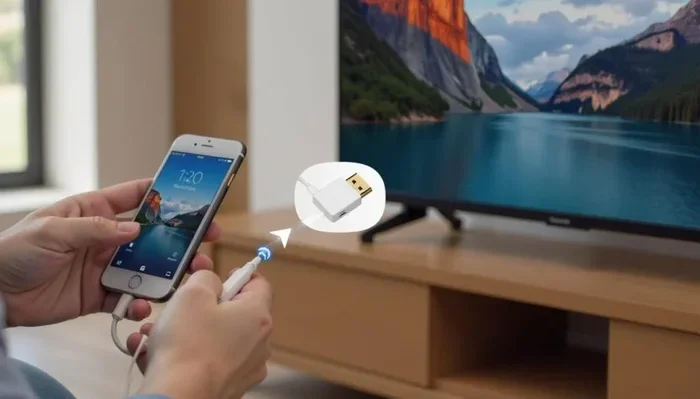
If you own an iPhone 14 or older model, you likely have a Lightning charging port. To connect this phone to an HDMI display, you need a Lightning to HDMI adapter. Apple sells its own official adapter, and many trusted third-party brands offer great alternatives too.
Here is how it works in simple steps:
- Plug the Lightning to HDMI adapter into your iPhone’s charging port.
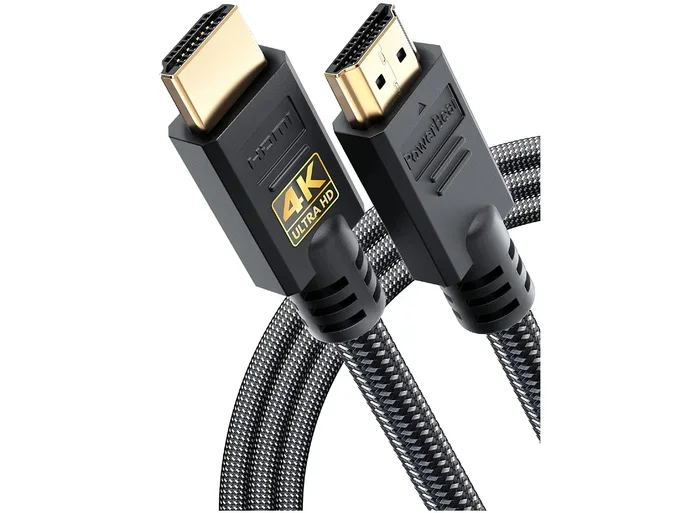
- Connect an HDMI cable to the adapter.
- Plug the other end of the HDMI cable into your TV or monitor.
- Switch your TV to the correct HDMI input.
- Your iPhone screen will mirror on the big screen automatically.
Most adapters support up to 1080p resolution. Some premium adapters can push 4K output, but this depends on the model. Apple’s official adapter is reliable and works seamlessly with all iOS devices that have a Lightning port. Third-party options can save you money, but always check reviews before buying.
USB-C to HDMI Adapter
Newer iPhones like the iPhone 15 and iPhone 16 use USB-C ports. This change brings more flexibility. You can use a USB-C to HDMI adapter or a direct USB-C to HDMI cable. This setup works just like the Lightning method, but with a newer connector.
The steps are nearly identical:
- Plug the USB-C to HDMI adapter into your iPhone.
- Connect an HDMI cable from the adapter to your TV.
- Select the right HDMI input on your television.
- Your screen mirrors instantly.
USB-C adapters often support higher resolutions and smoother video output. If you have a USB-C iPhone, this is the easiest and most reliable wired option.
Quick Tip: Always use a high-quality HDMI cable rated for the resolution you want. A cheap cable can cause flickering or no signal at all.
MFi-Certified Adapters
When shopping for an adapter, look for MFi certification. This stands for Made for iPhone. MFi-certified adapters meet Apple’s quality and safety standards. They work reliably with all iOS updates and do not cause compatibility issues.
Non-certified adapters might be cheaper, but they can cause problems. Some stop working after an iOS update. Others produce poor video quality or disconnect randomly. Spending a little extra on a certified adapter saves frustration in the long run.
Wireless Methods to Connect iPhone to HDMI
Not everyone wants to deal with cables. Wireless options let you cast iPhone screen to TV without any adapters or wires. These methods use Wi-Fi or Bluetooth to send your iPhone display to a compatible TV or streaming device.
Using AirPlay
AirPlay is Apple’s built-in wireless streaming technology. It lets you mirror your iPhone screen to any AirPlay-compatible TV or device. Most modern smart TVs support AirPlay, including Samsung, LG, Sony, and Vizio models.
Here is how to use AirPlay:
- Make sure your iPhone and TV are on the same Wi-Fi network.
- Open Control Center on your iPhone by swiping down from the top right corner.
- Tap the Screen Mirroring button.
- Select your TV from the list of available devices.
- Your iPhone screen now appears on the TV wirelessly.
AirPlay is incredibly convenient. You do not need any extra hardware. Just a compatible TV and a stable Wi-Fi connection. The video quality is excellent, and latency is minimal for most uses.
Using Apple TV
If you own an Apple TV, you have the best wireless streaming experience available. Apple TV supports AirPlay natively and offers 4K HDR quality. It also works seamlessly with all iOS devices.
To stream with Apple TV:
- Connect your Apple TV to your TV via HDMI.
- Make sure both devices are on the same Wi-Fi network.
- Use Control Center to start AirPlay mirroring.
- Enjoy your iPhone content on the big screen in stunning quality.
Apple TV is not cheap, but it is the gold standard for wireless iPhone-to-TV streaming. If you already own one, you have everything you need.
Third-Party Streaming Devices
You can also use devices like Chromecast or Roku to stream content from your iPhone. These devices do not support full screen mirroring the way AirPlay does, but they work well for streaming apps. You can cast Netflix, YouTube, and other supported apps directly from your iPhone to the TV.
| Method | Wired or Wireless | Resolution | Best For | Cost |
|---|---|---|---|---|
| Lightning to HDMI Adapter | Wired | Up to 1080p | Older iPhones, reliable connection | $10-$20 |
| USB-C to HDMI Adapter | Wired | Up to 4K | iPhone 15/16 models | $15-$30 |
| AirPlay (Built-in) | Wireless | Up to 4K | AirPlay-compatible smart TVs | Free |
| Apple TV | Wireless | 4K HDR | Premium wireless streaming | $129+ |
| Chromecast / Roku | Wireless | Up to 4K | Casting from supported apps | $30-$50 |
Step-by-Step Guide: Connecting iPhone to HDMI
Let us walk through a complete setup from start to finish. This guide covers the most common wired method using a Lightning to HDMI adapter.
Step 1: Gather Your Equipment
You will need three things:
- An iPhone with a Lightning or USB-C port.
- A compatible iPhone HDMI adapter.
- An HDMI cable.
If you are using a wireless method, you only need a Wi-Fi connection and a compatible TV or device. That is it. No extra equipment required.
Step 2: Connect the Adapter
Plug the adapter into your iPhone firmly. You should feel a slight click. If the adapter feels loose, try a different one or check for debris in the port. A clean connection ensures the best video output.
Step 3: Attach the HDMI Cable
Connect one end of the HDMI cable to the adapter. Then plug the other end into an available HDMI port on your TV or monitor. Use port 1, 2, or 3 depending on which port is convenient.
Step 4: Switch Your TV Input
Grab your TV remote and press the Input or Source button. Scroll through the options until you see the HDMI port you plugged into. Your iPhone screen should now appear on the TV.
Step 5: Adjust Settings (If Needed)
Sometimes the display looks stretched or the wrong size. To fix this:
- Go to Settings on your iPhone.
- Tap Display and Brightness.
- Look for display scaling options.
- Adjust until the picture fits your TV screen perfectly.
Common Mistakes to Avoid:
- Using a non-certified adapter that stops working after an update.
- Plugging the HDMI cable into the wrong port on the TV.
- Forgetting to switch the TV input source.
- Using a damaged or low-quality HDMI cable.
- Not updating iOS to the latest version before connecting.
Best Adapters for Connecting iPhone to HDMI
Not all adapters are created equal. Some deliver rock-solid performance, while others cause frustration. Here are some of the best options available right now.
Apple Lightning to HDMI Adapter
The official Apple adapter is the safest choice. It costs around $19 and works with every Lightning iPhone. You get reliable 1080p output, and it never fails after an iOS update. If you want peace of mind, this is the one to buy.
Belkin Lightning to HDMI Adapter
Belkin is a trusted brand in the accessory world. Their Lightning to HDMI adapter offers solid performance and build quality. It is slightly more expensive than some alternatives but delivers consistent results.
UGREEN USB-C to HDMI Adapter
If you have a USB-C iPhone, the UGREEN adapter is an excellent option. It supports 4K output at 60Hz and costs around $15. It is compact, durable, and works with most HDMI displays.
Amazon Basics USB-C to HDMI Cable
For a simple all-in-one solution, the Amazon Basics cable works well. It combines the adapter and cable into one unit, so there is less to carry around. It supports 4K resolution and is very affordable.
Expert Insight: According to tech reviewers, Apple’s official adapter remains the most reliable option for iPhone to HDMI connections. Third-party adapters from Belkin, UGREEN, and Anker are also excellent choices and often cost less.
Troubleshooting Common Connection Issues
Even with the right equipment, you might run into problems. Do not worry. Most issues are easy to fix. Here are the most common problems and their solutions.
No Signal on the TV
If your TV shows no signal, try these steps:
- Check that the HDMI cable is firmly connected at both ends.
- Switch the TV to the correct input source.
- Restart your iPhone by holding the power button and sliding to power off.
- Reconnect the adapter and cable after the phone restarts.
Black Screen or Flickering
A black screen or flickering usually means a cable or adapter problem:
- Try a different HDMI cable.
- Test the adapter with another device if possible.
- Make sure your adapter is MFi-certified.
- Check that the TV supports the resolution your iPhone is outputting.
Audio Not Working
Sometimes video appears but there is no sound:
- Check that your TV volume is turned up.
- Go to Settings on your iPhone and make sure the ringer is not muted.
- Try a different HDMI cable, as some cables only carry video.
- Restart both your iPhone and TV.
Screen Mirroring Is Laggy
If you are using a wireless method and the screen lags:
- Make sure both devices are on the same Wi-Fi network.
- Move closer to your Wi-Fi router.
- Reduce the number of devices using your network.
- For wired connections, lag is almost never an issue.
Quick Tip: If nothing works, try resetting all settings on your iPhone. Go to Settings, General, Transfer or Reset iPhone, and tap Reset All Settings. This does not delete your data but can fix connectivity issues.
Can I Connect iPhone to HDMI Without an Adapter?
The short answer is no, not directly. iPhones do not have a built-in HDMI output. You always need some kind of adapter or a wireless method like AirPlay. However, some modern smart TVs and monitors support USB-C input directly. If your TV has a USB-C port, you might be able to plug your USB-C iPhone straight in without an adapter. This is rare, but it is worth checking your TV’s manual.
For everyone else, a small adapter is the easiest and most reliable solution. They are inexpensive and take up almost no space in your bag or drawer.
Maximizing Your iPhone-to-HDMI Experience
Once you have your connection working, you can enhance the experience in several ways. Here are some tips to get the most out of your big screen iPhone viewing:
- Use a Quality HDMI Cable: A certified high-speed HDMI cable ensures the best picture and sound quality.
- Update Your iPhone: Always keep your iOS updated. New updates often improve display output and compatibility.
- Clean Your Ports: Dust or lint in your iPhone’s charging port can cause connection problems. Use a soft brush or compressed air to clean it gently.
- Use a Mount or Stand: A phone mount keeps your iPhone stable and at the right angle while you watch or present.
- Control Volume from Your Phone: When connected via HDMI, you can use your iPhone as a remote control for volume and playback.
These small steps make a big difference. They keep your setup clean, reliable, and enjoyable every time you use it.
Final Thoughts
Connecting iPhone to HDMI and watching on a big screen is one of the simplest and most rewarding upgrades you can make. Whether you choose a wired adapter or wireless AirPlay, the process is straightforward and works with almost any TV or monitor. You do not need expensive equipment to get great results. A simple adapter and an HDMI cable are all you need for a wired setup. For wireless streaming, AirPlay and Apple TV make it effortless.
The key is choosing the right method for your needs. If you have a Lightning iPhone, grab a Lightning to HDMI adapter. If you have a USB-C model, a USB-C to HDMI adapter is the way to go. For those who prefer no cables at all, AirPlay delivers excellent wireless quality.
Now that you know how easy it is to connect iPhone to HDMI, there is no reason not to try it. Grab your adapter, pick a movie, and enjoy your content on the biggest screen in your home. You will wonder how you ever watched anything on a small phone display again.
Frequently Asked Questions
Can I connect iPhone to HDMI without an adapter?
No, iPhones do not have a built-in HDMI port. You need either a Lightning to HDMI adapter, a USB-C to HDMI adapter, or a wireless method like AirPlay. The adapter is the most reliable and affordable option for a wired connection.
Does connecting iPhone to HDMI drain the battery?
Yes, mirroring your screen to an external display uses more power. Your iPhone battery will drain faster than normal. It is a good idea to keep your phone plugged in while using it as an HDMI output, especially during long movie sessions.
Can I use any HDMI cable with my iPhone adapter?
Most standard HDMI cables work fine. However, for the best results, use a high-speed HDMI cable rated for the resolution you want. If you plan to output 4K, make sure your cable supports 4K bandwidth.
Why is my iPhone screen not showing on the TV after connecting to HDMI?
This usually happens because the TV is on the wrong input source. Press the Input or Source button on your TV remote and select the HDMI port you plugged the cable into. Also make sure the adapter is firmly connected to your iPhone.
Can I charge my iPhone while using an HDMI adapter?
It depends on the adapter. Some Lightning to HDMI adapters have a pass-through charging port that lets you plug in a charger at the same time. Check the specifications of your adapter to see if it supports this feature.
Is AirPlay better than a wired HDMI connection?
It depends on your needs. AirPlay is more convenient and cable-free, but a wired HDMI connection offers a more stable and lag-free experience. For movies and presentations, wired is often more reliable. For casual sharing, AirPlay works great.