How Do I Connect Echo Dot Again With These Easy Tips
Connecting your Echo Dot again is easier than you think. Whether you reset your device, moved to a new home, or simply lost the Wi-Fi signal, this guide walks you through every step to connect Echo Dot again quickly. From Wi-Fi reconnection to Bluetooth pairing, we cover all the methods that actually work.
So your Echo Dot stopped connecting. Maybe you just moved to a new place, or perhaps the Wi-Fi went down and now your smart speaker won’t come back online. Whatever the reason, learning how to connect Echo Dot again is a skill every Amazon Echo user should have.
The good news? You don’t need to be a tech expert. In this guide, we’ll walk you through every method, fix, and shortcut to get your Echo Dot back up and running. We’ll cover Wi-Fi reconnection, Bluetooth pairing, troubleshooting common errors, and even when to do a full factory reset.
Let’s get started.
Key Takeaways
- Reset and Reconnect: A simple reset can solve most connection issues and help you connect Echo Dot again in minutes.
- Wi-Fi Setup is Key: Knowing how to rejoin your wireless network keeps your Alexa voice assistant running smoothly.
- Bluetooth Pairing Made Easy: You can pair your Echo Dot with other devices using Bluetooth without needing extra hardware.
- Avoid Common Mistakes: Skipping firmware updates or ignoring network settings causes most reconnection failures.
- Factory Reset as Last Resort: When nothing else works, a factory reset gives you a fresh start to connect Echo Dot again.
📑 Table of Contents
- Why You Might Need to Connect Echo Dot Again
- How to Connect Echo Dot Again to Wi-Fi
- How to Pair Your Echo Dot via Bluetooth Again
- Common Problems When Connecting Echo Dot Again
- How to Factory Reset Your Echo Dot to Connect Again
- Expert Tips to Keep Your Echo Dot Connected
- When to Contact Amazon Support
- Final Thoughts
Why You Might Need to Connect Echo Dot Again
There are several reasons your Echo Dot might lose its connection. Understanding the cause helps you pick the right fix.
You Moved to a New Home
When you move, your Echo Dot remembers the old Wi-Fi network. It won’t automatically connect to a new router. You need to manually update the network settings. This is the most common reason people search for how to connect Echo Dot again.
You Reset the Device
A factory reset wipes all your settings. The Echo Dot goes back to its out-of-box state. You’ll need to set it up again from scratch, including connecting to Wi-Fi and pairing any Bluetooth devices.
Wi-Fi Network Changes
Did you change your internet provider? Or maybe your router got replaced? Your Echo Dot won’t automatically know about these changes. It needs you to update the connection details.
Software Updates or Glitches
Sometimes an Alexa software update goes wrong. Your Echo Dot might lose connection during the update process. In these cases, a simple reconnection often fixes the problem.
Bluetooth Device Conflicts
If you pair your Echo Dot with too many Bluetooth devices, it can get confused. The speaker might disconnect from one device and refuse to connect to another. Knowing how to manage Bluetooth helps here.
How to Connect Echo Dot Again to Wi-Fi
Reconnecting your Echo Dot to Wi-Fi is the first thing you should try. Most connection issues come down to network problems. Here’s exactly how to do it.
Step-by-Step Wi-Fi Reconnection
- Plug in your Echo Dot. Make sure it’s powered on. The light ring should glow blue, then turn off.
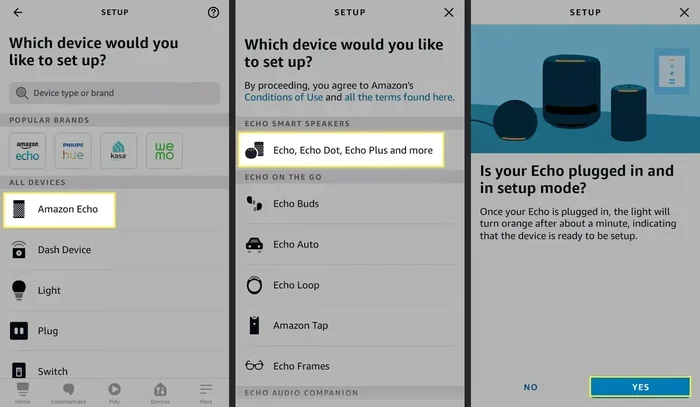
- Open the Alexa app on your phone. Make sure your phone is connected to the same Wi-Fi network you want your Echo Dot to join.
- Go to Devices. Tap the “Devices” icon at the bottom of the Alexa app screen.
- Select your Echo Dot. You’ll see all your Alexa devices listed. Tap on the one you want to reconnect.
- Go to Settings. Tap the gear icon in the top right corner.
- Tap “Wi-Fi Network.” The app will show the current connection status.
- Choose “Update Wi-Fi.” Follow the on-screen prompts to select your new network and enter the password.
- Wait for confirmation. The light ring on your Echo Dot will turn solid green when connected.
What If the Alexa App Doesn’t Detect Your Echo Dot?
This is a common issue. If the app can’t find your device, try these steps:
- Move closer to your Echo Dot. Your phone needs to be within a few feet during setup.
- Make sure your Echo Dot is in setup mode. Hold the action button for 5 to 10 seconds until the light ring turns orange.
- Restart your phone’s Wi-Fi. Turn it off and back on again.
- Check your router. Make sure the router is working and broadcasting a signal.
Connecting Echo Dot to a Hidden Wi-Fi Network
Some people hide their Wi-Fi network name (SSID). The Alexa app doesn’t always detect hidden networks easily. To connect, you’ll need to manually add the network in your phone’s Wi-Fi settings first. Connect your phone to the hidden network, then proceed with the Alexa app setup. This way, the app can find and connect your Echo Dot to the hidden network.
How to Pair Your Echo Dot via Bluetooth Again
Bluetooth pairing is another way to connect Echo Dot again with other devices. You might want to pair it with a speaker, phone, or another audio source. Here’s how to do it the right way.
Bluetooth Pairing Steps
- Put your Echo Dot in Bluetooth pairing mode. Say “Alexa, pairing mode” or go to Settings > Bluetooth in the Alexa app.
- Turn on Bluetooth on your other device. Whether it’s your phone, tablet, or laptop, make sure Bluetooth is enabled.
- Search for available devices. Your other device will scan for nearby Bluetooth speakers.
- Select your Echo Dot from the list. It should appear as “Echo Dot” followed by a number.
- Wait for the connection. You’ll hear a confirmation sound from the Echo Dot. The light ring will turn blue.
How to Disconnect a Bluetooth Device
Sometimes you need to disconnect a paired device before you can pair a new one. Simply say “Alexa, disconnect” or go to Settings > Bluetooth in the Alexa app and tap “Disconnect.” This clears the current pairing so you can start fresh.
Pairing Multiple Bluetooth Devices
Your Echo Dot can remember multiple Bluetooth devices. However, it can only play audio from one device at a time. If you want to switch between devices, go to Bluetooth settings and select the device you want to use. Think of it like switching inputs on a TV.
Can You Use Bluetooth with Other Devices?
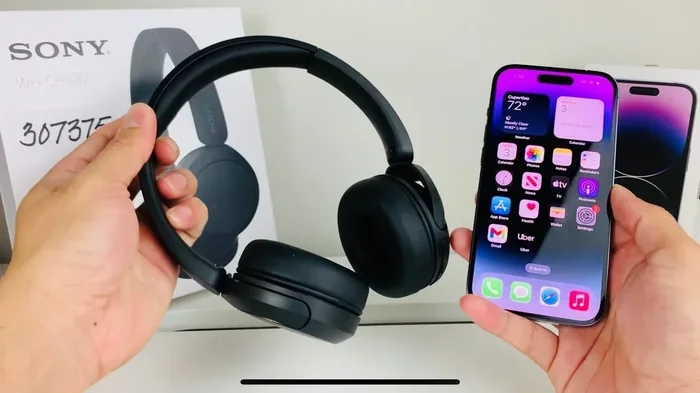
Yes! Much like connecting a Bluetooth printer to your devices, the Echo Dot follows the same Bluetooth pairing principles. The process is universal across most smart devices. You can also pair Bluetooth headphones with your Echo Dot, similar to how you pair Bluetooth headphones with a PS4. The steps are nearly identical across platforms.
Common Problems When Connecting Echo Dot Again
Even when you follow the steps, things can go wrong. Here are the most common issues and how to fix them.
Echo Dot Won’t Connect to Wi-Fi
This is the number one problem people face. Usually, it’s because of one of these reasons:
- Wrong password. Double-check your Wi-Fi password. Even one wrong character will prevent connection.
- 2.4 GHz vs 5 GHz. Echo Dot works best on 2.4 GHz networks. Some routers use 5 GHz by default. Try connecting to the 2.4 GHz band.
- Too far from the router. Move your Echo Dot closer to the router and try again.
- Router limitations. Some routers limit the number of connected devices. Check if you’ve hit that limit.
Echo Dot Keeps Disconnecting
If your Echo Dot connects but then drops frequently, try these fixes:
- Move the Echo Dot closer to the router. Walls and furniture can weaken the signal.
- Restart your router. Unplug it for 30 seconds, then plug it back in.
- Check for interference. Microwaves, baby monitors, and other electronics can interfere with Wi-Fi signals.
- Update the Echo Dot firmware. Go to the Alexa app, select your device, and check for updates.
Bluetooth Pairing Fails
Bluetooth problems are frustrating but usually easy to fix:
- Make sure Bluetooth is on. This sounds obvious, but it’s the most common mistake.
- Remove old pairings. Too many saved devices can confuse the Echo Dot. Clear old pairings and try again.
- Restart both devices. Turn Bluetooth off and on on both the Echo Dot and the device you’re trying to pair.
- Stay within range. Bluetooth works best within 30 feet. Go too far and the connection drops.
How to Factory Reset Your Echo Dot to Connect Again
When nothing else works, a factory reset gives you a clean slate. This erases all your settings and lets you start the setup process fresh.
How to Factory Reset
- Unplug your Echo Dot from power. Wait about 10 seconds.
- Plug it back in. Wait for the light ring to turn orange.
- Press and hold the action button. Hold it for about 20 seconds.
- Wait for the light ring to turn blue. This means the reset is in progress.
- Wait for the light ring to turn orange again. This confirms the reset is complete.
When Should You Factory Reset?
You should only factory reset when other methods fail. Here are some situations where a reset makes sense:
- You’re selling or giving away your Echo Dot. A reset clears all your personal data.
- Your Echo Dot is completely unresponsive. If nothing else works, a reset often brings it back to life.
- You’ve tried everything and still can’t connect. A fresh start eliminates hidden software issues.
After the Reset
Once the reset is complete, you’ll need to set up your Echo Dot again. Open the Alexa app, add a new device, and follow the setup prompts. You’ll reconnect to Wi-Fi, update your preferences, and re-pair any Bluetooth devices. Think of it as setting up a brand new speaker.
Expert Tips to Keep Your Echo Dot Connected
Prevention is always better than fixing problems. Here are some expert tips to keep your Echo Dot connected and running smoothly.
Keep Your Firmware Updated
Amazon regularly releases updates for the Echo Dot. These updates fix bugs, improve performance, and add new features. The Alexa app usually updates your device automatically. But you can check manually by going to Device Settings > About and looking for available updates.
Use a Strong Wi-Fi Signal
Place your Echo Dot in a central location in your home. Avoid putting it in corners, closets, or behind furniture. A strong Wi-Fi signal means fewer disconnections and better performance. If your home is large, consider a Wi-Fi extender to boost the signal in distant rooms.
Limit the Number of Paired Bluetooth Devices
Your Echo Dot can remember many Bluetooth devices, but having too many paired can cause confusion. Periodically go through your Bluetooth settings and remove devices you no longer use. This keeps things clean and prevents connection conflicts.
Use a Dedicated Smart Home Network
If you have many smart devices, consider setting up a separate Wi-Fi network for them. This reduces congestion on your main network and keeps your Echo Dot running smoothly. Many modern routers support dual-band or even tri-band setups that make this easy.
Restart Your Echo Dot Regularly
Just like any tech device, your Echo Dot benefits from occasional restarts. Unplug it for 30 seconds once a month. This clears temporary files and refreshes the connection. It’s a simple habit that prevents many common issues.
Name Your Wi-Fi Network Clearly
Avoid using special characters or spaces in your Wi-Fi network name. The Echo Dot sometimes struggles with complex network names. Keep it simple with letters and numbers only. This small step can save you a lot of troubleshooting time.
When to Contact Amazon Support
Most connection issues resolve with the steps above. But sometimes, you need professional help. Contact Amazon Support if:
- Your Echo Dot won’t power on at all. This could be a hardware issue.
- You’ve factory reset multiple times with no success. There may be a deeper software problem.
- Your Echo Dot overheats or makes unusual noises. These are signs of a hardware malfunction.
- Your warranty is still active. Amazon may replace your device for free.
You can reach Amazon Support through the Alexa app, by phone, or through their online help center. Have your device serial number ready. It speeds up the support process.
Final Thoughts
Connecting Echo Dot again doesn’t have to be stressful. Whether you’re reconnecting to Wi-Fi, pairing a Bluetooth device, or doing a full factory reset, the steps are straightforward. The key is patience and following the right sequence.
Start with the simplest fix first. Usually, that means checking your Wi-Fi connection and restarting the device. If that doesn’t work, move to Bluetooth pairing or a factory reset. Most people solve their connection issues within 10 to 15 minutes.
Remember to keep your firmware updated, place your Echo Dot in a good location, and limit the number of paired Bluetooth devices. These small habits go a long way in keeping your smart speaker running smoothly.
Now that you know how to connect Echo Dot again, you’re ready for any connection problem that comes your way. Your Alexa voice assistant is just a few steps away from being fully operational again.
Frequently Asked Questions
Why won’t my Echo Dot connect to Wi-Fi?
Most Wi-Fi connection issues come from a wrong password, being too far from the router, or using a 5 GHz network. Make sure you’re using the correct password, move closer to your router, and try connecting to the 2.4 GHz band instead. These simple fixes solve the problem 90% of the time.
How do I put my Echo Dot in pairing mode?
You can say “Alexa, pairing mode” out loud, or go to Settings > Bluetooth in the Alexa app and tap “Pair a New Device.” The light ring on your Echo Dot will turn blue, indicating it’s ready to pair with a new device.
Can I connect Echo Dot to a hidden Wi-Fi network?
Yes, you can. First, connect your phone to the hidden Wi-Fi network manually through your phone’s Wi-Fi settings. Then open the Alexa app and set up your Echo Dot. The app will detect the network through your phone’s connection and guide you through the setup process.
How do I factory reset my Echo Dot?
Unplug your Echo Dot, wait 10 seconds, plug it back in, and wait for the light ring to turn orange. Then press and hold the action button for 20 seconds until the light ring turns blue and then orange again. This wipes all settings and returns the device to its original state.
Why does my Echo Dot keep disconnecting from Bluetooth?
Bluetooth disconnections usually happen when the paired device moves too far away or when there’s too much interference. Make sure both devices are within 30 feet of each other. Also, remove old Bluetooth pairings that you no longer use, as they can cause conflicts with new connections.
How often should I restart my Echo Dot?
Restarting your Echo Dot once a month is a good habit. Simply unplug it for 30 seconds and plug it back in. This clears temporary files, refreshes the connection, and prevents many common issues. If you notice connection problems, a restart is always the first thing you should try.