How Do I Access My Wifi Logs To See Who Is Using It
Accessing your wifi logs is simpler than most people think. You can check your router admin panel to see every device connected to your network, review browsing activity, and spot unauthorized users. This guide walks you through the entire process with clear, easy-to-follow steps.
This is a comprehensive guide about How Do I Access My Wifi Logs.
Key Takeaways
- Router admin access is the key: Logging into your router lets you view all connected devices and usage logs.
- Every router brand works differently: Linksys, Netgear, TP-Link, and others have unique admin interfaces.
- You can boost security easily: Reviewing logs helps you catch unauthorized users and protect your data.
- Multiple methods exist: You can access logs through the router interface, mobile app, or web browser.
- Regular monitoring matters: Checking your wifi logs frequently keeps your network fast and safe.
[FEATURED_IMAGE_PLACEHOLDER]
How Do I Access My Wifi Logs To See Who Is Using It
Have you ever wondered who else might be using your wifi logs? Maybe your internet feels slow, or you just want to know exactly who is on your network. Either way, accessing your wifi logs gives you full visibility into every device connected to your wireless network.
The good news? You do not need to be a tech expert to do this. In fact, most people can check their router admin panel in just a few minutes. This guide breaks down everything you need to know, from finding your router IP to interpreting the logs like a pro.
By the end of this article, you will know exactly how to monitor your network activity, identify unknown devices, and take control of your home wifi. Let us get started.
Why Checking Your Wifi Logs Matters
Your wifi logs contain a treasure trove of information. They show which devices have connected to your network, when they connected, and sometimes even what they accessed. This data is incredibly useful for several reasons.
First, it helps you protect your network security. If an unknown device shows up in your logs, you know someone might be piggybacking on your wifi. Second, it helps you troubleshoot slow internet. If too many devices are streaming or downloading at once, your logs will reveal the culprits. Third, it gives you peace of mind as a network administrator of your own home.
Think of your wifi logs like a security camera for your internet connection. They record everything that happens on your wireless network. Without checking them, you are essentially flying blind.
What Information Do Wifi Logs Contain?
Your router logs typically include the following details:
- Device names and MAC addresses of connected gadgets
- IP addresses assigned to each device
- Connection timestamps showing when devices joined or left
- Bandwidth usage per device
- DNS queries revealing websites visited
- Login attempts and admin access records
Not all routers display every single one of these details. Some keep it simple with just a list of connected devices, while others offer deep-dive analytics. The type of information you see depends on your router model and firmware version.
How To Access Your Wifi Logs Step By Step
Now let us get into the practical stuff. Accessing your wifi logs involves logging into your router. Here is the exact process you should follow.
Step 1: Find Your Router IP Address
Every router has a unique IP address, often called the default gateway. This is the address you type into your browser to reach the admin panel.
On Windows, open Command Prompt and type ipconfig. Look for the “Default Gateway” line. On Mac, go to System Preferences, click Network, and look at your Wi-Fi details. The router IP is usually something like 192.168.1.1 or 192.168.0.1.
Once you have the IP, type it into your browser’s address bar and hit Enter. You will be prompted for a username and password.
Step 2: Log Into Your Router Admin Panel
The default login credentials are usually printed on a sticker on the back or bottom of your router. Common defaults are “admin” for both the username and password. If you have changed these before and forgot, you may need to reset your router to factory settings.
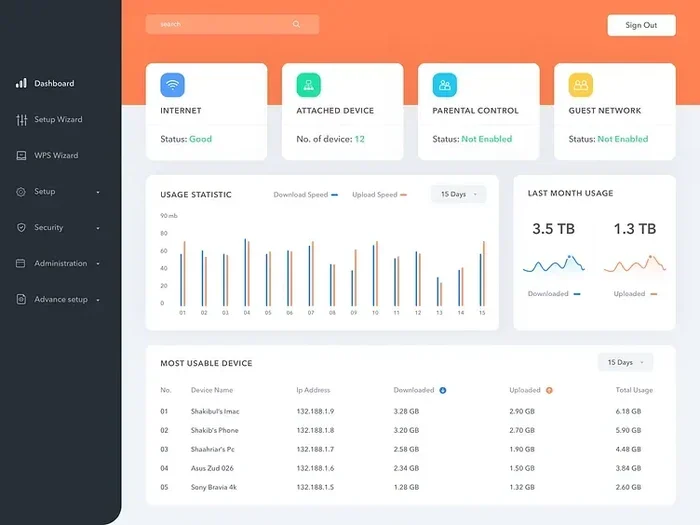
After logging in, look for a section called “Connected Devices,” “Device List,” “Logs,” or “Traffic Statistics.” The exact name varies by brand. This is where your wifi logs live.
Step 3: Review Your Connected Devices
Once you find the device list, you will see every gadget currently connected to your network. Compare this list to the devices you own. Do you recognize every single one?
If you see a device you do not own, someone might be using your wifi without permission. You can block that device right from the admin panel in most cases. This is also a great time to check if your network security settings are strong enough.
Step 4: Check Historical Logs
Some routers let you view past connections, not just current ones. Look for a “System Log” or “Event Log” section. These logs can show you which devices connected over the past days or weeks. This is especially helpful if you suspect someone accessed your network when you were not home.
Keep in mind that older log entries may get overwritten as new ones come in. If your router has limited storage, it may only keep the most recent entries.
Accessing Wifi Logs Through Your Router Brand
Every router brand has a slightly different admin interface. Here is how to find your logs on the most popular brands.
TP-Link Routers
Log into the TP-Link admin panel at 192.168.0.1. Go to “Advanced” and then “System Tools.” Click “System Log” to view your network activity history. TP-Link also offers a mobile app called Tether that makes this process even easier.
Netgear Routers
For Netgear, go to 192.168.1.1 or routerlogin.net. Navigate to “Advanced” and then “Administration.” Under “Logs,” you can view connection history and device tracking data. Netgear routers also support the Nighthawk app for mobile access.
Linksys Routers
Linksys routers use 192.168.1.1 as the default gateway. After logging in, go to the “Connectivity” tab and look for “Device List.” Some newer Linksys models offer detailed logs through the Linksys app, which is a great option if you prefer managing your wireless network from your phone.
ASUS Routers
ASUS routers are known for their detailed logging capabilities. Log in at 192.168.1.1, then go to “General” and “System Log.” ASUS routers also include a feature called “AiProtection” that provides advanced network monitoring tools, including real-time device tracking and threat detection.
Using Mobile Apps And Third-Party Tools To Monitor Wifi Logs
Not everyone wants to dig through router settings. The good news is that several apps and tools can simplify the process of monitoring your wifi usage.
Router Manufacturer Apps
Most major router brands now offer free mobile apps. These apps give you a user-friendly way to see connected devices, check bandwidth usage, and even set up parental controls. If you prefer a simple interface over typing IP addresses into a browser, these apps are a great choice.
Third-Party Network Monitoring Tools
Apps like Fing, GlassWire, and WiFiman can scan your network and show you every connected device. They often provide more detailed information than your router’s built-in tools. Fing, for example, can identify the brand and model of each device on your wifi hotspot.
These tools are especially helpful if you want to monitor your network without constantly logging into your router. They run in the background and alert you when new devices join your network.
When To Consider Professional Network Monitoring
If you run a small business or have a very large home network, basic tools may not be enough. Professional network monitoring solutions like PRTG or Nagios offer deep analytics, alerts, and reporting. These tools are overkill for most home users but essential for businesses that need tight control over their network traffic.
What To Do If You Find Unauthorized Devices
Discovering an unknown device on your network can be unsettling. Here is exactly what you should do to secure your wifi connection.
Change Your Wi-Fi Password Immediately
The first step is to change your wifi password. Use a strong, unique password that includes letters, numbers, and symbols. This kicks off any unauthorized users and prevents them from reconnecting.
Update Your Router Firmware
Outdated router firmware can have security vulnerabilities. Check for firmware updates in your router admin panel under “Administration” or “Advanced Settings.” Keeping your firmware current is one of the best ways to protect your network security.
Enable WPA3 Encryption
If your router supports WPA3, enable it. This is the latest and most secure wifi encryption standard. It makes it much harder for someone to crack your password and gain access to your network.
Disable WPS (Wi-Fi Protected Setup)
WPS is a convenience feature that lets devices connect with the push of a button. However, it also creates a security vulnerability. Disabling WPS removes one more potential entry point for intruders.
Set Up a Guest Network
If you often have visitors who need wifi, set up a separate guest network. This keeps your main network isolated and secure. Guests can still get online without accessing your shared files or devices.
Common Mistakes People Make When Checking Wifi Logs
Even tech-savvy people make mistakes when trying to access their wifi logs. Here are the most common ones to avoid.
Not checking logs regularly. Many people only look at their router settings when something goes wrong. Making it a habit to check your logs once a week keeps you ahead of potential security issues.
Ignoring firmware updates. Outdated firmware not only creates security risks but can also limit your access to new logging features. Always keep your router updated.
Using default login credentials. If you have never changed your router admin password, you are at risk. Anyone who knows the default credentials can access your settings. Change them right away.
Confusing connected devices with logged devices. Some routers only show currently active connections, while others log historical data. Make sure you know which type of data your router provides.
Overlooking the MAC address filter. Every device has a unique MAC address. You can set up your router to only allow devices with specific MAC addresses. This adds an extra layer of device tracking security to your network.
Also, many people do not realize that you can check saved wifi passwords on your phone. If you want to learn more about viewing wifi passwords on your Android device, check out our guide on Can I See My Wi Fi Password On My Android Phone. And if you want to manage your router settings like changing the network name, our article on Can I Change The Ssid On My Router covers that in detail. For general signal improvement tips, you might also find our piece on Can I Increase Wi Fi Signal helpful.
Quick Tips For Better Wifi Log Management
Here are some quick tips to make managing your wifi logs easier and more effective:
- Schedule a weekly log review to stay on top of your network activity
- Screenshot your device list so you can compare it over time
- Label your devices with friendly names in the router settings
- Use a password manager to keep track of your router admin credentials
- Enable email alerts if your router supports notifications for new connections
- Keep a record of all devices that should be on your network
- Restart your router periodically to clear old log entries and refresh connections
Expert Insights On Wifi Log Monitoring
Cybersecurity experts recommend treating your home network with the same care you would give a small business network. Regular log reviews are a fundamental part of that practice.
“Most people do not realize how much information their router exposes,” says network security specialist Mark Chen. “A quick look at your connected devices list once a week can reveal a lot about the health of your network.”
Another expert tip is to use MAC address filtering alongside a strong password. While neither method is foolproof alone, together they create a much stronger defense against unauthorized access. Think of it as a two-lock system on your front door.
Experts also recommend disabling remote management on your router unless you specifically need it. Remote management allows someone to access your router settings from outside your home, which is a potential security risk. Turn it off if you are not actively using it.
Final Thoughts
Accessing your wifi logs to see who is using your network is one of the simplest and most effective things you can do for your network security. It takes just a few minutes, requires no special software, and gives you invaluable peace of mind.
Whether you check your logs through your router admin panel, a mobile app, or a third-party tool, the important thing is that you do it regularly. Staying informed about who is on your wireless network helps you catch problems early, optimize performance, and keep your data safe.
Take a few minutes today to log into your router and review your connected devices. You might be surprised by what you find. And remember, a little proactive monitoring goes a long way toward keeping your home network fast, secure, and under your control.
FAQs
Can I see my wifi logs on my phone?
Yes, you can view basic wifi logs through your router manufacturer’s mobile app. Apps like the Linksys app, TP-Link Tether, and Netgear Nighthawk let you see connected devices and some activity logs right from your phone. For detailed logs, you will still need to access the router admin panel through a browser.
How often should I check my wifi logs?
Checking your wifi logs once a week is a solid routine. If you notice slow internet or suspect unauthorized access, check them immediately. Regular monitoring helps you catch problems early and keep your network security tight.
Can I see what websites someone visited through my wifi logs?
Some routers log DNS queries, which can show the domains visited. However, most home routers do not record full browsing history with page-level detail. For comprehensive monitoring, you would need a dedicated network monitoring tool or DNS-level filtering solution.
What should I do if I find an unknown device on my network?
First, change your wifi password immediately. Then block the unknown device from your router admin panel. Update your router firmware and enable WPA3 encryption if available. These steps will secure your wifi connection and prevent future unauthorized access.
Do all routers keep wifi logs?
Most modern routers keep some form of logs, but the amount of detail varies. Budget routers may only show a basic list of currently connected devices, while higher-end models offer detailed historical logs, bandwidth tracking, and event records. Check your router manual for specific logging capabilities.
Is it legal to monitor wifi logs on my own network?
Yes, monitoring activity on your own network is perfectly legal in most jurisdictions. You are the network administrator of your home wifi, and you have every right to see who connects and what they do. However, monitoring networks you do not own is a different matter and may violate privacy laws.
Frequently Asked Questions
What is How Do I Access My Wifi Logs?
How Do I Access My Wifi Logs is an important topic with many practical applications.