How Do I Connect My Alexa Echo Dot To Wifi Step By Step
Setting up your Alexa Echo Dot to WiFi is simple and takes just a few minutes. This guide walks you through the entire process, from gathering what you need to troubleshooting common issues. Whether you are a first-time Echo user or setting up a new device, you will find clear, step-by-step instructions to get your smart speaker connected and ready to go.
Key Takeaways
- You need a working WiFi network and the Alexa app: These are the two essentials for a smooth Echo Dot setup.
- The setup process takes under five minutes: Follow the step-by-step instructions for a quick and easy wireless connection.
- Troubleshooting is simple: Most WiFi connection issues can be fixed by restarting your device or router.
- Placement matters for performance: Keep your smart speaker in an open area away from interference for the best signal strength.
- You can connect without the app using Bluetooth: This is a handy backup option if you do not have access to the Alexa app.
- Your Echo Dot works best on a 2.4GHz network: Make sure your home network is broadcasting on the correct frequency band.
📑 Table of Contents
- How Do I Connect My Alexa Echo Dot To Wifi: A Complete Step-by-Step Guide
- What You Need Before You Start
- How to Connect Your Echo Dot to WiFi Using the Alexa App
- Connecting Your Echo Dot to WiFi Without the Alexa App
- Common WiFi Connection Problems and How to Fix Them
- Optimizing Your Echo Dot WiFi Connection for Best Performance
- What to Do After Connecting Your Echo Dot to WiFi
- Final Thoughts
How Do I Connect My Alexa Echo Dot To Wifi: A Complete Step-by-Step Guide
So you just got an Alexa Echo Dot and want to get it up and running? Good news. Connecting your Echo Dot to WiFi is easier than you might think. In this guide, we will walk you through every single step. You will learn what you need before you start, how to use the Alexa app, and what to do if things do not go as planned.
Whether you are setting up your first smart speaker or adding a new smart home device to your network, this guide has you covered. We will keep things simple and straightforward. No jargon, no confusing tech talk. Just clear instructions that get your Echo Dot online quickly.
The entire Echo Dot setup process usually takes less than five minutes. All you need is your WiFi network name and password, a smartphone, and a few minutes of your time. Let us dive in and get your device connected.
What You Need Before You Start
Before you begin the WiFi connection process, make sure you have everything ready. Being prepared saves time and prevents frustration. Here is your quick checklist:
- A working WiFi network: Make sure your home network is active and your router is turned on.
- Your WiFi network name (SSID): You need to know the exact name of your wireless network.
- Your WiFi password: Have this handy. It is case-sensitive, so double-check for capital letters.
- A smartphone or tablet: You need a device to download and open the Alexa app.
- The Alexa app installed: Download it from the App Store (iPhone) or Google Play Store (Android) if you have not already.
- A power outlet: Plug in your Echo Dot and make sure it is powered on.
That is it. No fancy equipment needed. Your Echo Dot is a wireless setup device that relies on your existing home internet connection. If your WiFi is working on your phone, it will work with your Echo Dot too.
Check Your WiFi Band Compatibility
Here is something important. The Echo Dot supports 2.4GHz WiFi networks. Most home routers use this band by default. However, some dual-band routers also broadcast a 5GHz network. If your router has both, make sure you are connecting to the 2.4GHz band. The Echo Dot does not currently support 5GHz WiFi connections.
If you are unsure which band your network uses, check your router settings. Most routers label them something like “MyNetwork” for 2.4GHz and “MyNetwork_5G” for the 5GHz band. Connect to the standard one without the “_5G” suffix.
How to Connect Your Echo Dot to WiFi Using the Alexa App
This is the most common and recommended method. The Alexa app makes the process smooth and guided. Follow these steps carefully:
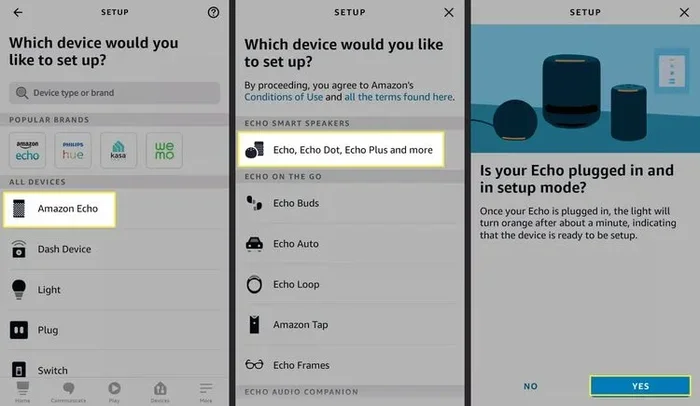
- Plug in your Echo Dot. Connect it to a power outlet using the included power adapter. Wait for the light ring to turn orange or blue. This means the device is ready for setup.
- Open the Alexa app on your phone. Make sure your phone is connected to the same WiFi network you want your Echo Dot to join.
- Tap the “Devices” icon. It looks like a small house in the bottom right corner of the app.
- Tap the “+” button. This is in the top right corner. Select “Add Device” from the menu.
- Choose “Echo.” The app will show you a list of Echo devices. Select “Echo Dot.”
- Follow the on-screen prompts. The app will search for your Echo Dot. Once it finds it, you will be asked to select your WiFi network from a list.
- Enter your WiFi password. Type it carefully. The app will confirm the connection once the password is accepted.
- Wait for the confirmation. The light ring on your Echo Dot will turn solid blue, then spin. This means the connection was successful.
That is really all there is to it. Your Alexa Echo Dot is now connected to your home WiFi network. You can start asking it questions, playing music, and controlling your smart home devices right away.
Troubleshooting During App Setup
Sometimes the app does not find your Echo Dot right away. Do not panic. Here are a few quick fixes:
- Make sure your phone is close to the Echo Dot. Move within a few feet of the device.
- Check that your phone is on the same WiFi network. If your phone is on mobile data, the app cannot find the Echo Dot.
- Restart the Echo Dot. Unplug it, wait ten seconds, and plug it back in. Wait for the orange light.
- Restart the Alexa app. Close it completely and reopen it.
- Check for app updates. Go to your app store and make sure you have the latest version of the Alexa app installed.
Connecting Your Echo Dot to WiFi Without the Alexa App
Did you know you can also set up your Echo Dot without the app? This method uses Bluetooth pairing and works in a pinch. It is not as feature-rich as the app method, but it gets the job done.
Here is how it works. First, make sure Bluetooth is turned on in your phone settings. Then, power on your Echo Dot and put it into pairing mode. You can do this by pressing and holding the action button (the button with a dot) on top of the device for about five seconds.
Your phone should detect the Echo Dot as a Bluetooth speaker. Once paired, you can use voice commands through your phone to configure the WiFi connection. This method is especially useful if you have lost your phone or do not have access to the Alexa app for any reason.
For more details on using Alexa as a Bluetooth speaker, check out our guide on that topic. It covers the full range of Bluetooth capabilities with Alexa devices.
Using the Alexa App on a Tablet
If you do not have a smartphone, you can use a tablet instead. The process is identical. Just make sure your tablet is connected to the same WiFi network you want your Echo Dot to join. The Alexa app works on both iPad and Android tablets, so you have options no matter what device you prefer.
Common WiFi Connection Problems and How to Fix Them
Even with the easiest setup, sometimes things go wrong. Your Echo Dot might refuse to connect, keep dropping off, or show an error message. Here are the most common issues and their solutions.
Echo Dot Shows “Red Ring” or “Offline” Status
A red ring usually means your Echo Dot cannot connect to the internet. This is the most common WiFi connection problem. Try these steps:
- Check your WiFi network. Make sure your router is working and other devices can connect.
- Restart your router. Unplug it, wait 30 seconds, and plug it back in. Wait for it to fully start up.
- Move the Echo Dot closer to your router. Signal strength matters a lot. Thick walls and long distances can weaken the connection.
- Restart your Echo Dot. Unplug it and plug it back in after 10 seconds.
Echo Dot Connects but Won’t Respond to Voice Commands
If your Echo Dot shows a blue ring but does not respond, the WiFi connection might be unstable. Try moving the device to a different location in your home. Wireless interference from microwaves, baby monitors, and other devices can disrupt the internet connection.
Echo Dot Won’t Find Your WiFi Network
If your network name does not appear in the Alexa app, try this:
- Make sure your router is broadcasting the SSID. Some routers hide the network name. You may need to go into your router settings to unhide it.
- Check if your router uses a custom DNS. Some DNS settings can block smart devices from connecting. Try switching to the default DNS settings.
- Reduce the number of connected devices. Too many devices on one network can slow things down and cause discovery issues.
Forgetting the WiFi Password
Forgot your WiFi password? No worries. You can find it on your router. Look for a sticker on the bottom or back of the router. It usually lists the default network name and password. If you have changed the password and forgotten it, you can reset your router to factory settings. This will restore the default credentials.
Optimizing Your Echo Dot WiFi Connection for Best Performance
Once your Echo Dot is connected, you want to make sure it stays connected and performs well. Here are some tips to optimize your wireless setup.
Place Your Echo Dot in the Right Spot
Where you put your smart speaker matters more than you might think. For the best signal strength and voice recognition, follow these guidelines:
- Keep it away from walls and corners. Open spaces let the WiFi signal reach the device more clearly.
- Stay away from metal objects. Metal can block WiFi signals and reduce performance.
- Avoid placing it near the kitchen. Microwaves and other kitchen appliances can cause wireless interference.
- Elevate the device. Placing it on a shelf or table works better than putting it on the floor.
Use a WiFi Extender if Needed
If your Echo Dot is in a room far from your router, consider using a WiFi extender. This device boosts your home network signal to reach distant rooms. It is a simple and affordable solution for homes with thick walls or multiple floors.
Keep Your Router Firmware Updated
An updated router runs better and is more compatible with smart home devices. Check your router manufacturer’s website or app for firmware updates. Most modern routers update automatically, but it never hurts to check.
What to Do After Connecting Your Echo Dot to WiFi
Now that your Echo Dot is online, what next? There is a lot you can do to get the most out of your smart speaker. Here are some ideas to get you started.
First, set up voice profiles in the Alexa app. This lets Alexa recognize different voices in your household and give personalized responses. Second, explore skills. These are like apps for Alexa. You can add skills for weather, news, games, smart home control, and much more.
Third, consider linking your smart home devices. The Echo Dot works with a wide range of smart lights, plugs, thermostats, and cameras. You can control them all with your voice once everything is connected to the same WiFi network.
If you are interested in connecting other devices to your entertainment setup, check out how you can connect your phone to HDMI TV for a bigger screen experience. This pairs well with your Echo Dot for a fully integrated home entertainment system.
You can also explore Bluetooth connectivity options for your other devices. For instance, if you are setting up audio devices, you might want to learn about connecting Powerbeats to your laptop for seamless audio switching between devices.
Final Thoughts
Connecting your Alexa Echo Dot to WiFi does not have to be complicated. With the right preparation and a little patience, you can have your smart speaker online in just a few minutes. The key is to make sure your WiFi network is working, your Alexa app is up to date, and your Echo Dot is properly powered on.
If you run into any issues, remember that most problems have simple solutions. Restart your device, check your WiFi password, and make sure your signal strength is strong enough. The Echo Dot is designed to be user-friendly, and Amazon has made the setup process as smooth as possible.
Once your device is connected, the possibilities are endless. You can play music, set alarms, control smart home devices, get news updates, and so much more. Your Echo Dot becomes the centerpiece of your smart home setup. Enjoy the convenience and the hands-free experience that a connected voice assistant brings to your daily life.
Frequently Asked Questions
Can I connect my Echo Dot to a public WiFi network?
Yes, you can connect your Echo Dot to a public WiFi network, but it is not always recommended. Public networks often require a login page or have restrictions that can interfere with your Echo Dot’s functionality. For the best experience, use your home WiFi network where you have full control over the connection and settings.
Why does my Echo Dot keep disconnecting from WiFi?
Frequent disconnections usually happen because of weak signal strength or network congestion. Try moving your Echo Dot closer to your router. Also, check if too many devices are connected to your network. Restarting both your router and Echo Dot often fixes this issue quickly.
Can I connect multiple Echo Dots to the same WiFi network?
Absolutely. You can connect as many Echo Dots as your router supports. Each device needs to be set up individually through the Alexa app. The app will guide you through adding each new device to your home WiFi network one at a time.
Do I need to reconnect my Echo Dot to WiFi after a power outage?In most cases, your Echo Dot will automatically reconnect to your WiFi network after a power outage. However, if it does not reconnect on its own, you can use the Alexa app to manually reconnect. Simply follow the same steps you used during the initial setup.
Can I use my Echo Dot without WiFi?
An Echo Dot needs WiFi to access most of its features, including voice responses, music streaming, and smart home control. However, you can use it as a Bluetooth speaker if you pair it with your phone. Without WiFi, the functionality is very limited compared to a connected state.
What should I do if my Echo Dot shows an orange light and will not connect?
An orange light usually means the Echo Dot is in setup mode and trying to connect. If it stays orange and will not connect, try restarting both your router and the Echo Dot. Make sure your WiFi password is correct and that your router is broadcasting a 2.4GHz network, which the Echo Dot requires for setup.
=== KEY TAKEAWAYS ===
Key Takeaways
- You need a working WiFi network and the Alexa app: These are the two essentials for a smooth Echo Dot setup.
- The setup process takes under five minutes: Follow the step-by-step instructions for a quick and easy wireless connection.
- Troubleshooting is simple: Most WiFi connection issues can be fixed by restarting your device or router.
- Placement matters for performance: Keep your smart speaker in an open area away from interference for the best signal strength.
- You can connect without the app using Bluetooth: This is a handy backup option if you do not have access to the Alexa app.
- Your Echo Dot works best on a 2.4GHz network: Make sure your home network is broadcasting on the correct frequency band.