How Do I Connect My Bluetooth To My Audio System Easily
Connecting Bluetooth to your audio system is simpler than most people think. This guide covers everything from basic pairing to troubleshooting common issues and improving wireless audio quality. You will learn practical steps, expert tips, and accessory recommendations to get the best sound from any setup.
There is nothing quite like filling your room with wireless music. Connecting Bluetooth to your audio system opens up a world of convenience. You can stream songs, podcasts, and playlists without dealing with cables. Whether you have a modern smart speaker or an older stereo setup, the process is simpler than you might think. This guide walks you through everything you need to know.
Many people assume they need expensive equipment to go wireless. That is not always true. Most audio systems today support Bluetooth connectivity in some form. Even older setups can often be upgraded with a small adapter. We will cover every step in plain language so anyone can follow along.
By the end of this article, you will know exactly how to connect Bluetooth to your audio system from start to finish. You will learn about pairing modes, common issues, and easy fixes. You will also discover tips to improve your wireless audio quality. Let us get started.
Key Takeaways
- Bluetooth audio streaming lets you play music wirelessly from any device to your audio system without cables
- Preparing your audio system by checking for Bluetooth support saves time and prevents frustration
- Pairing mode is the essential first step in connecting Bluetooth to your audio system successfully
- Common connection issues like poor pairing or cutting out are usually solved by restarting or repositioning devices
- Bluetooth adapters can bring wireless capability to older or non-Bluetooth audio equipment affordably
- Optimizing settings and speaker positioning improves both sound quality and connection stability
- Wireless music is more accessible than ever with the right setup and a little patience
📑 Table of Contents
Understanding Bluetooth Audio Basics
Before you dive into setup, it helps to understand what Bluetooth audio actually is. Bluetooth is a short-range wireless technology that sends audio signals between devices. It replaces the need for cables and wires. You can think of it as an invisible bridge between your phone and your speakers.
Bluetooth audio streaming uses a specific profile called A2DP. This profile handles high-quality stereo sound. It ensures your music sounds clear and full. Most modern phones, tablets, and laptops support this profile by default. You do not need to do anything special to use it.
What Is Bluetooth Audio?
Bluetooth audio is simply sound that travels wirelessly from one device to another. Instead of plugging in a cable, your phone sends music through the air. Your audio system picks up that signal and plays it through the speakers.
The beauty of wireless audio is flexibility. You can move around your room while music plays. You can share songs with friends instantly. And you do not need to fumble with cords every time you want to listen. It is one of the most convenient features of modern audio technology.
How Bluetooth Connects to Audio Devices
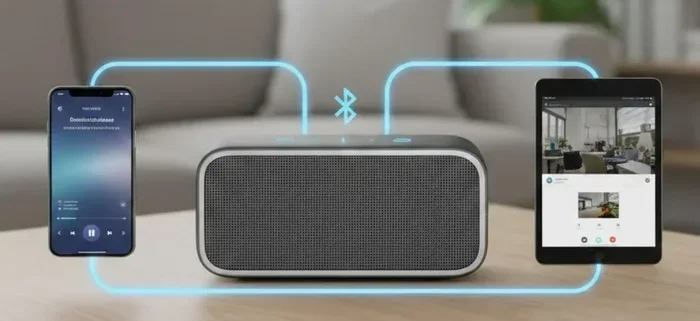
When you pair Bluetooth devices, they create a temporary wireless link. Your phone acts as the source. Your audio system acts as the receiver. Once paired, they remember each other and reconnect automatically next time.
The Bluetooth range is typically about 30 feet. This means you can move freely within a room. Walls and obstacles can reduce this range slightly. But for most home setups, it is more than enough to walk around comfortably while your music plays.
Preparing Your Audio System for Bluetooth
Not all audio systems are Bluetooth-ready out of the box. Before you start connecting Bluetooth to your audio system, you need to check a few things. Preparation makes the whole process smoother and faster.
Check If Your Audio System Supports Bluetooth
Look at your audio system for a Bluetooth symbol. It usually looks like a lowercase “B” made of triangles. If you see this symbol, your system likely supports Bluetooth natively. Check your system’s manual or settings menu for confirmation.
Many modern receivers and amplifiers have built-in Bluetooth connectivity. If yours does not, do not worry. You can still add wireless capability using an external device. For example, if you want to turn your stereo into Bluetooth, you can use a simple and affordable adapter. There are many options available on the market today.
Some newer systems may have Bluetooth listed under a “Wireless” or “Network” menu. Take a few minutes to explore your system’s settings. This small step can save you a lot of trouble later on.
What You Need Before Getting Started
Here is a quick checklist of what you need before you begin:
- An audio system with Bluetooth support or an external adapter
- A source device like a phone, tablet, or laptop
- A stable power supply for both devices
- Some free space in your Bluetooth device list
- Patience and a willingness to try a few times if needed
Once you have these items ready, the actual audio system setup takes only a few minutes. Having everything prepared beforehand makes the whole experience much smoother.
Step-by-Step: Connecting Bluetooth to Your Audio System
Now comes the fun part. This section walks you through the actual connection process. Follow these steps carefully for the best results. The process is very similar across most devices.
Pairing Mode: The First Step
First, you need to put your audio system into pairing mode. This tells the system it is ready to find new devices nearby. The method varies by brand and model, so check your manual if needed.
On most systems, you press and hold a Bluetooth button for several seconds. A light will usually start flashing. This flashing light means the system is actively searching for devices. It is now visible to other Bluetooth-enabled gadgets in the area.
Some systems have a dedicated Bluetooth pairing button on the front panel. Others require you to navigate through an on-screen menu. Do not skip this step. Your phone will not find the system if it is not in pairing mode. If the light stops flashing after a minute or two, just press the button again to restart the search.
Connecting from Your Phone or Device
Now go to your phone or source device. Open the Bluetooth settings. Turn Bluetooth on if it is not already enabled. Your phone will begin scanning for nearby devices automatically.
Look for your audio system in the list of available devices. Tap on its name to initiate the connection. Within a few seconds, the devices should pair successfully. You may hear a confirmation tone from your speakers. A message might also appear on your screen saying “Connected.”
If you have older equipment that does not support Bluetooth natively, you might need a Bluetooth adapter to make the connection work. For instance, you can make your TV Bluetooth with an adapter if your TV does not have built-in wireless support. These small devices plug into an auxiliary or optical port and add wireless capability instantly. They are a game-changer for older setups.
Verifying the Connection
Once paired, play some music on your phone. You should hear it coming from your audio system clearly. If the sound is steady and clear, you are all set and ready to enjoy.
Check the Bluetooth settings on both devices. They should show each other as “Connected” or “Paired.” This confirms the Bluetooth connection is working properly. If you do not see the connected status, go back and repeat the pairing steps.
Try moving around the room while music plays. This tests the Bluetooth range and signal stability. If the sound cuts out at a distance, check for interference from other wireless devices. We will address that in the troubleshooting section below.
Troubleshooting Common Bluetooth Connection Issues
Even with the best setup, problems can happen from time to time. Do not panic. Most Bluetooth issues are easy to fix with a few simple steps. Here are the most common problems and how to solve them.
Bluetooth Won’t Pair
If your devices refuse to connect, try these proven steps. First, make sure both devices have Bluetooth turned on. It sounds simple, but this is the most common oversight people make.
Next, restart both devices. A fresh start clears temporary glitches that can block the connection. Turn off Bluetooth on both, wait ten seconds, then turn it back on. This resets the wireless connection and often solves the problem immediately.
Make sure your audio system is in pairing mode. It will not show up in your phone’s list if it is not actively searching. Some systems exit pairing mode after a minute or two of inactivity. Just press the Bluetooth button again and try once more.
If you are trying to connect your Bluetooth to a car audio system, distance matters more than usual. Make sure your phone is within a few feet of the car stereo before attempting to pair. Once paired successfully, you can move further away without issues.
Audio Keeps Cutting Out
Intermittent sound is frustrating but usually fixable. The most common cause is physical interference. Wi-Fi routers, microwaves, baby monitors, and other wireless devices can disrupt the Bluetooth signal and cause dropouts.
Move closer to your audio system. Reduce the number of wireless devices in the same room. Sometimes simply repositioning your setup solves the problem entirely. Try moving your phone to a different location and see if the sound stabilizes.
Another cause is outdated firmware. Check if your audio system needs a software update. Manufacturers often release updates that improve Bluetooth connectivity and overall stability. Visit the manufacturer’s website or app to check for the latest firmware version.
Sound Quality Is Poor
If your music sounds muffled or distorted, check the source first. Low-quality audio files will always sound bad no matter what connection you use. Try playing a high-quality track to see if the problem is the file itself.
Also check the distance between your devices. Being too far apart can reduce audio quality significantly. Stay within the recommended Bluetooth range for the best listening experience. Walls and obstacles between devices also weaken the signal and affect sound.
Some audio systems let you adjust the Bluetooth codec settings. This controls how audio data is compressed and sent wirelessly. Choosing a higher-quality codec can dramatically improve sound clarity and detail. Check your system’s audio settings to see if this option is available.
If your old speakers are holding you back, consider giving them a modern upgrade. You can make your old Bose speakers Bluetooth with a simple and inexpensive adapter. This brings modern wireless capability to classic equipment and breathes new life into your favorite speakers.
Tips for Better Bluetooth Audio Quality
Want to get the most out of your wireless setup? These practical tips will help you improve sound quality and connection reliability every time you listen.
Optimize Your Bluetooth Settings
Go into your phone or device settings and look for audio options. Some devices let you choose between different Bluetooth profiles. The A2DP profile is best for music playback. It delivers stereo sound with good quality and minimal delay.
Disable battery saver mode during playback. This mode can limit Bluetooth performance to conserve power. It reduces the wireless signal strength, which affects sound quality. Keep your device plugged in or fully charged for the best wireless music experience.
Keep your source device close to the audio system. The closer they are, the stronger the signal. A strong signal means better sound quality and fewer interruptions. Try to keep your phone within the same room as your speakers for optimal results.
Positioning Matters for Wireless Audio
Where you place your speakers affects sound quality significantly. Keep them at ear level when possible. Avoid tucking them into closed cabinets or behind large furniture pieces. Good placement lets the sound travel freely around the room.
Place your audio system in an open area. This helps the Bluetooth signal travel freely without obstruction. Walls and large metal objects can block or weaken the wireless connection. A clear line of sight between your phone and speakers is ideal.
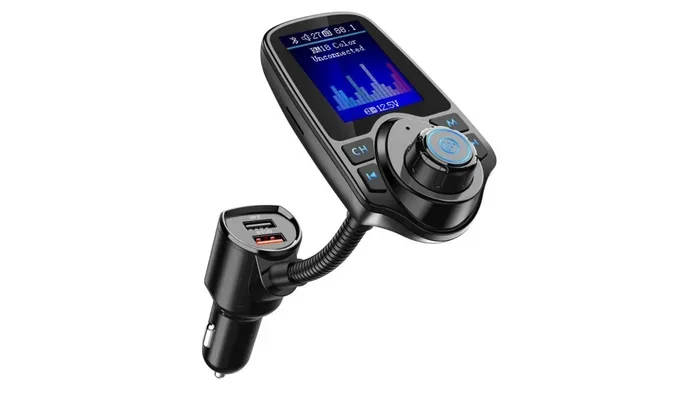
If you are using a Bluetooth transmitter for your car, position it near the receiver unit. Clip it to the dashboard or seat headrest for the best connection. Avoid placing it in the glove box or center console where signals get blocked by metal and plastic.
Bluetooth Audio Accessories Worth Considering
Sometimes you need a little extra help to get everything working perfectly. The right accessories can make a big difference in your wireless home audio experience. Here are some worth looking into.
Bluetooth Adapters for Older Systems
Not every audio system was built with Bluetooth in mind. That does not mean you are stuck with cables forever. A Bluetooth adapter is a small device that adds wireless capability to almost any audio system with an auxiliary or RCA input.
These adapters plug in and start working right away. They receive Bluetooth signals and convert them to audio your system can play. Most cost between $15 and $50. They are an affordable way to modernize your setup without replacing your entire system.
When shopping for an adapter, look for one that supports the latest Bluetooth version. Version 5.0 and above offer better range and improved sound quality. They also use less power, which means less strain on your audio system’s power supply.
Wireless Music Streaming Made Simple
Once you have Bluetooth connectivity set up, streaming music becomes effortless. You can use Spotify, Apple Music, YouTube, or any other streaming app you prefer. The music flows directly from your phone to your speakers without any cables.
Create playlists before you start listening. This way, you can enjoy uninterrupted music sessions for hours. You do not need to keep your phone unlocked or on screen the whole time. Your phone can sit across the room while the music plays.
Some audio systems also support multi-device pairing. This lets you connect two phones or tablets at once. You can take turns playing music without re-pairing every time. It is a great feature for gatherings and parties where everyone wants to share their favorite songs.
Conclusion
Connecting Bluetooth to your audio system is one of the simplest upgrades you can make to your listening experience. It removes the hassle of cables and lets you enjoy wireless audio from any device in the room. Whether you have a brand-new receiver or an older stereo, there is a way to go wireless today.
Start by checking if your system supports Bluetooth. Then follow the pairing steps carefully. If you run into issues, the troubleshooting tips in this guide should help you get back on track quickly. And remember, a Bluetooth adapter can bring wireless capability to almost any audio system, no matter how old it is.
The world of wireless music is waiting for you. Take a few minutes to set everything up, and you will never want to go back to cables again. Enjoy your listening experience and make the most of your audio system with Bluetooth today.
Frequently Asked Questions
Can I connect Bluetooth to any audio system?
Most modern audio systems support Bluetooth natively. If yours does not, you can still add wireless capability using a Bluetooth adapter. These small devices work with almost any system that has an auxiliary or RCA input. Check your system’s specs to confirm before purchasing an adapter.
Why won’t my phone find my audio system during pairing?
This usually happens when the audio system is not in pairing mode. Make sure the Bluetooth light on your system is flashing. Also check that Bluetooth is turned on in your phone’s settings. Restarting both devices often resolves this issue quickly.
How far can I move away from my audio system while using Bluetooth?
The standard Bluetooth range is about 30 feet in open space. Walls and other obstacles can reduce this distance. For the best experience, stay within the same room as your audio system. If you notice dropouts, move closer to the speakers.
Does Bluetooth affect audio quality?
Modern Bluetooth versions deliver very good sound quality. The A2DP profile handles stereo music effectively. If you notice poor quality, check your distance from the system and reduce wireless interference. Choosing a higher-quality Bluetooth codec in your settings can also improve sound clarity.
Can I connect multiple devices to my audio system via Bluetooth?
Many audio systems support multi-device pairing. This allows you to connect two or more phones or tablets at once. You can switch between devices without re-pairing each time. Check your system’s manual to see if this feature is available on your model.
Is it safe to leave Bluetooth turned on all the time?
Yes, leaving Bluetooth on is generally safe. Modern devices are designed to handle continuous wireless connections. It does use a small amount of battery power, so you may want to turn it off if you are not using it for an extended period. Overall, the convenience outweighs the minimal power usage.