How Do I Connect My Bluetooth To My Denon Receiver Fast
Connecting Bluetooth to your Denon receiver is easier than you think. This guide walks you through every step to get wireless audio streaming on your Denon receiver quickly. You will learn how to pair your phone, tablet, or laptop to your Denon receiver without any hassle. Bluetooth connectivity on a Denon receiver opens up a world of wireless music and audio. Follow our tips to enjoy seamless sound in minutes.
There is nothing quite like streaming music wirelessly through a quality receiver. If you own a Denon receiver, you already have great hardware. Adding Bluetooth connectivity to the mix makes everything even better. Whether you want to play playlists from your phone or stream podcasts, connecting Bluetooth to your Denon receiver unlocks a whole new level of convenience. This guide will show you exactly how to do it, fast and without any confusion.
Many people think setting up wireless audio is complicated. The truth is different. Denon receivers come with built-in Bluetooth in most models made after 2015. Even older units can get Bluetooth with a simple adapter. We will cover both methods in detail. By the end of this article, you will be listening to your favorite tunes wirelessly in no time.
Key Takeaways
- Bluetooth pairing on a Denon receiver is simple: Just enable Bluetooth mode and search for your device.
- Most modern Denon receivers support Bluetooth natively: No extra adapter is needed in most cases.
- Common issues like connection drops can be fixed: Simple resets and updates solve most problems.
- The Bluetooth range is typically 30 feet: Keep your source device within range for best performance.
- Using a Bluetooth adapter can add older models: This is a great option if your receiver lacks built-in Bluetooth.
- Audio quality remains high over Bluetooth: Modern codecs like aptX deliver near-lossless sound.
- Pinning your paired device saves time: Quick reconnect without re-pairing every session.
📑 Table of Contents
- Understanding Bluetooth on Your Denon Receiver
- Step-by-Step Guide to Connect Bluetooth to Your Denon Receiver
- Troubleshooting Common Bluetooth Connection Problems
- Best Bluetooth Devices to Pair with Your Denon Receiver
- Tips to Improve Your Bluetooth Audio Experience
- Quick Tips for First-Time Bluetooth Users
- Common Mistakes to Avoid When Connecting Bluetooth
- Frequently Asked Questions
- Conclusion
Understanding Bluetooth on Your Denon Receiver
Before you start, it helps to know what you are working with. Bluetooth technology lets two devices talk to each other without wires. Your Denon receiver acts as the central hub. It receives the audio signal from your phone, tablet, or computer. Then it sends that signal to your speakers. The whole process happens in seconds.
How Bluetooth Works with Audio Devices
Bluetooth audio streaming uses a short-range wireless signal. Your phone sends music data to the receiver. The receiver decodes that data into sound. This is called Bluetooth pairing. Once paired, the devices remember each other. So you do not need to set it up again every time. This is one of the biggest advantages of wireless audio over wired connections.
Most Denon receivers use Bluetooth version 4.0 or higher. Newer models support Bluetooth 5.0. The higher the version, the better the range and sound quality. Bluetooth 5.0 can reach up to 80 feet in open space. It also uses less power, which is great for your phone battery. Bluetooth compatibility depends on your specific model. Check your receiver’s manual or visit Denon’s website for specs.
Built-In Bluetooth vs. Bluetooth Adapter
Here is an important distinction. Some Denon receivers have built-in Bluetooth. Others do not. If your receiver was made in the last 7-8 years, it likely has Bluetooth already. Older models may need a Bluetooth adapter. These adapters plug into the receiver’s input. They add wireless capability to any stereo system. Think of it like adding a new feature to an older device.
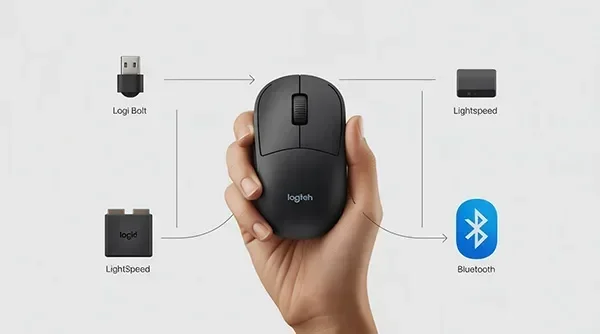
If your receiver does not have Bluetooth, you can still get wireless audio. A Bluetooth transmitter works well for this purpose. You connect the transmitter to your receiver’s audio input. Then your phone connects to the transmitter. This method works great and costs very little. For more on making devices Bluetooth capable, check out our guide on Can I Turn My Stereo Into Bluetooth for additional tips.
Step-by-Step Guide to Connect Bluetooth to Your Denon Receiver
Now let us get into the actual setup. Connecting Bluetooth to your Denon receiver takes just a few minutes. Follow these steps carefully and you will be good to go. This process works for most Denon models including the AVR series and stereo receivers.
Step 1: Turn on Your Denon Receiver
Start by powering on your Denon receiver. Make sure it is plugged in and turned on. Wait for the display to light up. If your receiver has a standby mode, press the power button to wake it up. You want the receiver fully active before you begin pairing.
Step 2: Select the Bluetooth Input
Use the remote control or the buttons on the receiver. Look for a Bluetooth or Source button on the remote. Press it and scroll through the input options. Select Bluetooth or BT if you see it listed. Some Denon models label this as Bluetooth Audio or simply Bluetooth Mode. The display should confirm the Bluetooth input is active.
Step 3: Put Your Denon Receiver in Pairing Mode
This is the most important step. You need to make your receiver discoverable. Press and hold the Bluetooth button on the receiver or remote. Hold it for about 3-5 seconds. The display should show a blinking light or a pairing symbol. This means your receiver is ready to connect. It is now searching for nearby devices.
If you cannot find a Bluetooth button, try pressing and holding the Function or Setup button. Some models require you to go into the Bluetooth settings menu first. Refer to your model’s manual if needed. Every Denon receiver is slightly different. But the general process is the same across the lineup.
Step 4: Enable Bluetooth on Your Source Device
Now pick up your phone, tablet, or laptop. Go to Settings and turn on Bluetooth. Make sure Bluetooth is set to visible or discoverable mode. On most phones, this happens automatically when you open the Bluetooth menu. Wait a few seconds while your device scans for available receivers.
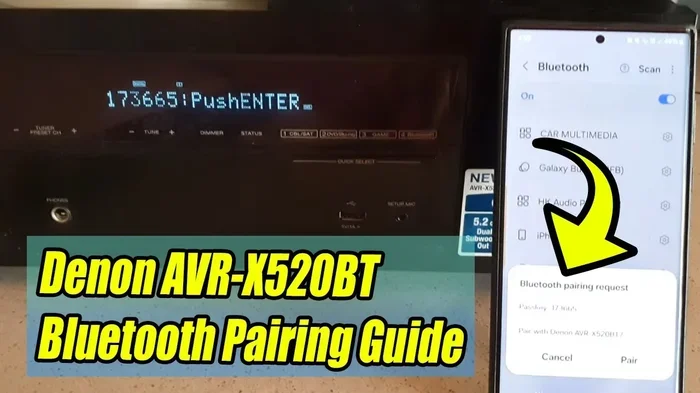
Step 5: Pair Your Device with the Denon Receiver
Your phone should now show a list of available devices. Look for your Denon receiver name in the list. It might show something like Denon AVR or Denon Stereo. Tap on the name to initiate pairing. You may see a confirmation code on both screens. If the codes match, tap Pair or Connect. That is it. Your devices are now linked.
You should hear a confirmation sound from the receiver. The display might show the connected device name. Try playing music on your phone now. The sound should come through your speakers immediately. This is the beauty of Bluetooth connection. It works fast and feels instant.
Step 6: Save the Pairing for Future Use
Most Denon receivers can remember multiple paired devices. This is really convenient. Your phone will automatically reconnect next time you turn on Bluetooth. You do not need to repeat the pairing process. Some Denon models can store up to 8 paired devices. This means everyone in your household can connect their own device easily.
Troubleshooting Common Bluetooth Connection Problems
Even with the best setup, you might run into issues sometimes. Bluetooth troubleshooting is usually straightforward. Most problems have simple solutions. Here are the most common issues and how to fix them.
Bluetooth Not Showing Up on Your Phone
If your Denon receiver does not appear in the Bluetooth list, try this first. Make sure the receiver is in pairing mode. Check that the Bluetooth function is turned on. Sometimes the receiver exits pairing mode too quickly. Press and hold the Bluetooth button again. Wait for the blinking light to return. Also, make sure your phone is not connected to another device. Bluetooth interference from other devices can cause this problem.
Connection Drops or Cuts Out
A weak Bluetooth signal often causes dropouts. The standard Bluetooth range is about 30 feet. Walls and furniture can reduce this distance. Move closer to the receiver and see if the connection stabilizes. If you are using your phone in another room, that might be the issue. Bluetooth range varies based on your receiver’s Bluetooth version. Newer versions handle obstacles better than older ones.
Another cause is too many connected devices. If your phone is connected to a smartwatch, headphones, and speaker all at once, it can confuse things. Disconnect other Bluetooth devices temporarily. Then try reconnecting to the Denon receiver. This simple step fixes many connection problems.
Poor Audio Quality or Static Noise
Bluetooth audio quality is usually very good. But sometimes you might hear static or compression. This often happens when the signal is weak. Move your source device closer to the receiver. Also check that nothing is blocking the signal path. Wireless music quality depends on the Bluetooth codec your devices support. Denon receivers typically support SBC and AAC codecs. Newer models also support aptX and LDAC for higher quality audio.
Resetting the Bluetooth Connection
If nothing else works, try a reset. Turn off Bluetooth on both devices. Power off your Denon receiver completely. Wait about 30 seconds. Turn the receiver back on. Enable Bluetooth again and try pairing fresh. This clears any stuck connections or temporary glitches. A reset solves most Bluetooth connection issues quickly.
For more help with Bluetooth setup challenges, you might find our article on Can I Use A Bluetooth Adapter On My Tv helpful for understanding adapter-based solutions.
Best Bluetooth Devices to Pair with Your Denon Receiver
Not all Bluetooth devices work the same way with a Denon receiver. Some deliver great sound. Others might cause connection issues. Here are the best device types for wireless audio streaming with your receiver.
Smartphones and Tablets
Almost any modern smartphone works perfectly with Denon receivers. Both iPhone and Android devices support Bluetooth audio. iPhones use the AAC codec. Most Android phones use SBC or aptX. Both deliver excellent sound quality through your receiver. Tablets work just as well. They are great for streaming music from apps like Spotify or Apple Music.
Laptops and Computers
Your laptop can also serve as a Bluetooth audio source. Most modern laptops have built-in Bluetooth. If yours does not, a USB Bluetooth dongle works great. Just plug it in and pair with your Denon receiver. This is a great option for desktop computers that lack wireless capability. You can stream music from your computer library or online services.
For more on connecting different devices, check out our guide on Can I Connect My Phone To Hdmi Tv which covers connecting phones to displays and audio systems.
Bluetooth Headphones and Speakers
You can also connect Bluetooth headphones to your Denon receiver. This is great for late-night listening without disturbing others. Some Denon models support Bluetooth output as well as input. Check your manual to see if your receiver supports Bluetooth sending. If it does, you can use wireless headphones with your system. For more on using Bluetooth headphones with audio systems, see our article on Can I Use Any Bluetooth Headphones With My Tv.
Tips to Improve Your Bluetooth Audio Experience
Want to get the most out of Bluetooth streaming on your Denon receiver? A few simple tips can make a big difference. These suggestions help you get the best sound quality and most reliable connection.
Keep Your Devices Close Together
The closer your source device is to the receiver, the better the signal. Try to keep them within 15-20 feet for the best experience. Walls and metal objects weaken the Bluetooth signal. If you are in a different room, you might notice quality drops. Placing your phone near the receiver solves this problem easily.
Update Your Receiver Firmware
Denon regularly releases firmware updates. These updates improve Bluetooth performance and fix bugs. Check the Denon website for your model’s latest firmware. Updating takes just a few minutes. It can significantly improve your Bluetooth connection stability and audio quality.
Use High-Quality Bluetooth Codecs
If your Denon receiver supports aptX or LDAC, use them. These codecs provide better sound than the standard SBC codec. Check your receiver’s specifications to see which codecs it supports. Then make sure your source device supports the same codec. Matching codecs ensure the best possible audio quality over Bluetooth.
Minimize Wireless Interference
Other wireless devices can interfere with Bluetooth. Wi-Fi routers, microwaves, and baby monitors all operate on similar frequencies. Move these devices away from your receiver if you notice connection issues. Switching your Wi-Fi band can also help. Using the 5GHz band instead of 2.4GHz reduces interference with Bluetooth.
Use the Right Audio Input on Your Receiver
Make sure you are using the correct input on your Denon receiver. Some inputs work better with Bluetooth than others. The Bluetooth input is designed specifically for wireless audio. Using a different input might cause volume issues or no sound at all. Always select the Bluetooth input when streaming wirelessly.
For those interested in understanding more about Bluetooth technology and how it works with audio equipment, our article on Can I Use A Usb Bluetooth Dongle On My Tv provides additional insights into Bluetooth adapter functionality.
Quick Tips for First-Time Bluetooth Users
If this is your first time setting up Bluetooth audio, keep these quick tips in mind:
- Restart both devices before attempting to pair for the first time.
- Turn off other Bluetooth devices temporarily to avoid confusion during pairing.
- Check your receiver’s manual for model-specific Bluetooth instructions.
- Keep your phone charged during setup so it does not die mid-process.
- Name your devices clearly so you can easily identify them in the Bluetooth list.
- Forget old pairings if you are having trouble connecting to a new device.
These small steps save a lot of frustration. They help you get connected faster and keep the connection stable. Once you get the hang of it, connecting Bluetooth to your Denon receiver becomes second nature.
Common Mistakes to Avoid When Connecting Bluetooth
Avoiding mistakes helps you save time and prevent frustration. Here are the most common errors people make when setting up Bluetooth on a Denon receiver.
- Not putting the receiver in pairing mode: This is the number one mistake. Your receiver must be in pairing mode to show up on other devices.
- Ignoring firmware updates: Old firmware can cause connection problems. Always keep your receiver updated.
- Pairing too many devices at once: This can confuse the receiver. Pair one device at a time.
- Placing the phone too far away: Going beyond the Bluetooth range causes dropouts. Stay within 30 feet.
- Forgetting to turn off other Bluetooth devices: Multiple active devices can interfere with the connection.
- Using the wrong input source: Always select the Bluetooth input after pairing for sound to play.
By avoiding these mistakes, you ensure a smooth and reliable Bluetooth connection every time. Most issues are easily preventable with a little awareness.
Frequently Asked Questions
Can I Connect Bluetooth to Any Denon Receiver?
Most Denon receivers made after 2015 have built-in Bluetooth. Older models may not support Bluetooth natively. If your receiver does not have Bluetooth, you can add it with a Bluetooth adapter or transmitter. Check your receiver’s manual or look for a Bluetooth button on the remote to confirm compatibility.
How Do I Know if My Denon Receiver Has Bluetooth?
Look for a Bluetooth button on your Denon remote control. Check the receiver’s display for a Bluetooth input option. You can also visit Denon’s website and search for your model number. The specifications section will list Bluetooth support. If you see Bluetooth listed, your receiver supports wireless audio streaming.
Why Is My Bluetooth Connection to My Denon Receiver Cutting Out?
Connection dropouts usually happen due to distance or interference. Move your source device closer to the receiver. Remove obstacles between the two devices. Other wireless devices like Wi-Fi routers can also cause interference. Try turning off nearby Bluetooth devices temporarily to isolate the issue.
Can I Connect Multiple Devices to My Denon Receiver via Bluetooth?
Yes, most Denon receivers can store multiple paired devices. This allows you to switch between devices easily. However, only one device can stream audio at a time. When a new device connects, the previous connection pauses. This is normal behavior for Bluetooth audio streaming.
Does Bluetooth Affect Audio Quality on My Denon Receiver?
Bluetooth audio quality is very good with modern codecs. Denon receivers support standard codecs like SBC and AAC. Some models also support aptX for even better sound. The difference between Bluetooth and wired audio is minimal for most listeners. If you are an audiophile, consider using a wired connection for the absolute best quality.
How Do I Disconnect a Bluetooth Device from My Denon Receiver?
You can disconnect a device by turning off Bluetooth on your source device. Alternatively, go to the Bluetooth settings on your phone and forget the Denon receiver. On the receiver side, you can also unpair the device through the Bluetooth menu. This removes it from the list of saved devices.
Conclusion
Connecting Bluetooth to your Denon receiver is one of the best upgrades you can make. It brings wireless convenience to your existing audio setup. Whether you have a newer model with built-in Bluetooth or an older unit with an adapter, the process is straightforward. Follow the steps in this guide and you will be streaming music in minutes.
Remember to keep your devices updated and within range. Avoid common mistakes like skipping pairing mode or using the wrong input. With a little practice, Bluetooth pairing becomes effortless. You will wonder how you ever lived without wireless audio from your Denon receiver.
Start today. Pick up your phone, follow these steps, and enjoy your music the wireless way. Bluetooth connectivity on your Denon receiver opens up endless possibilities for listening. Stream, share, and enjoy your favorite audio without any cables holding you back.