How Do I Connect My Bluetooth Mouse To My Wireless Setup
Connecting a Bluetooth mouse to your wireless setup is simpler than you think. This guide walks you through every step, from preparation to troubleshooting. You will learn how to pair your mouse, fix common connection problems, and get the best performance from your Bluetooth mouse and wireless setup.
Key Takeaways
- Bluetooth mice offer cable-free convenience: They eliminate clutter and let you work from anywhere within range.
- Pairing is straightforward: Most modern devices support Bluetooth pairing in just a few simple steps.
- Troubleshooting is easy: Common issues like interference or outdated drivers have quick fixes.
- USB receivers are a solid backup: Some mice work with both Bluetooth and a USB dongle for added flexibility.
- Performance tips matter: Keeping your mouse firmware updated and minimizing interference ensures a smooth wireless connection.
📑 Table of Contents
- What Is a Bluetooth Mouse and How Does It Work?
- Preparing Your Wireless Setup for a Bluetooth Mouse
- Step-by-Step Guide to Pairing Your Bluetooth Mouse
- Troubleshooting Common Bluetooth Mouse Connection Issues
- Tips to Get the Best Performance From Your Bluetooth Mouse
- Expert Insights on Bluetooth Mouse Connectivity
- Conclusion
What Is a Bluetooth Mouse and How Does It Work?
A Bluetooth mouse is a wireless peripheral that connects to your computer or device using Bluetooth technology. Instead of a cable, it sends data through a short-range wireless signal. This means no cords, no USB ports tied up, and no dongles cluttering your desk.
Bluetooth mice use a small radio transmitter to communicate with a receiver built into your device. The Bluetooth protocol handles the pairing process, encryption, and data transfer. Most modern laptops, tablets, and desktops come with Bluetooth built right in. If yours does not, a small Bluetooth adapter can add this capability easily.
The beauty of a wireless mouse is the freedom it gives you. You can sit on the couch, move around your desk, or even present from across the room. The Bluetooth range typically extends up to 30 feet, though walls and other obstacles can reduce that distance.
Bluetooth connectivity has improved a lot over the years. Modern versions like Bluetooth 5.0 and above offer faster speeds, lower latency, and better battery efficiency. This makes Bluetooth mice a great choice for everyday use, gaming, and professional work alike.
How Bluetooth Mouse Pairing Works
When you pair a Bluetooth device, your computer and mouse exchange identification information. This creates a trusted link between the two. Once paired, they remember each other and reconnect automatically in the future. The device pairing process usually takes less than a minute.
Your mouse enters a discoverable mode when you hold down its pairing button. Your computer then scans for nearby Bluetooth devices. Once it finds your mouse, you select it and confirm the connection. That is all there is to it.
Preparing Your Wireless Setup for a Bluetooth Mouse
Before you start connecting, a little preparation goes a long way. Making sure your setup is ready saves time and prevents frustration later on. Think of it as setting the stage for a smooth Bluetooth connection.
Check Bluetooth Compatibility
First, confirm that your computer or device supports Bluetooth. Most modern laptops have it built in. You can check by going to your system settings and looking for a Bluetooth section. Desktop computers may need a Bluetooth adapter plugged into a USB port.
If you are unsure, check your device specifications online or in the user manual. Look for Bluetooth 4.0 or higher for the best experience. Older versions may work but could have slower speeds and shorter range.
Update Your Drivers and Software
Outdated Bluetooth drivers are one of the most common reasons for connection problems. Make sure your operating system is up to date. On Windows, go to Settings > Update & Security > Windows Update. On Mac, open System Preferences > Software Update.
Some wireless peripherals also need their own software. Check the manufacturer’s website for the latest Bluetooth driver for your mouse. Installing the right software can unlock extra features like custom buttons and adjustable DPI settings.
Charge Your Bluetooth Mouse
A low battery can cause all sorts of headaches. Before pairing, make sure your wireless mouse is fully charged or has fresh batteries. A weak signal often gets blamed on connection issues when it is really just a power problem.
Most Bluetooth mice use rechargeable lithium-ion batteries. A full charge typically lasts several weeks of regular use. Keep a charging cable handy so you can top up whenever needed.
Remove Existing Bluetooth Devices
Too many connected devices can sometimes cause interference. If your Bluetooth list is crowded, remove devices you no longer use. This helps your wireless connection stay clean and stable.
You can also move other wireless peripherals further away during the pairing process. Things like wireless keyboards, speakers, and even microwaves can cause Bluetooth interference in tight spaces.
Step-by-Step Guide to Pairing Your Bluetooth Mouse
Now that your setup is ready, it is time to connect. The exact steps vary slightly depending on your operating system, but the general process is very similar across devices.
Pairing on Windows
Connecting a Bluetooth mouse to a Windows PC is quick and easy. Follow these steps:
- Click the Start menu and open Settings.
- Select Devices > Bluetooth & other devices.
- Toggle Bluetooth to On if it is not already enabled.
- Click Add Bluetooth or other device.
- Select Bluetooth from the list of options.
- Put your mouse in pairing mode by pressing and holding its dedicated button.
- Wait for your mouse to appear in the list and click on it.
- Follow any on-screen prompts to complete the device pairing process.
Once paired, your cursor should start moving right away. If it does not, try moving the mouse gently or pressing a button to wake it up.
Pairing on macOS
Mac users have a similarly simple process. Here is how to connect:
- Click the Apple menu and open System Preferences.
- Select Bluetooth.
- Make sure Bluetooth is turned on.
- Put your mouse in pairing mode.
- Look for your mouse in the list of devices.
- Click Connect next to your mouse name.
Your wireless mouse should be ready to use within seconds. Mac computers handle Bluetooth connectivity very smoothly, so most users will not run into any issues.
Pairing on Chrome OS and Linux
Chromebooks and Linux machines also support Bluetooth mice. On ChromeOS, go to Settings > Bluetooth > Turn on Bluetooth > Click on your mouse to pair. On Linux, open your Bluetooth settings through the system tray or use the command line with tools like bluetoothctl.
The pairing process is essentially the same everywhere. Put your mouse in discoverable mode, scan for devices, and select your mouse from the list.
Pairing on Mobile Devices
If you want to use a Bluetooth mouse with a tablet or phone, the process is similar. On Android, go to Settings > Connected Devices > Pair New Device. On iOS, open Settings > Bluetooth > tap your mouse when it appears.
Keep in mind that not all mobile devices support mouse input equally. Some may need a third-party app to enable full cursor control. If you are trying to connect your iPhone to a USB accessory or use a mouse with a tablet, compatibility can vary.
Troubleshooting Common Bluetooth Mouse Connection Issues
Even with the best preparation, you might run into issues from time to time. Do not worry. Most Bluetooth troubleshooting steps are quick and easy to perform.
Mouse Not Showing Up in the Device List
If your wireless mouse does not appear during the scan, try these fixes. First, make sure your mouse is in pairing mode. Most mice have a small button on the bottom or under the battery compartment. Press and hold it for about three seconds until a light starts blinking.
Next, restart Bluetooth on your computer. Turn it off, wait ten seconds, and turn it back on. This refreshes the Bluetooth adapter and clears any temporary glitches. You can also try restarting your computer entirely.
Connection Drops Frequently
A wireless connection that keeps dropping is frustrating. The most common cause is distance. Stay within the Bluetooth range of about 30 feet for the best results. Walls, furniture, and other electronics can weaken the signal.
Interference from other wireless peripherals is another culprit. If you have multiple Bluetooth devices nearby, try disconnecting some of them temporarily. USB 3.0 ports can also cause interference with Bluetooth signals. Try moving your mouse receiver or switching to a USB 2.0 port if applicable.
Cursor Movement Is Laggy or Jumpy
Laggy cursor movement can ruin your workflow. Start by checking your mouse battery. A low battery often causes erratic behavior. Replace or recharge the batteries and see if the problem goes away.
You should also check for Bluetooth driver updates. Outdated drivers can cause performance issues with your wireless mouse. Visit your computer manufacturer’s website or the Bluetooth adapter manufacturer’s site for the latest updates.
Mouse Won’t Reconnect After Sleep
Some Bluetooth mice disconnect when your computer goes to sleep. This is normal behavior. Simply move the mouse or press a button to wake it up and reconnect. If it does not reconnect automatically, go to your Bluetooth settings and select your mouse again.
If this happens often, check your power management settings. Some computers aggressively turn off Bluetooth to save energy. Adjusting these settings can keep your wireless connection stable.
When to Consider a USB Receiver Instead
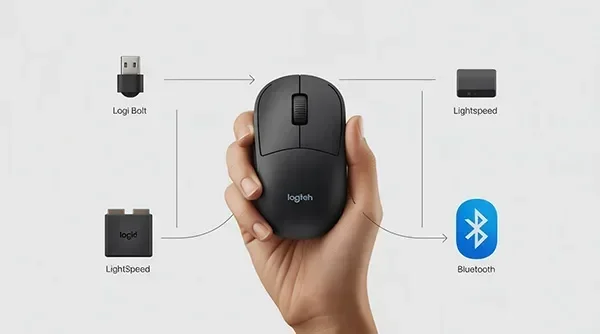
Not every wireless mouse supports Bluetooth. Many models come with a tiny USB receiver instead. If your mouse uses a USB dongle, plug it directly into a USB port. The USB connection provides a dedicated link that is often more stable than Bluetooth.
If you are deciding between a Bluetooth mouse and one with a USB receiver, consider your needs. A Bluetooth mouse saves USB ports and reduces cable clutter. A USB receiver mouse offers a more dedicated and sometimes faster connection. Both have their place in a good wireless setup.
Some premium mice support both Bluetooth and USB, giving you the best of both worlds. This is especially handy if you use your mouse with multiple devices. You can switch between a USB connection and a Bluetooth connection depending on the situation.
Tips to Get the Best Performance From Your Bluetooth Mouse
Once your Bluetooth mouse is connected, a few simple habits can keep it running smoothly for years. These tips help you get the most out of your wireless peripheral.
Keep Your Mouse Clean
Dust and debris can build up on the sensor and affect tracking. Wipe the bottom of your mouse regularly with a soft cloth. Clean the sensor lens gently to maintain accurate wireless connection performance.
Manage Battery Life Wisely
To extend battery life, turn off your Bluetooth mouse when you are not using it. Many mice have an on/off switch on the bottom. Some also enter sleep mode automatically after a period of inactivity.
If your mouse has a battery indicator, pay attention to it. Replacing or recharging batteries before they die completely helps protect the battery compartment from corrosion.
Minimize Bluetooth Interference
Keep your wireless setup organized. Other wireless peripherals like keyboards, headsets, and speakers can all compete for the same Bluetooth bandwidth. If you experience issues, try temporarily disconnecting other Bluetooth devices to see if performance improves.
Position your computer’s Bluetooth adapter as close to your mouse as possible. If you are using a USB Bluetooth dongle, plug it into a port near the front of your desk for the strongest signal.
Update Firmware Regularly
Just like any wireless technology device, your Bluetooth mouse can benefit from firmware updates. Manufacturers release these updates to fix bugs, improve Bluetooth connectivity, and add new features. Check the manufacturer’s website or companion app periodically for updates.
Use a Mouse Pad for Better Tracking
A quality mouse pad gives your sensor a consistent surface to track on. This is especially important for wireless mice that use optical or laser sensors. A good pad reduces jitter and improves accuracy, making your wireless connection feel even smoother.
Expert Insights on Bluetooth Mouse Connectivity
Bluetooth technology has come a long way since its early days. Today, it is one of the most reliable ways to connect wireless peripherals to your devices. Experts agree that for most users, a Bluetooth mouse provides the perfect balance of convenience and performance.
The device pairing process has also become much simpler. Modern operating systems handle most of the work automatically. You rarely need to enter PIN codes or configure complex settings anymore. Just turn on Bluetooth, put your mouse in pairing mode, and click connect.
One thing to keep in mind is that not all Bluetooth mice are created equal. Some use older Bluetooth versions that may not work well with newer devices. Always check the specifications before buying. Look for Bluetooth 5.0 or higher for the best compatibility and range.
Another pro tip is to keep a USB Bluetooth adapter as a backup. If your computer’s built-in Bluetooth stops working, a small adapter can get you back up and running in minutes. This is especially useful for older desktops or laptops with damaged Bluetooth hardware.
When comparing wireless mice, consider what you will use them for. A basic office mouse does not need the same features as a gaming mouse. But both benefit from a strong, stable wireless connection. Choose a mouse that fits your workflow and your wireless setup goals.
Conclusion
Connecting a Bluetooth mouse to your wireless setup does not have to be complicated. With the right preparation and a few simple steps, you can be up and running in minutes. The freedom of a cable-free wireless mouse is well worth the small effort it takes to pair it.
Remember to keep your drivers updated, minimize interference, and manage your battery levels. These small habits make a big difference in maintaining a reliable wireless connection. Whether you are working from home, presenting in a meeting, or just relaxing on the couch, a Bluetooth mouse gives you the flexibility you need.
If you ever run into trouble, the troubleshooting tips in this guide should help you get back on track. And if your Bluetooth mouse just is not working out, consider trying a USB receiver model or exploring other wireless peripherals. The world of wireless technology offers plenty of options to suit every need.
Take what you have learned here and put it into practice today. A smooth, Bluetooth-connected wireless mouse is a small upgrade that makes a big difference in your daily workflow. Happy connecting!