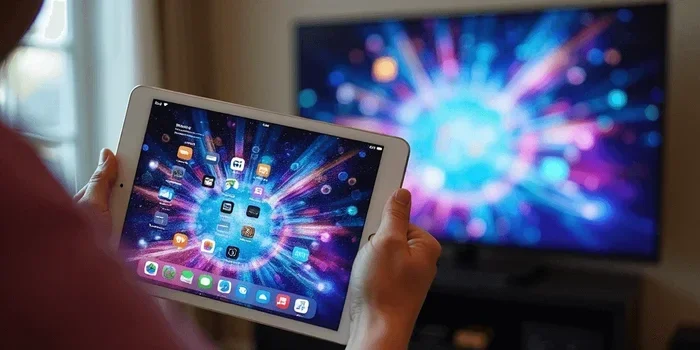
How Do I Connect My Ipad To My TV Without Any Cable
You can easily connect your iPad to your TV without a cable using AirPlay, wireless HDMI adapters, or streaming devices like Chromecast and Roku. This guide walks you through every method so you can enjoy your iPad screen on a bigger display hassle-free. Whether you want to watch movies, share photos, or play games, there is a wireless option that fits your setup.
Have you ever wanted to show something on your iPad but wished you could see it on a bigger screen? Maybe you are sharing vacation photos with family or watching a movie without squinting at that small display. The good news is you do not need a single cable to make it happen. Connecting your iPad to your TV without a cable is simpler than most people think, and there are several ways to do it.
In this guide, I will walk you through every method step by step. You will learn about AirPlay mirroring, wireless HDMI adapters, streaming devices, and even Bluetooth options. Each method has its own strengths, so by the end you will know exactly which one works best for your setup. Let us dive right in.
Key Takeaways
- AirPlay is the easiest way to connect your iPad to a smart TV wirelessly without any extra hardware.
- Wireless HDMI adapters work great for TVs that do not support AirPlay or smart features.
- Streaming devices like Chromecast and Roku offer flexible wireless screen mirroring options.
- Bluetooth can stream audio but is not ideal for full video mirroring.
- Troubleshooting steps can fix most common connection issues quickly.
📑 Table of Contents
- Why Connect Your iPad to Your TV Wirelessly?
- Method 1: Use AirPlay to Connect iPad to TV
- Method 2: Use a Wireless HDMI Adapter
- Method 3: Use a Streaming Device Like Chromecast or Roku
- Method 4: Connect iPad to TV via Bluetooth
- Troubleshooting Common Wireless Connection Issues
- Which Method Is Right for You?
- Final Thoughts
Why Connect Your iPad to Your TV Wirelessly?
Wired connections can be a hassle. You need the right cable, the right adapter, and you are often stuck with your iPad sitting right next to the TV. Wireless iPad to TV connections free you from all of that. You can sit on the couch, move around the room, and still display whatever is on your iPad screen.
Here are some of the main reasons people choose wireless screen mirroring over cables:
- Freedom of movement. You are not tied to one spot in the room.
- No cable clutter. Your living room stays clean and tidy.
- Easy setup. Most wireless methods take less than a minute to configure.
- Works with most modern TVs. Smart TVs from Samsung, LG, Sony, and others support wireless display features.
- Share with others. Pass the device around or let multiple people view content on the big screen.
Now that you know why wireless is the way to go, let us look at the best methods available. Each one has its own requirements, so check your TV and iPad before you start.
Method 1: Use AirPlay to Connect iPad to TV
AirPlay is Apple’s built-in wireless streaming technology. It lets you mirror your iPad screen directly to a compatible TV or Apple TV device. This is the most popular and straightforward way to go wireless with iPad to TV connections.
What You Need for AirPlay
- An iPad running iPadOS 12 or later.
- A smart TV that supports AirPlay 2. Most Samsung, LG, Sony, and Vizio TVs from 2018 onward work.
- Both devices must be on the same Wi-Fi network.
How to Set Up AirPlay Mirroring
Follow these simple steps to get your iPad screen on your TV:
- Make sure your iPad and TV are connected to the same Wi-Fi network.
- Open the Control Center on your iPad by swiping down from the top-right corner.
- Tap the Screen Mirroring button. It looks like two overlapping rectangles.
- Select your TV from the list of available devices.
- Wait a few seconds and your iPad screen will appear on the TV.
That is it! You are now streaming everything from your iPad to your TV without a single cable. You can watch videos, browse photos, play games, or present anything you want on the big screen.
Tips for Better AirPlay Performance
- Use a 5GHz Wi-Fi network for faster and more stable mirroring.
- Keep your iPad close to the router to reduce lag and buffering.
- Turn off notifications on your iPad while mirroring so they do not pop up on the TV screen.
- Restart both devices if you experience any lag or stuttering.
Method 2: Use a Wireless HDMI Adapter
Not all TVs support AirPlay. Some older smart TVs or non-smart TVs may not have built-in wireless display features. In that case, a wireless HDMI adapter is a great solution. This small device plugs into your TV’s HDMI port and creates a wireless receiver that your iPad can connect to.
How Wireless HDMI Adapters Work
A wireless HDMI adapter comes in two parts. One part plugs into your TV’s HDMI port and connects to power. The other part connects to your iPad, usually through a Lightning or USB-C port. The adapter then sends your iPad’s screen to the TV over Wi-Fi or a dedicated wireless signal.
Popular brands include Miracast adapters, AirScreen receivers, and Wireless HDMI kits from companies like IOGEAR and Microsoft Wireless Display Adapter.
Steps to Connect Using a Wireless HDMI Adapter
- Plug the adapter into your TV’s HDMI port.
- Connect the adapter to a power source using USB or a wall plug.
- Switch your TV to the correct HDMI input.
- On your iPad, go to Settings > General > AirPlay > Screen Mirroring and select the adapter.
- Your iPad screen will now display on the TV wirelessly.
This method works well if your TV does not have native AirPlay support. It is also a solid choice if you want to connect older TVs to newer iPads without buying a whole new television.
Method 3: Use a Streaming Device Like Chromecast or Roku
Streaming devices are another excellent option for wireless iPad to TV connections. Devices like Google Chromecast, Roku, and Amazon Fire TV Stick can mirror your iPad screen to your TV without cables. They are affordable and add smart features to any TV.
Using Chromecast with iPad
Google Chromecast works with iPads through the Google Home app and supported apps. Here is how it works:
- Install the Google Home app on your iPad.
- Make sure your Chromecast and iPad are on the same Wi-Fi network.
- Open a supported app like YouTube, Netflix, or Google Photos.
- Tap the Cast icon (a rectangle with Wi-Fi waves in the corner) and select your Chromecast.
- The content will play on your TV.
Keep in mind that Chromecast does not support full screen mirroring from the iPad’s control center the way AirPlay does. You can cast individual apps and content, but not your entire iPad screen.
Using Roku with iPad
Roku devices also support screen mirroring from iPads. To use this feature:
- Download the Roku app on your iPad.
- Make sure both devices are on the same Wi-Fi network.
- Open the Roku app and tap the Screen Mirroring button.
- Select your Roku device from the list.
- Your iPad screen will appear on your TV.
Roku’s screen mirroring works well for photos, presentations, and general browsing. For best results, use a Roku device that supports Miracast technology.
Method 4: Connect iPad to TV via Bluetooth
Bluetooth is another wireless option, but it is important to understand its limitations. Bluetooth can stream audio from your iPad to your TV, but it is not ideal for full video mirroring. The bandwidth of Bluetooth is not enough to handle smooth, high-quality video transfer.
When Bluetooth Makes Sense
- You only want to send audio from your iPad to your TV or sound system.
- You are using a Bluetooth transmitter that plugs into your TV’s audio output.
- You want a quick and easy connection for music or podcasts.
For example, if you have a Bluetooth speaker or soundbar connected to your TV, you can pair your iPad directly to it and play audio without any cables. This is a great option for casual listening.
If you want to explore Bluetooth connectivity for TVs more broadly, you might also check whether your TV supports Bluetooth audio output natively or needs a dongle. Some people use a USB Bluetooth dongle on their TV to enable wireless audio streaming from any device.
Limitations of Bluetooth for Video
- Video quality drops significantly over Bluetooth compared to Wi-Fi-based methods.
- Lag and delay are common, making it unsuitable for videos or gaming.
- Range is limited to about 30 feet without obstacles.
For full video mirroring, stick with AirPlay, wireless HDMI adapters, or streaming devices. Bluetooth is best for audio-only use cases.
Troubleshooting Common Wireless Connection Issues
Sometimes wireless connections do not work perfectly the first time. Here are the most common issues and how to fix them.
iPad Does Not See the TV in AirPlay
This is the most common problem. Try these steps:
- Make sure both devices are on the same Wi-Fi network.
- Restart your iPad and your TV.
- Check that AirPlay is enabled on your TV in the settings menu.
- Update your iPad to the latest iPadOS version.
Screen Mirroring Is Laggy or Pixelated
Laggy mirroring is usually caused by a weak Wi-Fi signal. Try these fixes:
- Move closer to your Wi-Fi router.
- Switch to a 5GHz Wi-Fi band instead of 2.4GHz.
- Reduce the number of devices using your network at the same time.
- Lower the screen resolution on your iPad before mirroring.
Audio and Video Are Out of Sync
This happens sometimes with wireless adapters and streaming devices. To fix it:
- Check for firmware updates on your adapter or streaming device.
- Reduce the distance between your iPad and the receiving device.
- Restart the wireless adapter or streaming device.
Connection Keeps Dropping
A dropping connection can be frustrating. Here are some things to try:
- Check for Wi-Fi interference from other devices like microwaves or baby monitors.
- Change your Wi-Fi channel in your router settings.
- Factory reset your wireless adapter or streaming device.
- Make sure your TV firmware is up to date.
Most connection issues can be solved with a simple restart or by checking your Wi-Fi network. If problems persist, consider using a different connection method like a wireless HDMI adapter which provides a more stable dedicated connection.
Which Method Is Right for You?
Choosing the right method depends on your TV, your iPad model, and what you want to do. Here is a quick comparison to help you decide:
- AirPlay is the best option if you have a smart TV that supports it. It is free, easy, and built right into your iPad.
- Wireless HDMI adapters work with any TV that has an HDMI port. They cost a bit more but offer reliable performance.
- Chromecast or Roku are great budget options. They add smart features to any TV and support app-based casting.
- Bluetooth is only good for audio streaming. It is not recommended for video mirroring.
If you are looking for a cable-free setup that works with almost any TV, a wireless HDMI adapter or a Chromecast device are your safest bets. They are affordable, easy to set up, and deliver solid results.
For those who already own a smart TV with AirPlay 2 support, you really cannot beat the convenience. Just open Control Center, tap Screen Mirroring, and you are done. No apps, no extra hardware, no cables. It really is that simple.
You might also be interested in learning about connecting your iPad to your TV using USB if you prefer a wired option for more stable performance. And if you are curious about how phone-to-TV connections work in general, check out this guide on connecting your phone to an HDMI TV for more options.
Another helpful resource is mirroring your iPhone to a projector, which uses similar screen-sharing technology that also applies to iPad setups.
Final Thoughts
Connecting your iPad to your TV without a cable opens up a world of convenience. You can share memories with family, watch your favorite shows on a big screen, or give presentations without worrying about cables getting in the way. With AirPlay, wireless adapters, and streaming devices, there is a method for every TV and every budget.
The key is to understand your TV’s capabilities and choose the method that fits your needs. If your TV supports AirPlay, that is your fastest and easiest path. If not, a wireless HDMI adapter or a streaming device will get the job done just as well.
Start with the method that feels most comfortable and experiment from there. Once you experience the freedom of wireless iPad to TV screen mirroring, you will wonder how you ever lived with cables. Enjoy your bigger screen and happy streaming.
Frequently Asked Questions
Can I connect my iPad to any TV wirelessly?
Most modern smart TVs support wireless connections through AirPlay or screen mirroring protocols. If your TV does not support these features natively, you can use a wireless HDMI adapter or a streaming device like Chromecast or Roku to enable wireless iPad to TV connections.
Do I need Wi-Fi to connect my iPad to my TV without a cable?
Yes, most wireless methods require both your iPad and TV to be on the same Wi-Fi network. AirPlay, Chromecast, and Roku all rely on Wi-Fi for screen mirroring. Some wireless HDMI adapters create their own dedicated wireless signal, but they still need initial setup through Wi-Fi.
Is AirPlay free to use?
Yes, AirPlay is a built-in Apple feature and it is completely free to use. You do not need to download any apps or pay any subscription fees. Just make sure your TV supports AirPlay 2 or you have an Apple TV device connected to your TV.
Can I use Bluetooth to mirror my iPad screen to my TV?
Bluetooth is not suitable for full video mirroring because it does not have enough bandwidth for smooth video playback. Bluetooth works well for audio streaming only. For video mirroring, use AirPlay, a wireless HDMI adapter, or a streaming device instead.
What is the best wireless method for older TVs?
A wireless HDMI adapter is the best option for older TVs that do not have smart features. It plugs directly into your TV’s HDMI port and receives a wireless signal from your iPad. This method works with any TV that has an available HDMI input.
Why is my wireless iPad to TV connection lagging?
Lag is usually caused by a weak Wi-Fi signal or network congestion. Try moving closer to your router, switching to a 5GHz Wi-Fi band, or reducing the number of devices on your network. Restarting both your iPad and TV can also help resolve temporary lag issues.