How Do I Connect My iPhone to My Panasonic Projector
Connecting your iPhone to a Panasonic projector is easier than you think. Whether you use an HDMI adapter, a USB cable, or wireless mirroring, you can share your iPhone screen on a big display in minutes. This guide walks you through every method with clear, simple steps so you can start projecting right away.
Have you ever wanted to show something on your iPhone but the small screen just wasnt enough? Maybe you are giving a presentation at work, sharing vacation photos with friends, or setting up a movie night at home. A projector makes everything bigger and more exciting. And if you own a Panasonic projector, you are in luck. Connecting your iPhone to a Panasonic projector is straightforward once you know the right steps.
This guide breaks down every way you can make it happen. We will cover wired connections, wireless options, and tips to fix common problems. By the end, you will feel confident connecting your device and sharing your screen with anyone.
Key Takeaways
- Multiple Connection Methods: You can connect your iPhone to a Panasonic projector using HDMI adapters, USB cables, or wireless mirroring depending on your projector model.
- HDMI Offers the Best Quality: A Lightning-to-HDMI adapter delivers sharp image and sound without lag, making it ideal for presentations and movies.
- Wireless Mirroring Is Convenient: Apps and built-in features let you project without any cables, though quality may vary based on your setup.
- USB Connections Work Too: Some Panasonic projectors support USB input, which opens up another easy option for connecting your iPhone.
- Troubleshooting Is Simple: Most connection issues can be fixed by checking cables, adapter compatibility, and projector input settings.
📑 Table of Contents
- Why Connect Your iPhone to a Panasonic Projector
- What You Need Before You Start
- How to Connect iPhone to Panasonic Projector with HDMI
- Wireless Connection Options for iPhone and Panasonic Projector
- Troubleshooting Common Connection Issues
- Tips for the Best Projection Experience
- Comparing Connection Methods
- Final Thoughts
Why Connect Your iPhone to a Panasonic Projector
There are many reasons people want to connect iPhone to projector setups. Panasonic projectors are known for their bright displays and reliable performance. They work well in both bright rooms and dim environments. Pairing one with your iPhone opens up a world of possibilities.
For work, you can present slideshows, spreadsheets, or reports on a large screen. Everyone in the room can see the details clearly. For fun, you can watch movies, play games, or share photos on a big display. It is way more immersive than staring at a tiny phone screen.
Another big reason is flexibility. You can set up your projector anywhere, whether it is a living room, a conference room, or even outdoors. As long as you have your iPhone and the right connection method, you are good to go. The Panasonic projector becomes your personal entertainment or presentation screen wherever you are.
Understanding Your Panasonic Projector Inputs
Before you start connecting, it helps to know what inputs your Panasonic projector supports. Most models come with HDMI ports, which are the most common and reliable way to connect devices. Some older models may also have VGA ports or USB inputs. Checking your projectors back panel or user manual tells you exactly what options you have.
If your projector has an HDMI port, you are in great shape. HDMI carries both video and audio through a single cable. That means you get high-quality picture and sound without needing extra wires. If your projector only has USB or VGA, dont worry. We will cover those options too.
What You Need Before You Start
Gathering the right tools before you begin saves time and frustration. Here is what you will typically need to connect iPhone to Panasonic projector:
- Your iPhone with a charged battery or power cable nearby
- A Lightning-to-HDMI adapter (also called a digital AV adapter) if your projector has HDMI
- An HDMI cable to link the adapter to the projector
- A USB cable if your projector supports USB input for screen mirroring
- A wireless mirroring app or built-in feature if going the wireless route
- The Panasonic projectors remote control for switching inputs
Not sure which adapter to buy? Look for Apple-certified adapters. These are tested to work reliably with your iPhone. Cheap knockoff adapters sometimes cause flickering or no signal at all. Spending a little extra on a quality adapter pays off in the long run. You can also check if connecting your iPhone to USB devices works with your specific model for additional options.
How to Connect iPhone to Panasonic Projector with HDMI
The HDMI method is the most popular and reliable way to connect iPhone to projector. It gives you the best picture quality and the simplest setup. Here is exactly how to do it step by step.
Step 1: Plug in the HDMI Cable
Take your HDMI cable and connect one end to the Panasonic projectors HDMI port. The port is usually labeled HDMI 1 or HDMI 2 on the back of the projector. Push the connector in gently until it clicks into place.
Step 2: Attach the Lightning-to-HDMI Adapter
Plug the Lightning end of your adapter into the bottom of your iPhone. Then connect the HDMI end of the adapter to the other end of your HDMI cable. You now have a complete chain from your iPhone to the projector.
Step 3: Power Up Your Devices
Turn on your Panasonic projector and switch it to the correct HDMI input. Use the projectors remote control to select the right HDMI port. Then unlock your iPhone and make sure it is awake. You should see your iPhone screen appear on the projector within seconds.
Step 4: Adjust Display Settings
Sometimes your iPhone screen might look zoomed in or cropped on the projector. Go to your iPhones Settings app and look for Display & Brightness. There you can adjust the screen layout to fit the projector properly. You can also change the resolution to match your projectors native resolution for the sharpest image.
If you want to learn more about different ways to make this connection work, you can also explore how iPhone HDMI connections work for additional insights and troubleshooting tips.
Wireless Connection Options for iPhone and Panasonic Projector
Not a fan of cables? You are not alone. Many people prefer wireless connections because they are cleaner and more convenient. There are a few ways to mirror iPhone to projector without any wires at all.
Using AirPlay for Wireless Streaming
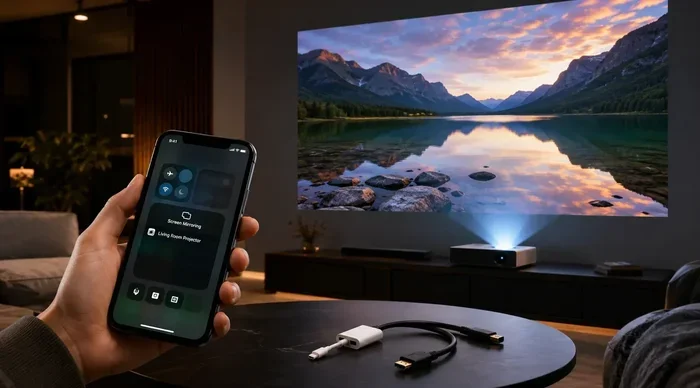
If your Panasonic projector supports AirPlay or you have an Apple TV connected to it, AirPlay is your best friend. AirPlay lets you wirelessly send your iPhones screen to another device. To use it, make sure both your iPhone and the receiving device are on the same Wi-Fi network.
Open the Control Center on your iPhone by swiping down from the top right corner. Tap the Screen Mirroring button. Your iPhone will search for available devices. Select your projector or Apple TV from the list. Your screen should now appear on the big display.
Using Third-Party Wireless Apps
Some Panasonic projectors work with wireless presentation apps. Apps like Epson iProjection, ScreenBeam, or Reflector allow you to stream your iPhone screen to compatible projectors. Download the app on your iPhone, follow the setup instructions, and you can project wirelessly.
Keep in mind that wireless connections may have a slight delay compared to wired ones. For fast-moving content like sports or action movies, a wired HDMI connection still gives the smoothest experience. But for slideshows, presentations, or casual photo sharing, wireless works great.
You might also want to check if mirroring your iPhone to a projector is possible with your specific setup, since some projector models have built-in mirroring support.
Using a USB Connection
Some Panasonic projectors accept USB input for displaying content from external devices. If your projector has a USB port that supports media playback, you can try connecting your iPhone using a USB cable. However, this method is more limited because most projectors cannot fully mirror an iPhone screen through USB alone.
Instead, you can transfer photos or videos from your iPhone to a USB drive, then plug the drive into the projector. This works well for sharing a collection of photos or a video without needing a live connection. If you want to learn more about USB connections with iPhones, check out connecting your phone to a projector with a USB cable for detailed guidance.
Troubleshooting Common Connection Issues
Sometimes things dont work the first time. That is completely normal. Here are the most common problems people face when connecting an iPhone to a Panasonic projector and how to fix them.
No Signal on the Projector
If the projector screen stays blank, the first thing to check is the input source. Use the projectors remote to make sure it is set to the correct HDMI or USB port. Next, make sure all cables are firmly plugged in. A loose connection is the number one cause of no signal issues.
Try unplugging the HDMI cable from both ends and plugging it back in. If you are using an adapter, make sure it is fully seated in your iPhone. Sometimes restarting both your iPhone and the projector solves the problem too.
Flickering or Distorted Image
A flickering image usually means the cable or adapter is not working properly. Try a different HDMI cable first. If that does not help, test with a different adapter. Cheap or damaged adapters are the most common culprit for flickering and distortion.
Also check if your iPhone is running the latest version of iOS. Software updates often fix compatibility issues with external displays. You can update your iPhone by going to Settings, then General, then Software Update.
No Audio Coming Through the Projector
HDMI cables carry both video and audio, so you should hear sound from the projector. If the image looks fine but there is no sound, check your iPhones volume settings. Make sure the ringer is not muted and the volume is turned up.
You can also check the audio output settings on your iPhone. Go to Settings, then Sounds & Haptics, and make sure your iPhone is set to output audio through the HDMI connection. Some projectors have their own volume controls, so check those too.
iPhone Screen Not Fitting the Projector Display
If your iPhone screen looks stretched or has black bars around it, the aspect ratios do not match. iPhones typically use a 19.5:9 aspect ratio, while most projectors use 16:9. This difference causes the black bars or cropping.
You can fix this by adjusting the display zoom on your iPhone. Go to Settings, then Display & Brightness, then Display Zoom. Choose a setting that fits the projector screen better. You may need to experiment with a few options to find the best fit.
Tips for the Best Projection Experience
Once you have your iPhone connected to your Panasonic projector, a few simple tips can make the experience much better.
- Use a dark room when possible. Projectors work best in dim lighting. Closing curtains or turning off lights makes the image pop and improves visibility.
- Adjust the projector focus. Use the projectors focus ring or remote to sharpen the image. A blurry screen ruins any viewing experience.
- Keep your iPhone charged. Screen mirroring uses battery power quickly. Plug your iPhone into a charger or power bank during long sessions.
- Clean the projector lens. Dust on the lens can make the image look cloudy. A soft microfiber cloth works great for a quick clean.
- Use the right adapter for your iPhone model. Older iPhones with a 30-pin dock connector need a different adapter than newer models with Lightning or USB-C. Check your iPhone model before buying an adapter.
If you are using your projector for entertainment and want to keep it running for long sessions, you might wonder about leaving a projector on all night, as similar principles apply to Panasonic projectors as well.
Comparing Connection Methods
Not sure which method is right for you? Here is a quick comparison of the main ways to connect your iPhone to a Panasonic projector.
| Method | Quality | Convenience | Cost | Best For |
|---|---|---|---|---|
| HDMI with Adapter | Excellent | Moderate | Low to Medium | Presentations, movies, gaming |
| AirPlay / Wireless | Good | Very High | Free (if compatible) | Casual sharing, slideshows |
| USB Direct | Limited | Moderate | Low | Playing media files from USB |
| Third-Party Wireless Apps | Good | High | Free to Low | Wireless presentations |
As you can see, each method has its strengths. HDMI gives you the best quality, while wireless options offer the most convenience. Choose the method that fits your needs for that particular occasion.
Final Thoughts
Connecting your iPhone to a Panasonic projector is a skill that comes in handy more often than you might think. Whether you are at work, at home, or on the go, the ability to share your iPhone screen on a large display is incredibly useful. The HDMI adapter method remains the most reliable and highest quality option. Wireless mirroring is a great alternative when you want a clean, cable-free setup.
Remember to keep your cables and adapters in good condition. A well-maintained setup works every time. And when problems do come up, the troubleshooting tips in this guide should help you get back on track quickly.
Now that you know all the methods, go ahead and try connecting your iPhone to your Panasonic projector. Once you see your content displayed on that big screen, you will wonder how you ever managed without it. Happy projecting.
Frequently Asked Questions
Can I connect my iPhone to a Panasonic projector without an adapter?
Most Panasonic projectors require an adapter to connect an iPhone. The standard method is using a Lightning-to-HDMI adapter. Some newer projectors with wireless capabilities may allow screen mirroring without any cables, but an adapter is usually needed for the best and most reliable connection.
Why is there no sound when I connect my iPhone to the projector?
No sound usually means the audio output is not set correctly. Check that your iPhone volume is turned up and that the ringer is not muted. Also make sure the projector is set to the correct HDMI input and that its internal speakers are enabled. You can adjust audio output in your iPhones Settings under Sounds & Haptics.
Can I use any HDMI adapter with my iPhone?
It is best to use Apple-certified Lightning-to-HDMI adapters. Third-party adapters may work, but they can sometimes cause compatibility issues like flickering or no signal. Apple-certified adapters are tested to work reliably with iPhones and ensure a stable connection every time.
Does screen mirroring slow down my iPhone?
Screen mirroring uses some processing power and battery, but it should not noticeably slow down your iPhone for most tasks. For demanding activities like gaming, the projector may show a slight delay compared to the phone screen. For presentations and video playback, the experience is smooth and responsive.
Can I charge my iPhone while projecting to the Panasonic projector?
Yes, you can. If you use a Lightning-to-HDMI adapter that has a pass-through charging port, you can plug a charger into the adapter while your iPhone is connected. This keeps your iPhone powered during long projection sessions without interrupting the display output.
What is the best Panasonic projector model for iPhone connections?
Most modern Panasonic projectors with HDMI ports work well with iPhones. Models like the Panasonic PT-VX400 and PT-RZ970 offer excellent HDMI connectivity and bright displays. The key is ensuring your projector has an available HDMI input and that you have the right adapter for your iPhone model.