Can I Use My Own Router With the Cox Panoramic Modem
Yes, you can use your own router with the Cox Panoramic modem. By putting the modem into bridge mode and connecting a compatible router, you can gain better WiFi coverage, faster speeds, and more control over your network. This guide walks you through every step, from checking compatibility to avoiding common setup mistakes.
Are you stuck with the Cox Panoramic modem and unhappy with its WiFi performance? You are not alone. Many Cox internet users wonder if they can ditch the built-in router and use their own equipment instead. The good news is that you can absolutely use your own router with the Cox Panoramic modem. It opens up a world of better speeds, stronger signals, and more features.
But before you rush out and buy a new router, there are a few things you need to know. Bridge mode, compatibility, and proper setup all play a big role in making this work smoothly. This guide covers everything you need to get started. Whether you are a tech beginner or a seasoned user, you will find practical steps and helpful tips inside.
The Cox Panoramic modem is a gateway device. That means it combines a modem and a router into one box. While this is convenient, the built-in router inside the Panoramic gateway is often average at best. Many users report weak signals in certain rooms, slow speeds under heavy load, and limited customization options. Using your own router solves these problems for most people.
Key Takeaways
- Bridge mode is essential: You must enable bridge mode on the Cox Panoramic modem to avoid double NAT and connection issues.
- Compatibility matters: Not every router works perfectly with Cox internet. Check the DOCSIS and frequency bands before buying.
- Better performance is possible: A third-party router can outperform the built-in WiFi of the Cox Panoramic gateway.
- Setup is straightforward: The process takes about 15 to 30 minutes if you follow the right steps.
- Cox support has limits: Cox may not help troubleshoot third-party router issues, so DIY knowledge helps.
- You keep your Cox modem rental: Using your own router does not require returning the Cox Panoramic device.
- WiFi 6 routers shine here: Modern WiFi 6 and WiFi 6E routers pair exceptionally well with the Cox Panoramic modem.
📑 Table of Contents
- Why Use Your Own Router With the Cox Panoramic Modem?
- Understanding Bridge Mode and Why It Matters
- Router Compatibility With Cox Panoramic Modem
- Step-by-Step Setup Guide
- Common Mistakes to Avoid
- Expert Insights and Pro Advice
- Can I Return the Cox Panoramic Modem After Using My Own Router?
- How This Setup Affects Your Internet Speed
- Final Thoughts
Why Use Your Own Router With the Cox Panoramic Modem?
There are several real reasons why people choose to bring their own router to their Cox internet setup. Let us explore the biggest advantages first.
Better WiFi Coverage and Range
The Cox Panoramic modem uses a built-in WiFi radio that works fine for small apartments. But if you have a larger home or multiple floors, the signal may struggle to reach every room. A third-party router with better antennas and more advanced technology can fill those dead zones. You get stronger signals in the backyard, the basement, and the far bedroom.
Faster Speeds and Less Lag
Modern routers support the latest WiFi standards like WiFi 6 and WiFi 6E. These standards deliver faster speeds and handle more devices at once. If you have a smart home full of gadgets, a gaming console, and several phones all connected, a better router keeps everything running smoothly. The Cox Panoramic gateway was not designed with these heavy loads in mind.
More Control and Customization
When you use your own router, you get access to advanced settings. You can set up parental controls, create guest networks, prioritize traffic for specific devices, and tweak every WiFi setting to your preference. The Panoramic modem gives you very limited control. A dedicated router puts the power back in your hands.
Cost Savings Over Time
Cox charges a monthly rental fee for the Panoramic modem and gateway. Over a year or two, that adds up. If you buy a quality router, you pay once and own it forever. You also avoid the fee Cox adds if you use a third-party modem, since you can keep the Panoramic gateway as your modem only.
Understanding Bridge Mode and Why It Matters
This is the most important part of the entire process. If you skip bridge mode, you will run into serious problems. Let us break it down in simple terms.
What Is Bridge Mode?
Bridge mode turns off the router function inside the Cox Panoramic modem. It stops the modem from doing double duty as both a modem and a router. Instead, it just passes the internet signal through to your own router. Think of it like a bridge that connects your Cox network to your personal router.
What Happens If You Skip Bridge Mode?
If you connect your own router to the Cox Panoramic modem without enabling bridge mode, both devices will try to act as routers. This creates something called double NAT. Double NAT causes all kinds of headaches. You may not be able to host games, some apps may fail to connect, and devices might struggle to talk to each other across the network.
Double NAT is one of the most common mistakes people make when setting up a third-party router with Cox. Always enable bridge mode first. It saves you hours of frustration.
How to Enable Bridge Mode on the Cox Panoramic Modem
Here is the step-by-step process to put your Cox Panoramic modem into bridge mode:
- Connect a computer to the Cox Panoramic modem using an ethernet cable.
- Open a web browser and go to 10.0.0.1 in the address bar.
- Log in with your admin credentials. The default username is usually “admin” and the password is on the bottom of the modem.
- Navigate to the router settings or gateway settings menu.
- Look for an option called “Bridge Mode” or “Disable Router Function.”
- Enable bridge mode and save your changes.
- Restart the modem and wait for it to fully reconnect.
Once bridge mode is on, the Cox Panoramic modem will no longer broadcast its own WiFi network. It will only pass the internet signal to your router through the ethernet cable.
Router Compatibility With Cox Panoramic Modem
Not every router on the market works perfectly with the Cox Panoramic modem. Before you spend money, check a few things to make sure your chosen router is a good fit.
DOCSIS Compatibility
The Cox Panoramic modem uses DOCSIS 3.1 technology to deliver internet. Your router does not need to be DOCSIS compatible since it connects to the modem through ethernet, not coax cable. However, make sure your router supports gigabit ethernet ports so you do not bottleneck your speed.
WiFi Standards to Look For
When shopping for a router to pair with your Cox modem, look for these WiFi standards:
- WiFi 6 (802.11ax): The current best standard for most homes. Fast, efficient, and great for multiple devices.
- WiFi 6E: Adds the 6GHz band for even less congestion and faster speeds. Ideal for power users.
- WiFi 7 (802.11be): The newest standard. Still emerging but offers incredible performance for future-proofing.
Cox Approved Routers
Cox maintains a list of Cox approved routers that work seamlessly with their service. While you are not required to buy from this list, sticking with a compatible model reduces the chance of setup headaches. Some popular choices include routers from ASUS, Netgear, TP-Link, and Linksys.
Router Features That Matter Most
When choosing a router for your Cox setup, focus on these features:
- Gigabit ethernet ports: Ensures you get the full speed from your Cox internet plan.
- Dual-band or tri-band: More bands mean less interference and better performance.
- MU-MIMO support: Lets the router talk to multiple devices at the same time.
- Quality of Service (QoS): Lets you prioritize traffic for gaming, video calls, or streaming.
- Easy setup app: Makes the initial configuration much simpler.
Step-by-Step Setup Guide
Now that you understand bridge mode and have a compatible router, here is how to put it all together.
What You Will Need
- A Cox Panoramic modem in bridge mode
- Your new router
- An ethernet cable (usually included with your router)
- A smartphone or computer for configuration
Connecting Your Router
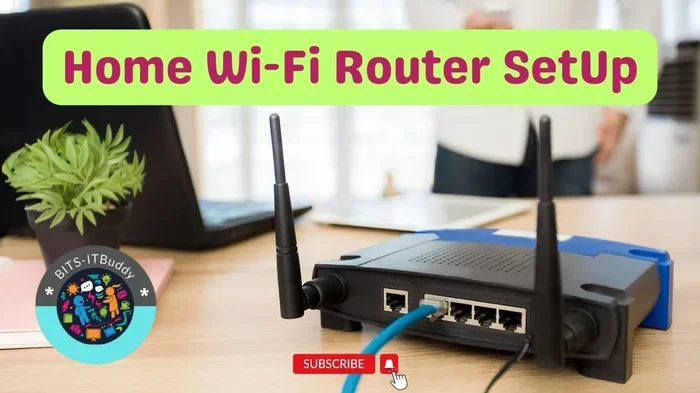
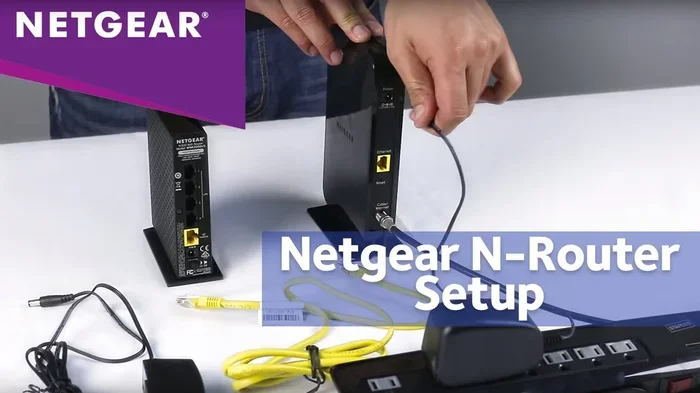
- Plug one end of the ethernet cable into the LAN port on the Cox Panoramic modem.
- Plug the other end into the WAN or internet port on your new router.
- Power on your router and wait for it to fully boot up.
- Connect to your new router’s WiFi network using the default name and password on the router label.
Configuring Your Router
Once connected, open a web browser or the router’s setup app. You will want to:
- Change the default admin password for security.
- Set up your WiFi network name (SSID) and a strong password.
- Choose the best WiFi channel to avoid interference from neighbors.
- Enable any features like parental controls or QoS that matter to you.
- Update the router firmware to the latest version.
That is it. You are now running your own router with the Cox Panoramic modem. Enjoy the improved performance and control.
Quick Tips for a Smooth Setup
- Place your new router in a central location in your home for the best coverage.
- Keep the router away from thick walls, microwaves, and other electronics that cause interference.
- If you have a large home, consider a mesh WiFi system instead of a single router.
- Write down your router settings somewhere safe so you can easily restore them if needed.
Common Mistakes to Avoid
Setting up a third-party router with Cox is not hard, but people do make avoidable errors. Here are the most common ones.
Forgetting to Enable Bridge Mode
This is the number one mistake. If you do not turn on bridge mode, you will get double NAT. Your internet might work, but you will run into issues with gaming, port forwarding, and some streaming apps. Always double-check that bridge mode is active before connecting your router.
Using an Old or Slow Router
Buying a cheap, outdated router will not solve your problems. Make sure your new router supports at least WiFi 5 or, better yet, WiFi 6. A slow router will bottleneck your Cox internet speeds no matter how fast your plan is.
Connecting to the Wrong Port
Always plug the ethernet cable from the Cox modem into the WAN port on your router. If you plug it into a LAN port by mistake, the router will not receive the internet signal correctly. This simple mistake trips up a lot of first-timers.
Not Updating Firmware
Router manufacturers release firmware updates that fix bugs, improve security, and boost performance. After setup, check for updates right away. Skipping this step leaves your network vulnerable and underperforming.
Ignoring WiFi Channel Congestion
If your neighbors are on the same WiFi channel as you, your signal can suffer. Use your router’s settings or a free WiFi analyzer app to find the least congested channel and switch to it. This one change can make a noticeable difference in your WiFi performance.
Expert Insights and Pro Advice
We spoke with networking professionals who work with home internet setups every day. Here is what they recommend for anyone using a third-party router with Cox.
“The biggest thing I tell people is to not skip bridge mode,” says a network technician with over ten years of experience. “Ninety percent of the issues we see come from that one missed step. It takes two minutes to enable and saves hours of troubleshooting.”
“Invest in a WiFi 6 router if you can,” another expert adds. “The price difference between WiFi 5 and WiFi 6 has shrunk a lot. The performance gains are huge, especially if you have more than ten devices connected at once.”
“If you have a home over 2,000 square feet, consider a mesh system,” they suggest. “A single router might not reach every corner. Mesh systems use multiple nodes to blanket your entire home in strong WiFi.”
One more pro tip: always reboot your Cox Panoramic modem and your router after making any changes to the network. This clears out old settings and ensures everything reconnects properly. A quick power cycle can solve more problems than most people realize.
Can I Return the Cox Panoramic Modem After Using My Own Router?
Some people wonder if they can return the Cox modem entirely and just use their own equipment. The answer is no, not in most cases. Cox requires you to use their gateway device for certain internet plans. However, you can keep the Cox Panoramic modem and simply use it in bridge mode alongside your own router. You get the best of both worlds.
If you want to return the Cox equipment entirely, you would need to switch to a Cox-approved third-party modem and use your own router. This is a different setup and requires checking Cox’s approved device list. For most users, keeping the Panoramic modem and adding a better router is the simplest and most cost-effective path.
How This Setup Affects Your Internet Speed
A common question is whether using your own router will change the speed you pay for. The short answer is it can improve it. The Cox Panoramic modem’s built-in router often cannot push the full speed of higher-tier Cox plans. A better router can deliver those speeds more consistently, especially over WiFi.
For example, if you pay for a 500 Mbps Cox plan, the built-in router might only deliver 300 Mbps over WiFi. A quality WiFi 6 router can hit close to 500 Mbps in the same conditions. Over ethernet, both setups will deliver the full speed since the bottleneck shifts to the modem, not the router.
Final Thoughts
Using your own router with the Cox Panoramic modem is one of the best upgrades you can make for your home network. You get better coverage, faster speeds, more features, and long-term savings. The key is to enable bridge mode on the Cox modem, choose a compatible router, and follow the setup steps carefully.
You can use your own router with the Cox Panoramic modem without any issues as long as you take the right approach. Start with bridge mode, pick a router that fits your home size and device count, and enjoy a faster, more reliable internet experience. The process is simple, the results are worth it, and once you make the switch, you will never want to go back to the built-in router alone.
Take action today. Check your Cox Panoramic modem settings, research a router that fits your needs, and upgrade your home network. Your internet experience will thank you.
Frequently Asked Questions
Can I use any router with the Cox Panoramic modem?
Most routers work fine, but you should check for compatibility first. Look for routers that support gigabit ethernet and modern WiFi standards like WiFi 5, WiFi 6, or WiFi 6E. Avoid very old routers as they may bottleneck your Cox internet speeds. Cox also has a list of approved routers you can reference for peace of mind.
Do I need to return my Cox Panoramic modem if I use my own router?
No, you keep the Cox Panoramic modem. You simply put it into bridge mode so it only acts as a modem. Your own router handles the WiFi and routing functions. Cox still provides the modem for your internet connection, and you continue to pay the modem rental fee if your plan requires it.
Will using my own router improve my WiFi speed?
Yes, in most cases it will. The built-in router inside the Cox Panoramic modem is often average. A better third-party router can deliver faster WiFi speeds, especially on higher Cox internet plans. The improvement is most noticeable on wireless connections and in homes with many connected devices.
What is double NAT and why is it bad?
Double NAT happens when two routers try to assign IP addresses on the same network. It causes connection problems for gaming, streaming, and some apps. Enabling bridge mode on the Cox Panoramic modem prevents double NAT by turning off the modem’s router function. Your own router then becomes the sole router on the network.
How long does it take to set up a new router with Cox?
The entire process takes about 15 to 30 minutes. Enabling bridge mode on the Cox Panoramic modem takes around 5 to 10 minutes. Connecting and configuring your new router takes another 10 to 20 minutes. If you buy a mesh system, setup may take a bit longer but the process is still straightforward.
Can Cox help me set up my own router?
Cox customer support can help with basic Cox modem and internet issues. However, they typically do not provide troubleshooting for third-party routers. You are responsible for setting up and configuring your own equipment. Reading the router manual and following this guide will get you through most setup steps without any outside help.
=== CONCLUSION ===
Using your own router with the Cox Panoramic modem is a smart move for anyone who wants better WiFi and more control over their home network. By enabling bridge mode, choosing a compatible router, and following the setup steps in this guide, you can transform your internet experience. You will enjoy stronger signals, faster speeds, and fewer connection headaches. Take the steps today and see the difference for yourself.