Can Firesticks Go Bad Learn How To Tell If They Are Bad
Firesticks can go bad over time due to hardware wear, software issues, and storage buildup. Knowing the early warning signs helps you fix problems before your device stops working entirely. This guide covers every way to tell if your Firestick is dying and what you can do about it.
Firesticks have changed how we watch TV. These small streaming devices plug right into your TV and give you access to hundreds of channels, apps, and movies. They are affordable, easy to set up, and super convenient.
But here is something many people do not think about. Can Firesticks go bad? The short answer is yes. Just like any electronic device, Firesticks do not last forever. Over time, they can slow down, freeze, or stop working altogether.
Understanding when your Firestick is going bad saves you frustration. It also saves money because you can fix problems early instead of buying a whole new device. In this guide, we walk you through every sign that your Firestick is failing. We also share practical tips to keep it running strong for as long as possible.
Key Takeaways
- Firesticks do degrade over time: Hardware components like processors and storage chips wear out with heavy use.
- Performance drops are the first red flag: Lag, freezing, and slow app loading often signal internal problems.
- Storage and cache matter a lot: A full Firestick runs slower and becomes prone to crashes.
- Overheating kills devices faster: Poor ventilation and long streaming sessions cause thermal damage.
- Most issues are fixable: Factory resets, updates, and clearing cache can revive a sluggish Firestick.
- Knowing when to replace saves money: Some hardware failures mean it is time for a new device.
- Regular maintenance extends lifespan: Simple habits keep your Firestick running smoothly for years.
📑 Table of Contents
- What Is a Firestick and How Long Does It Last?
- Can Firesticks Go Bad? Understanding the Signs
- Why Do Firesticks Stop Working Properly?
- How to Tell If Your Firestick Is Bad
- How to Fix a Slow or Failing Firestick
- When Should You Replace Your Firestick?
- Tips to Keep Your Firestick in Great Shape
- Key Takeaways
- Conclusion
What Is a Firestick and How Long Does It Last?
A Firestick is a tiny streaming stick made by Amazon. It connects to your TV through an HDMI port and uses your Wi-Fi to stream content. Think of it as a mini computer that fits in the palm of your hand.
Most Firesticks last between three and five years with normal use. But that number changes based on how often you use it and how well you take care of it. Heavy users who stream every day may notice problems sooner.
Factors That Affect Firestick Lifespan
Several things determine how long your Firestick stays in good shape:
- Usage frequency: Streaming for hours every day wears out the processor faster.
- Storage habits: Keeping too many apps installed fills up memory quickly.
- Heat exposure: Placing the Firestick in a tight space traps heat and damages internal parts.
- Power supply quality: Using a cheap or faulty power adapter can cause electrical issues.
- Software updates: Skipping updates leaves your device vulnerable to bugs and performance problems.
- Wi-Fi quality: A weak connection forces the device to work harder, which strains the hardware.
Taking care of these factors helps your Firestick last longer. It also keeps your streaming experience smooth and enjoyable.
Can Firesticks Go Bad? Understanding the Signs
The answer to “can Firesticks go bad” is a clear yes. But the way they go bad is usually gradual. You will notice small warning signs before the device completely fails. Recognizing these signs early gives you a chance to fix the problem.
Common Warning Signs Your Firestick Is Failing
Watch for these red flags that your Firestick might be going bad:
- Slow performance: Apps take forever to open, and menus lag when you scroll.
- Freezing and crashing: The screen freezes during playback or apps close by themselves.
- Overheating: The device feels hot to the touch even during light use.
- Apps won’t load: Popular streaming apps like Netflix or Hulu refuse to open or keep crashing.
- Remote unresponsiveness: The Firestick remote stops working or responds with delays.
- Video quality drops: Streams start buffering constantly or show low resolution.
- Boot loops: The device restarts on its own or gets stuck on the startup screen.
- Storage full warnings: You keep getting messages that your Firestick has no space left.
If you notice two or more of these signs, your Firestick may be going bad. The good news is that many of these problems have simple fixes.
Why Do Firesticks Stop Working Properly?
Understanding why Firesticks fail helps you prevent problems. Most issues come down to a few common causes that are easy to address.
Software Problems
Firesticks run on a modified version of Android. Over time, software glitches build up. Apps leave behind cached data that clogs the system. Outdated software versions can cause compatibility issues with newer apps.
Sometimes a bad app update is the culprit. Developers release updates that do not work well with older Firestick models. This can cause freezing, crashes, and slow performance across the board.
Hardware Wear and Tear
The internal components of a Firestick are small and compact. The processor and memory chips work hard every time you stream something. After months or years of heavy use, these parts naturally degrade.
The HDMI connector can also loosen over time. A weak connection causes intermittent signal loss. You might see flickering screens or audio dropouts during playback. These are signs of physical wear that are harder to fix.
Storage Overload
Every Firestick has limited internal storage. The base models often come with only 8GB or 16GB of space. When you install too many apps and download large files, the storage fills up fast.
A full Firestick struggles to run smoothly. The device needs free space to manage temporary files and cache. Without that space, everything slows down. Apps take longer to load, and the system becomes unresponsive.
How to Tell If Your Firestick Is Bad
Figuring out if your Firestick is bad requires a bit of detective work. You do not need to be a tech expert. These simple tests and checks help you diagnose the problem.
Performance Benchmark Test
Open a few apps and try switching between them quickly. Does the device respond fast or does it lag? A healthy Firestick should switch apps smoothly without any delay. If you notice long loading times, the device may be losing its performance edge.
Try launching your most-used app. If it takes more than a few seconds to open, that is a warning sign. Compare this experience to how the device performed when it was new.
Check for Overheating
Touch the Firestick after using it for 30 minutes. Does it feel excessively hot? A warm device is normal during heavy streaming. But if it is too hot to touch comfortably, something is wrong.
Overheating usually means the internal fan or heat dissipation system is not working properly. It can also mean the device is placed in a poorly ventilated spot. Either way, overheating shortens the lifespan of your Firestick.
Test the Remote and Controls
Try navigating through the home screen using the remote. Does every button respond instantly? Are there delays between pressing a button and seeing the action on screen?
You can also try the Fire TV app on your phone as a remote. If the app works fine but the physical remote does not, the problem is with the remote, not the device itself. This helps you narrow down the issue.
Check Storage and Memory
Go to Settings on your Firestick and select My Fire TV. Then choose About. Look at the available storage and RAM. If your storage is nearly full, that is likely causing performance issues.
Low RAM shows up as lag and slow app switching. When your device is constantly running low on memory, it struggles to keep up with streaming demands.
Run a Speed Test
Go to Settings, select Network, and run a speed test. Compare the results to your internet plan speed. If your Firestick shows much slower speeds than what you pay for, the device might be struggling with connectivity.
A weak Wi-Fi signal can also cause this problem. Try moving your router closer to the Firestick or use a Wi-Fi extender to improve the connection.
How to Fix a Slow or Failing Firestick
Before you decide your Firestick is completely bad, try these fixes. Many performance issues are reversible with a little effort.
Clear the Cache
Cached data builds up every time you use an app. This temporary data takes up space and slows down the device. Clearing the cache frees up storage and improves speed.
To clear cache on individual apps, go to Settings, select Applications, choose the app, and click Clear Cache. Do this for your most-used apps first. You will notice an immediate improvement in speed.
Uninstall Unused Apps
Go through your installed apps and remove anything you do not use. Every app takes up storage and runs background processes. The fewer apps you have, the better your Firestick performs.
Focus on keeping only the apps you watch regularly. You can always reinstall apps you need later. This simple step frees up valuable space and reduces strain on the device.
Restart Your Firestick Regularly
A simple restart clears temporary files and refreshes the system. Make it a habit to restart your Firestick at least once a week. Just go to Settings, select My Fire TV, and choose Restart.
For a deeper reset, you can also unplug the Firestick from power, wait 30 seconds, and plug it back in. This hard restart clears more temporary data than a regular restart.
Update the Software
Amazon regularly releases updates that fix bugs and improve performance. Go to Settings, select My Fire TV, and choose Check for Updates. Install any available updates right away.
Running outdated software can cause compatibility issues with newer apps. It also leaves your device exposed to known bugs that have already been patched.
Perform a Factory Reset
If your Firestick is still slow after trying everything else, a factory reset can help. This wipes all data and restores the device to its original settings.
Go to Settings, select My Fire TV, and choose Reset to Factory Defaults. Keep in mind that you will need to set up your device again and reinstall your apps. But this fresh start often resolves deep performance issues.
Use a High-Quality Power Adapter
The power adapter that comes with your Firestick matters more than you might think. Using a cheap or low-wattage adapter can cause power fluctuations. These fluctuations damage the internal components over time.
Always use the original Amazon power adapter or a certified replacement. This ensures your Firestick gets stable, consistent power during every streaming session.
When Should You Replace Your Firestick?
Sometimes fixing a Firestick is not enough. Knowing when to replace it saves you time and prevents endless frustration.
Signs It Is Time for a New Firestick
Consider replacing your Firestick if you notice any of these signs:
- The device is more than five years old: Older models no longer receive software updates, which creates security risks.
- Hardware failure is confirmed: The HDMI port is damaged, or the device overheats even with proper ventilation.
- Factory resets do not help: If a full reset does not restore performance, the hardware may be failing.
- Apps no longer support your model: Popular streaming services drop support for older Firestick generations.
- Constant crashes and reboots: The device keeps restarting randomly and none of the fixes work.
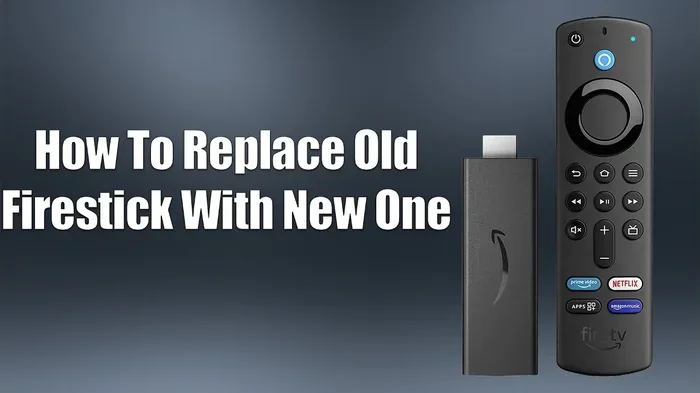
Replacing an old Firestick is much cheaper than troubleshooting a failing one for months. Newer models also offer better performance, 4K support, and improved remote controls.
How to Choose a Replacement
When shopping for a new Firestick, consider these factors:
- Model generation: The latest models offer the best performance and longest software support.
- Storage capacity: Choose at least 32GB if you download lots of content or apps.
- RAM: More RAM means smoother multitasking between apps.
- Wi-Fi standard: Look for Firesticks that support the latest Wi-Fi standards for faster streaming.
- Price: Newer models cost more but deliver a much better experience.
Investing in a newer model is worth it if your current one is more than four years old. The performance difference is significant and noticeable right away.
Tips to Keep Your Firestick in Great Shape
Prevention is always better than cure. These simple habits keep your Firestick running smoothly for years.
Give Your Firestick Room to Breathe
Do not bury your Firestick behind the TV where air cannot circulate. Place it in an open area where heat can escape. If your Firestick comes with a cooling case, use it. It helps regulate temperature during long streaming sessions.
Keep Your Storage Under 80 Percent
A good rule of thumb is to never let your storage go above 80 percent capacity. Leave room for temporary files and cache. Delete downloaded movies and shows after watching them if storage is tight.
Restart Weekly
A weekly restart clears out temporary files and refreshes the system. It takes less than a minute and keeps everything running smoothly. Set a reminder on your phone if you tend to forget.
Use a Strong Wi-Fi Connection
A weak Wi-Fi signal forces your Firestick to buffer constantly. This puts extra strain on the processor. Use a Wi-Fi extender or mesh system to ensure a strong signal reaches your TV.
Keep Apps Updated
App updates often include performance improvements and bug fixes. Go to your app store regularly and update your streaming apps. This keeps everything running smoothly and securely.
Key Takeaways
- Firesticks do go bad over time: Hardware wear, software buildup, and storage overload all contribute to device failure.
- Performance drops are early warning signs: Lag, freezing, and slow app loading should not be ignored.
- Most problems are fixable: Clearing cache, restarting, and factory resets resolve many issues.
- Overheating is a serious concern: Proper ventilation and cooling accessories help prevent thermal damage.
- Replace when necessary: Devices older than five years or with confirmed hardware failure should be replaced.
- Maintenance extends lifespan: Simple habits like weekly restarts and storage management keep your Firestick healthy.
- Know the signs early: Catching problems early gives you the best chance to fix them before total failure.
Conclusion
Can Firesticks go bad? Yes, they absolutely can. But now you know exactly how to tell if your Firestick is failing. From slow performance and overheating to storage overload and hardware wear, the warning signs are there if you know what to look for.
The good news is that most Firestick problems are fixable. A factory reset, cache clearing, or software update can bring a sluggish device back to life. Regular maintenance goes a long way in keeping your streaming experience smooth and enjoyable.
When your Firestick is truly beyond repair, replacing it with a newer model is the smart move. Newer Firesticks offer better performance, more storage, and longer software support. They make streaming easier and more reliable.
Take care of your Firestick, watch for warning signs, and act quickly when problems appear. Your device will reward you with years of reliable streaming. And you will avoid the headache of a sudden, unexpected failure.
FAQs
How long do Firesticks typically last before going bad?
Most Firesticks last between three and five years with normal use. Heavy users may experience issues sooner. Proper maintenance and care can extend the lifespan closer to five years or beyond.
Can a Firestick go bad from overheating?
Yes, overheating is one of the most common causes of Firestick failure. Prolonged heat exposure damages internal components and shortens the device’s lifespan. Always ensure proper ventilation around your Firestick.
Is it worth fixing a Firestick that keeps freezing?
It depends on the cause. Software-related freezing often responds well to cache clearing, updates, or factory resets. If the freezing is caused by hardware failure, replacement is usually the better option.
Can a weak Wi-Fi connection damage a Firestick?
A weak Wi-Fi connection does not directly damage the hardware, but it forces the device to work harder. This extra strain can slow down the processor and contribute to performance degradation over time.
Do Firesticks stop working after a certain number of years?
Firesticks do not have a set expiration date, but older models eventually stop receiving software updates. This makes them vulnerable to bugs and compatibility issues with newer apps. Most users notice declining performance after four to five years.
What is the difference between a slow Firestick and a bad Firestick?
A slow Firestick usually has fixable issues like full storage, outdated software, or too many apps. A bad Firestick has hardware failure that cannot be resolved through software fixes. Signs of a bad Firestick include constant crashes, boot loops, and physical damage that no troubleshooting can fix.