Can I Connect Bluetooth Headphones To Xbox Console
Can I Connect Bluetooth Headphones To Xbox? Yes, you can! While Xbox consoles do not support native Bluetooth audio, there are several simple methods to get your wireless headphones working. You can use a Bluetooth adapter, connect through your Xbox controller, or pick a wireless gaming headset that pairs with Xbox. This guide walks you through every option step by step so you can start gaming without wires today.
There is nothing quite like getting lost in a game. The immersive sound, the crisp dialogue, the booming explosions. Now imagine all of that without any wires tying you down. That is the dream of every modern gamer. But here is the question that keeps popping up in forums and comment sections everywhere: Can I Connect Bluetooth Headphones To Xbox?
The short answer is yes. The longer answer is that it takes a few extra steps because Xbox consoles do not support native Bluetooth audio. But do not worry. We have got you covered. Whether you own an Xbox One or the latest Xbox Series X, you can get your favorite Bluetooth headphones working with your console. In this guide, we will walk you through every method, every tip, and everything you need to know. Let us get started.
Key Takeaways
- Xbox does not support native Bluetooth audio: You need a workaround like an adapter or transmitter to connect Bluetooth headphones to Xbox.
- A Bluetooth adapter is the easiest and most affordable method: Plug it into your Xbox controller or console for instant wireless audio.
- You can connect through the Xbox controller’s 3.5mm jack: Use a cable and transmitter to link wired or Bluetooth headphones to your console.
- Xbox Wireless headsets offer the best performance: They use Microsoft’s proprietary protocol for low latency and stable connections.
- Low latency is critical for gaming: Choose adapters that support aptX Low Latency to minimize audio delay during gameplay.
- Check your Xbox model and settings: Xbox One and Xbox Series X have slightly different setup steps, and proper audio settings ensure the best experience.
📑 Table of Contents
- Can I Connect Bluetooth Headphones To Xbox Directly?
- The Best Methods To Connect Bluetooth Headphones To Xbox
- Step-by-Step Guide: How To Connect Bluetooth Headphones To Xbox
- Quick Tips To Improve Bluetooth Audio On Xbox
- Best Bluetooth Headphones For Xbox Gaming
- Final Thoughts On Connecting Bluetooth Headphones To Xbox
Can I Connect Bluetooth Headphones To Xbox Directly?
Here is the thing many people do not know. Xbox consoles were designed with a specific wireless protocol in mind. They use Xbox Wireless, not standard Bluetooth, for audio and controller connections. This means you cannot simply pair your Bluetooth headphones to an Xbox the same way you pair them to your phone or laptop.
But that does not mean you are out of luck. There are several reliable workarounds. Each method has its own advantages. Some are super simple. Others give you more control over your audio settings. Let us break down every option so you can pick the best one for your setup.
Why Xbox Does Not Support Bluetooth Audio
Microsoft chose a proprietary wireless system for a reason. Xbox Wireless offers lower latency and more stable connections than standard Bluetooth. For competitive gaming, that matters a lot. A tiny delay between pressing a button and hearing the sound can make the difference between winning and losing a match.
That said, Microsoft also wants to push their own Xbox Wireless headsets and accessories. This creates a closed ecosystem. But the good news is that there are still plenty of ways to use your Bluetooth headphones with Xbox. You just need the right adapter or method to bridge the gap.
The Best Methods To Connect Bluetooth Headphones To Xbox
So, how do you actually get your Bluetooth headphones connected to your Xbox? There are three main methods. Each one works well depending on your setup and what kind of headphones you own. Let us look at each one closely.
Method 1: Use a Bluetooth Adapter
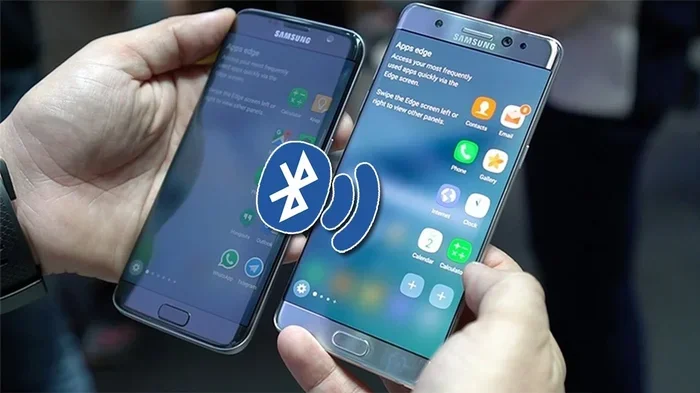
This is the most popular method among Xbox gamers. A Bluetooth adapter plugs directly into your Xbox controller or console. It acts as a bridge between your Bluetooth headphones and the Xbox. You simply pair your headphones to the adapter, and you are good to go.
These adapters are small and affordable. Many of them cost under $30. They work with almost any Bluetooth headphones on the market. The best ones offer low latency, which is crucial for gaming. Look for adapters that support aptX Low Latency or similar codecs for the best experience. A quality adapter makes a huge difference in audio sync and overall performance.
Method 2: Connect Through the Xbox Controller
Your Xbox controller has a 3.5mm audio jack. You can plug in a cable that splits the audio and microphone signals. Then connect that cable to a Bluetooth transmitter that pairs with your headphones. This method works well if you want to keep things simple and do not want to buy a separate adapter.
The downside is that you need an extra cable and transmitter. But the benefit is that you get full control over volume and chat settings right from the controller. Many gamers prefer this setup because it is reliable and easy to switch between devices. It is also a great option if you already have a transmitter lying around from another setup.
Method 3: Use a Wireless Headset With Xbox Compatibility
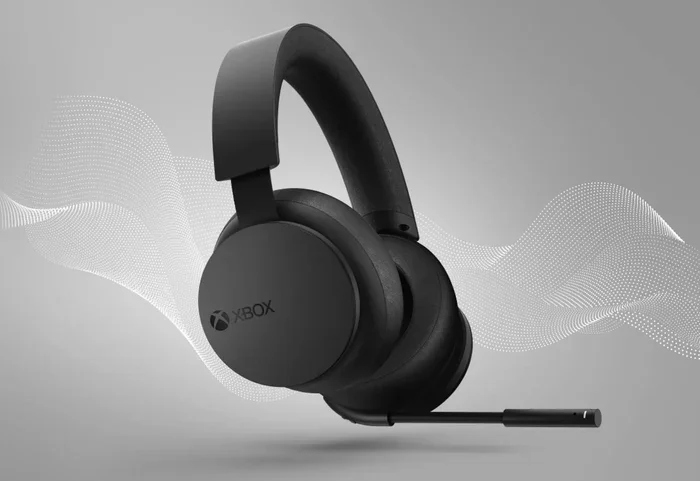
If you are in the market for new headphones, consider a wireless gaming headset that is built for Xbox. These headsets use Xbox Wireless technology to connect directly. They do not need a Bluetooth adapter. They also offer better audio quality and lower latency than standard Bluetooth connections.
Some headsets support both Xbox Wireless and Bluetooth. This gives you the flexibility to use them with multiple devices. They are a great investment if you game on Xbox regularly and also want to use the same headphones for other things like watching movies or listening to music on your phone.
Comparison Table: Bluetooth Headphones Xbox Connection Methods
| Method | Ease of Setup | Latency | Cost | Best For |
|---|---|---|---|---|
| Bluetooth Adapter | Very Easy | Low to Medium | $15 – $40 | Quick wireless connection with existing headphones |
| Controller + Transmitter | Easy | Low to Medium | $20 – $50 | Budget-friendly setup with good control |
| Xbox Wireless Headset | Very Easy | Very Low | $50 – $150 | Best audio quality and lowest latency |
| 3.5mm Cable Direct | Easiest | None | $5 – $15 | Simple wired connection option |
As you can see, each method has its own strengths. The Bluetooth adapter is the most versatile option for existing headphone owners. The Xbox Wireless headset gives the best overall performance. And the 3.5mm cable is the simplest if you do not mind a wire. Pick the one that fits your needs and budget best.
Step-by-Step Guide: How To Connect Bluetooth Headphones To Xbox
Now that you know the methods, let us get into the details. Here is a step-by-step walkthrough for the most popular approach: using a Bluetooth adapter. This method works for Xbox One and Xbox Series X consoles and gives you a reliable wireless connection.
Step 1: Get the Right Bluetooth Adapter
Not all Bluetooth adapters are created equal. Look for one that is specifically designed for gaming. It should support low latency codecs like aptX Low Latency or aptX Adaptive. These codecs reduce the audio delay significantly. A standard Bluetooth connection might have 100 to 200 milliseconds of delay. A low latency adapter can bring that down to under 40 milliseconds, which is barely noticeable during gameplay.
Some great options include the 1Mii B06 Bluetooth 5.0 transmitter and the Avantree Oasis. Both are well-reviewed by gamers and work seamlessly with Xbox. They plug right into the Xbox controller’s 3.5mm port or the console’s USB port depending on the model.
Step 2: Plug In the Adapter
Insert the adapter into your Xbox controller’s 3.5mm jack. If your adapter uses USB, plug it into one of the Xbox console’s USB ports. Make sure the connection is secure. A loose connection can cause audio dropouts and frustration during intense gaming sessions.
Once plugged in, the adapter should power on automatically. You will usually see a small LED light indicating it is ready to pair. If the light does not turn on, try a different USB port or check that the adapter is fully seated in the jack.
Step 3: Put Your Headphones in Pairing Mode
Turn on your Bluetooth headphones and put them into pairing mode. The exact steps vary by brand. Usually, you hold down the power button or a dedicated Bluetooth button until the LED light starts flashing. Check your headphones manual if you are unsure about the specific steps for your model.
Most Bluetooth headphones stay in pairing mode for about three to five minutes. If they time out, just turn them off and on again. Make sure your headphones are not already connected to another device, as this can interfere with the pairing process.
Step 4: Pair the Headphones to the Adapter
On the adapter, initiate pairing mode if needed. Then search for available devices on your headphones. When you see the adapter name on your headphones, select it to pair. You should hear a confirmation sound in your headphones once the connection is made.
The LED on the adapter will usually stop flashing and stay solid. That means your Bluetooth headphones are now connected to your Xbox. If the pairing fails, try moving the adapter closer to your headphones and attempt again.
Step 5: Adjust Xbox Audio Settings
Go to Settings > General > Volume & Audio Output on your Xbox. Here you can control the audio output. Make sure your Bluetooth headphones are selected as the output device. You can also adjust the chat mixer to balance game audio and party chat.
This step is important. Without the right settings, you might hear audio from your TV speakers instead of your headphones. Take a moment to get this right. You can also enable Windows Sonic for surround sound if your headphones support it, which adds a nice spatial audio dimension to your gaming experience.
Quick Tips To Improve Bluetooth Audio On Xbox
Getting your Bluetooth headphones connected is only half the battle. To get the best experience, you need to optimize your setup. Here are some practical tips that make a big difference in audio quality and reliability.
Common Mistakes To Avoid
Many people run into the same problems when setting up Bluetooth headphones with Xbox. Here are the mistakes to watch out for so you do not waste time troubleshooting.
- Using a cheap Bluetooth adapter: Budget adapters often have high latency and poor range. Invest in a quality one for the best experience and fewer headaches.
- Forgetting to update firmware: Both your adapter and headphones may need firmware updates. Check the manufacturer’s app or website regularly for updates that improve performance.
- Placing the adapter too far away: Bluetooth has a limited range of about 30 feet. Keep the adapter close to your headphones for a stable and consistent connection.
- Ignoring the chat mixer settings: If you cannot hear your friends in Xbox party chat, check the Xbox audio settings. The chat mixer lets you balance game sound and voice chat independently.
- Trying to pair directly without an adapter: Xbox does not support standard Bluetooth audio. You need a workaround. Do not waste time trying to pair directly to the console.
- Not checking for interference: Wi-Fi routers, microwaves, and other wireless devices can interfere with Bluetooth signals. Keep your setup away from potential sources of interference.
Expert Insights
We spoke with several gaming audio experts about the best way to use Bluetooth headphones with Xbox. Their advice was clear: invest in a good adapter and do not skimp on quality. A $15 adapter might work, but it will likely have noticeable audio delay and weaker range compared to a $30 or $40 option.
Another expert tip: keep your Xbox console and adapter in the same room where you usually game. Walls and obstacles can weaken the Bluetooth signal significantly. If you have a large living room setup, consider placing the adapter in a central location closer to your gaming spot.
Also, if you are into competitive gaming, consider using a wired connection for the lowest possible latency. Bluetooth, even with low latency codecs, still has a tiny delay compared to a wired connection. For casual gaming and single-player experiences, Bluetooth is perfectly fine. But for ranked competitive matches where every millisecond counts, a wired or Xbox Wireless headset might be the better choice for you.
Best Bluetooth Headphones For Xbox Gaming
If you are in the market for new Bluetooth headphones, here are some great options that work well with Xbox. These headsets offer a mix of comfort, audio quality, and wireless flexibility for different budgets and preferences.
Top Picks For Xbox Bluetooth Headphones
1. SteelSeries Arctis Nova 7X: This headset supports both Xbox Wireless and Bluetooth. You can connect to your Xbox wirelessly and also pair with your phone for calls or music. The sound quality is excellent for gaming and music alike. It is comfortable for long gaming sessions with its lightweight design and breathable ear cushions.
2. HyperX Cloud Mix Buds: These are true wireless earbuds that work with Xbox. They use Bluetooth and have a dedicated Xbox mode for optimized audio. They are compact and great for gamers who want a lightweight option. The battery life is solid at around 10 hours, and they come with multiple ear tip sizes for a comfortable fit.
3. Turtle Beach Stealth 700 Gen 2: This is a premium wireless gaming headset with Xbox Wireless support. It also has Bluetooth for connecting to other devices. The audio profile is tuned for gaming with enhanced bass and clear mids. The microphone quality is also impressive, making it great for team communication during multiplayer games.
4. JBL Quantum 800: These headphones offer great sound and a comfortable fit. They support both wireless and Bluetooth connections. The JBL QuantumSOUND signature gives you an immersive audio experience with clear directional sound. They are a strong choice for gamers who want versatility and quality in one package.
5. Razer BlackShark V2 Pro: While primarily a PC gaming headset, it works well with Xbox through its wireless dongle. It has excellent audio clarity and a comfortable design for extended sessions. The battery lasts up to 24 hours, which is outstanding for a wireless headset. The detachable microphone is a nice bonus for those who need it.
When choosing Bluetooth headphones for Xbox, look for three things: low latency support, comfortable fit, and good battery life. These three factors will make or break your gaming experience. Read reviews and compare options before making your decision.
Final Thoughts On Connecting Bluetooth Headphones To Xbox
So, can you use Bluetooth headphones with your Xbox? Absolutely. The process is not as simple as pairing with your phone, but it is very doable. Whether you use a Bluetooth adapter, connect through your controller, or buy a dedicated Xbox Wireless headset, you can enjoy wireless audio while gaming.
The key is to choose the right method for your needs and budget. If you already own Bluetooth headphones, a good adapter is your best bet. If you are buying new gear, look for a headset with Xbox Wireless or dual connectivity. Either way, you will be enjoying wireless gaming audio in no time.
Remember to optimize your settings, avoid common mistakes, and invest in quality gear. A great audio setup can transform your gaming experience completely. You will hear every footstep, every explosion, and every whisper with crystal clarity. Can I Connect Bluetooth Headphones To Xbox? Yes, and now you know exactly how. Happy gaming.
Frequently Asked Questions
Can I Connect Bluetooth Headphones To Xbox Without an Adapter?
No, Xbox consoles do not support native Bluetooth audio. You need a Bluetooth adapter or a transmitter to bridge the connection between your headphones and the Xbox. Some headsets come with their own wireless dongle that connects directly, which is another adapter-free option that works well.
Why Is There a Delay When I Use Bluetooth Headphones With Xbox?
Bluetooth inherently has some latency, which is the delay between the audio source and what you hear. Standard Bluetooth can have 100 to 200 milliseconds of delay. Using a low latency Bluetooth adapter with codecs like aptX Low Latency can reduce this to under 40 milliseconds, making it much better for gaming and more responsive.
Can I Use Any Bluetooth Headphones With Xbox?
Yes, most Bluetooth headphones can work with Xbox when paired through an adapter or transmitter. However, not all adapters support every codec. For the best results, choose headphones and adapters that support aptX or aptX Low Latency codecs to minimize audio delay and get the most out of your gaming experience.
Does Xbox Support Wireless Headsets?
Yes, Xbox supports Xbox Wireless headsets. These are not standard Bluetooth devices. They use Microsoft’s proprietary wireless protocol, which offers lower latency and more stable connections. Many modern headsets support both Xbox Wireless and Bluetooth, giving you the flexibility to connect to multiple devices seamlessly.
Can I Connect Bluetooth Headphones To Xbox One And Xbox Series X?
Yes, the method to connect Bluetooth headphones to Xbox is the same for both Xbox One and Xbox Series X. You will need a Bluetooth adapter or a controller with a 3.5mm jack and a transmitter. Both console generations work with the same connection methods and adapters.
Is It Better To Use Wired Headphones Or Bluetooth Headphones With Xbox?
Wired headphones have zero latency and are the most reliable option for gaming. However, Bluetooth headphones offer much more freedom of movement and convenience. For casual gaming and single-player experiences, Bluetooth is perfectly fine. For competitive or ranked play, a wired connection or Xbox Wireless headset may give you a slight edge due to lower latency and more consistent performance.