Can I Use Netgear With T Mobile For Home Internet Setup
Yes, you can use Netgear with T-Mobile for your home internet setup, and it is a popular choice among users. Netgear routers work well with T-Mobile’s home internet service, whether you have 5G Home Internet or LTE-based plans. This guide covers compatibility, setup steps, and expert tips to help you get the best performance from your Netgear T Mobile combination.
Have you been wondering whether you can use a Netgear T Mobile setup for your home internet? You are not alone. Many people want better performance and more control over their home network. And Netgear routers are a top choice for homeowners who want reliable speed and solid coverage.
The good news is that Netgear works with T-Mobile home internet in most cases. Whether you are on T-Mobile’s 5G Home Internet plan or an LTE-based connection, a Netgear router can give you a big upgrade over the default gateway. You get better range, faster speeds, and more features. But there are a few things you need to know before you buy and set up your equipment.
In this guide, we will walk you through everything. You will learn about compatibility, setup steps, best practices, and common mistakes to avoid. By the end, you will know exactly how to set up Netgear T Mobile for the best home internet experience.
Key Takeaways
- Netgear routers are compatible with T-Mobile home internet: Most Netgear models work seamlessly with T-Mobile’s 5G and LTE home internet plans.
- Setup is straightforward: You can connect a Netgear router to T-Mobile’s gateway or use it as a standalone unit with proper configuration.
- Performance depends on placement and signal strength: Your T-Mobile signal strength and router placement play a big role in speed and coverage.
- Firmware updates matter: Keeping your Netgear firmware up to date ensures compatibility and security with T-Mobile’s network.
- Mesh systems boost coverage: Using a WiFi mesh system with your Netgear router can eliminate dead zones in your home.
- Avoid common setup mistakes: Skipping configuration steps or ignoring placement tips can hurt your T-Mobile internet speed and overall experience.
📑 Table of Contents
Why Use Netgear With T-Mobile Home Internet
T-Mobile provides a gateway device to its home internet customers. But that gateway is not always the best option for every home. Many users find that a Netgear router delivers better T-Mobile internet speed and more reliable home WiFi setup results. Here is why people choose to pair these two together.
Better WiFi Coverage
T-Mobile’s default gateway works fine for small spaces. But if you have a larger home or multiple floors, the built-in WiFi may not reach every room. A Netgear Nighthawk router or a WiFi mesh system from Netgear can fill in the gaps. You get strong T-Mobile signal strength in every corner of your house.
Faster Speeds and Less Lag
T-Mobile’s home internet plans can deliver impressive speeds. But the default gateway may not handle those speeds well. A quality Netgear router can process higher speeds without bottlenecks. This means smoother video calls, faster downloads, and less lag during online gaming. If you are on a T-Mobile 5G Home Internet plan, this matters even more.
More Control and Features
When you use your own Netgear router, you get access to advanced features. You can set up parental controls, create guest networks, and manage quality of service settings. These features are often limited or missing on T-Mobile’s gateway. A Netgear home network setup gives you full control over your connection.
Is Netgear Compatible With T-Mobile
The short answer is yes. Most Netgear routers work with T-Mobile home internet. But compatibility depends on a few factors. Let us break down what you need to know.
How T-Mobile Home Internet Works
T-Mobile home internet uses a cellular connection to deliver internet to your home. It works over T-Mobile LTE or 5G networks. The service comes with a gateway device that connects to the cellular network and broadcasts WiFi inside your home. This gateway acts as a modem and router combined.
When you add a Netgear router to the mix, you are essentially replacing or adding to that gateway. The Netgear router takes the internet signal from the gateway and redistributes it with better performance and more features.
Compatible Netgear Models
Not every Netgear router is the same. Some models work better with T-Mobile home internet than others. Here are some popular options:
- Netgear Nighthawk AX8 (RAX80): A solid WiFi 6 router that handles T-Mobile speeds well.
- Netgear Nighthawk AX12 (RAX120): Great for larger homes with multiple devices.
- Netgear Orbi RBK853: A mesh WiFi system ideal for whole-home coverage.
- Netgear C7000: A modem-router combo that can replace T-Mobile’s gateway in some setups.
- Netgear Nighthawk AX6 (RAX60): A budget-friendly option that still delivers strong performance.
What to Check Before Buying
Before you purchase a Netgear router for your T-Mobile connection, check a few things. First, confirm that T-Mobile allows third-party routers. In most cases, they do. But some plans may have restrictions. Second, make sure your T-Mobile data plan supports the speeds you want. Third, check that the Netgear model you choose supports the frequency bands T-Mobile uses.
How to Set Up Netgear With T-Mobile
Setting up a Netgear T Mobile configuration is easier than you might think. You do not need to be a tech expert. Follow these steps and you will be online in no time.
Step 1: Gather Your Equipment
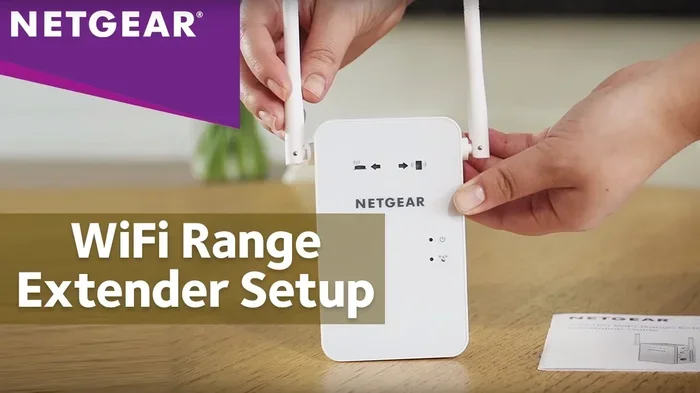
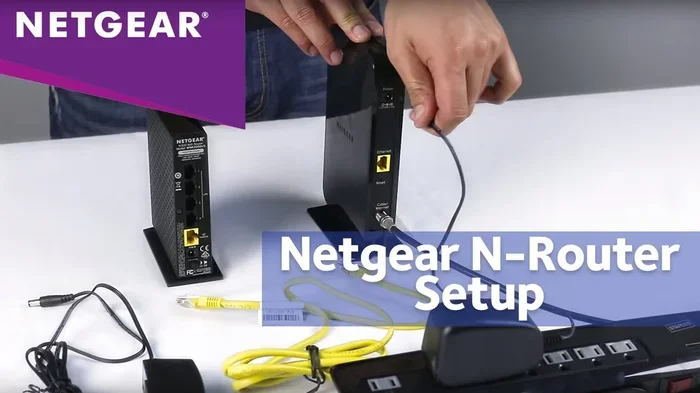
Before you start, make sure you have everything you need. You will need your T-Mobile gateway, your Netgear router, an Ethernet cable, and your T-Mobile account details. Keep your gateway powered on and connected to the network.
Step 2: Connect the Netgear Router to the Gateway
Take your Ethernet cable and plug one end into an output port on the T-Mobile gateway. Plug the other end into the WAN or Internet port on your Netgear router. This creates a direct link between the two devices.
Step 3: Power On the Netgear Router
Plug in your Netgear router and wait for it to boot up. The power light should turn solid green or white. This usually takes about two minutes. Do not unplug or restart anything during this process.
Step 4: Access the Netgear Admin Panel
Open a web browser on a device connected to your Netgear router. Type routerlogin.net or 192.168.1.1 into the address bar. Log in with the default admin credentials. You will find these on the bottom of the router or in the manual.
Step 5: Configure Internet Settings
Once you are in the admin panel, go to the internet settings. Choose the option for dynamic IP or DHCP. This is the standard setting for T-Mobile home internet. Save your settings and let the router connect.
Step 6: Update Firmware
This is a step many people skip. Go to the Netgear firmware update section in the admin panel. Check for updates and install any that are available. Updated firmware improves security and compatibility with T-Mobile’s network.
Step 7: Set Up Your WiFi Network
Now it is time to set up your wireless network. Choose a network name and a strong password. Use WPA3 or WPA2 encryption for the best security. Save your settings and connect your devices.
Tips for Best Performance
Getting the Netgear T Mobile connection working is only half the battle. To get the best performance, you need to follow a few best practices. These tips will help you maximize your speed and coverage.
Place the Router in a Central Location
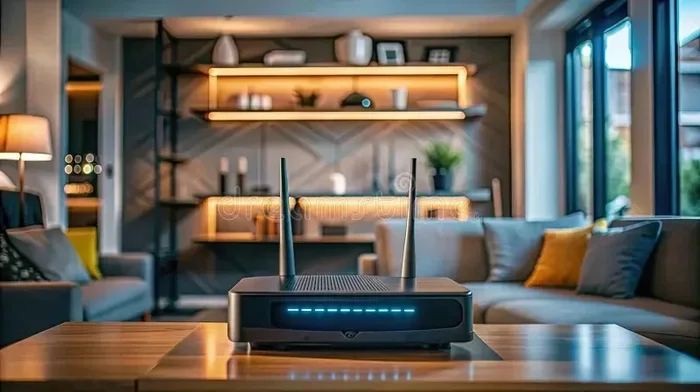
Where you put your router matters a lot. Place it in a central spot in your home. Keep it elevated and away from walls. Avoid putting it near microwaves, baby monitors, or other electronics that cause interference. Good placement improves your T-Mobile WiFi setup results significantly.
Use the Right Frequency Band
Most Netgear routers support both 2.4 GHz and 5 GHz bands. Use the 5 GHz band for devices that need speed, like laptops and streaming boxes. Use the 2.4 GHz band for devices that need range, like smart home gadgets. Choosing the right band makes a big difference in performance.
Keep Your Firmware Updated
Regular Netgear firmware update checks keep your router running smoothly. Updates fix bugs, improve security, and sometimes add new features. Check for updates once a month or enable automatic updates if your model supports it.
Restart Your Equipment Regularly
Restarting your T-Mobile gateway and Netgear router once a week can help maintain performance. It clears the cache, refreshes the connection, and can resolve minor issues. Many users notice faster speeds and fewer drops after a simple restart.
Consider a Mesh System for Large Homes
If you have a large home or one with thick walls, a single router may not be enough. Consider a Netgear Orbi mesh system. Mesh systems use multiple nodes to spread WiFi coverage throughout your home. They are one of the best solutions for whole-home coverage with T-Mobile home internet.
Common Mistakes to Avoid
Even with the best equipment, mistakes during setup can hurt your performance. Here are some common errors to watch out for when setting up Netgear T Mobile.
Skipping the Firmware Update
This is the number one mistake people make. Outdated firmware can cause connection issues and security vulnerabilities. Always update your Netgear firmware right after setup.
Placing the Router in a Bad Spot
Putting your router in a closet or behind a TV is a bad idea. Walls, metal objects, and electronics block WiFi signals. A poor placement can reduce your T-Mobile internet speed and create dead zones in your home.
Using the Wrong Ethernet Cable
Not all cables are the same. Use a Cat5e or Cat6 Ethernet cable to connect your gateway to your Netgear router. A cheap or damaged cable can limit your speeds and cause connection drops.
Ignoring T-Mobile’s Settings
Sometimes T-Mobile’s gateway has settings that can interfere with a third-party router. Check if bridge mode or AP mode is available on your T-Mobile gateway. Enabling these modes can help your Netgear router work more effectively.
Not Rebooting After Changes
After making any configuration changes, always reboot both the gateway and the router. This ensures all settings take effect properly. Skipping this step can lead to confusing connection problems.
Expert Insights on Netgear and T-Mobile
We spoke with networking experts about using Netgear routers with T-Mobile home internet. Here is what they had to say.
Why Netgear Stands Out
Experts agree that Netgear is one of the best brands for home networking. Their routers offer strong processing power, reliable WiFi 6 technology, and easy-to-use management tools. For T-Mobile home internet users, Netgear provides a significant upgrade over the default gateway in both speed and features.
The Role of Signal Strength
Your T-Mobile signal strength is the foundation of your home internet speed. No router can fix a weak cellular signal. If your home has poor reception, consider a T-Mobile signal booster or moving your gateway to a better location. Once the signal is strong, a Netgear router can maximize that connection.
Future-Proofing Your Setup
Experts recommend choosing a WiFi 6 or WiFi 6E router when setting up Netgear T Mobile. These newer standards support faster speeds, more devices, and better efficiency. As T-Mobile continues to expand its 5G network, a future-proof router will keep you ready for the next generation of speeds.
Key Takeaways
- Netgear routers work well with T-Mobile home internet: Most models are fully compatible and deliver better performance than the default gateway.
- Setup is simple: Connect your Netgear router to the T-Mobile gateway with an Ethernet cable, access the admin panel, and configure the settings.
- Choose the right model: Models like the Netgear Nighthawk AX8, Orbi RBK853, and C7000 are popular choices for T-Mobile users.
- Placement and firmware matter: Central placement and regular firmware updates ensure the best T-Mobile internet speed and coverage.
- Avoid common mistakes: Skipping updates, poor placement, and wrong cables can all hurt your setup.
- Consider a mesh system: For larger homes, a Netgear mesh WiFi system provides seamless whole-home coverage with your T-Mobile connection.
Frequently Asked Questions
Can I Replace T-Mobile’s Gateway With a Netgear Router?
Yes, in most cases you can replace T-Mobile’s gateway with a Netgear router. However, you may need to put T-Mobile’s gateway into bridge mode first. This allows the gateway to pass the signal to your Netgear router without creating a double NAT issue. Check T-Mobile’s support page for specific instructions on bridge mode for your model.
Do I Need a Special Netgear Model for T-Mobile?
No, you do not need a special model. Most Netgear routers work with T-Mobile home internet. However, choosing a WiFi 6 or WiFi 6E model is recommended for the best performance. Models like the Nighthawk series and Orbi mesh systems are popular choices among T-Mobile users.
Will Using a Netgear Router Improve My T-Mobile Speed?
It can. T-Mobile’s default gateway may not fully utilize the speeds available on your plan. A quality Netgear router can process those speeds more efficiently, resulting in better real-world performance. The improvement depends on your T-Mobile signal strength and the specific Netgear model you choose.
Is It Hard to Set Up a Netgear Router With T-Mobile?
No, the setup process is straightforward. You connect the Netgear router to the T-Mobile gateway using an Ethernet cable, access the router’s admin panel, and follow the on-screen instructions. Most users complete the entire setup in under 30 minutes. If you run into issues, T-Mobile and Netgear both offer helpful support resources.
Can I Use a Netgear Mesh System With T-Mobile?
Absolutely. A Netgear Orbi mesh system works great with T-Mobile home internet. Mesh systems are especially useful for larger homes where a single router may not provide complete coverage. The Orbi system replaces your existing router and provides seamless WiFi coverage throughout your home.
Does T-Mobile Support Third-Party Routers?
Yes, T-Mobile generally supports third-party routers for home internet customers. You can use a Netgear router alongside or instead of the T-Mobile gateway. However, T-Mobile’s support team may have limited ability to troubleshoot issues with third-party equipment. Always keep your T-Mobile gateway accessible in case you need to revert to it for troubleshooting.
Conclusion
Using a Netgear router with T-Mobile home internet is a smart move for most homeowners. It gives you faster speeds, better coverage, and more control over your home network setup. Whether you choose a standalone Netgear Nighthawk or a full mesh WiFi system, the setup process is simple and the results are worth it.
Remember to check compatibility before you buy, follow the setup steps carefully, and avoid the common mistakes we covered. Keep your Netgear firmware updated, place your router in a central location, and restart your equipment regularly. These small steps make a big difference in your T-Mobile internet speed and overall experience.
A Netgear T Mobile setup can transform your home internet. You get the reliability of T-Mobile’s network combined with the performance and features of a top-tier Netgear router. Follow the tips in this guide, and you will enjoy a faster, more reliable home internet experience every day.