Can I Connect Ps4 To Bluetooth Speaker Without Wires
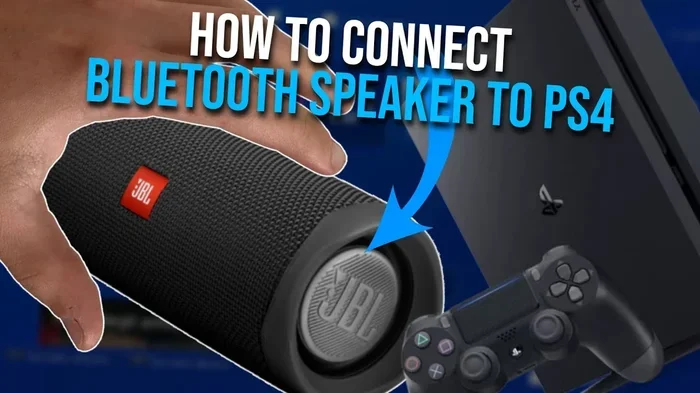
Yes, you can connect your PS4 to a Bluetooth speaker and enjoy wireless game audio. While the PS4 doesn’t support Bluetooth audio natively, a simple adapter or specific audio device makes it possible. This guide shows you how to connect PS4 to Bluetooth speaker easily.
Key Takeaways
- PS4 lacks native Bluetooth audio: You need a Bluetooth audio adapter or compatible device to go wireless.
- Bluetooth adapters work well: A USB Bluetooth transmitter bridges the gap between your PS4 and speaker.
- Some speakers connect directly: Certain PS4-compatible speakers support Bluetooth pairing without extra gear.
- Audio lag is possible: Wireless connections may cause slight delays, but settings can help reduce them.
- Wired options exist too: A 3.5mm jack or USB sound card offers reliable alternatives.
- Setup takes minutes: Pairing your speaker is quick once you have the right equipment.
- Sound quality varies: Choose speakers with good drivers and low-latency codecs for the best experience.
📑 Table of Contents
- Can I Connect Ps4 To Bluetooth Speaker? Here Is Everything You Need to Know
- Why You Should Connect a Bluetooth Speaker to Your PS4
- How the PS4 Handles Bluetooth Connections
- Methods to Connect PS4 to a Bluetooth Speaker
- Choosing the Right Bluetooth Speaker for Your PS4
- Step-by-Step Setup Guide for Connecting Your PS4 to Bluetooth Speaker
- Troubleshooting Common Issues
- Expert Insights on Wireless Gaming Audio
- Common Mistakes to Avoid
- Quick Tips for the Best Experience
- Wired vs Wireless: Which Is Better for PS4 Gaming?
- Conclusion
Can I Connect Ps4 To Bluetooth Speaker? Here Is Everything You Need to Know
Gaming audio matters more than most people think. The right sound pulls you into the world of your favorite games. Connecting your PS4 to a Bluetooth speaker lets you enjoy rich, wireless audio without tangling up cables. Whether you want louder sound for multiplayer battles or deeper bass for story-driven adventures, a wireless speaker can change your gaming experience completely.
Here is the truth about the PS4 and Bluetooth audio. Sony did not build Bluetooth audio support directly into the console. That means you cannot simply pair a speaker to your PS4 out of the box. But that does not stop you. With a few affordable accessories and a little know-how, you can absolutely go wireless. This guide walks you through every step, from choosing the right speaker to fixing common problems.
Why You Should Connect a Bluetooth Speaker to Your PS4
Better Sound Quality
Most PS4 setups rely on the built-in TV speakers or a basic soundbar. Those options often miss details. A dedicated wireless speaker delivers clearer highs, deeper lows, and more immersive stereo sound. You hear footsteps, explosions, and dialogue with much more clarity. The improvement is noticeable the moment you start playing.
True Wireless Freedom
Wires limit where you can sit. A Bluetooth speaker removes that restriction. Place it on your desk, mount it on a shelf, or carry it to another room. You get wireless audio without sacrificing sound quality. This setup works great for both console gaming sessions and casual listening.
Easy Multiplayer Setup
Playing games with friends in the same room becomes more fun with better audio. A Bluetooth speaker lets everyone hear the game clearly. You avoid the awkward situation of only one person hearing game sound through headphones. Shared gaming moments feel more natural with wireless sound.
How the PS4 Handles Bluetooth Connections
What Bluetooth Does the PS4 Support?
The PS4 uses Bluetooth, but only for specific devices. It supports Bluetooth connections for controllers, headsets, and a few other accessories. However, the console does not allow generic Bluetooth audio output. This means standard Bluetooth speakers do not show up as an audio option in your settings.
This limitation frustrates many gamers. Sony designed the PS4 to push users toward its own audio products. But the gaming community found creative workarounds. Today, several reliable methods exist to connect PS4 to Bluetooth speaker without relying on Sony’s official ecosystem.
PS4 Models and Bluetooth Differences
All PS4 models share the same Bluetooth limitation. This applies to the original PS4, PS4 Slim, and PS4 Pro. None of them support direct Bluetooth speaker pairing. The method you use to connect a wireless speaker stays the same regardless of your console model.
- PS4 Original: Bluetooth 2.0, limited accessory support
- PS4 Slim: Bluetooth 2.0, same limitations
- PS4 Pro: Bluetooth 2.0, same limitations
Methods to Connect PS4 to a Bluetooth Speaker
Method 1: Use a Bluetooth Audio Adapter
This is the most popular and reliable way to connect PS4 to Bluetooth speaker. A Bluetooth audio adapter plugs into your PS4 and acts as a bridge. It sends audio wirelessly to your speaker. Think of it as a tiny transmitter that gives your PS4 Bluetooth audio powers it does not have on its own.
What you need:
- A USB Bluetooth audio adapter (also called a Bluetooth transmitter)
- A Bluetooth speaker that supports A2DP audio profile
- Your PS4 console
Steps to set it up:
- Plug the Bluetooth adapter into the USB port on your PS4.
- Turn on your Bluetooth speaker and put it in pairing mode.
- Go to your PS4 Settings then Devices then Bluetooth Devices.
- The adapter should appear in the device list. Select it to pair.
- Go to Settings then Sound and set the output to the adapter.
- Test the audio. Your speaker should now play game sound wirelessly.
This method works well for most gamers. Audio quality depends on the adapter you buy. Look for ones that support aptX or AAC codecs for the best sound quality.
Method 2: Connect Through a USB Sound Card
A USB sound card is another solid option. It converts the PS4’s audio output into a format your speaker can use. This method works best if you have a speaker with a 3.5mm input or a wired connection. Some USB sound cards also include Bluetooth, giving you the best of both worlds.
Quick tips for this setup:
- Choose a USB sound card with low latency
- Check that your speaker has the right input jack
- Update your PS4 system software for best compatibility
- Test audio levels before a gaming session
Method 3: Use a Speaker with Built-In PS4 Compatibility
Some wireless speakers were designed with gaming consoles in mind. These devices connect to the PS4 through USB or auxiliary cables and support Bluetooth as a bonus. Brands like Sony, JBL, and Ultimate Ears offer speakers that work well with gaming setups.
These gaming audio speakers often include features like:
- Low-latency wireless connections
- Built-in microphones for chat audio
- Adjustable bass and treble controls
- Compact designs that fit on a desk
Choosing the Right Bluetooth Speaker for Your PS4
Key Features to Look For
Not every Bluetooth speaker works perfectly with a PS4 setup. You want a speaker that delivers good game audio without causing frustration. Here are the features that matter most.
Low Latency
Latency is the delay between the game producing sound and your speaker playing it. High latency creates an annoying lag, especially in fast-paced games. Look for speakers that support low-latency Bluetooth codecs like aptX or aptX Low Latency. These reduce delay significantly.
Sound Quality
Stereo sound makes games feel more alive. Choose a speaker with two drivers or a full-range speaker that covers mids and highs well. Deep bass is nice but not essential for gaming. Clarity in dialogue and sound effects matters more.
Battery Life
Long gaming sessions drain speakers fast. A battery life of 10 hours or more keeps you covered. Some speakers offer 15 to 20 hours of playback. That is enough for even the longest gaming marathons.
Connection Range
Most Bluetooth speakers work well within 30 feet. That is plenty for a typical gaming room. Some premium models reach 60 feet or more. A strong connection range means you can move around without losing audio.
Top Speakers That Work Well
Here is a quick comparison of popular options for audio device setups with PS4.
| Speaker | Battery Life | Bluetooth Codec | Best For |
|---|---|---|---|
| JBL Flip 6 | 12 hours | aptX | Room-filling sound |
| Sony SRS-XB33 | 24 hours | SBC | Long sessions |
| Ultimate Ears Wonderboom 3 | 14 hours | aptX | Portable gaming |
| Bose SoundLink Revolve+ | 16 hours | aptX | Premium audio quality |
Step-by-Step Setup Guide for Connecting Your PS4 to Bluetooth Speaker
Before You Start
Preparation makes the process smooth. Here is what to do before you begin pairing your devices.
- Charge your Bluetooth speaker fully
- Update your PS4 system software to the latest version
- Make sure your Bluetooth adapter is compatible with PS4
- Clear nearby Bluetooth devices that might interfere
- Place the speaker within 10 feet of the PS4 during pairing
The Pairing Process
Follow these steps carefully for a successful Bluetooth pairing experience.
- Connect your Bluetooth adapter: Plug it into a USB port on your PS4. Avoid USB hubs. Use a direct port for the strongest signal.
- Enable pairing mode on your speaker: Hold the Bluetooth button until the LED flashes rapidly. This shows it is ready to connect.
- Search for devices on PS4: Navigate to Settings, then Devices, then Bluetooth Devices. Wait for the list to populate.
- Select your speaker: Choose it from the list and confirm the pairing request.
- Set audio output: Go to Settings, then Sound, then set Output to Primary Audio Port or the adapter name.
- Test the connection: Play a game or use the PS4 demo to confirm sound comes through your speaker.
If something goes wrong during setup, do not worry. Most issues have simple fixes. The next section covers troubleshooting.
Troubleshooting Common Issues
No Sound from the Speaker
This is the most common problem. Check these fixes:
- Make sure the speaker is not muted
- Check that the speaker is still in pairing mode
- Reconnect the Bluetooth adapter
- Try a different USB port on the PS4
- Restart both the PS4 and the speaker
Audio Delay or Lag
Wireless audio sometimes arrives a split second late. This happens because Bluetooth sends data in packets. To reduce lag, try these steps:
- Switch to a low-latency Bluetooth codec like aptX
- Move the speaker closer to the PS4
- Remove other Bluetooth devices that might cause interference
- Reduce the distance between the adapter and speaker
- Consider a wired connection for competitive gaming
Speaker Keeps Disconnecting
Intermittent disconnections happen for a few reasons. The most common cause is a weak Bluetooth signal. Other possible causes include low battery on the speaker, outdated firmware, or too many connected devices. Reset the speaker and re-pair it to fix most connection problems.
Expert Insights on Wireless Gaming Audio
What Gamers Should Know
Professional gamers usually avoid Bluetooth for competitive play. The slight delay, even on low-latency setups, can affect reaction time. For casual gaming, story-driven titles, and multiplayer couch sessions, Bluetooth speaker connections work perfectly. The key is matching your setup to your gaming style.
Many experienced gamers use two audio setups. They use a wired headset or headphones for PS4 for competitive online games. Then they switch to a wireless speaker for single-player campaigns and local co-op. This approach gives the best of both worlds.
Future of Wireless Console Audio
Sony has embraced Bluetooth more fully on the PS5. The newer console supports more audio devices natively. As Bluetooth technology improves, we can expect even better wireless audio on current and future consoles. Low-latency codecs are getting better every year. The gap between wired and wireless audio keeps shrinking.
Common Mistakes to Avoid
- Buying a speaker without aptX support: This leads to noticeable audio delay during gameplay.
- Using a cheap Bluetooth adapter: Poor adapters cause static, dropouts, and frustration.
- Ignoring firmware updates: Both your speaker and adapter need updates for best performance.
- Pairing from too far away: Always start the pairing process within close range.
- Forgetting to set audio output: The PS4 will not automatically route sound to your Bluetooth device.
Quick Tips for the Best Experience
- Keep your speaker and PS4 in the same room for strongest signal
- Use a Bluetooth 5.0 adapter for faster and more stable connections
- Place the speaker at ear level for the best sound imaging
- Reduce other Bluetooth devices in the room to minimize interference
- Check your PS4 audio settings after every system update
- Consider a speaker with a built-in microphone for voice chat
- Pair your device during a quiet moment, not in the middle of a game
Wired vs Wireless: Which Is Better for PS4 Gaming?
The debate between wired and wireless audio is not new. Each option has clear strengths. Here is a breakdown to help you decide.
Wired Audio Advantages
- Zero audio delay or latency
- Consistent connection with no dropouts
- No batteries to charge
- Generally more affordable
- Works perfectly every single time
Wireless Audio Advantages
- No cables to manage or trip over
- Portability and flexibility
- Cleaner and more modern setup
- Shared audio for group gaming
- Room-filling sound from quality speakers
For most home gaming situations, wireless audio offers the best overall experience. The convenience outweighs the tiny delay for casual and mid-level gamers. Hardcore competitive players still benefit from wired connections. Neither option is wrong. Choose what fits your lifestyle.
Conclusion
Connecting your PS4 to a Bluetooth speaker is absolutely possible and surprisingly easy. You just need the right adapter or a compatible speaker. The days of being stuck with TV speakers are over. A wireless speaker brings your game audio to life with rich sound and total freedom.
Follow the steps in this guide and you will have wireless audio running in minutes. Choose a quality speaker, pick a reliable adapter, and take your time during setup. The gaming audio improvement is immediate and worth every penny. Now is the perfect time to make your PS4 setup truly wireless.
Frequently Asked Questions
Can I connect any Bluetooth speaker to my PS4?
Not directly. The PS4 does not support standard Bluetooth audio output. You need a Bluetooth audio adapter or a speaker with a special connection method. Most Bluetooth speakers work fine with an affordable USB Bluetooth transmitter plugged into your PS4.
Will there be audio delay with a Bluetooth speaker on PS4?
There can be a slight delay depending on your speaker and adapter. Speakers that support aptX or aptX Low Latency codecs handle this much better. For casual gaming, the delay is barely noticeable. For competitive games, consider a wired option instead.
Do I need a special adapter to connect Bluetooth to PS4?
Yes, almost always. The PS4 does not natively support Bluetooth audio devices. A USB Bluetooth audio adapter bridges this gap and lets your console communicate with wireless speakers. These adapters cost around $15 to $40 and are easy to find online.
Can I use a PS4 controller speaker for Bluetooth audio?
The PS4 controller does not have a built-in speaker for outputting game audio. It only has a small speaker for chat and notifications. You cannot use it as a Bluetooth audio output device for your games.
How do I fix my Bluetooth speaker not connecting to PS4?
First, make sure your speaker is in pairing mode and fully charged. Try plugging the Bluetooth adapter into a different USB port. Restart your PS4 and the speaker, then re-pair them. Also check that your PS4 audio settings point to the correct output device.
Is a Bluetooth speaker better than headphones for PS4 gaming?
It depends on your preference. Headphones offer better sound isolation and zero latency with wired models. Bluetooth speakers are better for group gaming, shared audio, and room-filling sound. Many gamers own both and use each for different situations.