Can a Stadia Controller Be Used with Other Consoles
The Google Stadia controller can connect to PCs, Android devices, and some smart TVs, but it is not officially designed for PlayStation or Xbox consoles. Using a Stadia controller on other platforms is possible through Bluetooth or USB-C. This guide covers every compatibility detail, setup method, and limitation you should know before trying.
Key Takeaways
- Cross-Platform Use: The Stadia controller works on PCs, Android devices, and select smart TVs via Bluetooth or USB-C.
- Console Limitations: It is not officially compatible with PlayStation or Xbox consoles due to proprietary lock-in systems.
- Easy Pairing: Connecting the controller to a PC or phone takes just a few simple steps.
- Hardware Quality: The controller features a well-built design with responsive buttons, a d-pad, and dual joysticks.
- Cloud Gaming Ready: The Stadia controller was built specifically for cloud gaming and streaming games over Wi-Fi.
- Workarounds Exist: With the right software, you can map the Stadia controller to work on platforms that don’t support it natively.
📑 Table of Contents
- Can a Stadia Controller Be Used with Other Consoles?
- What Makes the Stadia Controller Special
- How the Stadia Controller Connects to Different Devices
- Why the Stadia Controller Does Not Work on PlayStation or Xbox
- Using the Stadia Controller for Cloud Gaming and PC Gaming
- The Hardware Inside the Stadia Controller
- Common Problems and How to Fix Them
- Is the Stadia Controller Worth Using in 2024 and Beyond?
- Final Thoughts
Can a Stadia Controller Be Used with Other Consoles?
Google Stadia may be gone, but the Stadia controller still has a lot to offer. Many people wonder if this controller works outside the Stadia ecosystem. The short answer is yes, with some important caveats. The Stadia controller can connect to PCs, Android phones, tablets, and certain smart TVs. However, it does not work natively with PlayStation or Xbox consoles.
This guide will walk you through everything you need to know. We will cover compatibility, setup methods, limitations, and practical tips. Whether you want to use it for PC gaming or Android mobile games, you are in the right place.
What Makes the Stadia Controller Special
The Stadia controller stands out from standard gamepads. Google designed it with a few unique features that set it apart. Understanding these features helps explain why it works the way it does on other devices.
Design and Build Quality
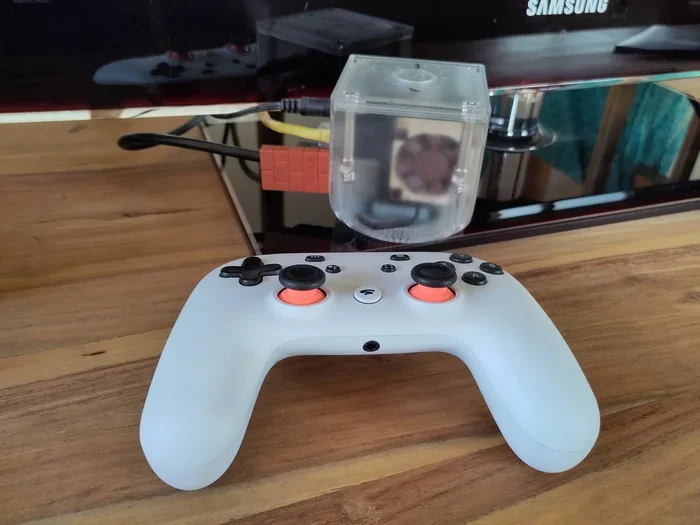
The controller feels solid in your hands. It has a comfortable grip with textured handles. The dual analog joysticks are responsive and precise. The d-pad is well-sized for directional inputs. Buttons like A, B, X, and Y have a satisfying click to them. The triggers on the back offer good pressure sensitivity for racing and action games.
Built-in Google Assistant Button
One standout feature is the Google Assistant button. This button lets you access voice commands directly from the controller. You could search for games, check weather, or control smart home devices. This feature was a core part of the Stadia experience and still works when paired with a phone or PC.
USB-C and Bluetooth Connectivity
The Stadia controller uses a USB-C charging port for wired connections. It also supports Bluetooth wireless pairing. These two connection methods give it flexibility across different devices. You can plug it in for zero-latency wired play or go wireless for freedom of movement.
How the Stadia Controller Connects to Different Devices
Connecting the Stadia controller to devices other than the Stadia streamer is straightforward. Each device has its own pairing process. Below, we break down the steps for the most common platforms.
Connecting to a PC
Using the Stadia controller on a PC is one of the best experiences. You can connect it through Bluetooth or a USB-C cable. For a wired connection, simply plug the cable into your computer. Windows will usually recognize it right away. For Bluetooth pairing, hold the Google Assistant button and the Stadia button at the same time. The controller will enter pairing mode. Then go to your PC Bluetooth settings and select the controller from the list.
Once connected, the controller works with most PC games. Some games may need you to remap the buttons. Free software like Steam Input makes this process easy. You can customize every button, joystick, and trigger to your preference.
Connecting to Android Devices
Android phones and tablets pair well with the Stadia controller. Since the controller was designed with Android in mind, the process is smooth. Go to your Android Bluetooth settings and put the controller in pairing mode. Select it from the list of available devices. The controller works great with cloud gaming apps and many mobile games from the Google Play Store.
Some games may not recognize the controller right away. In those cases, check the game’s settings to enable external controller support. Most modern Android games handle the Stadia controller without issues.
Connecting to Smart TVs
Certain smart TVs support Bluetooth gamepads. The Stadia controller can pair with these TVs directly. This works best on Android TV and Google TV devices. On a smart TV, go to the Bluetooth settings, put the controller in pairing mode, and connect. You can then use it for games that support gamepad input.
Why the Stadia Controller Does Not Work on PlayStation or Xbox
This is the biggest limitation of the Stadia controller. It will not connect natively to PlayStation 4, PlayStation 5, Xbox One, or Xbox Series X|S. The reason comes down to proprietary systems. Sony and Microsoft use closed ecosystems for their controllers. Each brand uses its own wireless protocol and encryption.
The Stadia controller does not speak the same language as PlayStation or Xbox controllers. Even though it uses standard USB-C and Bluetooth, the handshake process is different. Sony and Microsoft lock their consoles to only accept their own branded controllers. This is a common practice in the gaming industry.
Some people try workarounds like using a USB adapter or third-party mapping software. These methods are unreliable and often violate terms of service. It is best to accept that the Stadia controller is not a PlayStation or Xbox replacement.
Comparison: Stadia Controller vs. PlayStation and Xbox Controllers
| Feature | Stadia Controller | PlayStation DualSense | Xbox Wireless Controller |
|---|---|---|---|
| Platform Compatibility | PC, Android, Smart TVs | PlayStation consoles, PC | Xbox consoles, PC |
| Connection Methods | Bluetooth, USB-C | Bluetooth, USB-C, proprietary | Bluetooth, USB-C, proprietary |
| Build Quality | Solid, comfortable grip | Premium, adaptive triggers | Ergonomic, textured grips |
| Special Features | Google Assistant button | Haptic feedback, touchpad | Share button, Bluetooth |
| Price Range | $40 – $60 | $60 – $80 | $50 – $70 |
| Cloud Gaming Ready | Yes | No | No |
The table above shows why the Stadia controller is a great multi-platform option. It may not work on every console, but it shines on PCs and Android devices.
Using the Stadia Controller for Cloud Gaming and PC Gaming
Even though Google Stadia shut down, the controller still serves a purpose. Many people use it for other cloud gaming services and PC gaming. The controller’s low input lag and responsive design make it a solid choice for streaming games from services like NVIDIA GeForce Now or Xbox Cloud Gaming on the web.
Best Games to Play with the Stadia Controller
The Stadia controller works well with a wide variety of game genres. Here are some categories where it excels:
- Racing Games: The triggers provide smooth analog control for acceleration and braking.
- Action-Adventure Games: The dual joysticks offer precise movement and camera control.
- RPGs: The d-pad makes menu navigation and character selection easy.
- Fighting Games: The face buttons respond quickly for combo inputs.
- Puzzle Games: The controller is compact and easy to handle for casual sessions.
Tips for the Best Gaming Experience
Follow these quick tips to get the most out of your Stadia controller on other devices:
- Always keep your controller firmware updated. Check through the Stadia app or PC software.
- Use a USB-C cable for competitive gaming where input lag matters most.
- Remap buttons in game settings if the default layout does not feel right.
- Keep the controller charged. A full charge lasts for many hours of gameplay.
- Store the controller in a protective case to avoid damage to the joysticks.
The Hardware Inside the Stadia Controller
The Stadia controller contains several components that make it work across different platforms. The internal circuit board includes a Bluetooth chip, a microcontroller, and input sensors. These components handle button presses, joystick movements, and wireless communication.
Interestingly, the internal design shares similarities with other modern controllers. The microcontroller processes all input signals before sending them to the connected device. The Bluetooth module handles wireless communication using standard protocols. This is why the controller can pair with most Bluetooth-enabled devices without special drivers.
If you are curious about how controllers like this are built, you can explore the components found on a motherboard to understand the broader picture of how gaming hardware works at the circuit level. Understanding these basics helps you appreciate why the Stadia controller is so versatile.
Many people also wonder how computers are used in different fields beyond gaming. The same computing technology that powers the Stadia controller also supports applications in healthcare, education, and research. For example, computers play a major role in modern medicine, from imaging to diagnostics.
Common Problems and How to Fix Them
Like any wireless device, the Stadia controller can encounter connection issues. Here are the most common problems and their solutions.
Controller Not Showing Up in Bluetooth
If your controller does not appear in the Bluetooth list, try these steps. First, make sure the controller is in pairing mode. Hold the Google Assistant button and the Stadia button together for three seconds. Second, restart your device’s Bluetooth. Third, check if the controller is connected to another device nearby. Disconnect it from other devices first.
Buttons Not Responding Correctly
Sometimes button inputs get mixed up. This usually happens when the controller is in the wrong mode. Try resetting the controller by holding the small reset button on the back. You can also remap the controls in your game or platform settings.
Battery Drains Quickly
If the battery life drops suddenly, the Bluetooth connection may be the cause. Reduce the distance between the controller and the device. Also, close unused Bluetooth connections on your device. If the problem persists, try a wired USB-C connection to see if the battery performs better.
Is the Stadia Controller Worth Using in 2024 and Beyond?
The Stadia controller is still a solid choice for gamers. Its comfortable design, responsive buttons, and versatile connectivity make it a great multi-platform gamepad. The price is also reasonable compared to first-party controllers from Sony and Microsoft.
If you already own a Stadia controller, there is no reason to let it sit unused. Pair it with your PC or Android device and put it to work. If you are buying one used, it is a worthwhile purchase for casual and serious gamers alike.
The controller is especially good for cloud gaming and streaming games. Its low input lag and Bluetooth range make it one of the best budget options for wireless PC gaming. Just remember that it will not work on PlayStation or Xbox consoles without unsupported workarounds.
Final Thoughts
The Stadia controller is more versatile than many people realize. While it was built for Google’s cloud gaming platform, it works well on PCs, Android devices, and smart TVs. The setup process is simple, and the build quality is excellent.
It is not a universal controller that works on every gaming system. PlayStation and Xbox consoles will not accept it natively. But for the platforms it does support, it delivers a smooth and enjoyable experience. If you want a reliable, affordable gamepad for PC and mobile gaming, the Stadia controller is a strong choice.
Take some time to explore its features. Try pairing it with different devices. You may be surprised at how well it performs outside the Stadia ecosystem. Happy gaming.
Frequently Asked Questions
Can I use the Stadia controller on a PlayStation console?
No, the Stadia controller does not work natively on PlayStation consoles. Sony uses a proprietary wireless protocol that only accepts PlayStation branded controllers. There is no official way to connect a Stadia controller to a PS4 or PS5.
How do I pair the Stadia controller with my PC?
You can pair it via Bluetooth or USB-C. For Bluetooth, hold the Google Assistant button and the Stadia button together until the light flashes. Then go to your PC Bluetooth settings and select the controller. For a wired connection, just plug in a USB-C cable.
Does the Stadia controller work with Xbox Cloud Gaming?
Yes, the Stadia controller can work with Xbox Cloud Gaming when accessed through a web browser on a PC or Android device. It connects via Bluetooth or USB-C and provides a smooth gaming experience for streamed Xbox games.
Is the Stadia controller compatible with Nintendo Switch?
The Stadia controller is not officially compatible with the Nintendo Switch. The Switch uses a proprietary wireless protocol for its Joy-Con and Pro Controller. Some users report limited success with third-party adapters, but it is not a reliable or supported method.
What is the battery life of the Stadia controller?
The Stadia controller typically lasts around 10 hours on a full charge. Battery life can vary depending on whether you use Bluetooth or a wired connection. Using vibration features and the Google Assistant button may reduce battery life slightly.
Can I use the Stadia controller for competitive gaming?
Yes, the Stadia controller works well for casual and semi-competitive gaming. For competitive play, a wired USB-C connection reduces any potential input lag. However, if you are a serious competitive gamer, you may prefer a controller designed specifically for your platform.
=== CONCLUSION ===
The Stadia controller proves that a gaming accessory can live beyond its original platform. It connects to PCs, Android devices, and smart TVs with ease. The setup is quick, the build is solid, and the price is fair.
While it does not work on PlayStation or Xbox consoles, it still offers a lot of value. Use it for PC gaming, cloud streaming, or mobile games. The controller remains a great tool for anyone who enjoys wireless gaming without breaking the bank.
Give your Stadia controller a second life. Try it on a new device today. You might just find that it becomes your go-to gamepad for everyday play.