Are All HDMI Plugs The Same Or Are They Really Different
Not all HDMI plugs are the same. Different HDMI connectors come in various sizes and designs, each built for specific devices and purposes. Understanding the differences helps you avoid compatibility issues and get the best picture and sound quality.
You plug in an HDMI cable, and you expect it to work. Simple, right? But here is the thing. Not all HDMI plugs are the same. They come in different shapes, sizes, and versions. And using the wrong one can cause big problems. You might get no signal at all. Or you might miss out on features like 4K resolution or surround sound. This guide breaks it all down. You will learn about the different types of HDMI plugs, how they differ, and how to pick the right one for your setup.
Whether you are connecting a gaming console, a laptop, or a smart TV, knowing your HDMI options matters. The wrong cable can ruin your experience. The right one makes everything look and sound amazing. Let us dive in and explore the world of HDMI connectors.
Key Takeaways
- Multiple HDMI plug types exist: Standard, Mini, and Micro HDMI serve different devices and purposes.
- HDMI versions matter: HDMI 2.0 and HDMI 2.1 support different resolutions and features like 4K and 8K.
- Not all cables are interchangeable: Using the wrong HDMI plug can lead to poor performance or no signal at all.
- Check your device specs: Always verify which HDMI type your device supports before buying a cable.
- Quality matters: High-speed HDMI cables deliver better signal quality and support advanced features.
- Future-proof your setup: Investing in the right HDMI plug today saves money and hassle down the road.
📑 Table of Contents
- What Is an HDMI Plug?
- The Different Types of HDMI Plugs
- HDMI Versions and What They Mean
- Common HDMI Plug Problems and How to Fix Them
- How to Choose the Right HDMI Plug for Your Needs
- Are All HDMI Plugs the Same for Motherboard Connections?
- HDMI Plugs in Specialized Devices
- Quick Tips for HDMI Plug Users
- Common Mistakes People Make with HDMI Plugs
- Expert Insights on HDMI Plug Selection
- The Future of HDMI Plugs
- Conclusion
What Is an HDMI Plug?
HDMI stands for High-Definition Multimedia Interface. It is a digital connection that carries both audio and video signals through a single cable. This is a big deal. Before HDMI, you needed separate cables for audio and video. HDMI simplified everything. One plug, one cable, and you are good to go.
The HDMI plug connects your source device to your display. Your source device could be a laptop, a Blu-ray player, or a streaming stick. Your display could be a TV, a monitor, or a projector. The plug sends high-quality digital signals between them. It is a plug and play solution that most people rely on every day.
Why HDMI Plugs Are Not All the Same
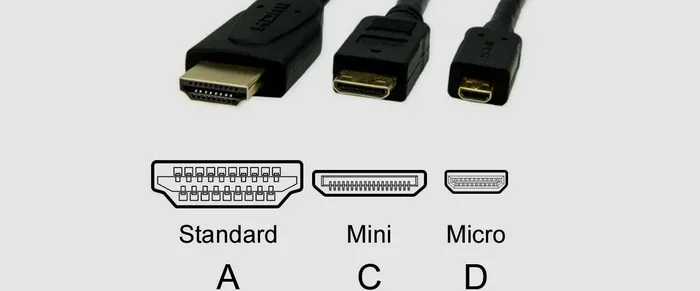
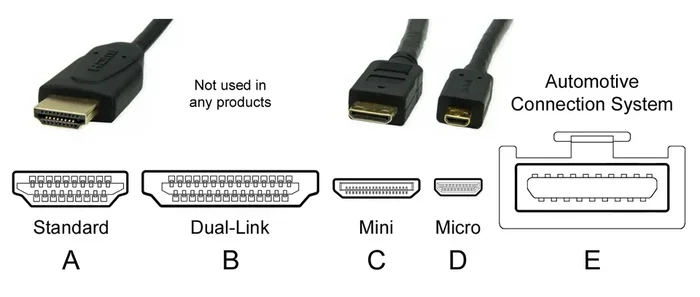
Here is where things get interesting. HDMI plugs come in different forms. The most common is the standard HDMI plug. You see this on TVs, game consoles, and desktop computers. But there are also Mini HDMI and Micro HDMI plugs. These smaller versions are designed for portable devices like cameras and tablets. Each type has a different shape and pin layout. They are not interchangeable without an adapter.
Beyond the physical shape, HDMI plugs also come in different versions. These versions determine what features the cable supports. For example, an older HDMI plug might not handle 4K video. A newer one can. So when someone asks, “Are all HDMI plugs the same?” the answer is a clear no. They differ in size, design, and capability.
The Different Types of HDMI Plugs
There are five main types of HDMI connectors. Each one serves a specific purpose. Let us look at them one by one.
Standard HDMI Plug (Type A)
This is the most common HDMI plug you will see. It has 19 pins and measures about 13.9 millimeters wide. You find this plug on almost every TV, monitor, and home entertainment device. If you have ever plugged a cable box or a PlayStation into a TV, you have used a standard HDMI plug. It is the workhorse of the HDMI world.
The standard HDMI plug supports a wide range of resolutions. Older versions handle 1080p just fine. Newer versions can carry 4K and even 8K signals. But the plug itself looks the same across versions. The difference lies inside the cable and the devices it connects.
Mini HDMI Plug (Type C)
The Mini HDMI plug is smaller than the standard version. It measures about 10.4 millimeters wide. It also has 19 pins, just like the standard plug. You will find Mini HDMI on some cameras, tablets, and smaller laptops. It is designed for devices where space is limited.
Using a Mini HDMI plug requires a compatible port on your device. You cannot plug a Mini HDMI cable into a standard HDMI port without an adapter. The same goes the other way around. You need the right adapter or a cable with different ends.
Micro HDMI Plug (Type D)
The Micro HDMI plug is the smallest of the three main types. It measures only about 5.8 millimeters wide. It has 19 pins packed into a tiny space. You will find this plug on some smartphones and action cameras. It is perfect for devices where every millimeter counts.
Like the Mini HDMI, you need a matching port or an adapter to use a Micro HDMI cable. These cables are less common than standard or Mini HDMI. But they are essential for certain mobile devices. If you own a camera or phone with a Micro HDMI port, you know how important it is to have the right cable.
Dual-Link HDMI Plug
A Dual-Link HDMI plug has more pins than the standard version. It includes extra pins to support higher resolutions and deeper color depths. You will not see this type very often in consumer devices. But it is used in some professional displays and high-end equipment. It offers greater bandwidth for demanding applications.
Ethernet-Enabled HDMI Plug
Some HDMI cables include an Ethernet channel. This allows devices to share an internet connection through the HDMI cable. You do not need a separate network cable. This feature is handy for smart home setups. It simplifies connectivity between devices in your entertainment center.
HDMI Versions and What They Mean
The physical plug shape is only one part of the puzzle. The HDMI version is equally important. Each new version brings better features and higher performance. Here is a quick look at the major versions.
HDMI 1.4
HDMI 1.4 was a big step forward. It introduced support for 4K resolution at 30 frames per second. It also added the Audio Return Channel, or ARC. This lets your TV send audio back to your sound system through the same HDMI cable. It also included an Ethernet channel for shared internet connections.
HDMI 2.0
HDMI 2.0 boosted the bandwidth significantly. It supports 4K resolution at 60 frames per second. This makes it ideal for gaming and high-quality video playback. It also supports wider color gamuts and higher dynamic range. If you want smooth 4K content, HDMI 2.0 is the minimum you should look for.
HDMI 2.1
HDMI 2.1 is the latest and greatest. It supports 8K resolution at 60 frames per second. It can also handle 4K at 120 frames per second. This is a game-changer for next-gen gaming consoles and high-refresh-rate monitors. HDMI 2.1 also introduces features like Variable Refresh Rate and Quick Frame Transport. These reduce screen tearing and improve the gaming experience.
It is important to note that the HDMI version depends on the devices and the cable quality. A cable labeled as “High Speed HDMI” is usually HDMI 2.0 or better. Always check the specifications before buying.
Common HDMI Plug Problems and How to Fix Them
Even with the right HDMI plug, you can run into issues. Here are some common problems and how to solve them.
No Signal or Blank Screen
This is the most common HDMI problem. Often, it is caused by a loose connection. Try unplugging the cable and plugging it back in firmly. If that does not work, try a different HDMI port on your TV or monitor. Sometimes the port itself is the issue.
Another cause could be a cable that does not match your device’s capabilities. For example, an older cable might not support 4K. Upgrading to a high-speed HDMI cable often fixes this problem. Check your device manual to confirm the required HDMI version.
No Audio
HDMI cables carry both audio and video. But sometimes you get video and no sound. This usually happens when the audio output settings are wrong. Go into your device settings and make sure HDMI is selected as the audio output. You can also check if your TV is set to the correct audio format.
Flickering or Intermittent Signal
A flickering screen is frustrating. It often points to a damaged or low-quality cable. Inspect the cable for visible damage. Try a different HDMI cable and see if the problem goes away. Also, make sure the plug is fully inserted into the port. A loose fit can cause intermittent signal loss.
Garbled Image or Artifacts
If your image looks distorted or has strange colors, the cable might be failing. This is common with old or bent HDMI cables. Replace the cable and see if the image improves. Also, check that both devices support the same resolution and refresh rate.
How to Choose the Right HDMI Plug for Your Needs
Choosing the right HDMI plug does not have to be confusing. Follow these simple steps to make the best choice.
Step 1: Check Your Device Ports
Look at the ports on your TV, monitor, or other device. What type of HDMI port does it have? Standard, Mini, or Micro? This determines which cable you need. If you are unsure, check the device manual or the manufacturer’s website.
Step 2: Determine What You Need
Think about what you want to do. Are you watching 4K movies? Gaming at high refresh rates? Just connecting a basic laptop? Your needs determine the HDMI version you need. For basic use, HDMI 1.4 or 2.0 is fine. For gaming or 4K content, go with HDMI 2.1.
Step 3: Buy a Quality Cable
Not all HDMI cables are created equal. Cheap cables may not deliver the signal quality you need. Look for cables that are certified for the HDMI version you need. A well-built cable with gold plated connectors lasts longer and performs better. It is a small investment that makes a big difference.
Step 4: Consider Cable Length
Longer cables can sometimes weaken the signal. Keep your cable as short as possible without stretching too far. If you need a long cable, look for one with signal boosting technology. This helps maintain a strong, clear connection over distance.
Are All HDMI Plugs the Same for Motherboard Connections?
When building or upgrading a PC, you might wonder about HDMI connections on your motherboard. Most modern motherboards include at least one HDMI port. This allows you to connect a display directly to the motherboard. It is especially useful if you are using integrated graphics.
The HDMI port on a motherboard is typically a standard Type A plug. It supports the same HDMI versions as any other standard HDMI port. But the performance depends on your CPU and integrated graphics. Some processors support 4K output through HDMI. Others are limited to 1080p.
If you are curious about what other components share your motherboard, check out this guide on the 5 components that are found on the motherboard. Understanding your motherboard helps you make better connection choices. It also helps you troubleshoot issues when things do not work as expected.
The HDMI plug on a motherboard is just one piece of the puzzle. Your choice of cable and the HDMI version your GPU or CPU supports all matter. Make sure your cable matches the capabilities of your system for the best results.
HDMI Plugs in Specialized Devices
HDMI plugs are not just for TVs and computers. They show up in many specialized devices too. Medical equipment, for instance, uses HDMI connections to display imaging data. Computers play a vital role in medicine, and HDMI is a key part of that workflow. You can learn more about how computers are used in medicine in this detailed guide.
In professional settings, HDMI connections are used in video walls, digital signage, and conference room displays. These setups often require specialized cables and adapters. The standard HDMI plug still applies, but the setup is more complex. Choosing the right HDMI plug for these environments ensures reliable performance.
Even in automotive applications, HDMI is finding its place. Some modern vehicles use HDMI connections for rear-seat entertainment systems. The plug type is usually standard HDMI, but the installation requires careful planning. A secure connection is essential in a moving vehicle.
Quick Tips for HDMI Plug Users
- Always check the HDMI version on both your source device and display before buying a cable.
- Keep spare cables on hand. You never know when you will need a replacement.
- Use cable management to prevent HDMI plugs from bending or getting damaged.
- Label your cables if you have multiple HDMI connections. It saves time when troubleshooting.
- Buy from reputable brands. Quality cables perform better and last longer.
- Update your device firmware. Sometimes HDMI issues are fixed with software updates.
Common Mistakes People Make with HDMI Plugs
Avoid these common mistakes to get the most out of your HDMI connections.
Assuming all HDMI cables are the same. This is the biggest mistake. Different cables support different resolutions and features. A cheap cable might work for basic use but fail with 4K content.
Ignoring the HDMI version. Even if your cable is high quality, your device might not support the latest HDMI version. Check both ends of the connection.
Using the wrong plug type. Plugging a standard HDMI cable into a Mini HDMI port without an adapter will not work. Always match the plug type to the port type.
Buying excessively long cables. Longer cables can degrade signal quality. Only buy the length you actually need.
Forcing a plug into a port. HDMI plugs fit snugly but should not require force. If it does not go in easily, check the orientation. Forcing it can damage the port or the plug.
Expert Insights on HDMI Plug Selection
Industry experts agree that choosing the right HDMI plug comes down to three factors. Compatibility, capability, and quality. Make sure the plug fits your device. Make sure it supports the resolution and features you need. And make sure the cable is well-built and reliable.
Many people overlook the importance of cable quality. A well-constructed HDMI cable with proper shielding reduces interference. It delivers a cleaner signal. This is especially important for long cable runs or in environments with lots of electronic devices.
Experts also recommend future-proofing your setup. If you are buying a new TV or monitor, invest in HDMI 2.1 cables. They support the latest features and will work with future devices. It is better to have a cable that is too capable than one that holds you back.
When in doubt, consult your device manual. The manufacturer will tell you exactly which HDMI version and plug type your device supports. This simple step can save you a lot of time and frustration.
The Future of HDMI Plugs
HDMI technology continues to evolve. New versions bring higher bandwidth, better resolutions, and advanced features. The HDMI 2.1 standard is already making waves in gaming and home theater. But what comes next? The industry is always pushing boundaries.
One trend we are seeing is the adoption of USB-C with DisplayPort Alt Mode. This alternative connection is gaining popularity. It offers similar capabilities to HDMI in a more versatile form factor. However, HDMI is far from obsolete. It remains the standard for most consumer electronics.
As devices become more capable, the demands on HDMI cables will only grow. 8K resolution, higher refresh rates, and advanced color formats are all on the horizon. The HDMI plugs of tomorrow will need to handle even more data. But the basic principle stays the same. One cable, one connection, and a great viewing experience.
Conclusion
So, are all HDMI plugs the same? The answer is no. They come in different types, sizes, and versions. Each one serves a specific purpose and supports different features. Understanding these differences helps you make better choices. It saves you from frustration and ensures you get the best performance from your devices.
Whether you are setting up a home theater, building a gaming PC, or connecting a portable camera, the right HDMI plug matters. Take the time to check your device specifications. Choose the right cable type and version. And invest in quality cables that will last.
The world of HDMI plugs might seem confusing at first. But with a little knowledge, it becomes simple. You now know the different plug types, the HDMI versions, and how to choose the right one. Use this information to upgrade your setup and enjoy a better viewing experience. Your devices deserve the best connection you can give them.
Frequently Asked Questions
Can I use any HDMI cable with any device?
Not always. You need to match the plug type and HDMI version to your device. A standard HDMI plug will not fit a Micro HDMI port without an adapter. And an older HDMI cable might not support 4K resolution. Always check your device specifications before buying a cable.
Does HDMI cable length affect signal quality?
Yes, it can. Longer cables may experience signal loss or degradation. For most home setups, cables under 15 feet work great. If you need a longer cable, look for one with built-in signal boosting technology to maintain a strong connection.
What is the difference between HDMI and DisplayPort?
HDMI and DisplayPort are both digital display connections. HDMI is more common in consumer electronics like TVs and game consoles. DisplayPort is often found on computer monitors and graphics cards. Both support high resolutions and refresh rates, but they use different connectors and protocols.
Do gold plated HDMI plugs make a difference?
Gold plated connectors resist corrosion and provide a more reliable connection over time. They do not dramatically improve signal quality, but they do help maintain a stable connection. For most users, gold plated HDMI plugs are a worthwhile investment in durability.
Can an HDMI 2.0 cable work with an HDMI 2.1 device?
Yes, it can. An HDMI 2.0 cable will work with an HDMI 2.1 device, but it will be limited to HDMI 2.0 features. You will not get the full benefits of HDMI 2.1, such as 8K support or Variable Refresh Rate. For the best experience, use an HDMI 2.1 certified cable with HDMI 2.1 devices.
Are USB-C and HDMI the same thing?
No, they are not the same. USB-C is a versatile connector that can carry data, power, and video signals. HDMI is specifically designed for audio and video. Some devices use USB-C with DisplayPort Alt Mode to output video. But a direct HDMI connection is usually simpler and more reliable for display purposes.