Are All Sata To Usb Cables the Same or Very Different
Not all SATA to USB cables are created equal. They differ in speed, connector types, and power delivery capabilities. In this guide, you will learn how to choose the right SATA to USB cable for your needs and avoid common buying mistakes that cost time and money.
Key Takeaways
- SATA to USB cables are not all the same: They vary in speed, connector types, and power delivery.
- USB 3.0 and USB 3.1 cables offer faster transfer rates than older USB 2.0 options.
- Cable length and quality matter for reliable data transfer and signal integrity.
- Not all cables support adequate power delivery, so you may need an external power source for larger drives.
- Compatibility with your device is critical before purchasing any SATA to USB adapter.
- Investing in a quality cable saves time and money in the long run.
📑 Table of Contents
What Is a SATA to USB Cable?
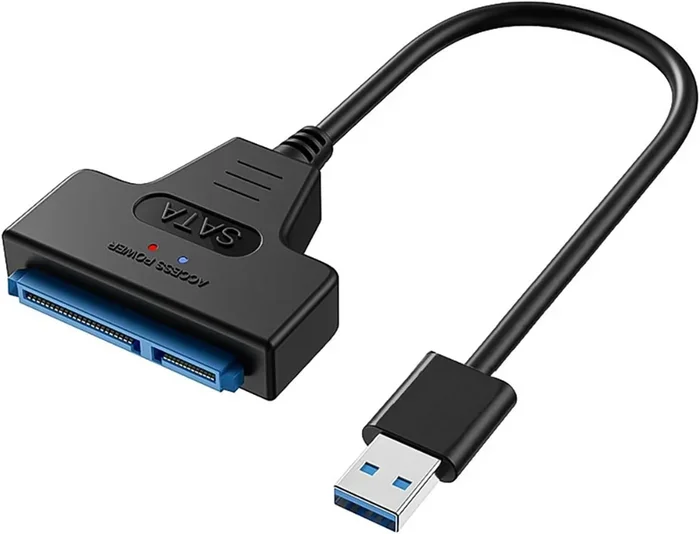
A SATA to USB cable is a handy adapter that lets you connect a SATA device directly to a computer through a USB port. It bridges the gap between internal storage drives and the outside world. You can turn an old hard drive into an external backup drive with just one simple cable.
These cables are popular among people who want quick access to their data without opening up a computer case. They are simple to use and widely available online. Whether you are a tech enthusiast or a casual user, a SATA to USB adapter can make your life much easier.
The basic idea is straightforward. A SATA connector plugs into your drive, and a USB plug connects to your computer. This creates a bridge for data to flow between the two devices. But here is the thing that surprises many people. Not all SATA to USB cables are the same. They come in different shapes, speeds, and power levels.
Understanding what you are buying matters more than most people think. A cheap cable might work for basic tasks but fail when you need fast data transfer speed. On the other hand, a good cable can make your external hard drive feel like it was built right into your system.
So what makes these cables different? It comes down to a few key factors. These include the USB version, the SATA standard, cable length, and whether the cable provides enough power. Each of these plays a big role in how well your setup performs.
In the sections below, we will break down each factor in detail. By the end, you will know exactly what to look for when shopping for a SATA to USB cable. You will also avoid the common mistakes that trip up so many buyers every day.
Types of SATA to USB Cables Available
Standard SATA to USB Cables
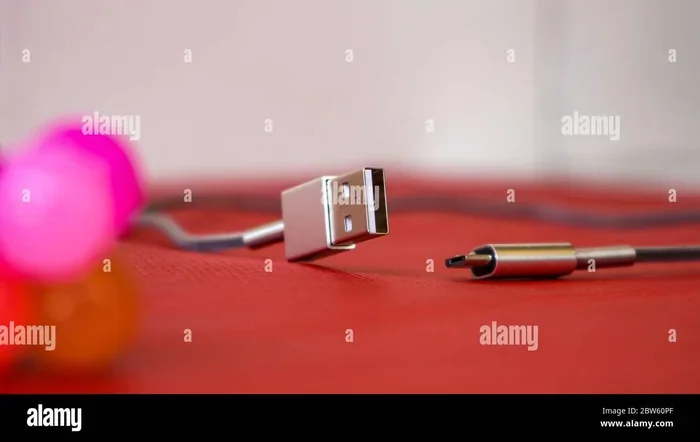
The most common type is the standard SATA to USB cable. This is the basic adapter that most people buy. It has a SATA connector on one end and a USB plug on the other. You plug it into your drive, plug it into your computer, and you are ready to go.
These cables work with both SATA II and SATA III drives. However, the speed you get depends on the USB port you use. If you plug a SATA III drive into a USB 2.0 port, you will only get USB 2.0 speeds. This is a big bottleneck that many people do not realize.
A standard cable is great for simple tasks. Copying files, backing up photos, or transferring documents all work fine. But if you need to move large video files or run intensive applications, you will want something faster.
Think of it this way. Your drive is like a wide highway, but the cable is the road that leads out of town. If the road is narrow, traffic slows down no matter how wide the highway is. This is why matching your cable to your needs is so important.
SATA to USB C Adapters
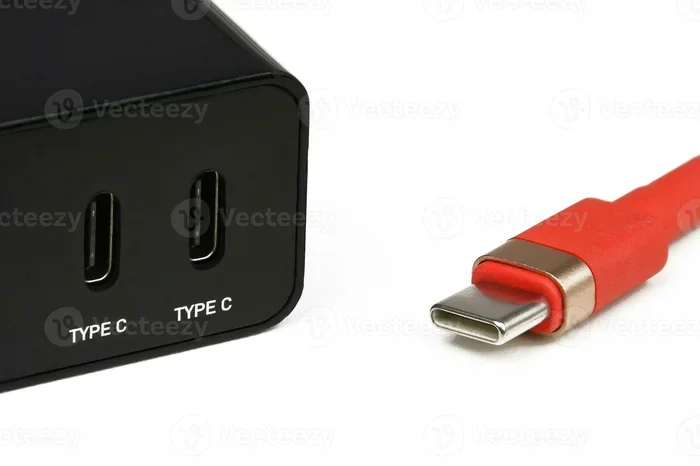
A USB C adapter is a newer option that is gaining popularity fast. The USB Type C connector is reversible, which means you never have to worry about plugging it in the wrong way. It also supports higher data transfer speed and better power delivery than older USB types.
If your computer has a USB C port, a USB C adapter is a smart choice. It gives you faster transfer rates and a more reliable connection. Many modern laptops and desktops now come with USB C ports as standard.
These adapters also tend to be more compact. They are easier to carry around, which makes them great for people who work on the go. You can plug in your storage devices during a commute or a coffee shop session without any hassle. The reversible design is a small feature that makes a big difference in daily use.
SATA Docking Stations
A docking station takes the concept of a cable a step further. Instead of a simple cable, a docking station holds your drive in a cradle. You slide the drive in, and it connects through USB automatically.
Docking stations are excellent for people who work with multiple drives regularly. They offer a more stable connection and often include additional features like built-in cooling. Some models even support dual drive setups, letting you work with two drives at once.
The trade-off is price. A good docking station costs more than a simple cable. But if you use drives frequently, the investment pays off quickly. It saves you from plugging and unplugging cables all the time. For professionals who handle large volumes of data daily, a docking station is almost a necessity.
Hard Drive Enclosures with USB Connectivity
Another option is a hard drive enclosure. This is a protective case that houses your drive and connects via USB. You slide the drive inside, close the case, and you have a portable external drive ready to use.
Enclosures are different from cables because they provide physical protection. They also often have better heat dissipation, which keeps your drive running cool. This is important for long-term use and heavy workloads where heat can degrade performance over time.
However, enclosures are less flexible than cables. You are committed to one drive per enclosure. If you need to switch between drives often, a simple cable or docking station is more practical. Choose the option that fits your workflow and how often you change drives.
Speed and Performance Differences
USB 2.0 vs. USB 3.0 vs. USB 3.1 vs. USB 3.2
The biggest factor in data transfer speed is the USB version your cable supports. Each new USB version brings faster transfer rates and better performance. Here is a quick look at the differences:
- USB 2.0: Maximum transfer speed of 480 Mbps. This is slow by today’s standards. You will notice delays when copying large files or running applications from the drive.
- USB 3.0: Maximum transfer speed of 5 Gbps. This is about ten times faster than USB 2.0. Most modern cables support this standard and it handles everyday tasks with ease.
- USB 3.1: Maximum transfer speed of 10 Gbps. This doubles the speed of USB 3.0 and is great for heavy workloads like video editing or large database transfers.
- USB 3.2: Maximum transfer speed of 20 Gbps. This is the fastest USB standard currently available in consumer cables and represents the cutting edge of portable storage connectivity.
As you can see, the port types matter a lot. A cable is only as fast as the port it plugs into. Even if you buy a SATA III cable that supports fast speeds, a USB 2.0 port will hold you back. This is the most important thing to check before you buy.
This is why checking your computer’s ports before buying a cable is so important. You want to match your cable’s capabilities with your port’s capabilities. Otherwise, you will not get the full benefit of your investment. It is a simple step that saves both time and frustration.
SATA III vs. SATA II Speed Comparison
SATA III drives can transfer data at up to 6 Gbps. SATA II drives max out at 3 Gbps. In real-world use, this means a SATA III drive can move files roughly twice as fast as a SATA II drive when paired with the right cable and port.
However, the cable itself does not determine the drive speed. The drive’s internal hardware sets the limit. The cable just needs to be capable of handling that speed. A quality SATA to USB cable will support both standards without any issues or bottlenecks.
One thing to watch out for is cheap cables that claim to support high speeds but do not deliver. Always buy from reputable brands and read reviews before making a purchase. A poorly made cable can cause dropped connections, corrupted files, and lost data. These are problems you absolutely want to avoid.
Real-World Transfer Speeds
In real-world tests, a good SATA to USB cable with USB 3.0 connectivity can achieve speeds of around 400 to 500 MB per second. This is fast enough to transfer a 10 GB video file in under 30 seconds. For most home users, this speed is more than adequate.
With a USB 3.1 or USB 3.2 cable, you can push those speeds even higher. But remember, your drive and your port both need to support the faster standard. It is like a chain. The chain is only as strong as its weakest link. If any part of the connection is slow, the whole setup slows down.
For everyday tasks like copying documents or backing up photos, even a USB 2.0 connection works fine. But for video editing, large database transfers, or running applications directly from an external drive, you will want the fastest connection you can get. The difference in experience is night and day.
How to Choose the Right SATA to USB Cable
Check Your Device Compatibility
Before you buy any cable, check what your devices support. Look at the ports on your computer and the connector type on your drive. This simple step saves a lot of frustration later on and ensures smooth cable compatibility from day one.
Most modern computers have USB 3.0 or newer ports. Older computers may only have USB 2.0. If you have an older machine, you can still use a SATA to USB adapter, but expect slower speeds. Plan accordingly based on what you need to accomplish and how much time you can afford to wait.
Also consider the type of drive you are connecting. A 2.5-inch SSD has different power needs than a 3.5-inch desktop hard drive. Some cables provide enough power for SSDs but not for larger spinning drives. Check the specifications carefully before you buy. A little research goes a long way toward avoiding compatibility headaches.
Consider Cable Length
Cable length might seem like a minor detail, but it affects performance in real ways. Longer cables can cause signal loss, which reduces data transfer speed. A cable that is too long may also introduce connectivity issues that are hard to diagnose.
For most setups, a cable between 1 and 3 feet long works perfectly. If you need more length, look for cables with built-in signal boosters. These help maintain a strong connection over longer distances and keep your transfer rates consistent.
Measure the distance between your drive and your computer before buying. It is easy to grab a cable that is too long and end up with a messy setup. Keep it simple and choose the right length for your workspace. A clean setup is also a safe setup.
Look for Power Delivery Features
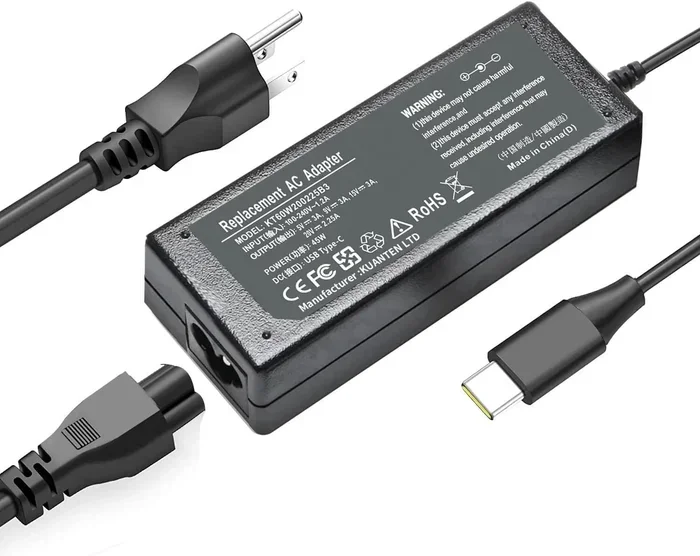
Not all cables provide the same level of power delivery. Some drives, especially 3.5-inch desktop drives, need more power than a USB port can supply through a simple cable. In these cases, you will need a cable with an external power adapter or a dual-USB connector design.
Look for cables that include a power brick or a dual-USB connector. These draw power from two USB ports to ensure your drive gets enough energy. Without proper power, your drive may disconnect randomly or fail to spin up. This is especially frustrating when you are in the middle of an important task.
If you are connecting an SSD, you probably do not need external power. SSDs use much less energy than traditional hard drives. A single USB connection is usually enough to keep them running smoothly and reliably. Always match your cable to your specific drive type.
Read Reviews and Buy from Trusted Brands
This tip cannot be overstated. Always read reviews before buying a SATA to USB cable. Look for feedback on speed, reliability, and build quality. Cheap cables from unknown brands often fail within weeks and can even damage your drives.
Trusted brands like Sabrent, UGREEN, and Cable Matters have solid track records. They offer cables that deliver on their promises. Spending a few extra dollars on a quality cable saves you from headaches down the road. Think of it as an investment in peace of mind.
Also check the warranty. Good brands stand behind their products with at least a one-year guarantee. This gives you protection if something goes wrong. It also signals that the manufacturer trusts the quality of their own product. That confidence is worth paying attention to.
Common Mistakes People Make When Buying SATA to USB Cables
Assuming All Cables Offer the Same Speed
The most common mistake is assuming that any cable will give you the same speed. This is simply not true. A USB 2.0 cable and a USB 3.2 cable are worlds apart in terms of performance. Always check the USB standard before purchasing to avoid disappointment.
Many people buy the cheapest cable they can find and then wonder why their transfers take forever. Do not make this mistake. Take a few minutes to understand what your setup needs and buy accordingly. A small investment in knowledge saves a lot of wasted time.
Ignoring Power Requirements
Another frequent error is ignoring the power needs of your drive. A large desktop hard drive needs more power than a small portable SSD. If you use a cable without adequate power delivery, you will experience dropouts, errors, and potential data loss.
This is especially important if you are using your drive as a backup drive. You do not want your backup to fail because of a weak power connection. Always match your cable to your drive’s power requirements. Reading the product specifications takes five minutes but saves hours of trouble.
Buying the Wrong Connector Type
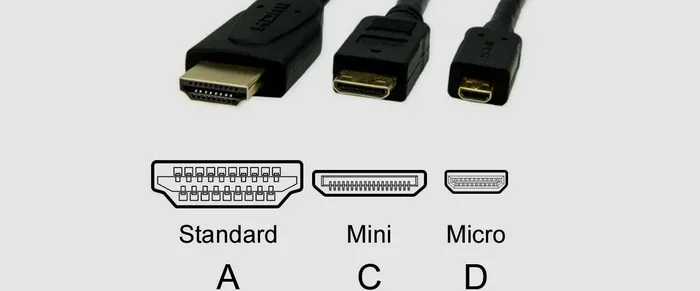
SATA connectors come in different sizes. Desktop drives use a full-size SATA connector, while some smaller drives use a micro or mini SATA connector. Make sure your cable matches your drive’s connector type before you order.
Buying the wrong connector means the cable will not fit. This is a simple mistake that wastes time and money. Double-check your drive specifications before placing an order. Taking this small step prevents a frustrating return process.
Overlooking Cable Build Quality
Thin, flimsy cables may seem like a bargain, but they often cause problems. Poor shielding leads to signal interference, which causes dropped transfers and data corruption. A well-built cable with good shielding protects your valuable data.
Look for cables with braided nylon sheathing or metal connectors. These features indicate better build quality. They also tend to last longer, which is important if you use your cable regularly. A durable cable is a reliable cable, and reliability matters when your data is at stake.
Expert Tips and Final Thoughts
How Professionals Use SATA to USB Cables
Many professionals rely on SATA to USB cables as part of their daily workflow. Data recovery specialists, IT technicians, and video editors use them constantly. In fields like computers in medicine, professionals need reliable storage connections to access patient data and medical imaging files quickly and securely.
These experts know that cable quality directly affects their work. A slow or unreliable cable can cost hours of lost productivity. That is why they invest in high-quality adapters and test them thoroughly before trusting them with important data. Their experience shows that cutting corners on cables is never worth it.
If you work with sensitive or critical data, the same principle applies. Your cable is the bridge between your drive and your computer. Treat it with the same care you give to the rest of your setup. The components found on the motherboard inside your computer determine how your storage drives communicate internally, and your choice of external cable is the final link in that chain.
Quick Tips for Better Performance
- Always use the shortest cable length you need to maintain strong signal strength and fast speeds.
- Plug your cable directly into your computer’s USB port, not into a hub, for the best possible performance.
- Keep your cables away from power cords and other sources of electromagnetic interference.
- Update your USB drivers regularly to ensure optimal connectivity and device compatibility.
- Store your cables properly to prevent damage to the connectors and maintain long-term reliability.
- Test your cable periodically to make sure it is performing at full speed and delivering expected transfer rates.
Final Thoughts on SATA to USB Cables
So, are all SATA to USB cables the same? The answer is a clear no. They differ in speed, connector type, power delivery, and build quality. Choosing the right cable can make a huge difference in your daily workflow and overall user experience.
Take a moment to understand your needs before you shop. Consider the type of drive you have, the ports on your computer, and the kind of work you will be doing. These factors guide you toward the right choice and help you avoid costly mistakes.
A quality SATA to USB adapter is a small investment that pays big dividends. It gives you fast, reliable access to your data whenever you need it. Whether you are backing up files, transferring large projects, or recovering lost data, the right cable makes all the difference in the world.
Remember that the way your storage devices connect to your system depends on the quality of every link in the chain. Your choice of cable is the external connection point, and it deserves the same attention as any internal component. Make it a strong one, and your data will flow smoothly and safely every time.
Now that you know what to look for, you are ready to make a smart purchase. Choose wisely, and your SATA to USB cable will serve you well for years to come. Happy computing!
Frequently Asked Questions
Can I use any SATA to USB cable for my external hard drive?
Not all cables work equally well. You need to match the cable to your drive type and your computer’s USB port. A USB 3.0 cable is the best all-around choice for most users. Always check compatibility before buying to avoid slow speeds or connection issues.
Why is my SATA to USB cable so slow?
Slow speeds usually come from using a USB 2.0 cable or port with a drive that supports faster standards. Check your USB version and upgrade to a USB 3.0 or USB 3.1 cable if needed. Also, longer cables can reduce speed due to signal loss.
Do I need a powered SATA to USB cable?
It depends on your drive. 2.5-inch SSDs usually get enough power from a single USB connection. But 3.5-inch desktop drives often need a cable with an external power adapter or dual-USB connector to work properly and stay connected.
Are USB C SATA cables better than standard USB A SATA cables?
Yes, USB C cables offer faster speeds, better power delivery, and a reversible connector. If your computer has a USB C port, a USB C adapter is the smarter choice. It future-proofs your setup and gives you more flexibility.
Can a SATA to USB cable damage my hard drive?
A poor-quality cable can cause connection drops that lead to data corruption. However, a well-made cable from a trusted brand will not damage your drive. Always buy from reputable manufacturers and avoid cheap, unverified options to keep your data safe.
How long do SATA to USB cables last?
A good quality cable can last several years with proper care. Look for braided nylon sheathing and metal connectors, which add durability. Avoid stretching or bending cables sharply, and store them properly when not in use to extend their lifespan significantly.