Are Usb 2 0 And 3 0 Ports The Same Or Different Today
USB 2.0 and 3.0 ports are not the same. They differ significantly in data transfer speed, power delivery, and overall performance. USB 3.0 ports offer SuperSpeed USB capabilities up to 5 Gbps, while USB 2.0 maxes out at 480 Mbps. Understanding these differences helps you choose the right port for your devices and avoid frustrating bottlenecks.
Have you ever plugged a device into a USB port and wondered if you are using the right one? Maybe you noticed that copying files to a flash drive takes forever on one computer but flies through on another. The answer often comes down to whether the port is USB 2.0 or USB 3.0. These two standards look similar on the outside but behave very differently on the inside.
USB 2.0 and 3.0 ports are not the same, and knowing the difference can save you a lot of time and frustration. Whether you are backing up photos, charging a phone, or connecting an external hard drive, the right port makes all the difference. In this guide, we will break down everything you need to know about these two USB standards in plain, simple language.
By the time you finish reading, you will understand how they differ in speed, power delivery, compatibility, and real-world use. You will also learn how to spot each port type at a glance. Let us dive in and clear up the confusion once and for all.
Key Takeaways
- Speed Gap Is Huge: USB 3.0 transfers data up to 10 times faster than USB 2.0, making a real difference for large file transfers.
- Power Delivery Differs: USB 3.0 ports supply more power, which means faster charging for compatible devices.
- Backward Compatible: USB 3.0 ports work with USB 2.0 devices, but speeds drop to USB 2.0 levels.
- Physical Differences Exist: USB 3.0 ports often have a blue insert or “SS” logo, while USB 2.0 ports are usually black or white.
- Use the Right Port: Matching your device to the correct USB port improves performance and protects your hardware.
- Internal Components Matter: The components found on the motherboard determine how many and what type of USB ports your system supports.
📑 Table of Contents
- What Are USB 2.0 and USB 3.0 Ports?
- Speed and Performance Comparison
- Power Delivery and Charging Differences
- Compatibility and Backward Support
- Common Use Cases for Each Port Type
- How to Tell Which Port You Have
- Common Mistakes People Make with USB Ports
- Expert Insights on Choosing the Right USB Port
- Conclusion
What Are USB 2.0 and USB 3.0 Ports?
USB stands for Universal Serial Bus. It is the standard connector used to link devices to computers. Think of it as the universal language that lets your devices talk to your PC. USB 2.0 came out in the year 2000 and was a big step forward from older connections. It became the go-to standard for peripherals like keyboards, mice, and printers.
USB 3.0 arrived in 2008 and brought major upgrades. It introduced what is called SuperSpeed USB, which dramatically improved data transfer rates. Over the years, both standards have evolved, and you will still find them on computers today. Even as newer versions like USB 3.1 and USB 3.2 have emerged, USB 2.0 and 3.0 remain the most common ports you will encounter.
The components found on the motherboard play a big role in determining which USB ports your computer has. The chipset and host controller inside your system manage how data flows through each port. Understanding this helps you troubleshoot slow connections and choose the right setup.
A Brief History of USB Standards
USB technology has come a long way. Here is a quick timeline of how these standards developed:
- USB 1.0 (1996): The original standard. Very slow at 12 Mbps. Mostly used for simple devices.
- USB 1.1 (1998): Slightly improved. Became widely adopted in consumer devices.
- USB 2.0 (2000): A major leap to 480 Mbps. Supported a wider range of peripherals.
- USB 3.0 (2008): Introduced SuperSpeed at 5 Gbps. Blue-colored ports became common.
- USB 3.1 and 3.2 (2013+): Further speed boosts up to 20 Gbps. New connector types emerged.
Even though newer versions exist, USB 2.0 and 3.0 are still everywhere. Many budget computers and older machines rely on them heavily. Knowing what you are working with helps you get the best performance.
Speed and Performance Comparison
This is where the biggest difference lies. Data transfer speed is what most people care about when comparing USB 2.0 and 3.0 ports. The gap is enormous, and it affects everything from file backups to media streaming.
USB 2.0 Speed: What to Expect
USB 2.0 has a maximum theoretical speed of 480 Mbps. In real-world use, you can expect transfer rates around 25 to 35 Mbps. That means copying a 1 GB file might take anywhere from 30 to 60 seconds. For small files like documents or photos, this is usually fine. But for large files like video footage or full system backups, it can feel painfully slow.
USB 2.0 works perfectly well for basic tasks. Keyboards, mice, and webcams do not need high bandwidth. These devices send small amounts of data and do not benefit much from faster ports. That is why many older peripherals still use USB 2.0 connectors without any issues.
USB 3.0 Speed: What to Expect
USB 3.0 brings SuperSpeed USB technology to the table. Its maximum theoretical speed is 5 Gbps, which is roughly 10 times faster than USB 2.0. In practice, you will see real-world speeds of around 300 to 400 Mbps. That same 1 GB file that took a minute on USB 2.0 now copies in just a few seconds.
The USB bandwidth available in USB 3.0 is significantly higher. This means it can handle multiple data streams at once without slowing down. External solid-state drives, high-resolution cameras, and large backup drives all benefit from this extra bandwidth. If you work with large media files regularly, USB 3.0 is a game-changer.
Real-World Speed Test Example
Here is a simple comparison of how long it takes to transfer a 5 GB file:
- USB 2.0: Approximately 2 to 3 minutes
- USB 3.0: Approximately 15 to 25 seconds
That is a massive difference. Over time, these savings add up, especially if you transfer files daily. The USB interface you choose directly impacts your workflow and productivity.
Power Delivery and Charging Differences
Speed is not the only thing that sets these two standards apart. Power delivery is another key area where USB 3.0 pulls ahead.
USB 2.0 Power Output
USB 2.0 ports typically supply up to 500 milliamps (mA) at 5 volts. That gives you about 2.5 watts of power. This is enough to charge a phone slowly or power a small USB hub. However, it may not be sufficient for devices that need more juice, like portable hard drives.
If you have ever noticed that your external hard drive makes a clicking sound or disconnects randomly when plugged into a USB 2.0 port, low power is usually the culprit. These devices need more current than USB 2.0 can comfortably provide.
USB 3.0 Power Output
USB 3.0 ports supply up to 900 mA at 5 volts, giving you about 4.5 watts. That is nearly double the power of USB 2.0. This extra wattage means faster charging speed for phones, tablets, and other devices. It also means external drives are more likely to work without needing a separate power source.
Some devices take advantage of this higher power delivery to operate more efficiently. For example, a USB 3.0 flash drive may use less power during read operations, which extends its lifespan. The USB cable quality also plays a role here. Thicker cables with better shielding carry power more efficiently.
Compatibility and Backward Support
One of the best things about USB technology is its backward compatibility. USB 3.0 ports work with USB 2.0 devices, and vice versa. This plug-and-play feature has been a cornerstone of USB design from the very beginning.
How Backward Compatibility Works
When you plug a USB 2.0 device into a USB 3.0 port, the connection defaults to USB 2.0 speeds. The port detects the device and adjusts accordingly. Similarly, if you plug a USB 3.0 device into a USB 2.0 port, it will work but at the slower USB 2.0 speed.
This is great news for users who have a mix of old and new devices. You do not need to replace everything to enjoy the benefits of USB 3.0. However, you also cannot get USB 3.0 speeds unless both the port and the device support it.
The Role of the Host Controller
Inside your computer, the host controller manages communication between the USB port and the device. There are different types of host controllers for USB 2.0 and 3.0. A USB 3.0 host controller (called xHCI) handles both USB 2.0 and 3.0 devices. A USB 2.0 host controller (called EHCI) only handles USB 2.0 devices.
Modern computers typically have both types built into the chipset. This allows them to support a wide range of devices without any extra hardware. If you are building or upgrading a system, checking the motherboard specs for USB host controller support is a smart move.
Common Use Cases for Each Port Type
Not every device needs the fastest port available. Matching the right port to the right use case helps you get the most out of your setup.
When USB 2.0 Is Still Perfectly Fine
USB 2.0 still has a place in modern computing. Here are situations where it works just fine:
- Keyboards and mice: These devices send tiny amounts of data and do not need speed.
- Printers and scanners: Print jobs are small and do not benefit from faster transfer rates.
- Basic flash drives: For storing documents or small files, USB 2.0 is perfectly adequate.
- Legacy peripherals: Older devices that only came with USB 2.0 connectors work great on modern ports.
- USB hubs: A simple USB hub for connecting multiple low-bandwidth devices works well on USB 2.0.
In many offices and homes, USB 2.0 ports handle everyday tasks without any complaints. The simplicity and widespread availability of these ports keep them relevant even years after their introduction.
When You Need USB 3.0
There are plenty of situations where USB 3.0 is the clear winner:
- External hard drives and SSDs: Large files need fast transfer speeds to save time.
- Video editing and storage: High-resolution video files are huge and benefit greatly from SuperSpeed USB.
- Fast device charging: Phones and tablets charge noticeably faster on USB 3.0 ports.
- Medical imaging equipment: Computers are used in medicine for transferring large image files quickly, and USB 3.0 makes this process much smoother.
- Data backup systems: Regular backups of large folders or entire drives are far less tedious with USB 3.0.
If you work in fields that rely on heavy data transfer, investing in USB 3.0 ports is well worth it. The time savings add up quickly, especially when handling large volumes of data regularly.
How to Tell Which Port You Have
Identifying a USB port is easier than you might think. There are simple visual cues and even software methods to find out exactly what you are working with.
Visual Identification
Most manufacturers follow a color-coding system for USB ports:
- Black or white ports: These are almost always USB 2.0.
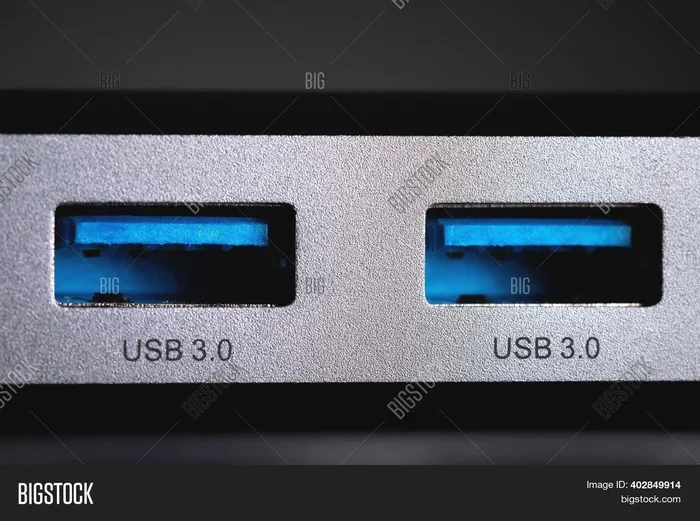
- Blue ports: These indicate USB 3.0 (also called USB 3.0 Gen 1).
- Teal or turquoise ports: These are USB 3.1 or USB 3.2 ports, which are even faster.
Look for the “SS” logo next to the port. SS stands for SuperSpeed, and it is a clear sign that the port supports USB 3.0 or higher. If you see no color marking and no SS logo, it is most likely a USB 2.0 port.
Software Detection
You can also check your port type through your operating system. On Windows, open Device Manager and look under Universal Serial Bus controllers. You will see entries like “USB 2.0 Host Controller” or “USB 3.0 eXtensible Host Controller.” On macOS, you can use System Information to view USB device details.
This method is especially helpful if the port colors have faded or if you are using a port hidden behind a desk panel. Software detection gives you a definitive answer every time.
Common Mistakes People Make with USB Ports
Even tech-savvy users sometimes make mistakes when it comes to USB ports. Here are a few to avoid:
- Assuming all ports are the same: Not all ports on your computer are identical. Check each one before assuming the speed.
- Using a USB 2.0 cable with a USB 3.0 port: The cable may limit the speed to USB 2.0 levels. Always use the cable that came with your device or a certified USB 3.0 cable.
- Ignoring power limitations: Plugging a power-hungry device into a USB 2.0 port can cause disconnections or slow performance.
- Overlooking the USB hub quality: A cheap hub can bottleneck your connection, no matter how fast the port is.
- Forgetting to eject devices safely: This applies to both USB 2.0 and 3.0. Always use the safely remove hardware option to prevent data corruption.
Avoiding these simple mistakes can extend the life of your devices and keep your data safe. A little attention to detail goes a long way.
Expert Insights on Choosing the Right USB Port
Technology evolves fast, but the basics of USB ports remain consistent. Experts recommend always checking your device requirements before choosing a port. If your device supports USB 3.0, use a USB 3.0 port to get the full benefit. If you are unsure, start with the visual cues we discussed earlier.
Another tip from professionals is to keep your USB drivers updated. Outdated drivers can cause compatibility issues and slow performance. Most modern operating systems handle this automatically, but it is worth checking once in a while, especially after a major system update.
The USB standard continues to evolve, but the fundamentals of USB 2.0 and 3.0 remain relevant. Understanding these two standards gives you a strong foundation for making smart connectivity decisions. Whether you are a casual user or a professional who relies on fast data transfer, knowing your ports helps you get the most out of your setup.
Conclusion
USB 2.0 and 3.0 ports are not the same, and now you know exactly why. The differences in speed, power delivery, and real-world performance are significant. USB 3.0 offers SuperSpeed USB capabilities that make large file transfers quick and charging more efficient. USB 2.0 remains perfectly suitable for basic peripherals and everyday tasks.
The key takeaway is to match your device to the right port. Use USB 3.0 for external drives, media files, and fast charging. Use USB 2.0 for simple peripherals that do not need high bandwidth. With the tips and insights in this guide, you can confidently identify each port type and use it to its full potential. Your devices and your patience will thank you.
Frequently Asked Questions
Can I plug a USB 3.0 device into a USB 2.0 port?
Yes, you can. USB ports are backward compatible by design. However, the device will operate at USB 2.0 speeds. You will not get the faster SuperSpeed USB performance unless both the port and the device support USB 3.0.
How can I tell if my USB port is 2.0 or 3.0 without looking at the color?
You can check through your operating system’s Device Manager or System Information tool. Look for the host controller name. If it says “USB 3.0 eXtensible Host Controller,” you have a USB 3.0 port. If it says “USB 2.0 Host Controller,” it is a USB 2.0 port.
Does the USB cable affect transfer speed?
Yes, it does. A USB 2.0 cable will limit your connection to USB 2.0 speeds even if the port supports USB 3.0. Always use a cable that matches or exceeds the port standard for the best performance.
Is USB 3.0 backward compatible with USB 2.0 devices?
Absolutely. USB 3.0 ports are designed to work with USB 2.0 devices seamlessly. The connection simply defaults to the slower USB 2.0 protocol when a USB 2.0 device is detected.
Can I use a USB 3.0 port to charge my phone faster?
Yes. USB 3.0 ports supply more power than USB 2.0 ports, which means they can charge compatible devices faster. However, the actual charging speed also depends on your phone’s charging circuitry and the cable you use.
Are all blue USB ports USB 3.0?
Most blue USB ports are USB 3.0, but this is not an official rule. Some manufacturers may use different colors. The most reliable way to confirm is to look for the “SS” SuperSpeed logo next to the port or check your system’s device manager.